
Our next category is Name Resolution, and Wireshark allows you to resolve many of the different addresses that we see in Wireshark into different names, to make it easier for us as humans to understand what we're looking at:
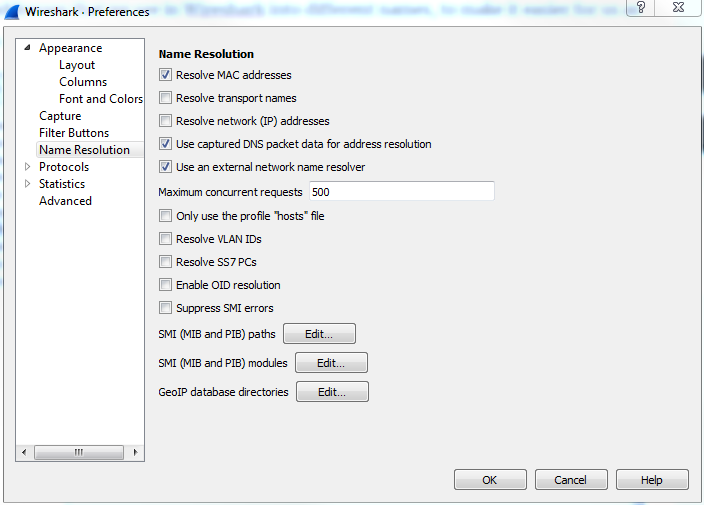
So, by default, it allows for resolution of MAC addresses to the first half of the MAC address. If you know about MAC addresses and how they work, the first half of the MAC is the manufacturer of the network card. So, Wireshark has a built-in list of these known manufacturers and the OUIs, which is the first half of the MAC, and it will try to resolve them for you. And that's why you'll potentially see Realtek: and then the other half of a MAC address or Cisco: and the last half of a MAC address. That's because of this checkbox.
You can also resolve the transport names, which are the TCP and UDP ports and IP addresses. Now, if you choose the Resolve network (IP) addresses option, note that it does not reference a static file within Wireshark, such as the MAC address and the transport names. It will attempt to do a DNS resolution while you're capturing. This can be a very negative thing with Wireshark, especially if you are doing a large capture with a lot of data coming in. You could have potentially thousands and thousands of DNS resolution requests going out from your capture system, clogging up the work. What I would recommend is, when you have a capture, you can right-click on an IP address and resolve it with that specific IP address rather than resolving everything. Now, the lower section, where it says Enable OID resolution and Suppress SMI errors, is for SNMP resolution. In SNMP, you have MIBs, which are basically word translations to OID locations, and you can resolve these in Wireshark.
If you are capturing SNMP traffic, you can resolve these OID strings into the MIBs if you enable the OID resolution.