
In this section, we'll take a look at how FTP works, the differences between the active mode and the passive mode, and how to transfer files securely with FPTS and SFTP.
We'll start a capture once again and connect to an FTP server that does not use encryption. So, this server is a Belarus-hosted server that has some Linux ISOs on it, and it allows anonymous connections. I'll just log in with anonymous, and we'll use port 21 and click on Quickconnect:
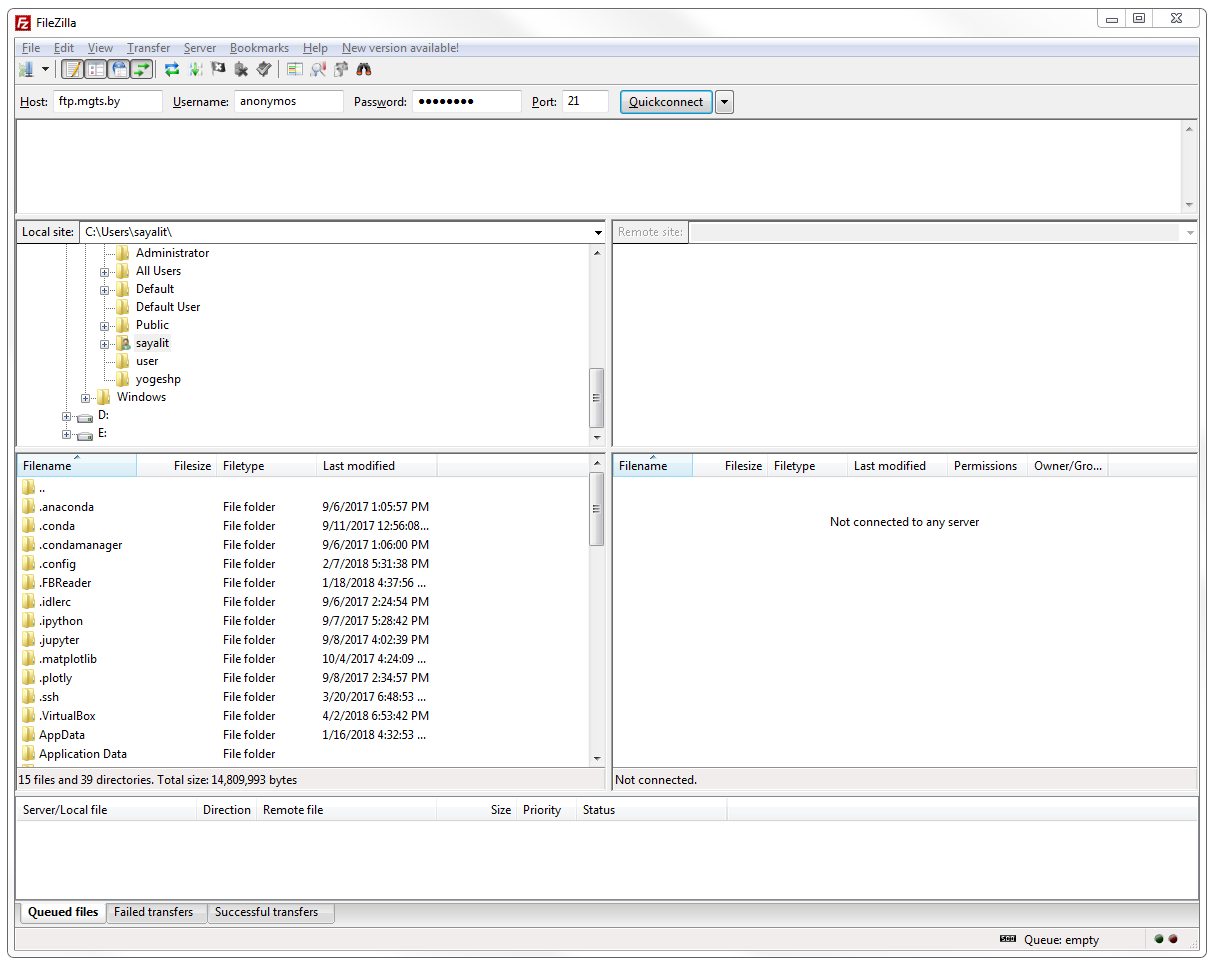
We can see that we've logged in. It states that it does not use TLS, and it lists the root directory:

What we'll do is stop that capture, and if we scroll down through the packets we'll see that we have a bunch of other types of traffic here, but then we see some FTP listed. What we can do is create a filter with simply ftp in it, and that'll show us all the FTP traffic:
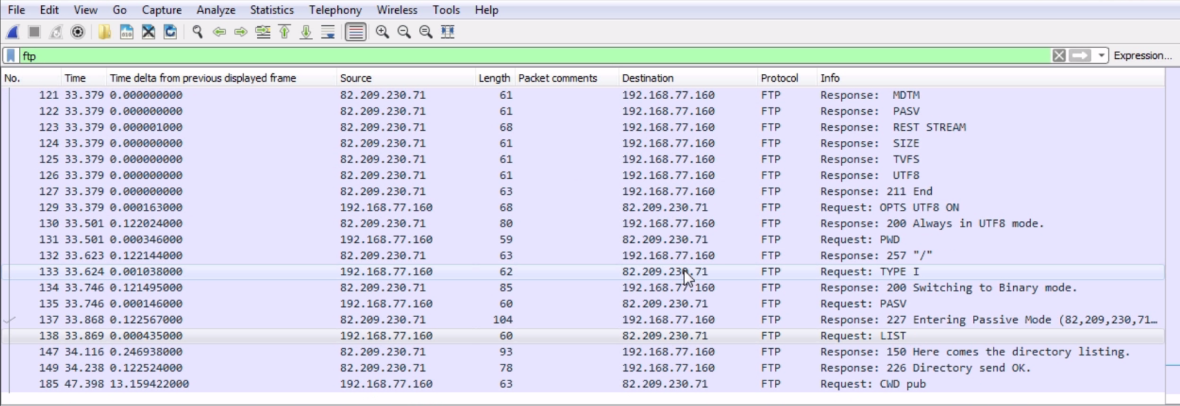
We can see the connection over unencrypted FTP. You can see all the commands, just like with HTTP. If we dig into our FTP section in the packet details, we'll see that we have very few commands that are transferred:

We connected with our three-way handshake in the packets prior to packet 101. So packets 98, 99, and 100 were the TCP handshake. Then, it states code 220 as being service ready for the new user. So the server says: "I see you've created a connection to me. Send me some authentication". My software asked whether it is capable of using TLS, which is the encryption that we use for HTTPS to allow for encryption. The server responded, saying: "No, I can't do that. Please just log in with the username and password". Then my software, the FileZilla client, said: "Well, what about SSL?" And then the server replied, and said: "No, sorry. I don't do that". "Then my client finally sent it a user, saying: "Here's the user command. I'm going to log in with anonymous". The server accepted that, and said: "Please specify the password".
I provided the password with the PASS command. The server evaluated that and it determined that the credentials were good, and it said: Login successful, code 230. My system then asked what kind of system type it is and what the server's running, and the server responded that it's using a Unix-type server. It then asked for what feature set it has available, and the server responded back with a list of features that it's capable of supporting. Then it says: "That's the end of my list". My client turned on the UTF8 option. The server said: "No problem". Then my client requested print working directory (PWD) and the server said: "You are in the root, the / directory. That's the first directory that you're in". My client changed to Binary mode, which is type I. The server responded, saying: "No problem". I then requested passive mode that was another feature that it was capable of providing. Passive mode allows FTP to communicate and transfer its data over a random, dynamic port. So if you were looking at the port numbers here, I'm talking to the server and my client, which is running locally; the client software's running on 52284. It's talking to the server on port 21. The data is just commands, which has to go over another port. With FTP active, the data will transfer over port 20 and all the commands over 21. This is not a common thing to see nowadays because the active mode can easily be hacked. It's not a very secure method because you know exactly what port the data's going to be transferred over. So, if you're in the middle, you know exactly what port to look at in order to capture all of the unencrypted data. Passive mode, on the other hand, allows for a dynamic port to be used, so the data itself will be transferred over a different port. So, it's an enhancement to the FTP protocol. Nowadays, most commonly, you'll see port 21 used for the server commands and then a dynamic port ranging in the thousands for the actual data itself. FTP separates the commands from the data on different port numbers. Not every protocol does that, as we've seen with HTTP, for example, which runs commonly on port 80, and it sends commands and data on the same port, unlike FTP. FTP is a very old protocol.
So we see a response from the server, saying: "We're entering passive mode". I then ask for a list of the directory that I'm in. Remember I asked for what directory I'm under: print working directory. I switched to Binary mode. I said: "Let's use passive. Now give me a list of all the files". The server then says: "ok, I'm sending the directory listing. The directory listing was sent, so this is from the server. And then, I asked to change the directory to a subfolder called pub, and at that point I stopped the capture. What we're missing, though, is the data. You notice I don't have any data. How do I find the data with a dynamic port number using FTP passive mode? You do that by adding an additional filter to your display filter.
You see that we have ftp, which is for the commands. If you want the data as well, you'll have to type ftp || ftp-data. If you press Enter, now we'll get the FTP traffic, as well as the FTP data traffic:
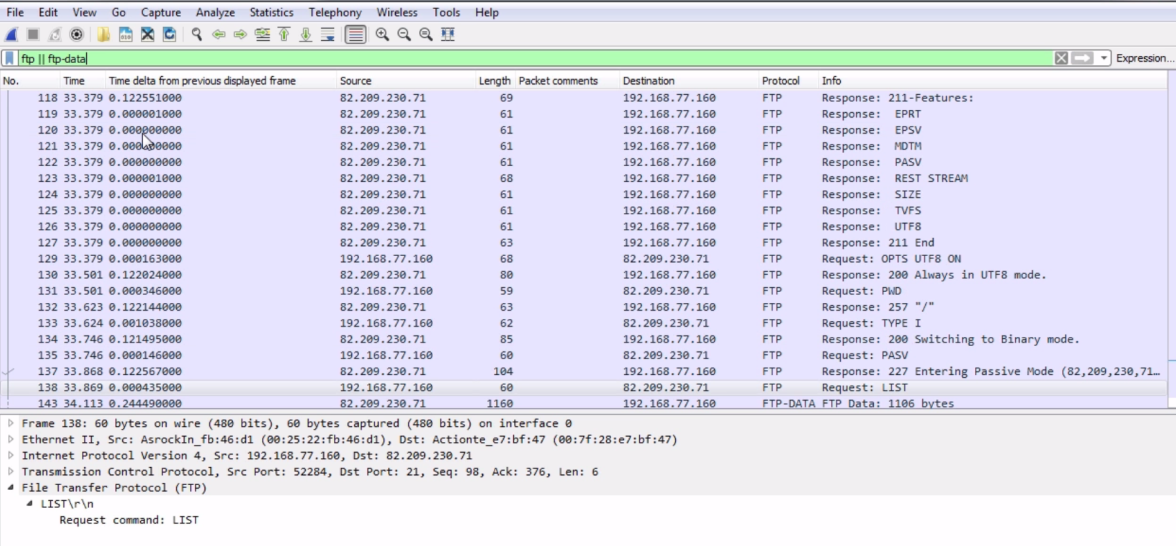
As you can see, my client requested the listing of that directory, the root directory; now, the server is sending all of that data over the special port. We can see that the server is running on port 54536, and it's going to my client running at 52285. So that's the difference between FTP active and FTP passive.
Now, there's also FTPS and SFTP. If you notice, all of the packets are unencrypted. We see all the commands—the login username and password. This is not good for going over the public internet in a nonanonymous mode. If you're using a username and password, you should be encrypting that—you should be encrypting your data. You can do that using SSL or TLS, just like I mentioned with HTTP as we've seen before, and many other protocols that you can encrypt with TLS. So, FTPS is FTP encrypted with TLS or SSL. That's the more standard method of doing that using the FTP protocol as it's already implemented, but then encrypting on top of it.
There's also Secure Shell File Transfer Protocol (SFTP). SFTP runs over a different port; it runs over port 22. So, you'll actually want to filter based on ssh in that case because the FTP traffic is traveling over SSH, the secure shell port; so, you could use ssh as your filter. Now obviously that's not here in this capture, but that works as the filter you will use, and all the traffic will go over that. But it would all be encrypted—just like with FTPS, which is encrypted—you will need the server private key in order to decrypt it, like you saw in the previous section with HTTPS. Note that there are two protocols for transferring files in a secure manner, and they are different. FTPS uses the standard FTP but encrypts it with TLS or SSL. SFTP is its own animal; it has its own protocol and application. SFTP is completely separate, and it runs file transfers over SSH.
In this section, we discussed DHCP: how that protocol functions and how to take a look at some of the options that are in it.