
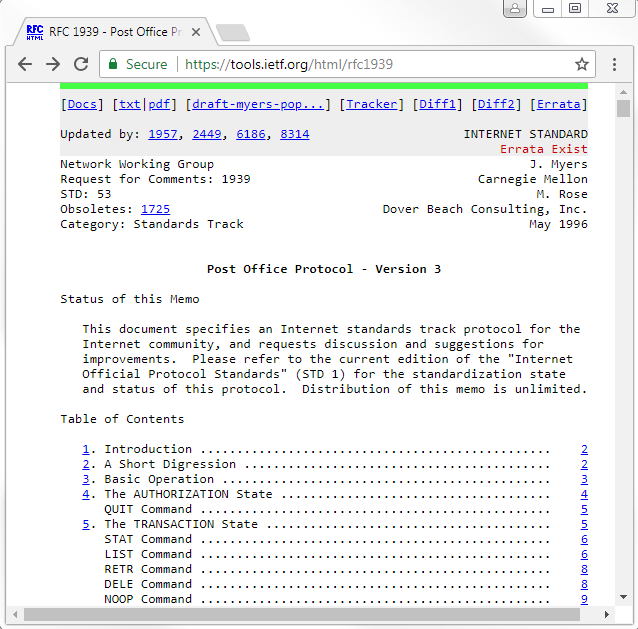
POP is used for retrieving emails from a mail server. SMTP is used for sending emails to a mail server and sending emails between mail servers. If you'd like to learn more about POP and SMTP, take a look at these RFCs:
- RFC 1939 for POP, which you can see in the following screenshot (https://tools.ietf.org/html/rfc1939):
- RFC 2821 for SMTP, which you can see in the following screenshot (https://tools.ietf.org/html/rfc2821):
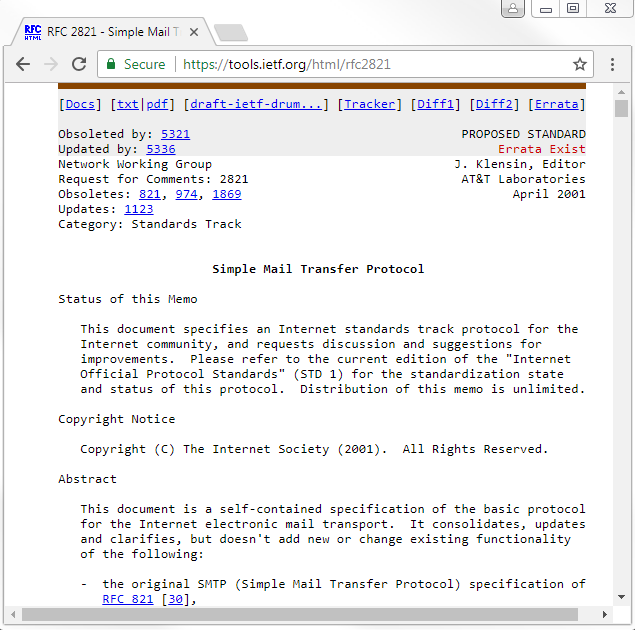
In the preceding screenshot, you'll see there are a number of commands that are transmitted between the client and the server in order to convey what they want to accomplish in the connection. Just like we've seen with HTTP and FTP, and some other protocols, there's an agreed-upon language that is used in order to execute certain things. We'll take a look at that in a packet capture.
Now, it's very common in modern use to encrypt your data, especially email nowadays, so POP is often encrypted with SSL or TLS. You also do the same thing with SMTP or IMAP: you can now encrypt all these protocols with SSL or TLS. This is an unencrypted communication so that we can take a look at all the commands that are passed back and forth.
What we see in the packet capture is we have in the beginning a three-way handshake for TCP; POP is transmitted over TCP. And then we have our POP communication as well as some acknowledgments, and then the FIN closure.
There is a filter for POP. You can right-click on your Protocol and apply it as a filter; or you can simply enter pop, and that will filter your traffic:
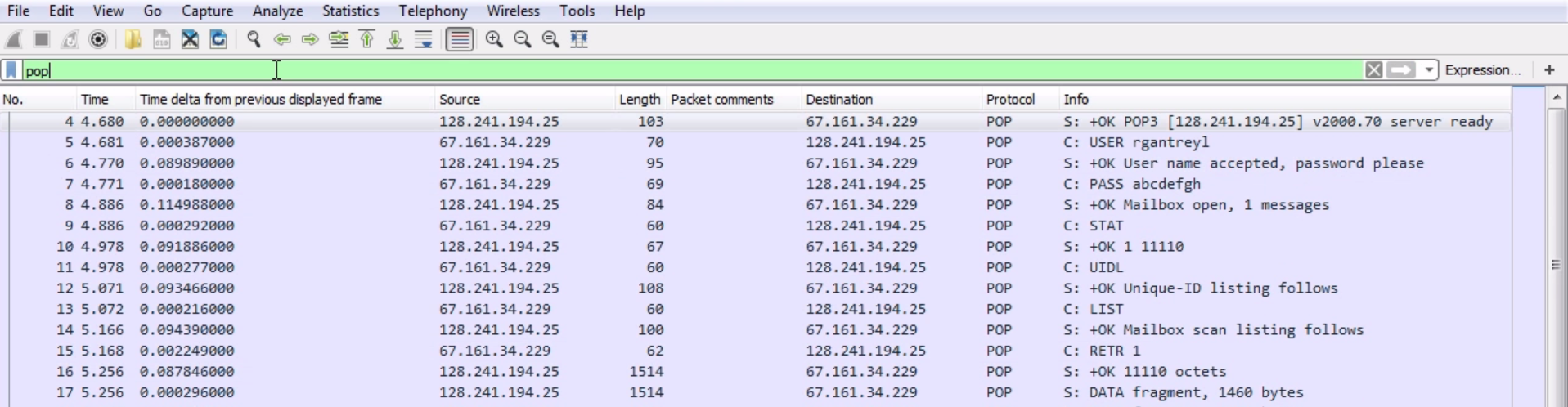
However, if you notice, we have lost the handshake information at the beginning and the end, and some of the acknowledgment packets that were there earlier in between the data have now been removed because they weren't part of POP. They were TCP acknowledgments and handshake. So it might be better if you determine the addresses that are in use or the port that is in use, and end up filtering on that instead of pop as the display filter. So what we have is our three-way handshake. We have our client and server. The client is requesting a connection. The server says: ok, no problem. The client then says: ok, I acknowledge a connection; and we have a three-way handshake. After that the server then responds and says: ok, we are connected with POP3. The server is ready; you can see that in the packet details.
If we expand our Post Office Protocol, we'll have some more information. It says that the server's ready:

So that's a good message. The client then passes its user, and you see that since this is unencrypted, the user is in plain text:

We passed the USER command to the server. The server responds and says: ok, the username is good. Please send me a password. We then send a password. Again, this is unencrypted, so it's in clear text. And you can see it's very easy to determine what's going on. We have the commands, which are named USER, PASS, and OK. The server responds and says: ok, mailbox has been opened up. Thank you for your credentials. You have one message that is unread. The client then asks the server for some status; the server responds with the status message. We then get a unique ID listing, and then the client asks for a list. Highlighted in the preceding screenshot is a list of whatever's in the mailbox. The mailbox scan is completed, and it sends us the data, which is the number of messages and the number of bytes. The client then says: all right, let's retrieve message number 1. The server then says: ok, these are the octets that you requested.
And you can see that down in the packet details; we have not only the number of octets but we have the actual email itself, which includes the header information; the sent and received information; the From; the To; the Subject; the Date; and then the actual data inside the email itself:

As you can see, the data then continues, as shown in the following screenshot:
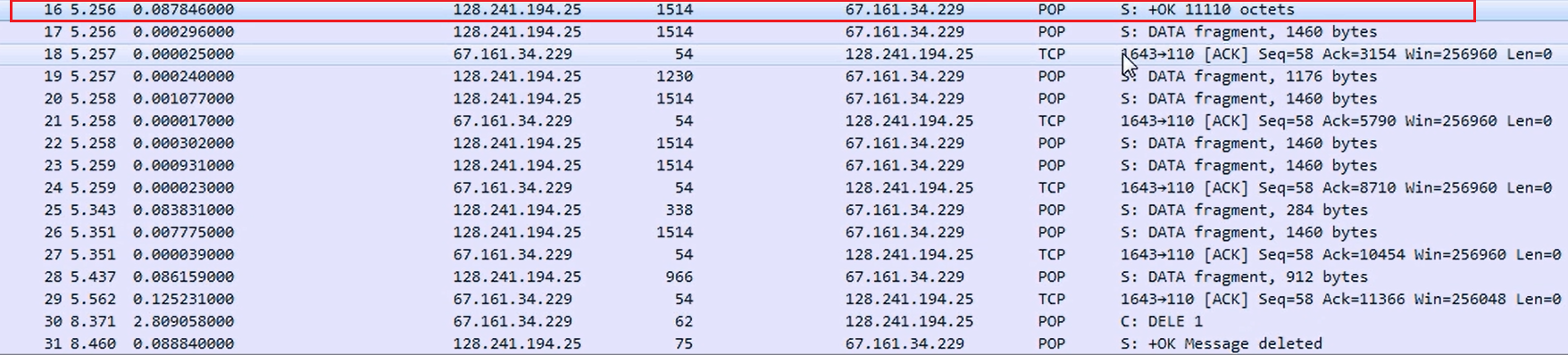
So, the first packet was basically the header information with the beginning of the data, and then the data continues. We then acknowledge the packets. We keep retrieving data, then the client says: delete the message. We have downloaded the email; now delete the message. This is an option that is changeable.
You can tell your client to leave a message on the server, but traditionally it is done so that you download it locally and you would delete it off the server.
Nowadays, with our web-based email, or if you're using Gmail or Yahoo! or something like that, we now most often leave everything on the server and have it archived there. But this is a very old protocol, and so it was based on local storage.
The server responds saying that it deleted the message, and then we quit the connection and close out.
It says: ok, sayonara. Then finally, we close out the TCP connection with the FIN and ACK series.
Now, let's take a look at SMTP. SMTP is used to transfer email between a client and a server in order to send it to a routed recipient:
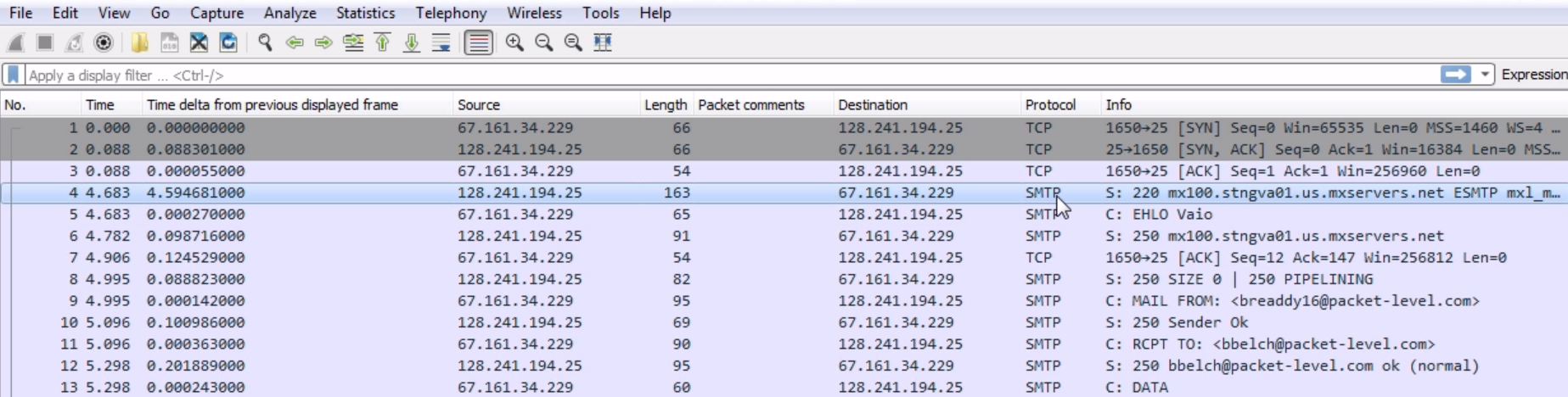
What we see here is a series of SYN and ACK of a user creating a TCP connection for SMTP, and then we see the SMTP response from the server. And of course, we have SMTP listed in the Protocol column. We could filter on that by simply typing smtp:

Just like with pop, we'll lose some of the information there from TCP, so it might be better to do your filter based on ip and port.
Well, what we see in the previous screenshot, after the three-way handshake from the server, the 128 address, is that it responds with a 220:

A 220 response code is a service ready, which means everything is good. This will look familiar to POP and HTTP.
Many of these protocols, especially the ones that are older, use these different numbered response codes. Just like with the HTTP, 200 series response codes are good. So we see a 220, everything's good to go. We also see that we have ESTMP. This is for the enhanced version of SMTP. Just like with POP and FTP, SMTP is a very old protocol, and it's been extended and enhanced over the years. There's a newer version of SMTP, which is transmitted using new commands, with an E in the front:

The client then sends an EHLO, which is the enhanced version of HELO for the traditional original protocol, for it to create a connection. The server responds to the HELO request and creates a connection. We then acknowledge that, and then the server responds with a listing of what it can do. There are some features that it has, and we see that it has PIPELINING:
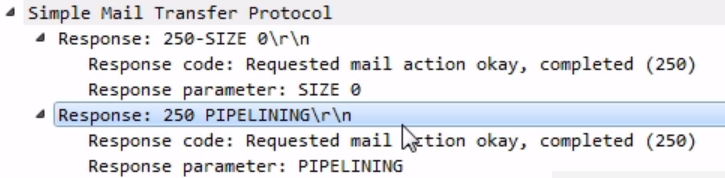
PIPELINING is an option in the server that says that it can accept multiple commands without having to wait for each one, so our client can then send a number of things at once and it doesn't have to wait. Our client then says that it'll create an email message; and if you notice, it says MAIL FROM:

Actually, remember when we looked at the POP message, and there was a From and a To and a Subject, and the actual body field? Exactly what you saw in the POP request, you see here in the SMTP. So, we have the prepended command of MAIL, but you see From and the email address, just like you would when you open it up in your client software after you pulled the message. We are literally writing an email with commands. The email itself is not like a data package that is just bundled up into a little file and sent to the server. This is old enough that we are actually crafting the email command by command and line by line in SMTP. So we are saying: We're creating an email and it's from the following person. The server says: ok, looks good. RCPT To says that so we are sending it to the following person. The server says: ok. We then say: here's some data (the data being the body of our message):

The server responds and says: ok, and let me know when you're done with the email message by putting the following commands at the end of your message. Then, the client provides a number of packets here of the actual email data that it wants to have in the body. See some additional packets related to that? We have some acknowledgments from the server for some of these data packets, then a response from the server saying that the message was accepted and it's going to send it to a recipient.
We acknowledge that and tell it: ok, I'm done; and we quit the SMTP connection:

Then we finish out the TCP connection with some FINs and ACKs; we have some explicit resets in the end as well, and that is the termination of our connection.