
In this section, we'll take a look at how DHCP works, some of the fields that are within the DHCP protocol, watch a client retrieve an IP address, and also take a look at what happens with DHCP when a client requests an address and receives responses.
Let's start a packet capture. What we'll do now is release the address on my computer and then renew it.
Type ipconfig /release on a Windows computer on Command Prompt to release our address, then if we type ipconfig /renew, it will get us a new address.
Now, if we type ipconfig /all, we should be able to see that our address is assigned. We'll stop our capture now. We'll want to only pick out the DHCP traffic. So you would assume you could go up to the display filter and type dhcp, just like we've done for the other protocols, and then press Enter and it works. But we can see that there's a red bar up there, which indicates that dhcp is not valid:

This is because the display filter is actually bootp. DHCP is based off of bootp. bootp was the predecessor protocol to DHCP, so in Wireshark they use the predecessor's protocol filter. Hence, you want to use bootp. If we use bootp, we'll see that we have our DHCP release and discover:
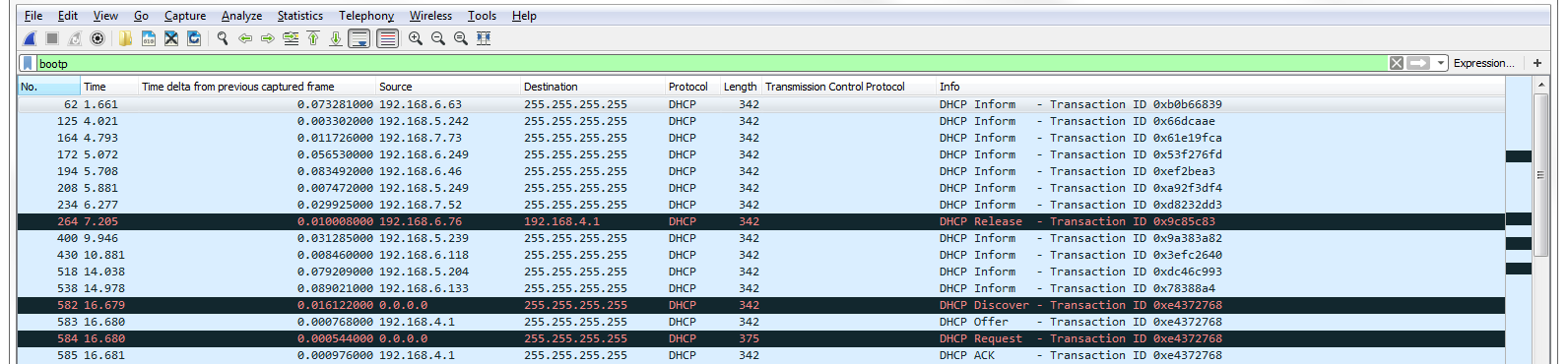
The 264th packet is Release. My system already had an IP address, and it wanted to get rid of it. It sent a packet to the DHCP server, which is 4.1, and it said: "Please get rid of my address." If we look into our DHCP details in the packet details section, you can see that it says Bootstrap Protocol (that's where bootp comes from) and we scroll down to the bottom and you see options, and if you look at option 53 it says we have a Release:
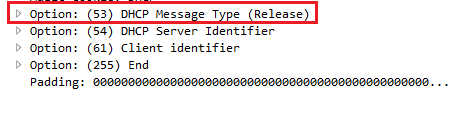
So that's where it's requesting to get rid of its address. The system then at that point has no address, and the local client erases the IP address from its information on the network interface card.
After this, I initiated the DHCP renew command, which told it to go get an address. Now I did this because my system had already been up and had already retrieved a DHCP address on bootp. Commonly, a system will retrieve IP information and other configuration options from a DHCP server on boot of the operating system. But since my system had already had an address, I had to get rid of it, and then forcibly tell it to get a new one with that /renew command. When a system requests an address, it initiates with a Discover request. And you can see that the discover (which is down at the packet details at option 53 Discover) it sent it out to a broadcast to 255.255.255.255. That's because the client doesn't have an IP address, and you can see that it has 0.0.0.0 as its source.
It doesn't know where it needs to go to talk to the DHCP server. So it sends it out to a broadcast address, hoping that someone will respond to its request for a DHCP server. We can see that the Discover packet is asking for a DHCP server. It says: "I'm trying to discover a server." If you have multiple servers on a subnet, you may get a different server offering itself from time to time. This can cause problems sometimes, depending on your network design. If you have a simple network, such as a home network, and you have two DHCP servers, most likely one of them is by accident. You might face that problem when people bring home wireless routers or something like that into a workplace and they don't turn off the DHCP server; it can cause problems like this.
Looking for Offer packets sometimes is useful in packet captures because you may not necessarily want to see them; this may be a bad thing. If you happen to see Offers from a server address that doesn't make any sense according to your network design, then that's a red flag. You can of course right-click on the DHCP: Offer (2) and go to Prepare a Filter | Selected:
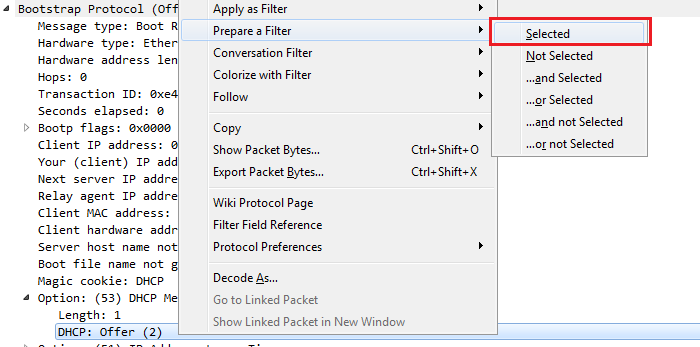
This way, you can filter all of your packet captures based off of just the Offer. If we had a whole bunch of Offers from a bunch of different servers, that could be a problem.
If we go back to our standard bootp filter, you'll see after the Offer where the server is now responding to our broadcast it says. I then send out a request for my client. You can see down in the packet details in the options that I'm actually requesting a specific address:
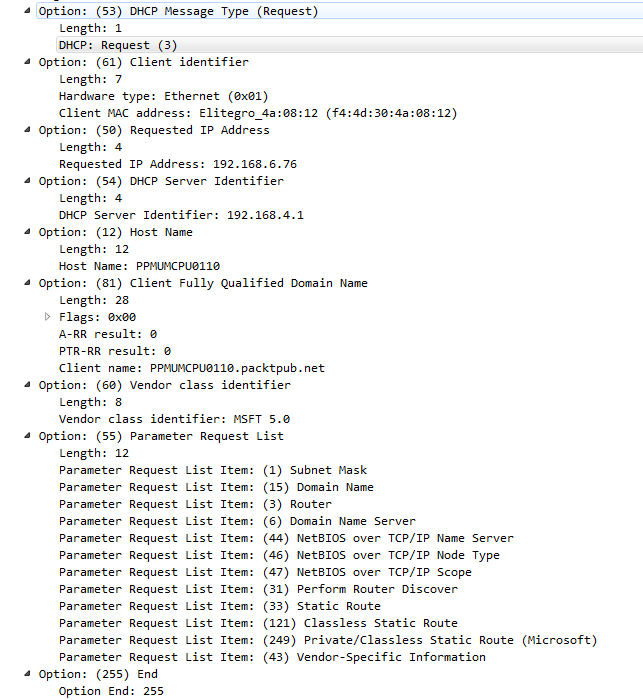
This you would not normally see on a new system that just booted up, but because my system, the client, already knew that it had a previous address, it kept that information saved even though it was not configured in the network card. It requested that specific address to renew it and put it back into its configuration. You can see that now it also knows the server. So it sends it out to the server, but doesn't come from a layer 3 IPv4 address because it doesn't have one yet; it's requesting for it. Hence, it still sends it out to the broadcast.
You might see additional options in the preceding screenshot. These option numbers reflect a whole bunch of different things that you can configure in DHCP; it's not just for IP addresses. You'll see this commonly used with voiceover IP phones because you can pass different options, such as option 43, and actually tell it what VLAN it needs to belong to and force it to the other VLAN. You can also tell it where the TFTP server is to retrieve firmware information and all sorts of different things that you can send to a device to automatically configure it. That's why they call it the dynamic host configuration protocol: it's not just for IP. If you want to learn more about it, you can of course take a look at the RFC.
The RFC for DHCP (remember, this is the upgraded version of bootp) is 2131, and you will see that it's quite a lengthy document (http://ietf.org/rfc/rfc2131.txt):
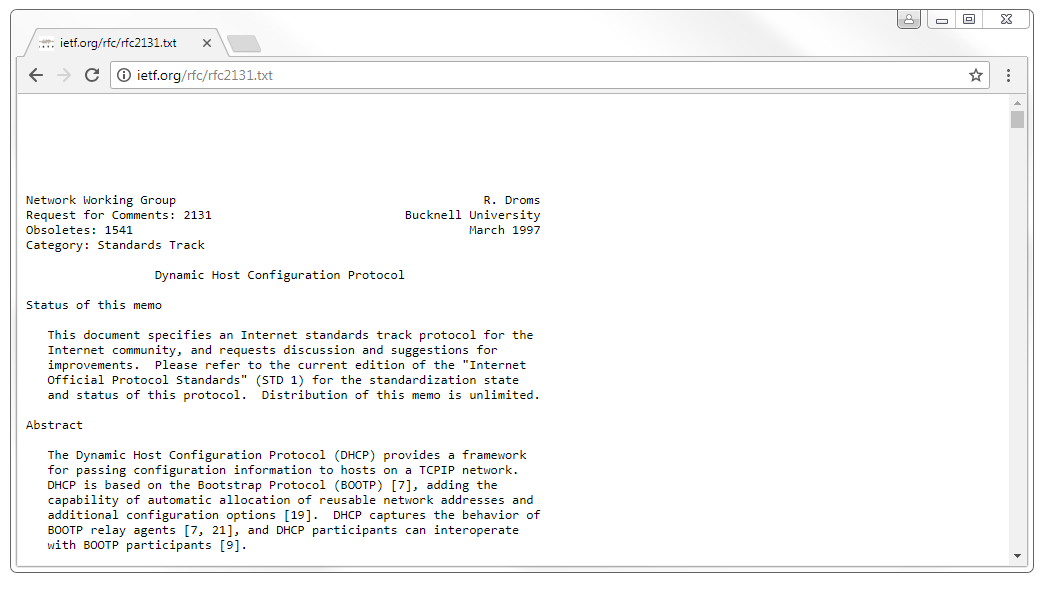
There's quite some information as shown in the preceding screenshot, and it goes through a lot of the functionality of DHCP. Now, it will not include every single option and every single thing that you can configure because some of them are vendor specific; and of course, DHCP has been extended since 1997, with additional add-on features.
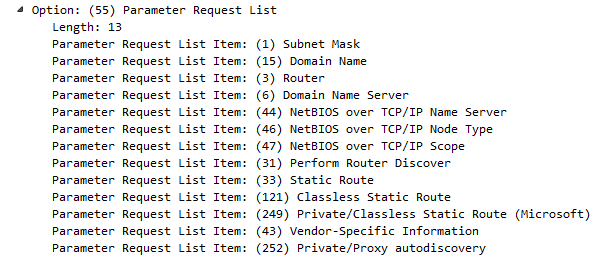
We also see packets that say DHCP Inform, and these are requests from my client:

Now that it has its Layer 3 IPv4 address, it's now requesting additional parameters from the server, and you can see them listed down in the packet details. The following screenshot shows the additional parameters:
So, that's the basics of DHCP. It's a very simple protocol; it's a little bit more complex than DNS but still relatively simple and very useful. There is a IPv6 version of DHCP, as well as many other ways of addressing IPv6 hosts. Up next, we'll take a look at HTTP in HTTP analysis I.