Table of Contents for
Gaming Hacks
 Gaming Hacks
Published by
O'Reilly Media, Inc., 2004
Gaming Hacks
Published by
O'Reilly Media, Inc., 2004
- Cover
- Gaming Hacks
- Credits
- Contributors
- Acknowledgments
- Foreword
- Preface
- How to Use This Book
- How This Book Is Organized
- Conventions Used in This Book
- Using Code Examples
- Comments and Questions
- Got a Hack?
- 1. Playing Classic Games
- Legal Emulation
- Play Commodore 64 Games Without the C-64
- Play Atari ROMs Without the Atari
- Use Atari Paddles with Your PC
- Run Homebrew Games on the Atari 2600
- Create Your Own Atari 2600 Homebrew Games
- Play Classic PC Graphic Adventures
- Play Old Games Through DOSBox
- Play Reissued All-in-One Joystick Games
- Play Arcade Games Without the Arcade
- Add and Manipulate a MAME Frontend
- Keep Your ROMs Tidy and Organized
- Learn Game-Specific MAME Controls
- Filter Inappropriate MAME ROMs
- Autoboot into MAME Heaven
- Play Emulated Arcade Games Online
- Play Classic Pinball Without the Table
- Emulate the SNES on the Dreamcast
- 2. Playing Portably
- Play Games on Your iPod
- Mod Your Game Boy
- Take and Print Photos with Your Game Boy
- Compose Music on Your Game Boy
- Explore the GP32 Handheld Gaming System
- Take Your Console with You
- Explore the Bandai WonderSwan
- Play Real Games on Your PDA
- Install a PlayStation 2 in Your Car
- 3. Playing Well with Others
- Practice Proper MMORPG Etiquette
- Understand MMORPG Lingo
- Grind Without Going Crazy
- Make a Profit in Vana’diel
- Write MMORPG Macros
- Build an Effective Group
- Catch Half-Life FPS Cheaters Redhanded
- 4. Playing with Hardware
- Build a Quiet, Killer Gaming Rig
- Find and Configure the Best FPS Peripherals
- Adapt Old Video Game Controllers to the PC
- Choose the Right Audio/Video Receiver
- Place Your Speakers Properly
- Connect Your Console to Your Home Theater
- Tune Console Video Output
- Tune Your TV for Console Video
- PC Audio Hacking
- Optimize PC Video Performance
- Build a Dedicated Multimedia PC
- Use a Multimedia Projector for Gaming
- 5. Playing with Console and Arcade Hardware
- Play LAN-Only Console Games Online
- Hack the Nuon DVD Player/Gaming System
- Play Import Games on American Consoles
- Find a Hackable Dreamcast
- Play Movies and Music on Your Dreamcast
- Hack the Dreamcast Visual Memory Unit
- Unblur Your Dreamcast Video
- Use Your Dreamcast Online
- Host Dreamcast Games Online
- Burn Dreamcast-Compatible Discs on Your PC
- Burn Dreamcast Homebrew Discs
- Buy Your Own Arcade Hardware
- Configure Your Arcade Controls, Connectors, and Cartridges
- Reorient and Align Your Arcade Monitor
- Buy Cart-Based JAMMA Boards
- Programming Music for the Nintendo Entertainment System
- 6. Playing Around the Game Engine
- Explore Machinima
- Choose a Machinima Engine
- Film Your First Machinima Movie
- Improve Your Camera Control
- Record Game Footage to Video
- Speedrun Your Way Through Metroid Prime
- Sequence-Break Quake
- Run Classic Game ROM Translations
- Change Games with ROM Hacks
- Apply ROM Hacks and Patches
- Create PS2 Cheat Codes
- Hack Xbox Game Saves
- Cheat on Other Consoles
- Modify PC Game Saves and Settings
- Buff Your Saved Characters
- Create Console Game Levels
- 7. Playing Your Own Games
- Adventure Game Studio Editing Tips
- Create and Play Pinball Tables
- Put Your Face in DOOM
- Create a Vehicle Model for Unreal Tournament 2004
- Add a Vehicle to Unreal Tournament 2004
- Modify the Behavior of a UT2004 Model
- Download, Compile, and Create an Inform Adventure
- Decorate Your IF Rooms
- Add Puzzles to Your IF Games
- Add Nonplayer Characters to IF Adventures
- Make Your IF NPCs Move
- Make Your IF NPCs Talk
- Create Your Own Animations
- Add Interactivity to Your Animations
- Write a Game in an Afternoon
- 8. Playing Everything Else
- Tweak Your Tactics for FPS Glory
- Beat Any Shoot-Em-Up
- Drive a Physics-Crazed Motorcycle
- Play Japanese Games Without Speaking Japanese
- Back Up, Modify, and Restore PlayStation Saved Games
- Access Your Console’s Memory Card Offline
- Overclock Your Console
- Index
- Colophon
Design your own virtual pinball table.
It makes a lot of sense that people can play classic arcade games by taking the code and writing hardware emulators. It’s easy to emulate computing machines, but how about pinball machines? How do you emulate physical objects?
You’ll need a decent construction kit to set up ramps, bumpers, flippers, and ball physics, much like the classic EA ’80s title Pinball Construction Set by Bill Budge. Fortunately, the Pinball Construction Set for the ’00s is here, in the form of Randy Davis’s freeware Visual Pinball.
Download the latest Tech Beta of Visual Pinball from the official site (http://www.randydavis.com/vp/download.htm). Unfortunately, it’s a Windows-only program. More unfortunately, you also need the latest versions of DirectX, Windows Script (available with Internet Explorer 5.01 or above, Windows 98/ME, or Windows 2000/XP), and also Windows Media Player to install the audio runtimes.
Some versions of the game were limited betas, so if you grab one of those, it’ll say that your time is up, and you can’t play. However, the author decided to take away this limited-time status, so just hunt around on sites such as VPForums (http://www.vpforums.com/) for an executable without the time limit. This is perfectly legitimate and creator-approved, not a time-crack of any kind.
After installing the program, run it. Because it’s really a construction kit into which you can load games, you’ll see that it opens straight into a blank construction screen. This feature makes it even more fascinating, because all the tables you download are completely open; you can fiddle with them, tweak the locations of objects, and then test your changes right away.
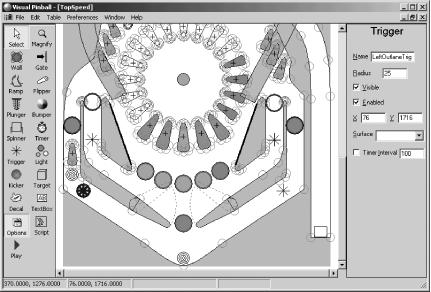
In the blank editor screen, go to the File menu and select Open, then load one of the example tables created by Randy Davis himself. Choose Alien Reactor. You’ll see a rather smart top-down grid view of the table appear, looking something like Figure 7-2.
Before we mess up anything, let’s try the table as originally loaded. Hit the F5 key or the Play icon on the left side of the screen. Within five seconds, the table will pop up in a pseudo-3D view, completely playable. Hit the Escape key after playing for a while to return to the editor screen.
Click on any of the individual items on the board, and drag them to move them around. If you really want your flippers in the middle of nowhere, go ahead and move them. Click the Options button on the left side of the screen to see the specific settings for that object, including its colors, physics, size, and orientation.
Also click on Script to see the script for the table. As you can see, it’s actually pretty straightforward Visual Basic. Here’s an example:
Sub CheckTargets
    If Target1.IsDropped And Target2.IsDropped And Target3.IsDropped Then
        Target1.IsDropped = False
        Target2.IsDropped = False
        Target3.IsDropped = False
        PlaySound "FlipperUp"
        PlaySound "GotLight"
        mainsoundtimer.Enabled = True
        AddScore 10000
    End If
End Sub
This code checks the drop targets, which adds to the player’s score, plays sounds, and resets them when the player has hit all three.
Creating your own pintable with Visual Pinball is actually fairly straightforward, although some of the Visual Basic can be a little tricky. Check out the VPForums gurus and Q/A areas if you get stuck. You can learn a lot from existing tables by opening up their scripts and checking out exactly what they’re doing; open source is a good thing indeed.
ShivaSite has several great templates and FAQs, though you’ll need to register in order to download or view any of them. Check out http://www.shivasite.com/modules.php?modid=1&action=cat&id=5.
If you’re interested in some more exotic flipperless tables as found in bagatelle and pachinko machines, see the Sahara Sales page (http://pinballnirvana.com/) In particular, be sure to read the tutorial that explains how to replace the default plunger with a variable velocity kicker.
Although there are many faithful reproductions of existing tables, plenty of other people have made completely original pintables (some of which are based on licenses they may be particularly enamored of). There’s no good central download source for these, but the VP Original Tables Releases forum (http://www.vpforums.com/forum/forumdisplay.php?forumid=88) handles announcements and reviews of new original creations. If you make a table of release quality, announce it there.
As of press time, a new resource has appeared at http://www.public.asu.edu/~checkma/pinball/originals.html, with links to all new or updated originally designed homebrew tables. This may also be worth checking out or submitting information to; however, because it uses third-party links, it won’t host your files for you.
The following sections describe a few notable homebrew tables.
Based on the Formula 1 racing championships, F1 is a large (15 MB) table with a great deal of detail. It’s particularly designed as a two-player table, with Michael Schumacher and David Coulthard duking it out for the championship. This is easily one of the most professional-looking homebrew tables, featuring multiball, several modes, and plenty of good speech and sound effects. F1 is well worth checking out. Download it from http://members.iinet.net.au/~cleathley/.
Appealingly nihilistic, the Sex Pistols would never sell out, but this original homebrew machine converts them to pintable form with great aplomb, complete with sounds and visuals from the movie and album of the same name. This may be one of the only games in the history of pinball in which rolling over the letters P, U, N, and K will earn you bonuses. See http://www.excellentcontent.com/vpinball/swindle.htm.
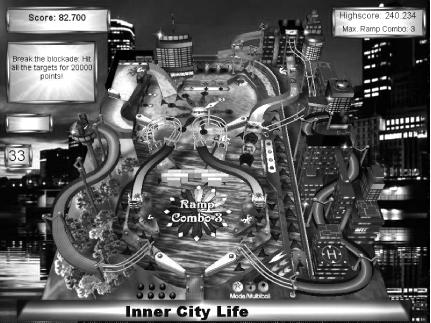
This intriguing oversized pintable has some really nice custom graphics, gigantic ramps, and a much more synthetic look (Figure 7-3) than many other tables that really try to look like actual pinball machines. It works great nonetheless. Look out for the massive ramp through the skyscrapers on the right side of the playfield, as well as the mini-playfield with the mini-flipper up in the top left. Download it from http://www.scholzroland.de/VPStuff/.
Universally acclaimed as one of the best original tables, this boxing-themed homebrew pinball machine has four flippers, some intriguing modes, and even a mini-boxing ring at the top of the playfield to mix things up a little. The logic of the modes is also neat; you need a Trainer and a Promoter before you go into the boxing rings proper. See http://webpages.charter.net/celamantia/vp/ or download an edited form from http://www.excellentcontent.com/vpinball/.