Table of Contents for
Gaming Hacks
 Gaming Hacks
Published by
O'Reilly Media, Inc., 2004
Gaming Hacks
Published by
O'Reilly Media, Inc., 2004
- Cover
- Gaming Hacks
- Credits
- Contributors
- Acknowledgments
- Foreword
- Preface
- How to Use This Book
- How This Book Is Organized
- Conventions Used in This Book
- Using Code Examples
- Comments and Questions
- Got a Hack?
- 1. Playing Classic Games
- Legal Emulation
- Play Commodore 64 Games Without the C-64
- Play Atari ROMs Without the Atari
- Use Atari Paddles with Your PC
- Run Homebrew Games on the Atari 2600
- Create Your Own Atari 2600 Homebrew Games
- Play Classic PC Graphic Adventures
- Play Old Games Through DOSBox
- Play Reissued All-in-One Joystick Games
- Play Arcade Games Without the Arcade
- Add and Manipulate a MAME Frontend
- Keep Your ROMs Tidy and Organized
- Learn Game-Specific MAME Controls
- Filter Inappropriate MAME ROMs
- Autoboot into MAME Heaven
- Play Emulated Arcade Games Online
- Play Classic Pinball Without the Table
- Emulate the SNES on the Dreamcast
- 2. Playing Portably
- Play Games on Your iPod
- Mod Your Game Boy
- Take and Print Photos with Your Game Boy
- Compose Music on Your Game Boy
- Explore the GP32 Handheld Gaming System
- Take Your Console with You
- Explore the Bandai WonderSwan
- Play Real Games on Your PDA
- Install a PlayStation 2 in Your Car
- 3. Playing Well with Others
- Practice Proper MMORPG Etiquette
- Understand MMORPG Lingo
- Grind Without Going Crazy
- Make a Profit in Vana’diel
- Write MMORPG Macros
- Build an Effective Group
- Catch Half-Life FPS Cheaters Redhanded
- 4. Playing with Hardware
- Build a Quiet, Killer Gaming Rig
- Find and Configure the Best FPS Peripherals
- Adapt Old Video Game Controllers to the PC
- Choose the Right Audio/Video Receiver
- Place Your Speakers Properly
- Connect Your Console to Your Home Theater
- Tune Console Video Output
- Tune Your TV for Console Video
- PC Audio Hacking
- Optimize PC Video Performance
- Build a Dedicated Multimedia PC
- Use a Multimedia Projector for Gaming
- 5. Playing with Console and Arcade Hardware
- Play LAN-Only Console Games Online
- Hack the Nuon DVD Player/Gaming System
- Play Import Games on American Consoles
- Find a Hackable Dreamcast
- Play Movies and Music on Your Dreamcast
- Hack the Dreamcast Visual Memory Unit
- Unblur Your Dreamcast Video
- Use Your Dreamcast Online
- Host Dreamcast Games Online
- Burn Dreamcast-Compatible Discs on Your PC
- Burn Dreamcast Homebrew Discs
- Buy Your Own Arcade Hardware
- Configure Your Arcade Controls, Connectors, and Cartridges
- Reorient and Align Your Arcade Monitor
- Buy Cart-Based JAMMA Boards
- Programming Music for the Nintendo Entertainment System
- 6. Playing Around the Game Engine
- Explore Machinima
- Choose a Machinima Engine
- Film Your First Machinima Movie
- Improve Your Camera Control
- Record Game Footage to Video
- Speedrun Your Way Through Metroid Prime
- Sequence-Break Quake
- Run Classic Game ROM Translations
- Change Games with ROM Hacks
- Apply ROM Hacks and Patches
- Create PS2 Cheat Codes
- Hack Xbox Game Saves
- Cheat on Other Consoles
- Modify PC Game Saves and Settings
- Buff Your Saved Characters
- Create Console Game Levels
- 7. Playing Your Own Games
- Adventure Game Studio Editing Tips
- Create and Play Pinball Tables
- Put Your Face in DOOM
- Create a Vehicle Model for Unreal Tournament 2004
- Add a Vehicle to Unreal Tournament 2004
- Modify the Behavior of a UT2004 Model
- Download, Compile, and Create an Inform Adventure
- Decorate Your IF Rooms
- Add Puzzles to Your IF Games
- Add Nonplayer Characters to IF Adventures
- Make Your IF NPCs Move
- Make Your IF NPCs Talk
- Create Your Own Animations
- Add Interactivity to Your Animations
- Write a Game in an Afternoon
- 8. Playing Everything Else
- Tweak Your Tactics for FPS Glory
- Beat Any Shoot-Em-Up
- Drive a Physics-Crazed Motorcycle
- Play Japanese Games Without Speaking Japanese
- Back Up, Modify, and Restore PlayStation Saved Games
- Access Your Console’s Memory Card Offline
- Overclock Your Console
- Index
- Colophon
Official console services don’t support your preferred game? You can play online anyway.
Suppose you want to play a console game online, but the box claims the pesky so-and-so supports only LAN play. That game could be anything from Mario Kart: Double Dash!! on the GameCube to the classic Halo on the Xbox. Are you stuck without any way to play with anyone further away than a few yards?
Fortunately, a variety of clever PC-based utilities allow you to route your console traffic through your computer and over the Internet.
Before explaining these programs, let’s discuss why console tunneling is even necessary. Simply put, these games use too much bandwidth or send too many packets to work reliably over most Internet connections. Console manufacturers have fairly stringent rules about acceptable performance lag for playability, and Internet-based console gaming has only recently taken off. Some older, unoptimized, or just plain stubborn titles are only officially available for local area network (LAN) play.
Clever coders decided to tunnel, pretending that the local console is talking to a LAN-connected friend while actually shipping the packets back and forth over the Internet. This, of course, requires a computer to mediate. The tunneling utilities have grown increasingly sophisticated; they support chat channels, private or public servers, voice support, homebrew support, and plenty more options. Best of all, most of these tunnelers are freely downloadable—created by charitable and innovative coders. Some even support multiple operating systems.
The best-known contender in the GameCube tunneling scene by far is Warp Pipe (http://www.warppipe.com/), a neat tunneling solution that works for all the LAN-released GameCube titles so far. At presstime, this list was Mario Kart: Double Dash!!, Kirby Air Ride, and 1080 Degrees Avalanche. It’s a short list, but all three games are fun, and Mario Kart is a classic, which helps make up for the paucity of titles. Warp Pipe is also an excellent choice because there are versions available for Windows, Mac OS X, Linux, and BSD.
It’s worth noting that a broadband adapter is required for your GameCube to make Warp Pipe work because it doesn’t come with the console. The add-on costs $50 at the official Nintendo web site or at most retail stores and fits snugly into the back of your Cube. To be honest, it isn’t useful right now in any official capacity; only the Phantasy Star Online series supports online play. These games cost an additional subscription fee, so although they’re rather addictive, there’s no massive demand for the GC broadband adapter.
What if you do have the equipment necessary to take your GameCube online? The excellent Warp Pipe setup page (http://www.warppipe.com/gettingstarted/network_setup.html) explains the basic steps:
Connect your GameCube to the Net with an Ethernet cable. You can plug into a hub or a router, depending on your Internet setup. A hub may be simplest, and the Warp Pipe FAQ points out it’s “based on Nintendo’s recommended LAN setup for playing LAN-enabled GameCube games,” but you can use a router as long as you understand port routing. You can also put another Ethernet card in your PC and use a crossover cable to connect to your GameCube, but this is less common.
Unblock port 4000 for both UDP and TCP. Remove or disable all firewall rules that may block this port. The GameCube uses both UDP and TCP to communicate for LAN games. If you’re unlucky, your ISP may block these ports outside your control.
If you’re using a router, use its port forwarding to send the traffic through your PC and out onto the wilds of the Internet. Again, check the excellent Warp Pipe FAQ information (http://www.warppipe.com/support/router_firewall_support.html) for lots more details.
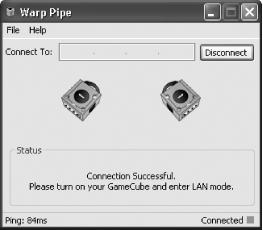
Install and run the tunnelling software. Warp Pipe works on Windows, Mac OS X, Linux, and the BSDs. Run the software to see a window pop up with pictures of GameCubes and somewhere to enter an IP address.
Find someone to play against. At the time of writing, you still need to find a potential opponent’s IP address and type it into the software manually (see Figure 5-1). The imminent WarpPipe 0.4 release promises to include an instant-messaging interface, much like the one in the XLink Kai Xbox tunneling software. It may well be out by the time you read this.
However the version you use, http://www.warppipe.com/gettingstarted/playing_games.html will likely explain how to find opponents online. You also have the choice to “listen for connections” instead, allowing an opponent to contact you. One of you needs to host the game. Bear in mind that you need UDP and TCP on port 4000 unblocked to host but only TCP unblocked to connect to another opponent.
Play the game. If the connection succeeds, you’ll see a ping value (hopefully way below 100!) appear. Now move over to your GameCube and boot the game into LAN mode to play against your new friend and opponent. Have fun and don’t drive over too many bananas in Mario Kart!
A new contender in the GameCube field is XLink Kai (http://www.teamxlink.co.uk/), originally created just for Xbox. There are already Mario Kart: Double Dash!! tournaments happening on XLink Kai, and users claiming it’s comparable or faster than WarpPipe; this bodes well for the future.
When it comes to the Xbox, one of the leading services is the Windows-only XLink Kai (http://www.teamxlink.co.uk/) from the creators of XLink Messenger. At the time of writing, they’ve just expanded their tunneling efforts to the GameCube and PlayStation 2. It supports almost 50 games on Xbox alone.
Technically speaking, XLink works similarly to the GameCube’s WarpPipe. The only major difference is that it uses UDP ports 34518 and 34519 for the basic setup and UDP port 6073 for voice chat. Refer to the XLink help page (http://www.teamxlink.co.uk/help.php) for further help.
XLink’s impressive features include the ability to use XLink Messenger to monitor the status of tens or hundreds of avatars currently online in an almost Xbox Live-style fashion. You can tell their nicknames, locations, and current actions; whether they’re idling; hosting a game of Tony Hawk; advertising the desire to play a certain title; or just hanging out and chatting. You can add friends as in conventional IM clients and talk to each other via your PC in lobbies. It’s all rather impressive.
As for game availability, the former XLink homepage lists the favorite game for any given moment. More often than not, it is original Halo, but other titles such as the UbiSoft stealth action games are known to sneak in there from time to time.
Tip
It’s particularly worth playing games via XLink that you can’t play on Xbox Live. Microsoft’s service is good and fully featured; you should probably patronize it if you’re really into online Xbox gaming. Also, multiplayer Xbox Live matchups in games such as Project Gotham Racing 2 tend to be less lag-prone than tunneling software.
In a rather smart move, the ability to play LAN-enabled software over the network means that, if you know how to run homebrew software on your Xbox,[9] you can even play LAN-enabled homebrews such as Quake-X (http://www.lantus-x.com/ClassicX/) online via XLink. Clever stuff.
There are other Xbox tunneling programs. XBConnect (http://www.xbconnect.com/) is excellent and well-known, if available only for Windows. It supports nearly the same amount of games (45 in total, though it officially lists no homebrew games) and may actually have a larger Halo fanbase. XBConnect seems to lack XLink Kai’s ambition to expand to other consoles, but it’s well worth checking out.
Another possibility is the GameSpy Tunnel (http://www.gamespyarcade.com/support/tunnel_xbox.shtml), which is also free and Windows-only. It reportedly used to have a larger number of overall users than the other two services. This seems to fluctuate, but being tied to a major gaming news web site must help its popularity a little.
Finally, Aqueduct (http://www.postpose.com/aquaduct/) for Mac OS X works similarly to the Windows-only utilities. You’ll probably have to prearrange games with specific people, because there are far fewer people using the service.
PlayStation 2 tunneling is a little complex. Originally, Sony designed LAN play to work only with a special iLink cable—basically FireWire to connect multiple consoles. You can even use a FireWire hub to connect multiple PS2s to play Gran Turismo 3. However, with the advent of the PSX PlayStation 2 + DVR (digital video recorder) device, the iLink port will eventually disappear on newer PlayStation 2 models. LAN games will still work through the Ethernet port.
Obviously, you need an Ethernet adapter, standard only on recent PS2s, before you can think about tunnelling. XLink Kai has just started offering LAN compatibility for PS2 games through your Windows PC, and it should work by the time you read this. Check out their site (http://www.teamxlink.co.uk/) for more details.
Particularly interesting LAN-enabled titles include Gran Turismo 4, Tony Hawk’s Pro Skater 3 and 4, and the new Star Wars Battlefront. Obviously, most recent LAN-enabled games also have online support, so there’s no startling advantage for one style, as is the case for Halo for Xbox, which just isn’t playable online unless you tunnel.
To reiterate, XLink Kai compatibility will work for those games that use the Ethernet port for LAN play; those that use iLink only for LAN play won’t work for now, sadly. It’s possible there are some iLink-compatible tunneling software packages out there. If these software packages exist, they seem badly documented and will likely be sparsely populated.
The usefulness of tunneling may wane as more consoles and games support online play out of the box. Halo 2 has online capabilities, for example. For consoles that discourage going online (the GameCube) or certain titles that will never support online play (the original Halo for Xbox), it’s worth the hack in order to play in ways the designers never intended. Tunneling can work beautifully after you apply some homebrew creativity.