Table of Contents for
Gaming Hacks
 Gaming Hacks
Published by
O'Reilly Media, Inc., 2004
Gaming Hacks
Published by
O'Reilly Media, Inc., 2004
- Cover
- Gaming Hacks
- Credits
- Contributors
- Acknowledgments
- Foreword
- Preface
- How to Use This Book
- How This Book Is Organized
- Conventions Used in This Book
- Using Code Examples
- Comments and Questions
- Got a Hack?
- 1. Playing Classic Games
- Legal Emulation
- Play Commodore 64 Games Without the C-64
- Play Atari ROMs Without the Atari
- Use Atari Paddles with Your PC
- Run Homebrew Games on the Atari 2600
- Create Your Own Atari 2600 Homebrew Games
- Play Classic PC Graphic Adventures
- Play Old Games Through DOSBox
- Play Reissued All-in-One Joystick Games
- Play Arcade Games Without the Arcade
- Add and Manipulate a MAME Frontend
- Keep Your ROMs Tidy and Organized
- Learn Game-Specific MAME Controls
- Filter Inappropriate MAME ROMs
- Autoboot into MAME Heaven
- Play Emulated Arcade Games Online
- Play Classic Pinball Without the Table
- Emulate the SNES on the Dreamcast
- 2. Playing Portably
- Play Games on Your iPod
- Mod Your Game Boy
- Take and Print Photos with Your Game Boy
- Compose Music on Your Game Boy
- Explore the GP32 Handheld Gaming System
- Take Your Console with You
- Explore the Bandai WonderSwan
- Play Real Games on Your PDA
- Install a PlayStation 2 in Your Car
- 3. Playing Well with Others
- Practice Proper MMORPG Etiquette
- Understand MMORPG Lingo
- Grind Without Going Crazy
- Make a Profit in Vana’diel
- Write MMORPG Macros
- Build an Effective Group
- Catch Half-Life FPS Cheaters Redhanded
- 4. Playing with Hardware
- Build a Quiet, Killer Gaming Rig
- Find and Configure the Best FPS Peripherals
- Adapt Old Video Game Controllers to the PC
- Choose the Right Audio/Video Receiver
- Place Your Speakers Properly
- Connect Your Console to Your Home Theater
- Tune Console Video Output
- Tune Your TV for Console Video
- PC Audio Hacking
- Optimize PC Video Performance
- Build a Dedicated Multimedia PC
- Use a Multimedia Projector for Gaming
- 5. Playing with Console and Arcade Hardware
- Play LAN-Only Console Games Online
- Hack the Nuon DVD Player/Gaming System
- Play Import Games on American Consoles
- Find a Hackable Dreamcast
- Play Movies and Music on Your Dreamcast
- Hack the Dreamcast Visual Memory Unit
- Unblur Your Dreamcast Video
- Use Your Dreamcast Online
- Host Dreamcast Games Online
- Burn Dreamcast-Compatible Discs on Your PC
- Burn Dreamcast Homebrew Discs
- Buy Your Own Arcade Hardware
- Configure Your Arcade Controls, Connectors, and Cartridges
- Reorient and Align Your Arcade Monitor
- Buy Cart-Based JAMMA Boards
- Programming Music for the Nintendo Entertainment System
- 6. Playing Around the Game Engine
- Explore Machinima
- Choose a Machinima Engine
- Film Your First Machinima Movie
- Improve Your Camera Control
- Record Game Footage to Video
- Speedrun Your Way Through Metroid Prime
- Sequence-Break Quake
- Run Classic Game ROM Translations
- Change Games with ROM Hacks
- Apply ROM Hacks and Patches
- Create PS2 Cheat Codes
- Hack Xbox Game Saves
- Cheat on Other Consoles
- Modify PC Game Saves and Settings
- Buff Your Saved Characters
- Create Console Game Levels
- 7. Playing Your Own Games
- Adventure Game Studio Editing Tips
- Create and Play Pinball Tables
- Put Your Face in DOOM
- Create a Vehicle Model for Unreal Tournament 2004
- Add a Vehicle to Unreal Tournament 2004
- Modify the Behavior of a UT2004 Model
- Download, Compile, and Create an Inform Adventure
- Decorate Your IF Rooms
- Add Puzzles to Your IF Games
- Add Nonplayer Characters to IF Adventures
- Make Your IF NPCs Move
- Make Your IF NPCs Talk
- Create Your Own Animations
- Add Interactivity to Your Animations
- Write a Game in an Afternoon
- 8. Playing Everything Else
- Tweak Your Tactics for FPS Glory
- Beat Any Shoot-Em-Up
- Drive a Physics-Crazed Motorcycle
- Play Japanese Games Without Speaking Japanese
- Back Up, Modify, and Restore PlayStation Saved Games
- Access Your Console’s Memory Card Offline
- Overclock Your Console
- Index
- Colophon
Relive the glory days of Commodore’s long-lived personal computers.
Commodore’s unassuming C-64 had a surprisingly long run as the king of computer games. The inexpensive machine had powerful sound, colorful graphics, and just enough hackability that clever developers could squeeze every last bit of performance out of its 1-MHz processor and specialized graphics and sound chips.
Although Commodore’s Amiga surpassed the C-64 (and the improved, though relatively ignored, C-128), the PC finally took over the reign of computer games in the early ’90s. Commodore’s 1992 bankruptcy didn’t help, either. [2]
A decade later, the C-64 lives on, sometimes in hardware, but more often in emulators. If you’re feeling nostalgic for Commodore BASIC—a simple, easy to use, and, in retrospect, fairly awful programming language—or the thousands of games produced in that heady decade, you’re in luck.
Two emulators vie for the top spot in C-64 emulation, VICE, available from http://www.viceteam.org/, and CCS64, available from http://www.computerbrains.com/ccs64/. CCS64 is shareware, and the current version runs only on Windows, while the GPLd VICE runs on several platforms. Both work well, but we’ll concentrate on VICE.
Download the current version for your platform from the VICE
homepage. Windows users: unzip the
WinVICE-1.14.zip file to its own directory
(perhaps C:\WinVice-1.14). Mac OS X users: mount
and install the VICE1.14-macosx.dmg image as
usual. Unix users should know what to do already.
Tip
The archive contains a HTML version of the documentation, found in
the html/ subdirectory. See
html/vice_toc.html for a good starting point.
Run the C-64 emulator as x64. There are also
C-128, VIC-20, PET, and CBM-II emulators, if you’re
feeling really retro.
We’ll use Richard Bayliss’s public-domain Balloonacy (see http://web.ukonline.co.uk/tnd64/download_library.html) as the example game. This cute little action game has you guiding a helium-filled balloon through a dangerous maze of lasers, walls, and sharp corners everywhere.
Launching the game is easy. From the command line, launch the
emulator (x64 for the C-64,
x128 for the C-128, and so on), passing the name
of the disk image to launch as the final command
parameter. One nice feature of VICE is that it can extract a disk
image from inside a compressed file.
$ x64 balloonacy.zipThis loads the disk image and launches it. Alternately, you can boot the emulator and load the image manually:
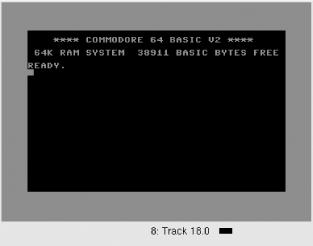
$ x64When the familiar blue-on-blue screen appears (see Figure 1-2), click the left mouse button and select “Attach a disk image.” Choose the drive number to use—remember, the first 1541 or 1571 starts as device number 8—and browse to the disk image to load. Hit the Select button, and then press OK. In effect, you’ve just put a floppy disk in the drive.
If you don’t see the files you want to load, be sure
to check the filter expression in the Show box. By default, it shows
only files with extensions starting with the letters g, d, or x,
regardless of case. To see all files, change the expression to
*.*.
Now reach back a decade or more into long-forgotten BASIC commands.
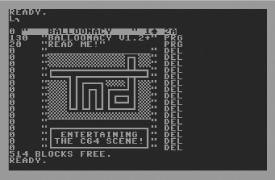
To read the directory of the disk, load the special directory file
($), then list it. Figure 1-3
shows the results.
LOAD "$",8SEARCHING FOR $ LOADING READY.LIST
If you just want to run the program, use the special “load into memory” command, then run the program (some programs run automatically):
LOAD "*",8,1SEARCHING FOR * LOADING READY.RUN
It’s been a decade, so how do you remember all of these commands? Unless you spent your childhood writing games on the C-64, you might prefer to consult the Commodore 64 Online User Manual (http://www.lemon64.com/manual/). Feel free to snicker over the section on cassette drives.
Unless you have a joystick plugged into your machine (at the time of writing, this required running VICE on Linux), the number pad is the easiest way to play games. As you’d expect, the number keys correspond to the directions, where 8 is up, 4 is left, 6 is right, and 2 is down. 0 is fire.
Right-click in the VICE window, and select the Joystick settings menu. From here, you can configure joysticks 1 and 2. Many C-64 games contrarily used joystick 2 for player one, and vice versa. Select Joystick device in port 2, then the Numpad option. Be sure that joystick 1 has a different setting; none is fine.
Left-click again, and choose Save settings. This saves you from having to reconfigure the joystick every time you launch a new game.
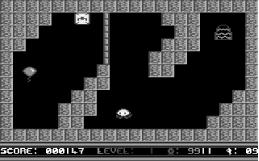
Now that you have joystick emulation configured, hit 0 on the number pad to start the game. Figure 1-4 shows a (paused) screenshot of the first level.[3]
There are a few other keys and options worth remembering, as seen in Table 1-1.
Unless you want to program your own games in Commodore BASIC,[4] you’ll need a disk image. Fortunately, these are easy to find. C64.com (http://www.c64.com/) and C64 Unlimited (http://www.c64unlimited.net/) have huge collections of downloadable games. If you have a pile of old floppy disks gathering dust in the closet, this is a wonderful resource. If not, or if you’re not sure about the legalities of media shifting (see [Hack #1] ), it’s easy enough to play homebrew games.
It’s exceedingly difficult to find homebrew games, however. The C-64 had a huge piracy problem, especially considering that it predated the Internet explosion. Though many games are at least a decade old, there are still copyright considerations to keep in mind.
Of course, there’s much fun to have in hacking around the games (Chapter 6) and creating games (Chapter 7).
[2] For more on C-64 history, see http://commodore.ca/products/c64/commodore_64.htm.
[3] To be honest, my arcade skills are rusty enough that in 10 minutes of playing, I couldn’t beat this level. That’s a good sign.
[4] At least one author started his illustrious career this way.