Table of Contents for
Gaming Hacks
 Gaming Hacks
Published by
O'Reilly Media, Inc., 2004
Gaming Hacks
Published by
O'Reilly Media, Inc., 2004
- Cover
- Gaming Hacks
- Credits
- Contributors
- Acknowledgments
- Foreword
- Preface
- How to Use This Book
- How This Book Is Organized
- Conventions Used in This Book
- Using Code Examples
- Comments and Questions
- Got a Hack?
- 1. Playing Classic Games
- Legal Emulation
- Play Commodore 64 Games Without the C-64
- Play Atari ROMs Without the Atari
- Use Atari Paddles with Your PC
- Run Homebrew Games on the Atari 2600
- Create Your Own Atari 2600 Homebrew Games
- Play Classic PC Graphic Adventures
- Play Old Games Through DOSBox
- Play Reissued All-in-One Joystick Games
- Play Arcade Games Without the Arcade
- Add and Manipulate a MAME Frontend
- Keep Your ROMs Tidy and Organized
- Learn Game-Specific MAME Controls
- Filter Inappropriate MAME ROMs
- Autoboot into MAME Heaven
- Play Emulated Arcade Games Online
- Play Classic Pinball Without the Table
- Emulate the SNES on the Dreamcast
- 2. Playing Portably
- Play Games on Your iPod
- Mod Your Game Boy
- Take and Print Photos with Your Game Boy
- Compose Music on Your Game Boy
- Explore the GP32 Handheld Gaming System
- Take Your Console with You
- Explore the Bandai WonderSwan
- Play Real Games on Your PDA
- Install a PlayStation 2 in Your Car
- 3. Playing Well with Others
- Practice Proper MMORPG Etiquette
- Understand MMORPG Lingo
- Grind Without Going Crazy
- Make a Profit in Vana’diel
- Write MMORPG Macros
- Build an Effective Group
- Catch Half-Life FPS Cheaters Redhanded
- 4. Playing with Hardware
- Build a Quiet, Killer Gaming Rig
- Find and Configure the Best FPS Peripherals
- Adapt Old Video Game Controllers to the PC
- Choose the Right Audio/Video Receiver
- Place Your Speakers Properly
- Connect Your Console to Your Home Theater
- Tune Console Video Output
- Tune Your TV for Console Video
- PC Audio Hacking
- Optimize PC Video Performance
- Build a Dedicated Multimedia PC
- Use a Multimedia Projector for Gaming
- 5. Playing with Console and Arcade Hardware
- Play LAN-Only Console Games Online
- Hack the Nuon DVD Player/Gaming System
- Play Import Games on American Consoles
- Find a Hackable Dreamcast
- Play Movies and Music on Your Dreamcast
- Hack the Dreamcast Visual Memory Unit
- Unblur Your Dreamcast Video
- Use Your Dreamcast Online
- Host Dreamcast Games Online
- Burn Dreamcast-Compatible Discs on Your PC
- Burn Dreamcast Homebrew Discs
- Buy Your Own Arcade Hardware
- Configure Your Arcade Controls, Connectors, and Cartridges
- Reorient and Align Your Arcade Monitor
- Buy Cart-Based JAMMA Boards
- Programming Music for the Nintendo Entertainment System
- 6. Playing Around the Game Engine
- Explore Machinima
- Choose a Machinima Engine
- Film Your First Machinima Movie
- Improve Your Camera Control
- Record Game Footage to Video
- Speedrun Your Way Through Metroid Prime
- Sequence-Break Quake
- Run Classic Game ROM Translations
- Change Games with ROM Hacks
- Apply ROM Hacks and Patches
- Create PS2 Cheat Codes
- Hack Xbox Game Saves
- Cheat on Other Consoles
- Modify PC Game Saves and Settings
- Buff Your Saved Characters
- Create Console Game Levels
- 7. Playing Your Own Games
- Adventure Game Studio Editing Tips
- Create and Play Pinball Tables
- Put Your Face in DOOM
- Create a Vehicle Model for Unreal Tournament 2004
- Add a Vehicle to Unreal Tournament 2004
- Modify the Behavior of a UT2004 Model
- Download, Compile, and Create an Inform Adventure
- Decorate Your IF Rooms
- Add Puzzles to Your IF Games
- Add Nonplayer Characters to IF Adventures
- Make Your IF NPCs Move
- Make Your IF NPCs Talk
- Create Your Own Animations
- Add Interactivity to Your Animations
- Write a Game in an Afternoon
- 8. Playing Everything Else
- Tweak Your Tactics for FPS Glory
- Beat Any Shoot-Em-Up
- Drive a Physics-Crazed Motorcycle
- Play Japanese Games Without Speaking Japanese
- Back Up, Modify, and Restore PlayStation Saved Games
- Access Your Console’s Memory Card Offline
- Overclock Your Console
- Index
- Colophon
Turn your favorite bargain console into a multimedia workstation.
Since the Dreamcast is a relatively powerful beast, it’s easy to play MP3-encoded music and watch reasonably good quality movies on it using self-burned discs. However, there’s a multitude of players available, and some of the rules for encoding or playing content aren’t exactly straightforward. Let’s sort the wheat from the chaff when it comes to ways to turn your $30 console toy into a jazzed-up multimedia player.
It’s both easy and difficult to play movies of your choice on your Dreamcast, whether it be home videos you’ve created or freeware movies you’ve downloaded from the Net. Both easy and difficult? How can that be? Well, it’s easy to find good-quality, multiple-format-reading freeware movie programs for the Dreamcast, because there are two of them:
DC Movie Player (http://www.decemulation.com/dcmovieplayer.shtml), from the Japanese coder Bero, copes with a multitude of complex movie formats, including MPEG-1, MPEG-2, MPEG4 (DIVX4/5 and XviD), and Microsoft MPEG v1, v2, and v3 (Div-X 3), but lacks good English-language documentation.
DCDivX (http://www.dcdivx.com/), despite its misleading name, actually supports a host of different movie formats (OGM, VP3, DivX 3.xx, DivX 4.xx, DivX 5.xx + Pro, OpenDivX, XviD, AVI) and has much better documentation, but lacks the common MPEG formats that DC Movie Player supports.
Both players allow disc switching, and both are reasonable at keeping audio and video in sync, often a significant problem with homebrew console video players.
However, it’s difficult to use movie players on the DC, since it has so little RAM for buffering, which also limits the maximum available resolution. This means that almost any reasonably sized movie you download from the Internet may well have too much throughput or too high a resolution to play properly. You’ll need to reencode your existing video files for them to play well.
If you want to know exactly how to encode video properly for playback in DCDivX, there’s an excellent tutorial available at http://www.decemulation.com/zacmcd/DcDivX4dummies/. Here are the salient points:
Start with the excellent Sourceforge project VirtualDub for Windows (http://virtualdub.sourceforge.net/) as your preferred cross-encoding software.
Use a bit rate of 500-Kbps and a resolution of 352 288 or less. Use the MPEG layer-3 audio codec with a sound quality of around 40-Kbps 22,050-Hz stereo.
Build a self-boot CD by downloading a special self-boot kit for Windows, available from http://www.decemulation.com/zacmcd/DcDivX4dummies/DcDivX4Dummies.zip.
If you want to listen to music on your Dreamcast, the multipurpose freeware DCPlaya (http://sashipa.ben.free.fr/dcplaya/) fits the bill. You can also download this popular, French-authored program from the DCEmulation Homebrew site (http://www.decemulation.com/dcplaya.shtml). It sports a full GUI, great graphics, and gorgeous functionality for a free title, as Figure 5-3 shows.
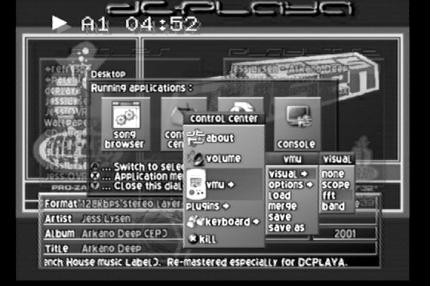
The versatile player works with MP3s as well as the free alternate OGG format, the archaic but cool-sounding MOD and S3M formats, the Atari ST-associated SC68 format, and the even more archaic and funky Commodore 64 SID sound format. It even plays cool-looking VMU effects in time to the music, if there’s one plugged in.
You don’t need to burn the MP3s or OGGs that you want to play on the actual disc; the DCPlaya executable will stay resident in memory after you boot the CD-R. You can swap in a disc of your choice, and the player will still memory-resident and play anything you throw at it. Unfortunately, the current version of DCPlaya doesn’t support variable-bit-rate MP3s, so be careful when burning or using existing MP3s.
Although you can’t create M3U files on your Dreamcast, you can burn playlist files onto discs and use them to play MP3s in any order you choose.
DCPlaya uses the Lua (http://www.lua.org/) API, a powerful lightweight programming language designed for extending applications. You can find the DCPlaya source code from the project’s Sourceforge page (http://sourceforge.net/projects/dcplaya). However, nobody has yet built on the DCPlaya base to add visualizations, alternate formats, or anything else; it would be amazing if someone would start. One often requested feature is the use of the broadband adapter to allow Shoutcast or Icecast streaming audio over the Net.
Suppose you want to put your Dreamcast somewhere in the house where you don’t have a TV—for example, next to your amplifier or your hi-fi in your bedroom. The Dreamcast is a versatile console, but it’s hard to make up for the lack of visual output. Maybe you can muddle through the menus on something like DCPlaya by memorizing button presses, but that’s no real answer.
Well, actually, I lied a little. The Dreamcast can make up for no TV-based visual output by using the Spinal Tap-influenced To 11 MP3 player (http://www.decemulation.com/to11.shtml). This clever player shows all of its interface on the Dreamcast’s VMU, so you won’t even need a television to play music.
Apart from the two previous choices, there are alternate players with TV-based visual interfaces; some are definitely worth checking out. Examples include DreamMP3 (http://www.decemulation.com/dreammp3.shtml) and DreamAmp (http://www.decemulation.com/dreamamp.shtml), but they can’t really hold a candle to the majesty of DCPlaya.
Finally, if you’re interested in trying earlier media players along with homebrew games and other interesting utilities, check out the DCEvolution Dream Selection Vol.1 pack (http://www.dcevolution.netfirms.com/ds_vol1.shtml). This 36-MB download has 25 programs on it, including To 11, DreamMP3, and more. It includes a cool-looking GUI to boot.