Table of Contents for
Gaming Hacks
 Gaming Hacks
Published by
O'Reilly Media, Inc., 2004
Gaming Hacks
Published by
O'Reilly Media, Inc., 2004
- Cover
- Gaming Hacks
- Credits
- Contributors
- Acknowledgments
- Foreword
- Preface
- How to Use This Book
- How This Book Is Organized
- Conventions Used in This Book
- Using Code Examples
- Comments and Questions
- Got a Hack?
- 1. Playing Classic Games
- Legal Emulation
- Play Commodore 64 Games Without the C-64
- Play Atari ROMs Without the Atari
- Use Atari Paddles with Your PC
- Run Homebrew Games on the Atari 2600
- Create Your Own Atari 2600 Homebrew Games
- Play Classic PC Graphic Adventures
- Play Old Games Through DOSBox
- Play Reissued All-in-One Joystick Games
- Play Arcade Games Without the Arcade
- Add and Manipulate a MAME Frontend
- Keep Your ROMs Tidy and Organized
- Learn Game-Specific MAME Controls
- Filter Inappropriate MAME ROMs
- Autoboot into MAME Heaven
- Play Emulated Arcade Games Online
- Play Classic Pinball Without the Table
- Emulate the SNES on the Dreamcast
- 2. Playing Portably
- Play Games on Your iPod
- Mod Your Game Boy
- Take and Print Photos with Your Game Boy
- Compose Music on Your Game Boy
- Explore the GP32 Handheld Gaming System
- Take Your Console with You
- Explore the Bandai WonderSwan
- Play Real Games on Your PDA
- Install a PlayStation 2 in Your Car
- 3. Playing Well with Others
- Practice Proper MMORPG Etiquette
- Understand MMORPG Lingo
- Grind Without Going Crazy
- Make a Profit in Vana’diel
- Write MMORPG Macros
- Build an Effective Group
- Catch Half-Life FPS Cheaters Redhanded
- 4. Playing with Hardware
- Build a Quiet, Killer Gaming Rig
- Find and Configure the Best FPS Peripherals
- Adapt Old Video Game Controllers to the PC
- Choose the Right Audio/Video Receiver
- Place Your Speakers Properly
- Connect Your Console to Your Home Theater
- Tune Console Video Output
- Tune Your TV for Console Video
- PC Audio Hacking
- Optimize PC Video Performance
- Build a Dedicated Multimedia PC
- Use a Multimedia Projector for Gaming
- 5. Playing with Console and Arcade Hardware
- Play LAN-Only Console Games Online
- Hack the Nuon DVD Player/Gaming System
- Play Import Games on American Consoles
- Find a Hackable Dreamcast
- Play Movies and Music on Your Dreamcast
- Hack the Dreamcast Visual Memory Unit
- Unblur Your Dreamcast Video
- Use Your Dreamcast Online
- Host Dreamcast Games Online
- Burn Dreamcast-Compatible Discs on Your PC
- Burn Dreamcast Homebrew Discs
- Buy Your Own Arcade Hardware
- Configure Your Arcade Controls, Connectors, and Cartridges
- Reorient and Align Your Arcade Monitor
- Buy Cart-Based JAMMA Boards
- Programming Music for the Nintendo Entertainment System
- 6. Playing Around the Game Engine
- Explore Machinima
- Choose a Machinima Engine
- Film Your First Machinima Movie
- Improve Your Camera Control
- Record Game Footage to Video
- Speedrun Your Way Through Metroid Prime
- Sequence-Break Quake
- Run Classic Game ROM Translations
- Change Games with ROM Hacks
- Apply ROM Hacks and Patches
- Create PS2 Cheat Codes
- Hack Xbox Game Saves
- Cheat on Other Consoles
- Modify PC Game Saves and Settings
- Buff Your Saved Characters
- Create Console Game Levels
- 7. Playing Your Own Games
- Adventure Game Studio Editing Tips
- Create and Play Pinball Tables
- Put Your Face in DOOM
- Create a Vehicle Model for Unreal Tournament 2004
- Add a Vehicle to Unreal Tournament 2004
- Modify the Behavior of a UT2004 Model
- Download, Compile, and Create an Inform Adventure
- Decorate Your IF Rooms
- Add Puzzles to Your IF Games
- Add Nonplayer Characters to IF Adventures
- Make Your IF NPCs Move
- Make Your IF NPCs Talk
- Create Your Own Animations
- Add Interactivity to Your Animations
- Write a Game in an Afternoon
- 8. Playing Everything Else
- Tweak Your Tactics for FPS Glory
- Beat Any Shoot-Em-Up
- Drive a Physics-Crazed Motorcycle
- Play Japanese Games Without Speaking Japanese
- Back Up, Modify, and Restore PlayStation Saved Games
- Access Your Console’s Memory Card Offline
- Overclock Your Console
- Index
- Colophon
Use a proper controller for the right games.
If you remember the original Atari 2600 hardware, you likely have fond (or not so fond) memories of the paddle input device. Instead of using a joystick for Breakout-like games, you turned a paddle left or right. Some games play much better this way.
Fortunately, enterprising hackers have sorted out hardware, drivers, and relevant emulator software to make Atari paddle controllers work on the PC, so you can play classic reissues of Atari 2600 games on modern hardware with the original controls. Some emulators even recognize and take advantage of the special analog properties of the paddle controller.
How do you find original paddle controllers? You might try your local thrift store—classic consoles and computers appear with alacrity. Otherwise, eBay comes to the rescue again; there are several auctions at any given time that offer a pair of paddles for $5 to $10 plus shipping.
There are three ways to use an Atari 2600 paddle on a PC: the hard way, the easier way, and the easiest way.
If you play 2600 games on your PC, you might use the excellent Atari 2600 emulator Stella ( [Hack #3] ). The Stella user’s guide explains how to build your own 2600 paddle to PC adapter (http://stella.sourceforge.net/docs/stella.html#Adaptor) using common electronics components found at Radio Shack. The site says it’ll work with the DOS and Linux versions of Stella automatically. You’ll need to be handy reading schematics and soldering—and beware of the disclaimer that you may short out your hardware—but several people have reported success in using classic controllers with emulators.
Before you start, you’ll need a 15-pin joystick/MIDI connector on the PC end. Many sound cards such as the SoundBlaster Live (http://www.soundblaster.com/products/sblive/specs.asp) include them. Other hardware includes two DB9 male connector ports for the paddles to plug into on one end and a DB15 male connector to plug into your PC on the other. You’ll also need four 115k resistors and plenty of wire to wire everything up. See Figure 1-5 for the schematic.
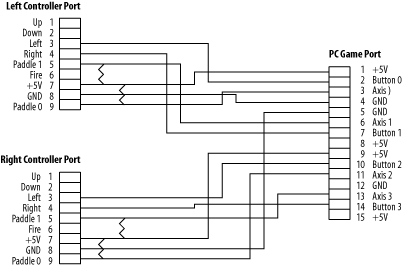
On the left controller connector, connect port 3 to port 2 on the PC game connector, port 4 to port 7, port 5 to port 6, port 7 to port 1, port 8 to port 4, and port 9 to port 3.
On the right controller connector, connect port 3 to port 10 on the PC game connector, port 4 to port 14, port 5 to port 13, port 7 to port 9, port 8 to port 5, and port 9 to port 11.
You should end up with six wires from each controller connecting to the game connector. Be very careful that you don’t short out the +5V and GND connections with sloppy soldering, because you’re liable to blow your PC game port, the paddle controllers, or if you’re very unlucky, your whole PC.
For each controller, solder one 115k resistor between the wires coming from controller ports 5 and 7 and another between the wires coming from controller ports 7 and 9.
You can cut up a joystick extension cable for the PC instead of using a standalone DB15 connector, much like the Xbox extension cable in [Hack #37] . This may be even easier, if you can find one cheap on eBay or at an online computer retailer.
Here’s the bad news. You can be all macho and mess with 15-pin joystick controllers and lots of solder and resistors, but in 2004, the excellent Pixels Past released a Stelladaptor 2600 to USB interface for Mac, Windows, and Linux. This device works perfectly with the paddle controllers using the z26 (http://www.whimsey.com/z26/z26.html) Atari 2600 emulator, which has built-in support.
This is the real deal, and for only $30 it’s a decent value, too. It also works with Atari 2600 joysticks and driving controllers, though it’s worth reading the caveat regarding compatibility:
Stelladaptor will work with any emulators that support standard USB controllers. Paddle controllers will only work in emulators that allow configuration of analog USB controllers (such as MAME32 and MacMAME), or emulators that have been updated to directly support the Stelladaptor (such as z26).
If you’d like a second opinion, the Back N Time site’s Stelladaptor review (http://www.backntime.net/Hardware/Stelladaptor/FrameSA.html) is very positive, though they do point out that you need one adapter for each controller you connect to your PC. You’ll need two Stelladaptors to play two-player games.
If you think the Stelladaptor’s wimpy, then the JAKKS TV Game Atari 2600 paddle controllers are for cowards because you don’t need to buy original controllers or even own a PC. This software/hardware bundle, designed by retro master developers Digital Eclipse, should come out around the time this book goes to press. It apparently includes a great reproduction of 11 classic Atari 2600 paddle games within the controller and will cost between $20 and $30.
Unfortunately, the ever-gorgeous Kaboom! didn’t make it, but plenty of other classics did, including Circus Atari and Super Breakout. The whole thing is available in both one- and two-player variants, so it’s an easy way to get 2600 games running without digging out your own console. Rumor has it that this iteration is much better than the Atari 2600 joystick (see [Hack #9] ), which suffered from noticeable software issues.
In the end, whether you do it the hard, easier, or super-easy way, you can soon twiddle knobs to your heart’s content and praise the geniuses at Atari for classic early ’80s engineering feats.