Table of Contents for
Gaming Hacks
 Gaming Hacks
Published by
O'Reilly Media, Inc., 2004
Gaming Hacks
Published by
O'Reilly Media, Inc., 2004
- Cover
- Gaming Hacks
- Credits
- Contributors
- Acknowledgments
- Foreword
- Preface
- How to Use This Book
- How This Book Is Organized
- Conventions Used in This Book
- Using Code Examples
- Comments and Questions
- Got a Hack?
- 1. Playing Classic Games
- Legal Emulation
- Play Commodore 64 Games Without the C-64
- Play Atari ROMs Without the Atari
- Use Atari Paddles with Your PC
- Run Homebrew Games on the Atari 2600
- Create Your Own Atari 2600 Homebrew Games
- Play Classic PC Graphic Adventures
- Play Old Games Through DOSBox
- Play Reissued All-in-One Joystick Games
- Play Arcade Games Without the Arcade
- Add and Manipulate a MAME Frontend
- Keep Your ROMs Tidy and Organized
- Learn Game-Specific MAME Controls
- Filter Inappropriate MAME ROMs
- Autoboot into MAME Heaven
- Play Emulated Arcade Games Online
- Play Classic Pinball Without the Table
- Emulate the SNES on the Dreamcast
- 2. Playing Portably
- Play Games on Your iPod
- Mod Your Game Boy
- Take and Print Photos with Your Game Boy
- Compose Music on Your Game Boy
- Explore the GP32 Handheld Gaming System
- Take Your Console with You
- Explore the Bandai WonderSwan
- Play Real Games on Your PDA
- Install a PlayStation 2 in Your Car
- 3. Playing Well with Others
- Practice Proper MMORPG Etiquette
- Understand MMORPG Lingo
- Grind Without Going Crazy
- Make a Profit in Vana’diel
- Write MMORPG Macros
- Build an Effective Group
- Catch Half-Life FPS Cheaters Redhanded
- 4. Playing with Hardware
- Build a Quiet, Killer Gaming Rig
- Find and Configure the Best FPS Peripherals
- Adapt Old Video Game Controllers to the PC
- Choose the Right Audio/Video Receiver
- Place Your Speakers Properly
- Connect Your Console to Your Home Theater
- Tune Console Video Output
- Tune Your TV for Console Video
- PC Audio Hacking
- Optimize PC Video Performance
- Build a Dedicated Multimedia PC
- Use a Multimedia Projector for Gaming
- 5. Playing with Console and Arcade Hardware
- Play LAN-Only Console Games Online
- Hack the Nuon DVD Player/Gaming System
- Play Import Games on American Consoles
- Find a Hackable Dreamcast
- Play Movies and Music on Your Dreamcast
- Hack the Dreamcast Visual Memory Unit
- Unblur Your Dreamcast Video
- Use Your Dreamcast Online
- Host Dreamcast Games Online
- Burn Dreamcast-Compatible Discs on Your PC
- Burn Dreamcast Homebrew Discs
- Buy Your Own Arcade Hardware
- Configure Your Arcade Controls, Connectors, and Cartridges
- Reorient and Align Your Arcade Monitor
- Buy Cart-Based JAMMA Boards
- Programming Music for the Nintendo Entertainment System
- 6. Playing Around the Game Engine
- Explore Machinima
- Choose a Machinima Engine
- Film Your First Machinima Movie
- Improve Your Camera Control
- Record Game Footage to Video
- Speedrun Your Way Through Metroid Prime
- Sequence-Break Quake
- Run Classic Game ROM Translations
- Change Games with ROM Hacks
- Apply ROM Hacks and Patches
- Create PS2 Cheat Codes
- Hack Xbox Game Saves
- Cheat on Other Consoles
- Modify PC Game Saves and Settings
- Buff Your Saved Characters
- Create Console Game Levels
- 7. Playing Your Own Games
- Adventure Game Studio Editing Tips
- Create and Play Pinball Tables
- Put Your Face in DOOM
- Create a Vehicle Model for Unreal Tournament 2004
- Add a Vehicle to Unreal Tournament 2004
- Modify the Behavior of a UT2004 Model
- Download, Compile, and Create an Inform Adventure
- Decorate Your IF Rooms
- Add Puzzles to Your IF Games
- Add Nonplayer Characters to IF Adventures
- Make Your IF NPCs Move
- Make Your IF NPCs Talk
- Create Your Own Animations
- Add Interactivity to Your Animations
- Write a Game in an Afternoon
- 8. Playing Everything Else
- Tweak Your Tactics for FPS Glory
- Beat Any Shoot-Em-Up
- Drive a Physics-Crazed Motorcycle
- Play Japanese Games Without Speaking Japanese
- Back Up, Modify, and Restore PlayStation Saved Games
- Access Your Console’s Memory Card Offline
- Overclock Your Console
- Index
- Colophon
Want to play your favorite PC game with your favorite console joypad? No problem.
If you enjoy playing arcade-style games on your PC, you may have found that they benefit immensely from a joypad. (Trust me, they do.) However, although you can buy PC joypads that will do the trick, you probably already have a perfectly good Xbox or PlayStation controller. Thanks to the wonders of hacking, you can adapt that console controller to work on your home computer. This is great for console ports, MAME, other emulated titles, and your wallet.
Before hacking any hardware, consider that you can buy several third-party USB adapters, particularly for PlayStation joypads, but also for the Xbox and more exotic consoles. However, you may not be able to use your choice of homebrew drivers for this equipment. Sometimes, the hardware adapter is a little bit proprietary, so you’ll have to use the manufacturer’s drivers or write your own. On the plus side, the hardware is already built.
Be aware that several available PlayStation adapters have a few compatibility problems. They do complicated things, and most adapters have only Windows drivers. As well, some commercial USB adapters will not work properly with Dance Dance Revolution pads, if you want to play DDR or DDR clones such as Stepmania on your PC. The parallel port adapter we’ll build does work in concert with the DirectPad drivers—another reason to hack it yourself. Junta’s DDR modding site (http://junta.cromas.net/adapters.html) has a good list of DDR adapter problems.
In general, you should be perfectly safe buying an Xbox-to-USB converter, because the Xbox controller is already a USB device. All the converter does is change the gender of the adapter. Of course, this makes it much easier to make your own.
Beyond these two popular classes, you can buy several more exotic prebuilt adapters, converting everything from the NES through the Neo Geo controllers to your PC. Start by looking at Smartjoy.com (http://www.smartjoy.com/), now a division of Hong Kong retailer Lik Sang. The site has some commercial impetus that could skew things, but it still seems good at comparing a large range of adapters.
You’ll need several items for this hack:
A soldering iron to reconnect the wires
Electrical tape to make sure you don’t short out anything along the way
A USB-to-USB cable, available pretty much everywhere
An Xbox breakaway cable, easily found online from eBay or many third-party retailers
With the breakaway cable, you can cut and snip without affecting your actual joypad. Naturally, if you’re feeling confident and don’t want to play your Xbox controller on the Xbox anymore, you can skip this piece.
Cut the breakaway cable (the half of the Xbox controller cable closest to the console itself) either just before or just after the nodule that appears halfway down its length. Then strip the sheathing so you can see the five colored wires. Strip all of the wires (red, white, green, and black) except the yellow wire.
Now do the same with the USB cable, cutting it near one end and stripping the sheathing to expose the colored wires (red, white, green, and black). Now solder together the wires of the same color on the two cables. When you finish each individual solder, wrap a small amount of electrical tape around each connection to prevent it from touching other soldered wires and shorting out.
Finally, when you’re done, tape everything shut with electrical tape, plug the USB cable into your PC, and turn on your PC. If you’re using Windows, use the XBCD drivers (http://redcl0ud.hostrocket.com/xbcd.html) to make analog joysticks, the directional pad, and all 12 buttons work in PC games. The Mac (http://homepage.mac.com/walisser/xboxhiddriver/) and Linux drivers, at least, as part of the Xbox Linux project (http://cvs.sourceforge.net/viewcvs.py/xbox-linux/kernel/drivers/usb/), are at various stages of construction, but all of them basically work.
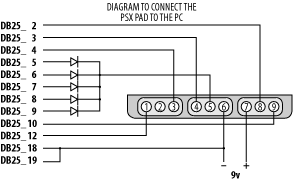
The PlayStation adapter is significantly more complicated but still fairly workable. The easiest approach involves using the parallel port to plug your adapted PSX controller into the PC. It requires more advanced use of a multimeter and diodes, as Figure 4-1 shows.
You’ll need:
A soldering iron
A multimeter
A male DB-25 connector
A PlayStation extension cable, easily found online or at your local store
Five (5) diodes of type 1N914 or 1N4148
A small piece of extra bare wire, an inch or so long
First, cut one end of the PlayStation extension cable, and strip the sheathing, exposing the wires in a similar way to the Xbox adapter. This time, you’ll see one wire without any insulation on it at all. Ignore it. If the controller is Dual Shock-compatible, you’ll see eight other wires. Otherwise, you’ll see seven.
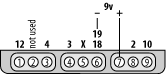
Unfortunately, there’s no easy way to know which wire connects to which connection on the other end of the extension cable, so grab the multimeter. Put one contact in the first hole of the PSX connector and keep testing the wires until you have a positive result. Write down the hole and the color. Repeat for each of the PSX connector holes.
Now take the diodes and cut short (half an inch or less) the end furthest away from the marked ring on the diode. Solder these diodes to holes 5, 6, 7, 8, and 9 (the top center holes) of the DB-25 parallel connector, with the short end closest to the connector itself.
Finally, solder the PSX connector’s wires onto the DB-25 connector in the order shown in Figure 4-2. Connect hole 5 on the female PSX connector to all five diodes, using the extra piece of wire.
Finally, close the DB-25 connector and plug it into your PC’s parallel port. Several software drivers will work with your adapted PlayStation joypad, but DirectPad Pro (http://www.aldostools.com/dpad.html) is one of the best, because it also supports SNES, Sega Genesis, and other console joypads. PSXPad (http://www.psxpad.com/index_e.php) also comes highly recommended and supports a multitude of consoles.