Table of Contents for
Gaming Hacks
 Gaming Hacks
Published by
O'Reilly Media, Inc., 2004
Gaming Hacks
Published by
O'Reilly Media, Inc., 2004
- Cover
- Gaming Hacks
- Credits
- Contributors
- Acknowledgments
- Foreword
- Preface
- How to Use This Book
- How This Book Is Organized
- Conventions Used in This Book
- Using Code Examples
- Comments and Questions
- Got a Hack?
- 1. Playing Classic Games
- Legal Emulation
- Play Commodore 64 Games Without the C-64
- Play Atari ROMs Without the Atari
- Use Atari Paddles with Your PC
- Run Homebrew Games on the Atari 2600
- Create Your Own Atari 2600 Homebrew Games
- Play Classic PC Graphic Adventures
- Play Old Games Through DOSBox
- Play Reissued All-in-One Joystick Games
- Play Arcade Games Without the Arcade
- Add and Manipulate a MAME Frontend
- Keep Your ROMs Tidy and Organized
- Learn Game-Specific MAME Controls
- Filter Inappropriate MAME ROMs
- Autoboot into MAME Heaven
- Play Emulated Arcade Games Online
- Play Classic Pinball Without the Table
- Emulate the SNES on the Dreamcast
- 2. Playing Portably
- Play Games on Your iPod
- Mod Your Game Boy
- Take and Print Photos with Your Game Boy
- Compose Music on Your Game Boy
- Explore the GP32 Handheld Gaming System
- Take Your Console with You
- Explore the Bandai WonderSwan
- Play Real Games on Your PDA
- Install a PlayStation 2 in Your Car
- 3. Playing Well with Others
- Practice Proper MMORPG Etiquette
- Understand MMORPG Lingo
- Grind Without Going Crazy
- Make a Profit in Vana’diel
- Write MMORPG Macros
- Build an Effective Group
- Catch Half-Life FPS Cheaters Redhanded
- 4. Playing with Hardware
- Build a Quiet, Killer Gaming Rig
- Find and Configure the Best FPS Peripherals
- Adapt Old Video Game Controllers to the PC
- Choose the Right Audio/Video Receiver
- Place Your Speakers Properly
- Connect Your Console to Your Home Theater
- Tune Console Video Output
- Tune Your TV for Console Video
- PC Audio Hacking
- Optimize PC Video Performance
- Build a Dedicated Multimedia PC
- Use a Multimedia Projector for Gaming
- 5. Playing with Console and Arcade Hardware
- Play LAN-Only Console Games Online
- Hack the Nuon DVD Player/Gaming System
- Play Import Games on American Consoles
- Find a Hackable Dreamcast
- Play Movies and Music on Your Dreamcast
- Hack the Dreamcast Visual Memory Unit
- Unblur Your Dreamcast Video
- Use Your Dreamcast Online
- Host Dreamcast Games Online
- Burn Dreamcast-Compatible Discs on Your PC
- Burn Dreamcast Homebrew Discs
- Buy Your Own Arcade Hardware
- Configure Your Arcade Controls, Connectors, and Cartridges
- Reorient and Align Your Arcade Monitor
- Buy Cart-Based JAMMA Boards
- Programming Music for the Nintendo Entertainment System
- 6. Playing Around the Game Engine
- Explore Machinima
- Choose a Machinima Engine
- Film Your First Machinima Movie
- Improve Your Camera Control
- Record Game Footage to Video
- Speedrun Your Way Through Metroid Prime
- Sequence-Break Quake
- Run Classic Game ROM Translations
- Change Games with ROM Hacks
- Apply ROM Hacks and Patches
- Create PS2 Cheat Codes
- Hack Xbox Game Saves
- Cheat on Other Consoles
- Modify PC Game Saves and Settings
- Buff Your Saved Characters
- Create Console Game Levels
- 7. Playing Your Own Games
- Adventure Game Studio Editing Tips
- Create and Play Pinball Tables
- Put Your Face in DOOM
- Create a Vehicle Model for Unreal Tournament 2004
- Add a Vehicle to Unreal Tournament 2004
- Modify the Behavior of a UT2004 Model
- Download, Compile, and Create an Inform Adventure
- Decorate Your IF Rooms
- Add Puzzles to Your IF Games
- Add Nonplayer Characters to IF Adventures
- Make Your IF NPCs Move
- Make Your IF NPCs Talk
- Create Your Own Animations
- Add Interactivity to Your Animations
- Write a Game in an Afternoon
- 8. Playing Everything Else
- Tweak Your Tactics for FPS Glory
- Beat Any Shoot-Em-Up
- Drive a Physics-Crazed Motorcycle
- Play Japanese Games Without Speaking Japanese
- Back Up, Modify, and Restore PlayStation Saved Games
- Access Your Console’s Memory Card Offline
- Overclock Your Console
- Index
- Colophon
When you can’t take your studio with you, turn your portable into a studio.
Handheld gaming devices aren’t just for children or for playing games. They can potentially be productive work devices! Okay, perhaps that’s hard to swallow, but you can use your Game Boy to make music. One of the top Game Boy utilities is Little Sound Dj.
Johan Kotlinski’s Little Sound Dj (or LSDj) is very flexible and can enhance your musical ideas. It’s also very fast to use once you’ve learned how. Feature-wise, it boasts a soft synthesizer with resonant filters, sampled drum kits, and an internal speech synthesizer. All in all, it’s more like a portable music studio than anything else.
Little Sound Dj cartridges are hard to find these days, but occasionally show up on eBay. During the last year, used cartridges sold for between $150 and $350. You can also download a free demo version from http://www.littlesounddj.com/. There’s hope for some kind of reissue sometime in the future, though it’s likely it’ll still lack Nintendo’s imprimatur.
Some Game Boy music editors (notably LSDj and Carillon) have downloadable ROM image files. You can use these with a Game Boy emulator running on your computer or place them on a flash-ROM cartridge using a backup device connected to your PC.
Emulators can be nice in many ways. Of course, you won’t be able to use the program on the real thing, but the sound can be cleaner than on the original hardware, and you can easily perform backups to minimize the risk of data loss. The price is also much nicer (at least if you already have a computer), and the screen is likely to be more legible.
The recommended emulator for Windows is No$GMB (http://www.work.de/nocash/). For Mac OS X, KiGB (http://www.bannister.org/software/kigb.htm) works well. VisualBoy Advance (http://vba.ngemu.com/) runs well on several platforms, including Windows, Mac OS X, Linux, and BeOS. All these programs are free to use for emulating the classic Game Boy.
Finding a backup device to program your own cartridge can be difficult these days, as all production for the classic Game Boy has ceased. If you are lucky, you can find a used device. Look for the brands Transferer, Xchanger, E-Merger, or PC-Linker. An alternative is to use a Game Boy Advance backup device with the Goomba emulator (http://www.webpersona.com/goomba/).
If you are handy with electronics, you can also build your own cartridge. Reiner Ziegler put up a page with all the info you need at http://www.ziegler.desaign.de/readplus.htm. Be sure to see the Game Boy Dev’rs site (http://www.devrs.com/gb/) for all the technical information you could need about the Game Boy.
Enough chat; let’s play.
First, download and install your choice of
emulator. Then proceed to the Little
Sound Dj file archive (http://www.littlesounddj.com/latest/) to
download the files you need. There’s a demo version
Game Boy ROM image in the demo folder and
documentation in the documentation folder.
After starting LSDj, you’ll see a screen resembling Figure 2-2.
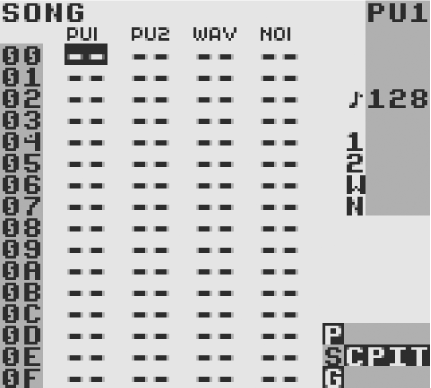
The title at the top left of the window indicates that this is the song screen, the window in which you arrange your songs. The four columns with dashes each represent a Game Boy sound channel. There are two pulse wave channels, one custom wave channel (which uses sampled drum kits or soft-synthesized wave forms), and one noise channel. You can move between the different channels using the cursor key.
Little Sound Dj uses several screens, laid out on a 5 3 map found at the bottom right of the screen. The most useful screens are in the middle row, also called the main row. These are the song, chain, phrase, instrument, and table screens. The screens provide increasing levels of detail from left to right. The leftmost song screen presents an overview of the entire song, and the rightmost table screen shows detailed instrument programming. Navigate between the different screens by holding Select and pressing the cursor key.
The song, chain, and phrase screens control sequencing and work together in a tree-structure fashion. The phrase screen is a 16-step sequencer in which you’ll enter actual note data. The chain screen is a 16-step sequencer in which you can enter sequences of phrases to play. The song screen is a 256-step sequencer in which you enter sequences of chains.
Navigate to the song screen and put the cursor on the PU1 column. Tap the A button twice to insert a new chain. The digit 00 should now appear at the cursor. Edit that chain by pressing Select plus Right to enter the chain screen. There, go through the same procedure. Tap A twice to insert a new phrase and press Select plus Right to reach the phrase screen.
Here you can enter notes. Move the cursor to the note column and
press A to enter a note. The text C-3 will appear,
C being the note and 3 the
octave. Press Start to play back the phrase. Note how the phrase
plays back from the top of the screen to the bottom. You can change
the note value by holding A and pressing the cursor button. Pressing
A plus Left or Right changes the note, and A plus Up or Down changes
the octave.
You can now move the cursor up and down and insert more notes in other positions. To delete a note, press A while holding B. When you have finished listening, press Start again to stop the phrase.
The clean pulse sound might grow a bit dull after a while. Move on to the instrument screen by pressing Select plus Right.
The instrument screen is the place to make the sound a little bit
more interesting. Change the envelope and wave fields by moving the
cursor there and pressing A plus Left or Right. Modify the envelope
setting from A8 to A3. Now
press Start again to hear any change in sound. The sound amplitude
should decay after the note plays.
The type field sets the instrument type. These instruments are specific to individual channels; pulse instruments play back only in the pulse channels, wave and kit instruments in the wave channel, and noise instruments in the noise channel.
Let’s try out the sampled drum kits. First, change
to the wave channel. Return to the song screen, move the cursor to
the wave channel, and create a new chain and phrase as you did
before. Then, move over to the instr column in the
phrase screen and tap A twice to insert a new instrument. Press
Select plus Right to edit that instrument, change the instrument type
to “KIT” by pressing A plus Right
once on the type field, then return to the phrase screen. Now you
should be able to enter drum sounds in the same way that you entered
notes before.
LSDj automatically stores songs in the battery-powered SRAM, so you don’t have to save them explicitly. Version 3 also has an option to store several songs on one cartridge. Find this feature in the project screen located above the song screen.
If you want to back up your creations, use either a backup device connected to your computer or the independent Mega Memory Card (typically found for a few U.S. dollars on eBay). The easiest way to record your song to send to friends is to use the headphone output as input to a recording device.
This short tutorial explained how to make some interesting sounds with your Game Boy. There’s much more to learn about Little Sound Dj. For example, the user-maintained Wiki links to several beginner tutorials, and the LSDj mailing list is full of friendly, helpful, and social people:
Little Sound Dj documentation (http://www.littlesounddj.com/latest/documentation/)
Little Sound Dj Wiki (http://wiki.littlesounddj.com/)
LSDj mailing list (http://groups.yahoo.com/group/lsdj/)