Table of Contents for
Gaming Hacks
 Gaming Hacks
Published by
O'Reilly Media, Inc., 2004
Gaming Hacks
Published by
O'Reilly Media, Inc., 2004
- Cover
- Gaming Hacks
- Credits
- Contributors
- Acknowledgments
- Foreword
- Preface
- How to Use This Book
- How This Book Is Organized
- Conventions Used in This Book
- Using Code Examples
- Comments and Questions
- Got a Hack?
- 1. Playing Classic Games
- Legal Emulation
- Play Commodore 64 Games Without the C-64
- Play Atari ROMs Without the Atari
- Use Atari Paddles with Your PC
- Run Homebrew Games on the Atari 2600
- Create Your Own Atari 2600 Homebrew Games
- Play Classic PC Graphic Adventures
- Play Old Games Through DOSBox
- Play Reissued All-in-One Joystick Games
- Play Arcade Games Without the Arcade
- Add and Manipulate a MAME Frontend
- Keep Your ROMs Tidy and Organized
- Learn Game-Specific MAME Controls
- Filter Inappropriate MAME ROMs
- Autoboot into MAME Heaven
- Play Emulated Arcade Games Online
- Play Classic Pinball Without the Table
- Emulate the SNES on the Dreamcast
- 2. Playing Portably
- Play Games on Your iPod
- Mod Your Game Boy
- Take and Print Photos with Your Game Boy
- Compose Music on Your Game Boy
- Explore the GP32 Handheld Gaming System
- Take Your Console with You
- Explore the Bandai WonderSwan
- Play Real Games on Your PDA
- Install a PlayStation 2 in Your Car
- 3. Playing Well with Others
- Practice Proper MMORPG Etiquette
- Understand MMORPG Lingo
- Grind Without Going Crazy
- Make a Profit in Vana’diel
- Write MMORPG Macros
- Build an Effective Group
- Catch Half-Life FPS Cheaters Redhanded
- 4. Playing with Hardware
- Build a Quiet, Killer Gaming Rig
- Find and Configure the Best FPS Peripherals
- Adapt Old Video Game Controllers to the PC
- Choose the Right Audio/Video Receiver
- Place Your Speakers Properly
- Connect Your Console to Your Home Theater
- Tune Console Video Output
- Tune Your TV for Console Video
- PC Audio Hacking
- Optimize PC Video Performance
- Build a Dedicated Multimedia PC
- Use a Multimedia Projector for Gaming
- 5. Playing with Console and Arcade Hardware
- Play LAN-Only Console Games Online
- Hack the Nuon DVD Player/Gaming System
- Play Import Games on American Consoles
- Find a Hackable Dreamcast
- Play Movies and Music on Your Dreamcast
- Hack the Dreamcast Visual Memory Unit
- Unblur Your Dreamcast Video
- Use Your Dreamcast Online
- Host Dreamcast Games Online
- Burn Dreamcast-Compatible Discs on Your PC
- Burn Dreamcast Homebrew Discs
- Buy Your Own Arcade Hardware
- Configure Your Arcade Controls, Connectors, and Cartridges
- Reorient and Align Your Arcade Monitor
- Buy Cart-Based JAMMA Boards
- Programming Music for the Nintendo Entertainment System
- 6. Playing Around the Game Engine
- Explore Machinima
- Choose a Machinima Engine
- Film Your First Machinima Movie
- Improve Your Camera Control
- Record Game Footage to Video
- Speedrun Your Way Through Metroid Prime
- Sequence-Break Quake
- Run Classic Game ROM Translations
- Change Games with ROM Hacks
- Apply ROM Hacks and Patches
- Create PS2 Cheat Codes
- Hack Xbox Game Saves
- Cheat on Other Consoles
- Modify PC Game Saves and Settings
- Buff Your Saved Characters
- Create Console Game Levels
- 7. Playing Your Own Games
- Adventure Game Studio Editing Tips
- Create and Play Pinball Tables
- Put Your Face in DOOM
- Create a Vehicle Model for Unreal Tournament 2004
- Add a Vehicle to Unreal Tournament 2004
- Modify the Behavior of a UT2004 Model
- Download, Compile, and Create an Inform Adventure
- Decorate Your IF Rooms
- Add Puzzles to Your IF Games
- Add Nonplayer Characters to IF Adventures
- Make Your IF NPCs Move
- Make Your IF NPCs Talk
- Create Your Own Animations
- Add Interactivity to Your Animations
- Write a Game in an Afternoon
- 8. Playing Everything Else
- Tweak Your Tactics for FPS Glory
- Beat Any Shoot-Em-Up
- Drive a Physics-Crazed Motorcycle
- Play Japanese Games Without Speaking Japanese
- Back Up, Modify, and Restore PlayStation Saved Games
- Access Your Console’s Memory Card Offline
- Overclock Your Console
- Index
- Colophon
MAME is wonderfully simple ( [Hack #10] ); it’s a nice, unified bundle of myriad emulators you’d otherwise have to download and configure individually. While launching it from the command line and typing the name of the ROM you want to run is sufficient, adding in options can make things a little more complex.
There’s a dizzying array of frontend programs that bolt onto MAME. These provide sophisticated GUI-based menus with which the player can choose particular games to play and options to use. Some frontends also include handy game paraphernalia such as screenshots, cabinet photos, and even related audio and video, giving you a luxurious overview of your game before you even start the emulator.
With multiple platforms and myriad slightly different choices, where do you even start? My top choice of frontends is AdvanceMenu, though I’ll also outline some alternatives.
The AdvanceMenu (http://advancemame.sourceforge.net/menu-readme.html) site describes the program as “a frontend for AdvanceMAME, MAME, MESS, RAINE and any other emulator . . . .” It uses the cross-platform SDL multimedia library (http://www.libsdl.org/), so it runs on Linux, Mac OS X, DOS, Windows, and a few other platforms. Because it’s from the same team that developed AdvanceMAME, they play together nicely.
AdvanceMenu lacks the crazed 3D virtual reality arcade-roaming of other frontends, and because it’s so portable, it doesn’t rely on super-complex window layouts and doohickeys. It’s not plain, though. You can easily set neat browsing options, as seen in the example screenshots page (http://advancemame.sourceforge.net/menu-snapshot.html, or Figure 1-9).
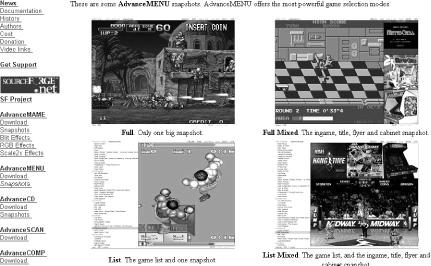
Here’s how to use the program with the normal, vanilla version of MAME:
Download the latest version. I use the Windows version from http://advancemame.sourceforge.net/menu-download.html. AdvanceMenu automatically detects many emulators, so make sure you have the latest version of MAME. Unzip AdvanceMenu into the same directory as MAME.
Load the advanced video driver, if necessary. You will find it useful to fire up a command prompt and run the
svgalist/lcommand. This loads thesvgawin.sysdriver in Windows NT, 2000, and XP. The AdvanceMAME web site has a page explaining this utility. Basically, it’s an advanced video driver that’s useful for running AdvanceMenu.Choose your options. Click on
advancecfg.exe, and you’ll see several text menus with options to navigate through. The details here are impressive; they allow you to send your output to a PC monitor, an arcade machine, a TV, or other custom display devices. For this example, choose PC Monitor. You will see even more complex clock range-related values. I use Generic PC VGA, although I suspect you should look up things in your monitor manual if you can find it. Finally, center your screen appropriately, and save your settings.Create the
mame.inifile. Make sure there’s a mame.ini file in your MAME directory, so runmame -createconfigfrom the command line. Let’s start simple: have AdvanceMenu find the ROMs directory and load a basic menu that lists each ROM you have in your directory. Editadvmenu.rcto add this line:emulator "mame" mame "mame.exe" ""
Keep a close eye on
advmenu.rc, because you’ll need to edit it later to customize things further.
In this case, AdvanceMenu figures out the ROM path from the
rompath value in mame.ini. If
you have screenshots or snapshots for games installed on your version
of MAME, it’ll look at
snap_directory from the same file to find those.
In other words, AdvanceMenu extracts values automatically from
MAME’s initialization files so that you
don’t have to. That’s the simple
approach. Here are a few more advanced options to spiff up your
AdvanceMenu fun.
To allow alternate paraphernalia, such as flyers
(scans of the original game’s promotional sheets),
add the following line to advmenu.rc:
emulator_flyersEMUNAMELIST
This line sets the LIST directory as the location of the flyers for the games used by the EMUNAME emulator. Find these flyers at the ArcadeFlyers site (http://www.arcadeflyers.com/).
A particularly neat feature is the ability to output MNG (animated PNG image) files from AdvanceMAME, compress them with the AdvanceMNG command-line compressor (http://advancemame.sourceforge.net/doc-advmng.html), and then use the animations in the game selection screen. Other frontends provide video ability, of course, but this one makes it easy to record your favorite boss-beating move in the actual game and make it the default video when you load the emulation in the future. This is eye candy and personal bragging rights bundled together!
However, AdvanceMAME supports only MNG, so there may be incompatibilities with other minivideos from other frontends.
To use, place the video in the normal image preview directory. To
choose how the video loops, set the ui_clip option
in advmenu.rc.
AdvanceMenu can segue into a screensaver mode, should you wish it to,
displaying the game flyers you’ve installed. Enable
this by adding the following to your advmenu.rc
file:
idle_screensaver 60 30
idle_screensaver_preview flyers
This starts a screensaver after 60 seconds of idleness, the first time the screensaver runs, and after 30 seconds of idleness on subsequent occasions. The screensaver cycles through the flyers you have stored, since you’ve obviously already added them.
The documentation (http://advancemame.sourceforge.net/doc-advmenu.html)
points out that you can attach any emulator you like to AdvanceMenu,
as long as you do it correctly. You’ll need to
specify the emulator name, call it a generic type,
and then point to the ROMs, also filtering them by filename if you
wish. For example, to run the SNES emulator Snes9X, add something
like this to your advmenu.rc file:
emulator "snes9x" generic "c:\game\snes9x\snes9x.exe" "%f"
emulator_roms "snes9x" "c:\game\snes9x\roms"
emulator_roms_filter "snes9x" "*.smc;*.sfc;*.fig;*.1"
If AdvanceMenu doesn’t quite fit the bill for you, there are many alternatives and many sites that give advice. The ever-reliable Zophar.net has a very thorough page (http://www.zophar.net/frontends/mame.html) that includes brief and very helpful descriptions of your options, along with version numbers and updates. You can also try the massive MAMEWorld site (http://www.mameworld.net/), which has one of the best lists of frontends, appearing at the bottom left of the title page. Unfortunately, the latter is completely unannotated, so you’ll have to guess which linked frontends are the best, or just keep reading. Here are some of the best alternatives.
Although the MAME developers (MAMEDev) sanction their work, the splinter group who produce MAME32 (http://www.classicgaming.com/mame32qa/) aren’t part of the core MAME group. Nonetheless, they do an amazing job of providing an all-in-one MAME solution for Windows users. The overview explains that MAME32 “has an attractive, elegant, graphical interface which allows the user to forego having to type command line parameters.”
After you download
MAME32 (http://www.classicgaming.com/mame32qa/down.htm),
download the supplemental art packages from the same page.
It’s quite convenient to have the sometimes
difficult-to-find paraphernalia linked from the same site as the
binaries. There’s also a very helpful page for
installing the artwork packages (http://www.classicgaming.com/mame32qa/help/mame32_art.htm);
it explains how to plug these add-ons into the program itself. For
example, for the prodigiously large amount of screenshots, just copy
them into the mame32/snaps folder of your
installation. Similarly, for photos of the arcade cabinets
themselves, dump them into mame32/cabinets or
into one big cabinets.zip file that the program
can consult when loading.
The MAME32 customization options aren’t complex, but as the MAME32 gallery shows (http://www.classicgaming.com/mame32qa/gallery/gallery.htm), you can:
Switch fonts by picking Options/Game List Font from the menu
Change the game listings to show icons, details, and other information by clicking the icons mounted just below the options menus, or picking the View menu
Change which GUI items appear when you start up by checking or unchecking any default options from the View menu
The official MAME32 support page (http://www.classicgaming.com/mame32qa/help/mame32_support.htm) isn’t quite comprehensive, but it does have a few good tips, especially regarding keyboard shortcuts. For example, if you’re in the mood for a little Russian Roulette as your arcade game of choice, choose a random ROM by pressing Ctrl-R in the menu. Just don’t blame me if the computer chooses Spy Hunter II, and you end up crying into your expensive arcade joystick. Alternately, if you’d like to skip swiftly to a particular game, use the keyboard to type in its name (or even the first couple of letters). MAME32 selects it automagically, saving you the pain of scrolling up and down maniacally.
3DArcade (http://3darcade.mameworld.net/) shows the insane lengths people will go to in order to select their MAME games: it’s home to 3D models of arcade machines. This works best when combined with the sophisticated, Windows-only FEArcade frontend (http://3darcade.mameworld.net/frontend/frontend.htm) and allows anyone to set up his own virtual arcade. Stroll up to a machine and press a button to start playing.
Is this 3D GUI over-the-top overkill? Possibly. It’s
also rather marvellous, not least of which because
it’s fun to imagine what a collection of classic
1982 arcade machines all looked like together in one place. Anyone
can make and export cabinets in the fairly standard
.W3D format. The
3DArcade models page (http://3darcade.mameworld.net/models/models.htm)
also includes .MAX files for many of the
cabinets, if you want to open and adapt them directly in 3D Studio
Max.
There are many pictures of the frontend in action (http://3darcade.mameworld.net/frontend/defaultskin.html), and you can see some of the really insane arcades created on a special site page (http://3darcade.mameworld.net/arcades/arcades.htm). It’s particularly worth checking out the Deniros-Domus Arcade, described, trippily enough, as “a futuristic take on Frank Lloyd Wright’s Guggenheim Museum set in space.” Of course, trying to climb up a crazed 3D world-based spiral staircase into space just to play your favorite arcade game may not be your idea of fun, but it does have style.
MacMAME is a good all-in-one MAME and frontend solution for Mac users, whether they use OS 9 or OS X. It’s well worth checking out; for a long time, it was the only real option for Mac users who wanted decent menus with their MAME install. See http://www.macmame.org/.
This Windows-specific frontend is in early development. It’s skinnable and has a neat graphical menu, though it somewhat resembles the Ultracade frontend used for official MAME-style arcade machines running emulated Capcom games. Download it from http://www.mameworld.net/ultrastyle/index.html.
ArcadeOS is a DOS-based frontend—particularly useful if you run a PC using MAME exclusively through an arcade stick. Whether you’re using TV-out on your television and aren’t close to your keyboard or you’re using a PC inside an arcade cabinet with a MAME to JAMMA converter, this is the software to beat. You can set your PC to autoboot into this menu without needing a mouse to load a frontend through Windows. Learn more at http://www.mameworld.net/pc2jamma/frontend.html.
This is a Linux/Unix frontend based on Trolltech’s QT library. It’s a comprehensive, good-looking Linux solution. Although at press time it had not seen an update in a while, it’s pretty usable as is. Be sure to install XMame (http://x.mame.net/) before installing QMame (http://www.mameworld.net/mamecat/).