Table of Contents for
Kali Linux 2 – Assuring Security by Penetration Testing - Third Edition
 Kali Linux 2 – Assuring Security by Penetration Testing - Third Edition
Published by
Packt Publishing, 2016
Kali Linux 2 – Assuring Security by Penetration Testing - Third Edition
Published by
Packt Publishing, 2016
- Cover
- Table of Contents
- Kali Linux 2 – Assuring Security by Penetration Testing Third Edition
- Kali Linux 2 – Assuring Security by Penetration Testing Third Edition
- Credits
- Disclaimer
- About the Authors
- About the Reviewer
- www.PacktPub.com
- Preface
- What you need for this book
- Who this book is for
- Conventions
- Reader feedback
- Customer support
- 1. Beginning with Kali Linux
- Kali Linux tool categories
- Downloading Kali Linux
- Using Kali Linux
- Configuring the virtual machine
- Updating Kali Linux
- Network services in Kali Linux
- Installing a vulnerable server
- Installing additional weapons
- Summary
- 2. Penetration Testing Methodology
- Vulnerability assessment versus penetration testing
- Security testing methodologies
- General penetration testing framework
- Information gathering
- The ethics
- Summary
- 3. Target Scoping
- Preparing the test plan
- Profiling test boundaries
- Defining business objectives
- Project management and scheduling
- Summary
- 4. Information Gathering
- Using public resources
- Querying the domain registration information
- Analyzing the DNS records
- Getting network routing information
- Utilizing the search engine
- Metagoofil
- Accessing leaked information
- Summary
- 5. Target Discovery
- Identifying the target machine
- OS fingerprinting
- Summary
- 6. Enumerating Target
- Understanding the TCP/IP protocol
- Understanding the TCP and UDP message format
- The network scanner
- Unicornscan
- Zenmap
- Amap
- SMB enumeration
- SNMP enumeration
- VPN enumeration
- Summary
- 7. Vulnerability Mapping
- Vulnerability taxonomy
- Automated vulnerability scanning
- Network vulnerability scanning
- Web application analysis
- Fuzz analysis
- Database assessment tools
- Summary
- 8. Social Engineering
- Attack process
- Attack methods
- Social Engineering Toolkit
- Summary
- 9. Target Exploitation
- Vulnerability and exploit repositories
- Advanced exploitation toolkit
- MSFConsole
- MSFCLI
- Ninja 101 drills
- Writing exploit modules
- Summary
- 10. Privilege Escalation
- Password attack tools
- Network spoofing tools
- Network sniffers
- Summary
- 11. Maintaining Access
- Working with tunneling tools
- Creating web backdoors
- Summary
- 12. Wireless Penetration Testing
- Wireless network recon
- Wireless testing tools
- Post cracking
- Sniffing wireless traffic
- Summary
- 13. Kali Nethunter
- Installing Kali Nethunter
- Nethunter icons
- Nethunter tools
- Third-party applications
- Wireless attacks
- HID attacks
- Summary
- 14. Documentation and Reporting
- Types of reports
- The executive report
- The management report
- The technical report
- Network penetration testing report (sample contents)
- Preparing your presentation
- Post-testing procedures
- Summary
- A. Supplementary Tools
- Web application tools
- Network tool
- Summary
- B. Key Resources
- Paid incentive programs
- Reverse engineering resources
- Penetration testing learning resources
- Exploit development learning resources
- Penetration testing on a vulnerable environment
- Online web application challenges
- Virtual machines and ISO images
- Network ports
- Index
If you are successful in acquiring the WPA or WEP key, you now have the ability to authenticate to the network. Once on the wireless network, you have the same range of tools that we have discussed throughout this book. This is due to the fact that once properly authenticated, your Kali Linux installation is just part of a Local Area Network (LAN), just as we would be if we were connected via a network cable. Therefore, we have the ability to scan for other devices, leverage vulnerabilities, exploit systems, and elevate our credentials.
There are a few techniques that are useful in demonstrating other vulnerabilities on wireless networks that we can explore. One such issue is bypassing a common wireless control called MAC filtering. MAC filtering is a control on some routers whereby only specific MAC addresses or MAC types are allowed. For example, you may be testing a commercial location that utilizes iPads. The wireless network is only going to allow MAC addresses with the first three Hex characters of 34:12:98. Other organizations may have a set list of MAC addresses that are allowed to join.
If you are able to compromise the WPA key but find that you are unable to join the network, the target organization may be utilizing some form of MAC address filtering. To bypass this, we will use the command-line tool Macchanger. This simple command allows us to change our MAC address to something that will allow us to connect. First, you can easily find a new MAC address from previous reconnaissance and cracking attempts. The Airodump-ng tool will identify clients that are connected to wireless networks. Furthermore, parsing through capture files with Wireshark will allow you to identify potentially valid MAC addresses.
For this example, we have identified a wireless client, which was connected to the target wireless network having the MAC address 34:12:98:B5:7E:D4. To change our MAC address to pose as that legitimate MAC address, simply type the following into the command line:
# macchanger –mac=34:12:98:B5:7E:D4 wlan0
The command produces the following output:

In addition, if we run the command ifconfig wlan0, we can see our spoofed MAC address:
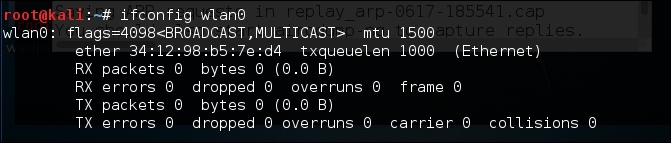
We now have the ability to bypass any MAC filtering that is taking place on the access point. There is now the ability to connect to the wireless network. Like any system that we are able to compromise, setting up persistence is another critical step. This gives us a certain measure of certainty that we will be able to access the system again if we lose our connection.
Once we have a valid way to authenticate to the wireless network and are able to connect, the next step is to set up persistence. One area to focus on is the wireless router. Most wireless routers have either a web-based, or other management, console in which legitimate administrators are able to log in and manage the router. Usually, these routers are located at the beginning of the subnet of the wireless LAN we connect to. For example, if we connect to Wifi_Crack and run the command ifconfig wlan0, it identifies us as having the IP address of 10.0.0.7. If we navigate to http://10.0.0.1 via the Iceweasel browser, we are brought to this page. You can also type route –n into a terminal, which will give you the default gateway:
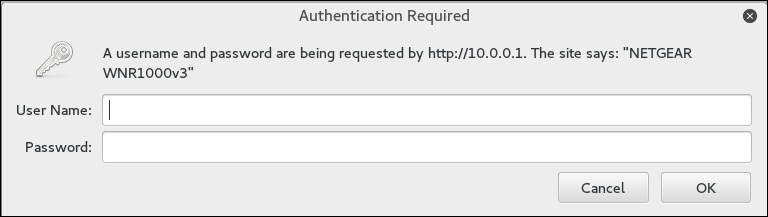
If we enter the user name admin without a password and click OK, this is what we get:
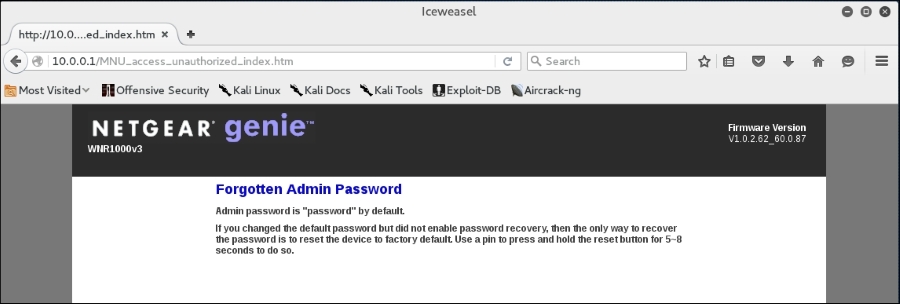
What we see is the default password for the administrator account. While not common, it is not out of the realm of possibility that the systems administrator for this network left the default credentials for the wireless router. If we do not get this error message, there are a great deal of resources on the Internet that aggregate the default administrator accounts for a wide variety of routers, switches, and wireless access points. One such site is http://www.routerpasswords.com/. If that doesn't work, the next option is to brute force the sign-in using techniques we have previously covered.
If we are able to compromise the administrator accounts and gain access to the administrative settings, take note of information that will allow you to sign in again, such as the WPS PIN:
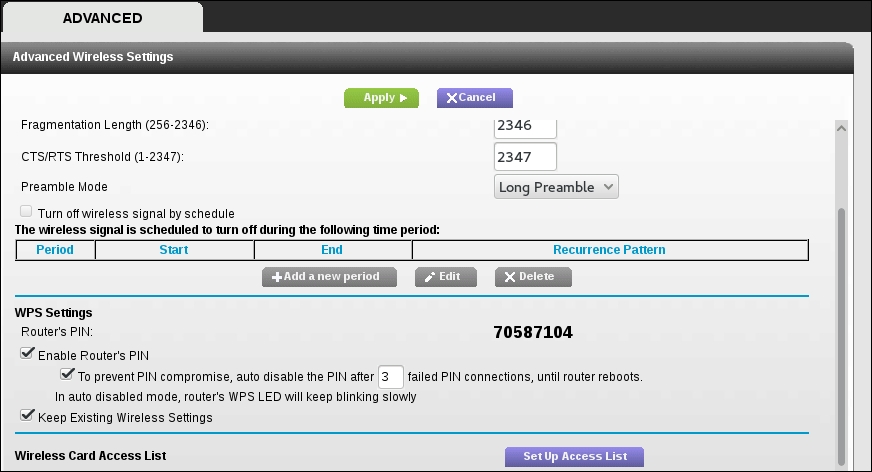
Administrators may change the wireless access point WPA passcode, but often leave the WPS PIN in place. Also, you should check to see if you have the ability to access the MAC address filtering controls:
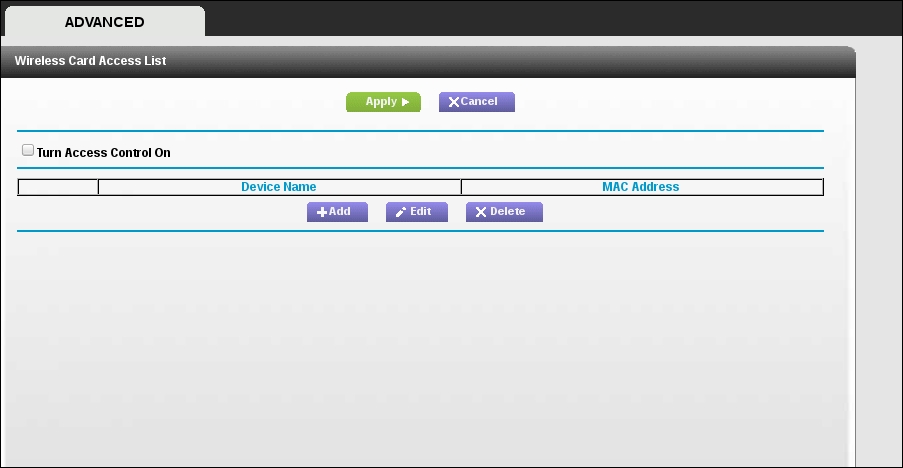
From here, you can enter several MAC addresses that you can use in the future.