Table of Contents for
Kali Linux 2 – Assuring Security by Penetration Testing - Third Edition
 Kali Linux 2 – Assuring Security by Penetration Testing - Third Edition
Published by
Packt Publishing, 2016
Kali Linux 2 – Assuring Security by Penetration Testing - Third Edition
Published by
Packt Publishing, 2016
- Cover
- Table of Contents
- Kali Linux 2 – Assuring Security by Penetration Testing Third Edition
- Kali Linux 2 – Assuring Security by Penetration Testing Third Edition
- Credits
- Disclaimer
- About the Authors
- About the Reviewer
- www.PacktPub.com
- Preface
- What you need for this book
- Who this book is for
- Conventions
- Reader feedback
- Customer support
- 1. Beginning with Kali Linux
- Kali Linux tool categories
- Downloading Kali Linux
- Using Kali Linux
- Configuring the virtual machine
- Updating Kali Linux
- Network services in Kali Linux
- Installing a vulnerable server
- Installing additional weapons
- Summary
- 2. Penetration Testing Methodology
- Vulnerability assessment versus penetration testing
- Security testing methodologies
- General penetration testing framework
- Information gathering
- The ethics
- Summary
- 3. Target Scoping
- Preparing the test plan
- Profiling test boundaries
- Defining business objectives
- Project management and scheduling
- Summary
- 4. Information Gathering
- Using public resources
- Querying the domain registration information
- Analyzing the DNS records
- Getting network routing information
- Utilizing the search engine
- Metagoofil
- Accessing leaked information
- Summary
- 5. Target Discovery
- Identifying the target machine
- OS fingerprinting
- Summary
- 6. Enumerating Target
- Understanding the TCP/IP protocol
- Understanding the TCP and UDP message format
- The network scanner
- Unicornscan
- Zenmap
- Amap
- SMB enumeration
- SNMP enumeration
- VPN enumeration
- Summary
- 7. Vulnerability Mapping
- Vulnerability taxonomy
- Automated vulnerability scanning
- Network vulnerability scanning
- Web application analysis
- Fuzz analysis
- Database assessment tools
- Summary
- 8. Social Engineering
- Attack process
- Attack methods
- Social Engineering Toolkit
- Summary
- 9. Target Exploitation
- Vulnerability and exploit repositories
- Advanced exploitation toolkit
- MSFConsole
- MSFCLI
- Ninja 101 drills
- Writing exploit modules
- Summary
- 10. Privilege Escalation
- Password attack tools
- Network spoofing tools
- Network sniffers
- Summary
- 11. Maintaining Access
- Working with tunneling tools
- Creating web backdoors
- Summary
- 12. Wireless Penetration Testing
- Wireless network recon
- Wireless testing tools
- Post cracking
- Sniffing wireless traffic
- Summary
- 13. Kali Nethunter
- Installing Kali Nethunter
- Nethunter icons
- Nethunter tools
- Third-party applications
- Wireless attacks
- HID attacks
- Summary
- 14. Documentation and Reporting
- Types of reports
- The executive report
- The management report
- The technical report
- Network penetration testing report (sample contents)
- Preparing your presentation
- Post-testing procedures
- Summary
- A. Supplementary Tools
- Web application tools
- Network tool
- Summary
- B. Key Resources
- Paid incentive programs
- Reverse engineering resources
- Penetration testing learning resources
- Exploit development learning resources
- Penetration testing on a vulnerable environment
- Online web application challenges
- Virtual machines and ISO images
- Network ports
- Index
The goal of using the tools in the DNS records category is to collect information about the DNS servers and the corresponding records of a target domain.
The following are several common DNS record types:
|
No. |
Record type |
Description |
|---|---|---|
|
1 |
SOA | |
|
2 |
NS | |
|
3 |
A | |
|
4 |
MX | |
|
5 |
PTR | |
|
6 |
AAAA | |
|
7 |
CNAME |
This is the abbreviation for canonical name. It is used as an alias for another canonical domain name. |
For example, in a penetration test engagement, the customer may ask you to find out all of the hosts and IP addresses available for their domain. The only information you have is the organization's domain name. We will look at several common tools that can help you if you encounter this situation.
After we get the DNS server information, the next step is to find out the IP address of a hostname. To help us out on this matter, we can use the following host command-line tool to look up the IP address of a host from a DNS server:
# host hackthissite.org
The following is the command's result:
hackthissite.org has address 198.148.81.136
hackthissite.org has address 198.148.81.135
hackthissite.org has address 198.148.81.139
hackthissite.org has address 198.148.81.137
hackthissite.org has address 198.148.81.138
hackthissite.org has IPv6 address 2610:150:8007:0:198:148:81:138
hackthissite.org has IPv6 address 2610:150:8007:0:198:148:81:135
hackthissite.org has IPv6 address 2610:150:8007:0:198:148:81:137
hackthissite.org has IPv6 address 2610:150:8007:0:198:148:81:136
hackthissite.org has IPv6 address 2610:150:8007:0:198:148:81:139
hackthissite.org mail is handled by 20 ALT2.ASPMX.L.GOOGLE.COM.
hackthissite.org mail is handled by 20 ALT1.ASPMX.L.GOOGLE.COM.
hackthissite.org mail is handled by 30 ASPMX4.GOOGLEMAIL.COM.
hackthissite.org mail is handled by 30 ASPMX5.GOOGLEMAIL.COM.
hackthissite.org mail is handled by 10 ASPMX.L.GOOGLE.COM.
hackthissite.org mail is handled by 30 ASPMX2.GOOGLEMAIL.COM.
hackthissite.org mail is handled by 30 ASPMX3.GOOGLEMAIL.COM.
Looking at the result, we now know the IPv4 and IPv6 are the addresses of the host hackthissite.org.
By default, the host command will look for the A, AAAA, and MX records of a domain. To query for any records, just give the -a option to the command:
# host -a hackthissite.org
Trying "hackthissite.org"
;; ->>HEADER<<- opcode: QUERY, status: NOERROR, id: 32115
;; flags: qr rd ra; QUERY: 1, ANSWER: 12, AUTHORITY: 0, ADDITIONAL: 0
;; QUESTION SECTION:
;hackthissite.org.    IN  ANY
;; ANSWER SECTION:
hackthissite.org.  5  IN  A  198.148.81.135
hackthissite.org.  5  IN  A  198.148.81.139
hackthissite.org.  5  IN  A  198.148.81.137
hackthissite.org.  5  IN  A  198.148.81.136
hackthissite.org.  5  IN  A  198.148.81.138
hackthissite.org.  5  IN  NS  ns1.hackthissite.org.
hackthissite.org.  5  IN  NS  c.ns.buddyns.com.
hackthissite.org.  5  IN  NS  f.ns.buddyns.com.
hackthissite.org.  5  IN  NS  e.ns.buddyns.com.
hackthissite.org.  5  IN  NS  ns2.hackthissite.org.
hackthissite.org.  5  IN  NS  b.ns.buddyns.com.
hackthissite.org.  5  IN  NS  d.ns.buddyns.com.
Received 244 bytes from 172.16.43.2#53 in 34 ms
The host command looks for these records by querying the DNS servers listed in the /etc/resolv.conf file of your Kali Linux system. If you want to use other DNS servers, just give the DNS server address as the last command-line option.
Note
If you give the domain name as the command-line option in host, the method is called forward lookup, but if you give an IP address as the command-line option to the host command, the method is called reverse lookup.
Try to do a reverse lookup of the following IP address:
host 23.23.144.81
What information can you get from this command?
The host tool can also be used to do a DNS zone transfer. With this mechanism, we can collect information about the available hostnames in a domain.
Note
A DNS zone transfer is a mechanism used to replicate a DNS database from a master DNS server to another DNS server, usually called a slave DNS server. Without this mechanism, the administrators have to update each DNS server separately. The DNS zone transfer query must be issued to an authoritative DNS server of a domain.
Due to the nature of information that can be gathered by a DNS zone transfer, nowadays, it is very rare to find a DNS server that allows zone transfer to an arbitrary zone transfer request.
If you find a DNS server that allows zone transfer without limiting who is able to do it; this means that the DNS server has been configured incorrectly.
Besides the
host command, you can also use the dig command to do DNS interrogation. The advantages of dig compared to host are its flexibility and clarity of output. With dig, you can ask the system to process a list of lookup requests from a file.
Let's use dig to interrogate the http://hackthissite.org domain.
Without giving any options besides the domain name, the dig command will only return the A record of a domain. To request any other DNS record type, we can give the type option in the command line:
# dig hackthissite.org
; <<>> DiG 9.9.5-9+deb8u5-Debian <<>> hackthissite.org
;; global options: +cmd
;; Got answer:
;; ->>HEADER<<- opcode: QUERY, status: NOERROR, id: 44321
;; flags: qr rd ra; QUERY: 1, ANSWER: 5, AUTHORITY: 0, ADDITIONAL: 1
;; OPT PSEUDOSECTION:
; EDNS: version: 0, flags:; MBZ: 0005 , udp: 4096
;; QUESTION SECTION:
;hackthissite.org.    IN  A
;; ANSWER SECTION:
hackthissite.org.  5  IN  A  198.148.81.139
hackthissite.org.  5  IN  A  198.148.81.137
hackthissite.org.  5  IN  A  198.148.81.138
hackthissite.org.  5  IN  A  198.148.81.135
hackthissite.org.  5  IN  A  198.148.81.136
;; Query time: 80 msec
;; SERVER: 172.16.43.2#53(172.16.43.2)
;; WHEN: Tue Feb 02 18:16:06 PST 2016
;; MSG SIZE  rcvd: 125
From the result, we can see that the dig output now returns the DNS records of A.
For a more detailed list examination of the record, input the following command:
  #dig hackthissite.org any
; <<>> DiG 9.9.5-9+deb8u5-Debian <<>> hackthissite.org any
;; global options: +cmd
;; Got answer:
;; ->>HEADER<<- opcode: QUERY, status: NOERROR, id: 49723
;; flags: qr rd ra; QUERY: 1, ANSWER: 12, AUTHORITY: 0, ADDITIONAL: 1
;; OPT PSEUDOSECTION:
; EDNS: version: 0, flags:; MBZ: 0005 , udp: 4096
;; QUESTION SECTION:
;hackthissite.org.    IN  ANY
;; ANSWER SECTION:
hackthissite.org.  5  IN  A  198.148.81.136
hackthissite.org.  5  IN  A  198.148.81.137
hackthissite.org.  5  IN  A  198.148.81.135
hackthissite.org.  5  IN  A  198.148.81.138
hackthissite.org.  5  IN  A  198.148.81.139
hackthissite.org.  5  IN  NS  e.ns.buddyns.com.
hackthissite.org.  5  IN  NS  b.ns.buddyns.com.
hackthissite.org.  5  IN  NS  ns1.hackthissite.org.
hackthissite.org.  5  IN  NS  f.ns.buddyns.com.
hackthissite.org.  5  IN  NS  c.ns.buddyns.com.
hackthissite.org.  5  IN  NS  ns2.hackthissite.org.
hackthissite.org.  5  IN  NS  d.ns.buddyns.com.
;; Query time: 37 msec
;; SERVER: 172.16.43.2#53(172.16.43.2)
;; WHEN: Tue Feb 02 18:17:41 PST 2016
;; MSG SIZE  rcvd: 255
The
dig tool has given us a great deal more information, including
Name Servers (NS) and the IP addresses (A records) associated with the domain hackthissite.org.
To collect information from a DNS server, we can utilize dnsenum. The DNS information that can be gathered is as follows:
- The host IP addresses
- The DNS server of a domain
- The MX record of a domain
Besides being used to get DNS information, dnsenum also has the following features:
- Get additional names and subdomains utilizing the Google search engine.
- Find out subdomain names by brute forcing the names from the text files. The
dnsenumtool included in Kali Linux comes with adns.txtdictionary file that contains 1,480 subdomain names and adns-big.txtfile that contains 266,930 subdomain names. - Carry out
Whoisqueries on C-class domain network ranges and calculate its network ranges. - Carry out reverse lookup on network ranges.
- Use threads to process different queries.
To access dnsenum, go to the console and type the following command:
# dnsenum
This will display the usage instruction on your screen.
As an example of the dnsenum tool usage, we will use dnsenum to get DNS information from a target domain. The command to do this is as follows:
# dnsenum hackthissite.org
dnsenum.pl VERSION:1.2.3
-----   hackthissite.org   -----
Host's addresses:
__________________
hackthissite.org.                        5        IN    A        198.148.81.138
hackthissite.org.                        5        IN    A        198.148.81.136
hackthissite.org.                        5        IN    A        198.148.81.137
hackthissite.org.                        5        IN    A        198.148.81.139
hackthissite.org.                        5        IN    A        198.148.81.135
Name Servers:
______________
d.ns.buddyns.com.                        5        IN    A        107.191.99.111
c.ns.buddyns.com.                        5        IN    A        88.198.106.11
f.ns.buddyns.com.                        5        IN    A        103.6.87.125
ns1.hackthissite.org.                    5        IN    A        198.148.81.188
e.ns.buddyns.com.                        5        IN    A        213.183.56.98
ns2.hackthissite.org.                    5        IN    A        198.148.81.189
b.ns.buddyns.com.                        5        IN    A        173.244.206.25
Mail (MX) Servers:
___________________
aspmx3.googlemail.com.                   5        IN    A        64.233.185.26
aspmx5.googlemail.com.                   5        IN    A        74.125.141.27
aspmx.l.google.com.                      5        IN    A        74.125.28.26
aspmx4.googlemail.com.                   5        IN    A        173.194.205.27
alt1.aspmx.l.google.com.                 5        IN    A        74.125.142.26
aspmx2.googlemail.com.                   5        IN    A        74.125.142.27
alt2.aspmx.l.google.com.                 5        IN    A        64.233.185.27
Trying Zone Transfers and getting Bind Versions:
_________________________________________________
Trying Zone Transfer for hackthissite.org on d.ns.buddyns.com ...
AXFR record query failed: truncated zone transfer
Trying Zone Transfer for hackthissite.org on c.ns.buddyns.com ...
AXFR record query failed: truncated zone transfer
Trying Zone Transfer for hackthissite.org on f.ns.buddyns.com ...
AXFR record query failed: truncated zone transfer
Trying Zone Transfer for hackthissite.org on ns1.hackthissite.org ...
AXFR record query failed: RCODE from server: REFUSED
Trying Zone Transfer for hackthissite.org on e.ns.buddyns.com ...
AXFR record query failed: truncated zone transfer
Trying Zone Transfer for hackthissite.org on ns2.hackthissite.org ...
AXFR record query failed: RCODE from server: REFUSED
Trying Zone Transfer for hackthissite.org on b.ns.buddyns.com ...
AXFR record query failed: truncated zone transfer
brute force file not specified, bay.
Using the default options of dnsenum, we can get information about the host address, name servers, and the mail server's IP address.
Another technique that can be used to find the subdomain is by using Google. This will be useful if the DNS zone transfer is disabled. To use Google, just add the -p option for the number of Google pages to be processed, or -s to define the number of subdomains to be collected. You may also want to set the number of threads to do the queries (--threads) in order to speed up the process.
The fierce tool is a DNS enumeration tool that uses several techniques to find all of the IP addresses and hostnames of a target. It works by first querying your system's DNS server for the target DNS server; next, it uses the target DNS server. It also supports the wordlist supplied by the user to find subdomain names. It does this recursively until all of the wordlist items are tested. The main feature of fierce is that it can be used to locate non-contiguous IP space and hostnames against specified domains.
To access fierce in Kali Linux, you can use the console and type the following command:
# fierce -h
This will display the usage instructions on your screen.
As an example, let's use fierce to find information about a domain:
#  fierce -dns example.com  -threads 3
DNS Servers for example.com:
  a.iana-servers.net
  b.iana-servers.net

Trying zone transfer first...
  Testing a.iana-servers.net
    Request timed out or transfer not allowed.
  Testing b.iana-servers.net
    Request timed out or transfer not allowed.

Unsuccessful in zone transfer (it was worth a shot)
Okay, trying the good old fashioned way... brute force

Checking for wildcard DNS...
Nope. Good.
Now performing 2280 test(s)...
93.184.216.34  www.example.com

Subnets found (may want to probe here using nmap or unicornscan):
  93.184.216.0-255 : 1 hostnames found.

Done with Fierce scan: http://ha.ckers.org/fierce/
Found 1 entries.

Have a nice day.
It may take some time to finish the DNS enumeration using fierce.
In this section, we talked a lot about finding hostnames for a domain; you may ask what the purposes of these hostnames are. In a penetration testing project, one of the authors found a web meeting session after getting the hostname's result from the DNS analysis phase. That host allowed the author to join the ongoing web meeting session.
DMitry (Deepmagic Information Gathering Tool) is an all-in-one information gathering tool. It can be used to gather the following information:
- The
Whoisrecord of a host by using the IP address or domain name - Host information from Netcraft.com
- Subdomains in the target domain
- The e-mail address of the target domain
- Open, filtered, or closed port lists on the target machine by performing a port scan
Even though this information can be obtained using several Kali Linux tools, it is very handy to gather all of the information using a single tool and to save the report to one file.
To access DMitry from the Kali Linux menu, navigate to Applications | Information Gathering | dmitry, or you can use the console and type the following command:
# dmitry
As an example, let's do the following to a target host:
- Perform a
Whoislookup - Get information from Netcraft.com
- Search for all the possible subdomains
- Search for all the possible e-mail addresses
The command for performing the preceding actions is as follows:
# dmitry -iwnse hackthissite.org
The following is the abridged result of the preceding command:
Deepmagic Information Gathering Tool
"There be some deep magic going on"
HostIP:198.148.81.138
HostName:hackthissite.org
Gathered Inet-whois information for 198.148.81.138
---------------------------------
inetnum:        198.147.161.0 - 198.148.176.255
netname:        NON-RIPE-NCC-MANAGED-ADDRESS-BLOCK
descr:          IPv4 address block not managed by the RIPE NCC

remarks:        http://www.iana.org/assignments/ipv4-recovered-address-space/ipv4-recovered-address-space.xhtml
remarks:
remarks:        -----------------------------------------------------
country:        EU # Country is really world wide
admin-c:        IANA1-RIPE
tech-c:         IANA1-RIPE
status:         ALLOCATED UNSPECIFIED
mnt-by:         RIPE-NCC-HM-MNT
mnt-lower:      RIPE-NCC-HM-MNT
mnt-routes:     RIPE-NCC-RPSL-MNT
created:        2011-07-11T12:36:59Z
last-modified:  2015-10-29T15:18:41Z
source:         RIPE
role:           Internet Assigned Numbers Authority
address:        see http://www.iana.org.
admin-c:        IANA1-RIPE
tech-c:         IANA1-RIPE
nic-hdl:        IANA1-RIPE
remarks:        For more information on IANA services
remarks:        go to IANA web site at http://www.iana.org.
mnt-by:         RIPE-NCC-MNT
created:        1970-01-01T00:00:00Z
last-modified:  2001-09-22T09:31:27Z
source:         RIPE # Filtered
% This query was served by the RIPE Database Query Service version 1.85.1 (DB-2)
Next, Dmitry outputs the Domain domain registration information:
Gathered Inic-whois information for hackthissite.org
---------------------------------
Domain Name: HACKTHISSITE.ORG
Domain ID: D99641092-LROR
WHOIS Server:
Referral URL: http://www.enom.com
Updated Date: 2016-01-19T14:35:36Z
Creation Date: 2003-08-10T15:01:25Z
Registry Expiry Date: 2016-08-10T15:01:25Z
Sponsoring Registrar: eNom, Inc.
Sponsoring Registrar IANA ID: 48
Domain Status: clientTransferProhibited https://www.icann.org/epp#clientTransferProhibited
Registrant ID: 14e024383b91c924
Registrant Name: Whois Agent
Registrant Organization: Whois Privacy Protection Service, Inc.
Registrant Street: PO Box 639
Registrant Street: C/O hackthissite.org
Registrant City: Kirkland
Registrant State/Province: WA
Registrant Postal Code: 98083
Registrant Country: US
Registrant Phone: +1.4252740657
Registrant Phone Ext:
Registrant Fax: +1.4259744730
Registrant Fax Ext:
Registrant Email: ngtghshcl@whoisprivacyprotect.com
Admin ID: 14e024383b91c924
Admin Name: Whois Agent
Admin Organization: Whois Privacy Protection Service, Inc.
Admin Street: PO Box 639
Admin Street: C/O hackthissite.org
Admin City: Kirkland
Admin State/Province: WA
Admin Postal Code: 98083
Admin Country: US
Admin Phone: +1.4252740657
Admin Phone Ext:
Admin Fax: +1.4259744730
Admin Fax Ext:
Admin Email: ngtghshcl@whoisprivacyprotect.com
Tech ID: 14e024383b91c924
Tech Name: Whois Agent
Tech Organization: Whois Privacy Protection Service, Inc.
Tech Street: PO Box 639
Tech Street: C/O hackthissite.org
Tech City: Kirkland
Tech State/Province: WA
Tech Postal Code: 98083
Tech Country: US
Tech Phone: +1.4252740657
Tech Phone Ext:
Tech Fax: +1.4259744730
Tech Fax Ext:
Tech Email: ngtghshcl@whoisprivacyprotect.com
Name Server: B.NS.BUDDYNS.COM
Name Server: C.NS.BUDDYNS.COM
Name Server: E.NS.BUDDYNS.COM
Name Server: D.NS.BUDDYNS.COM
Name Server: NS1.HACKTHISSITE.ORG
Name Server: NS2.HACKTHISSITE.ORG
Name Server: F.NS.BUDDYNS.COM
DNSSEC: unsigned
>>> Last update of WHOIS database: 2016-02-11T13:04:41Z <<<
We can also use dmitry to perform a simple port scan by giving the following command:
# dmitry -p hackthissite.org -f -b
The result of the preceding command is as follows:
Deepmagic Information Gathering Tool
"There be some deep magic going on"
HostIP:198.148.81.135
HostName:hackthissite.org
Gathered TCP Port information for 198.148.81.135
---------------------------------
 Port    State
...
14/tcp    filtered
15/tcp    filtered
16/tcp    filtered
17/tcp    filtered
18/tcp    filtered
19/tcp    filtered
20/tcp    filtered
21/tcp    filtered
22/tcp    open
>> SSH-2.0-OpenSSH_5.8p1_hpn13v10 FreeBSD-20110102
23/tcp    filtered
24/tcp    filtered
25/tcp    filtered
26/tcp    filtered
...
79/tcp    filtered
80/tcp    open
Portscan Finished: Scanned 150 ports, 69 ports were in state closed
All scans completed, exiting
From the preceding command, we find that the target host is using a device to do packet filtering. It only allows incoming connections to port 22 for SSH and port 80, which is commonly used for a web server. What is of interest is that the type of SSH installation is indicated, allowing for further research on possible vulnerabilities to the OpenSSH installation.
Maltego is an open source intelligence and forensics application. It allows you to mine and gather information and represent the information in a meaningful way. The term open source in Maltego means that it gathers information from open source resources. After gathering the information, Maltego allows you to identify the key relationships between the information gathered.
Maltego is a tool that can graphically display the links between data, so it will make it easier to see the common aspects between pieces of information.
Maltego allows you to enumerate the following Internet infrastructure information:
- Domain names
- DNS names
Whoisinformation- Network blocks
- IP addresses
It can also be used to gather the following information about people:
- Companies and organizations related to the person
- E-mail addresses related to the person
- Websites related to the person
- Social networks related to the person
- Phone numbers related to the person
- Social Media Information
Kali Linux, by default, comes with Maltego 3.6.1 Kali Linux edition. The following are the limitations of the community version (http://www.paterva.com/web5/client/community.php):
- Not for commercial use
- A maximum of 12 results per transform
- You need to register yourself on our website to use the client
- API keys expire every couple of days
- Runs on a (slower) server that is shared with all community users
- Communication between client and server is not encrypted
- Not updated until the next major version
- No end user support
- No updates of transforms on the server side
There are more than 70 transforms available in Maltego. The word transform refers to the information gathering phase of Maltego. One transform means that Maltego will only do one phase of information gathering.
To access Maltego from the Kali Linux menu, navigate to Application | Information Gathering maltego. There is also a start icon on the desktop, or you can use the console and type the following command:
# maltego
You will see the Maltego welcome screen. After several seconds, you will see the following Maltego startup wizard that will help you set up the Maltego client for the first time:
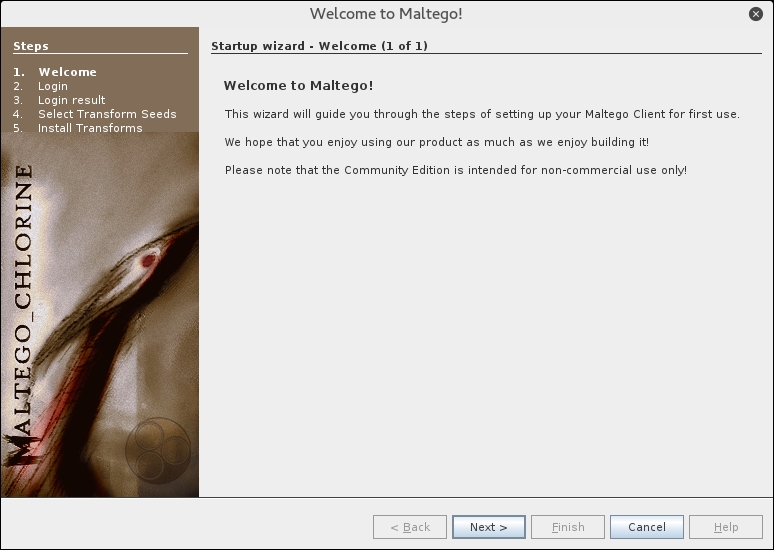
Click on Next to continue to the next window, as shown in the following screenshot:
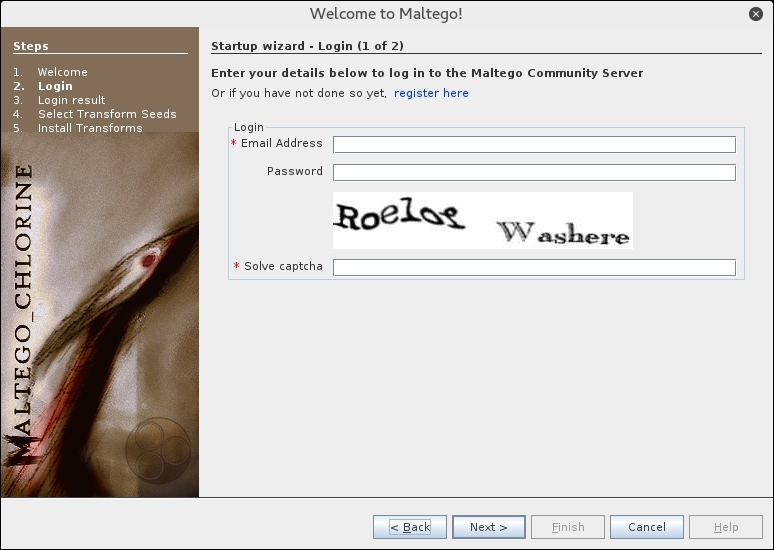
In this window, you need to enter your login information to the Maltego community server. If you don't have the login information, you need to register yourself first by clicking on the register here link.
The following screenshot shows the Register page:
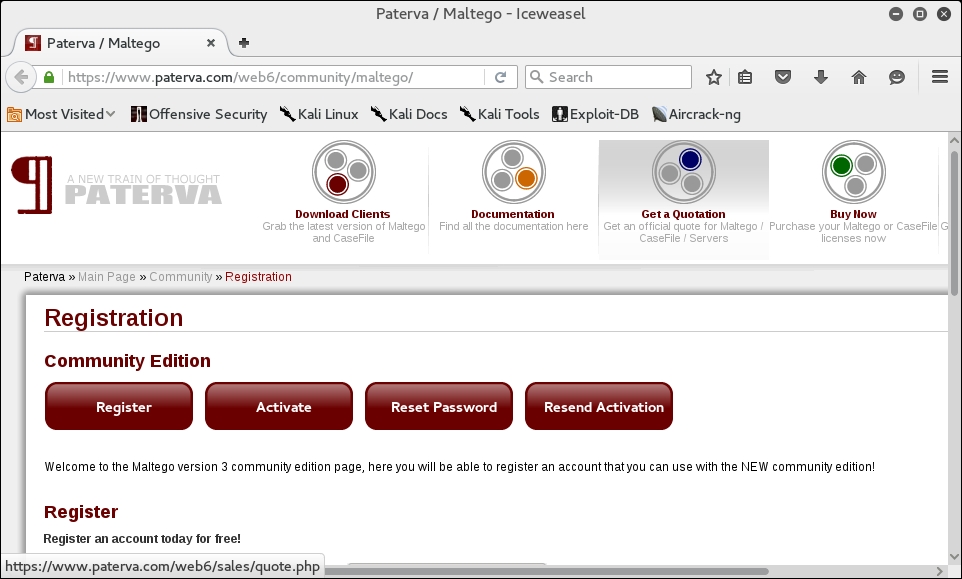
You need to fill in your details into the corresponding fields provided, and click on the Register button to register.
If you already have the login details, you can enter them in the fields provided. When the login information is correct, the following information will be displayed:
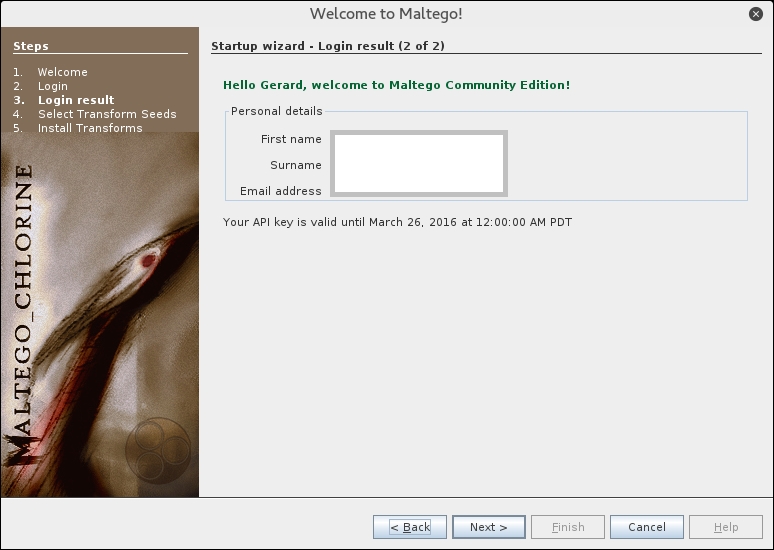
You will then need to select the transform seeds, as shown in the following screenshot:
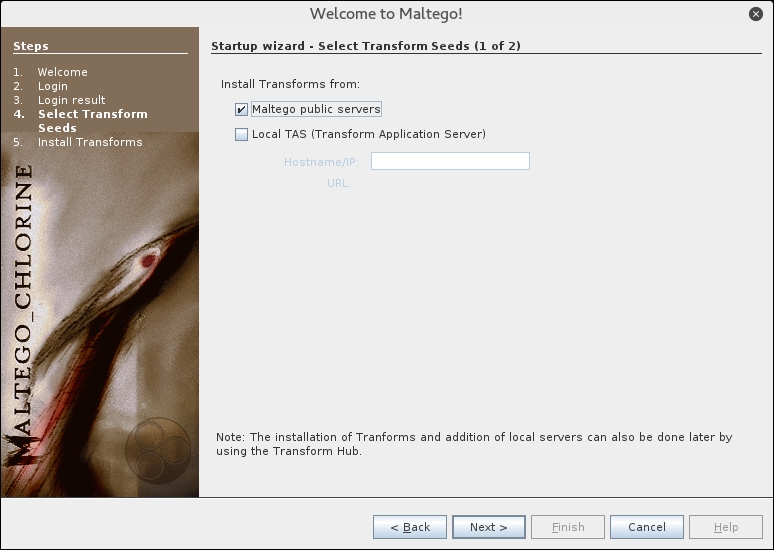
The Maltego client will connect to the Maltego servers in order to get the transforms. If Maltego has been initialized successfully, you will see the following screenshot:
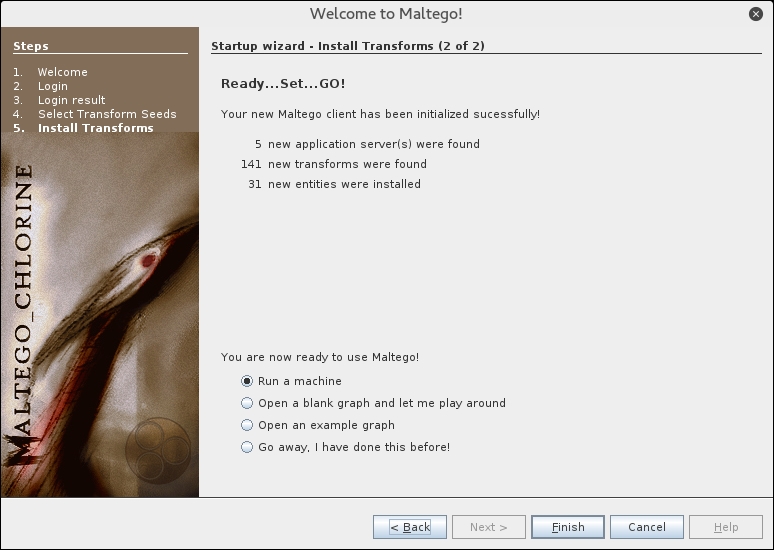
This means that your Maltego client initialization has been done successfully. Now you can use the Maltego client.
Before we use the Maltego client, let's first see the Maltego interface:
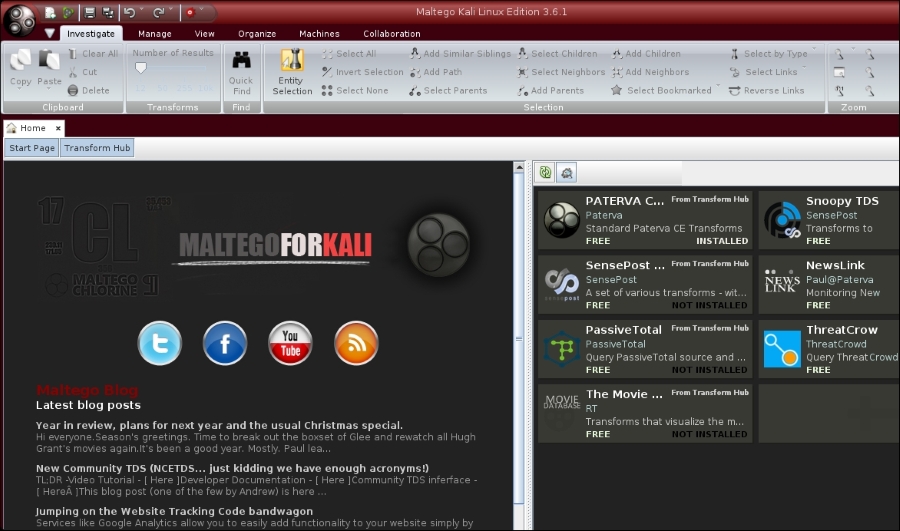
On the top-left side of the preceding screenshot, you will see the Palette window. In the Palette window, you can choose the entity type for which you want to gather the information. Maltego divides the entities into six groups, as follows:
- Devices such as phone or camera
- Infrastructure such as AS, DNS name, domain, IPv4 address, MX record, NS record, netblock, URL, and website
- Locations on Earth
- Penetration testing such as built with technology
- Personal such as alias, document, e-mail address, image, person, phone number, and phrase
- Social Network such as Facebook object, Twitter entity, Facebook affiliation, and Twitter affiliation
In the top and center of the preceding screenshot, you will see the different views:
- Main View
- Bubble View
- Entity List
Views are used to extract information that is not obvious from large graphs—where the analyst cannot see clear relationships by manual inspection of data. Main View is where you work most of the time. In Bubble View, the nodes are displayed as bubbles, while in the Entity List tab, the nodes are simply listed in text format.
Next to the views, you will see different layout algorithms. Maltego supports the following four layout algorithms:
- Block layout: This is the default layout and is used during mining.
- Hierarchical layout: The hierarchical layout works with a root and subsequent branches for hosts. This give a branch structure to visualize parent/child relationships.
- Centrality layout: The centrality layout takes the most central node and then graphically represents the incoming links around the nodes. This is useful when examining several nodes that are all linked to one central node.
- Organic layout: The organic layout displays the nodes in such a way that the distance is minimized, giving the viewer a better overall picture of the nodes and their relationships.
After a brief description of the Maltego client user interface, it's time for the action.
Let's suppose you want to gather information about a domain. We will use the example.com domain for this example. We will explore how to do this in the following sections:
- Create a new graph (Ctrl + T) and go to the Palette tab.
- Select Infrastructure, and click on Domain.
- Drag it to the main window. If successful, you will see a domain called
paterva.comin the main window. - Double-click on the name and change it to your target domain,
example.com, as shown in the following screenshot: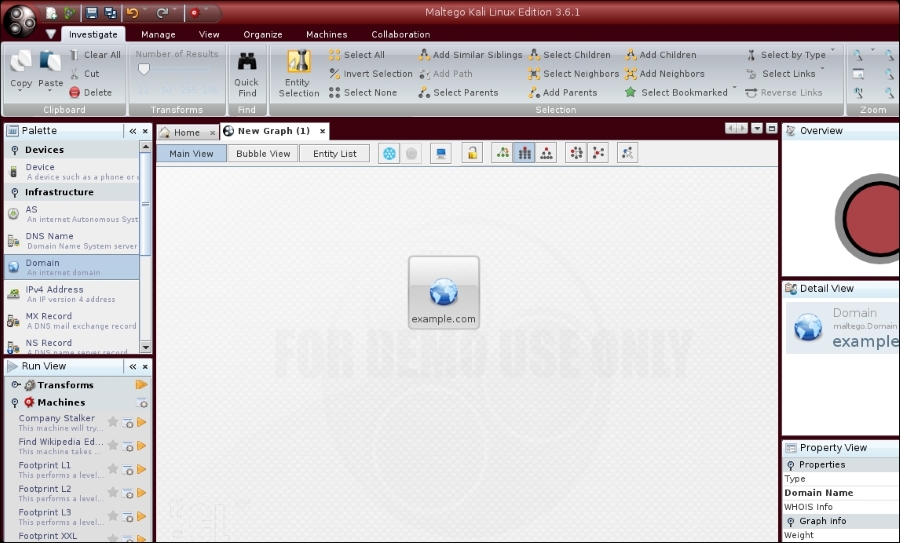
- If you right-click on the
domainname, you will see all of the transforms that can be done to the domain name:- DNS from domain
- Domain owner's details
- E-mail addresses from domain
- Files and documents from domain
- Other transforms, such as
To Person,To Phone numbers, and To Website - All transforms
- Let's choose
DomainToDNSNameSchemafrom domain transforms (Run Transform | Other Transforms | DomainToDNSNameSchema). The following screenshot shows the result: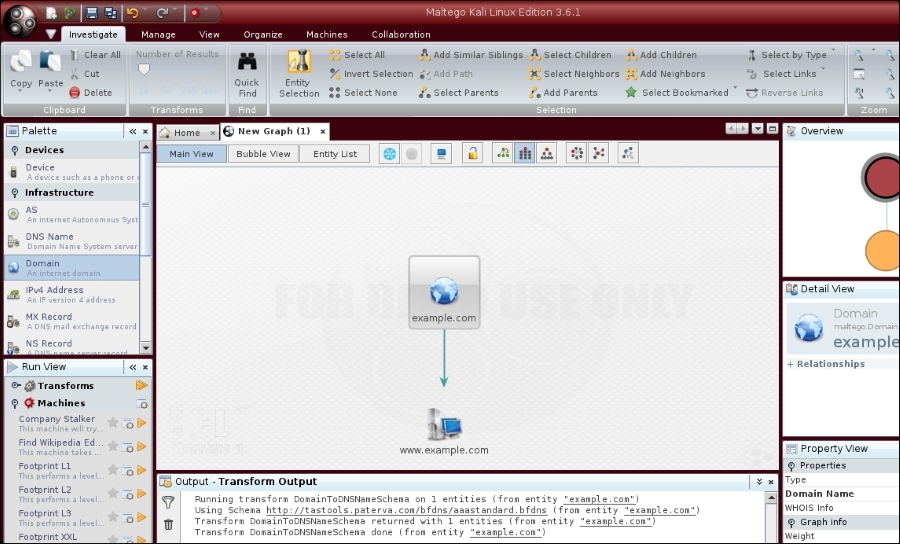
After the DNS from Domain transform, we got information on the website address (www.example.com) related to the example.com domain.
You can run other transforms to the target domain.
If you want to change the domain, you need to save the current graph first. Follow these steps to save the graph:
- Click on the Maltego icon, and then select Save.
- The graph will be saved in the Maltego graph file format (
.mtgx). To change the domain, just double-click on the existing domain and change the domain name.
Next, we will describe several tools that can be used to get route information.