
There are many shims that can be abused by attackers for malicious purposes. In this section, I will walk you through the process of creating a shim for injecting a DLL into a target process; this will help you understand how easy it is for an attacker to create a shim and abuse this feature. In this case, we will create a shim for notepad.exe and make it load a DLL of our choice. Creating a shim for an application can be broken down into four steps:
- Choosing the application to shim.
- Creating the shim database for the application.
- Saving the database (.sdb file).
- Installing the database.
To create and install a shim, you need to have administrator rights. You can perform all of the preceding steps by using a tool provided by Microsoft, called Application Compatibility Toolkit (ACT). For Windows 7, it can be downloaded from https://www.microsoft.com/en-us/download/details.aspx?id=7352, and for Windows 10, it is bundled with Windows ADK; depending on the version, it can be downloaded from https://developer.microsoft.com/en-us/windows/hardware/windows-assessment-deployment-kit. On a 64-bit version of Windows, ACT will install two versions of the Compatibility Administrator Tool (32-bit and 64-bit). To shim a 32-bit program, you must use the 32-bit version Compatibility Administrator Tool, and to shim a 64-bit program, use the 64-bit version.
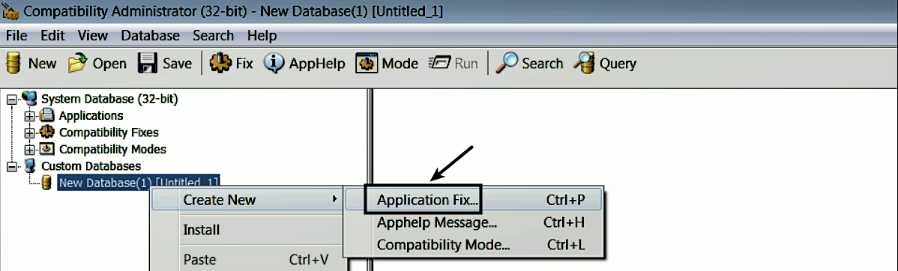
To demonstrate this concept, I will be using a 32-bit version of Windows 7, and the target process chosen is notepad.exe. We will create an InjectDll shim to make notepad.exe load a DLL named abcd.dll. To create a shim, launch the Compatibility Administrator Tool (32-bit) from the start menu, and right-click on New Database | Application Fix:
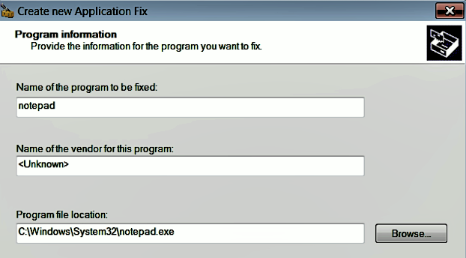
In the following dialog, enter the details of the application that you want to shim. The name of the program and vendor name can be anything, but the program file location should be correct:
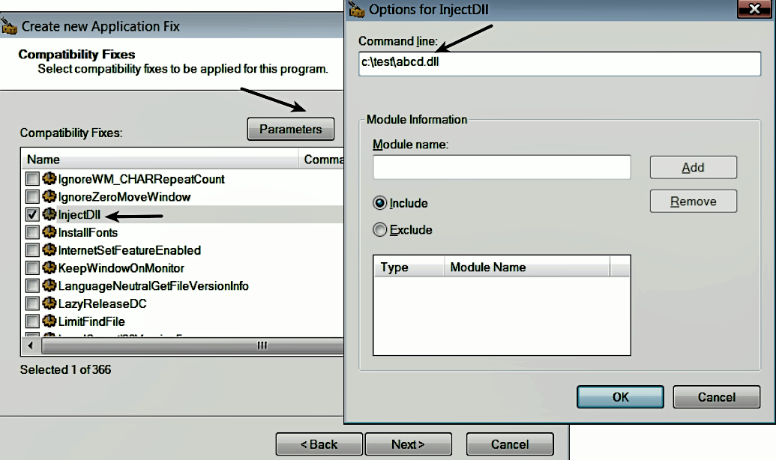
After you press the Next button, you will be presented with a Compatibility Modes dialog; you can simply press the Next button. In the next window, you will be presented with a Compatibility Fixes (Shims) dialog; this is where you can choose various shims. In this case, we are interested in the InjectDll shim. Select the InjectDll shim checkbox, then click on the Parameters button and enter the path to the DLL (this is the DLL we want Notepad to load), as follows. Click on OK and press the Next button. An important point to note is that the InjectDll shim option is available only in the 32-bit Compatibility Administrator Tool, which means that you can apply this shim only to a 32-bit process:
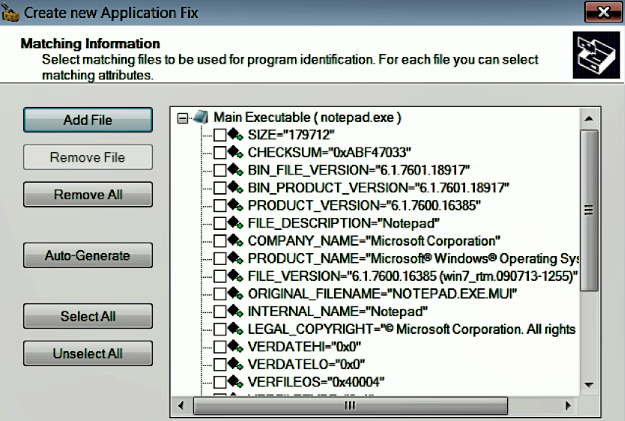
Next, you will be presented with a screen that specifies which attributes will be matched for the program (Notepad). The selected attributes will be matched when notepad.exe is run, and after the matching condition is satisfied, the shim will be applied. To make the matching criteria less restrictive, I have unchecked all of the options, shown here:
After you click on Finish, a complete summary of the application and the fixes applied will be presented to you, as follows. At this point, the shim database containing the shim information for notepad.exe is created:
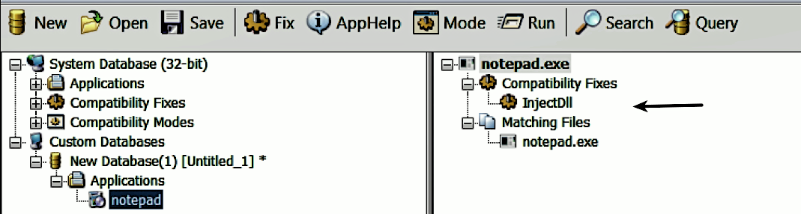
The next step is to save the database; to do that, click on the Save button, and, when prompted, give a name to your database and save the file. In this case, the database file is saved as notepad.sdb (you are free to choose any filename).
After the database file has been saved, the next step is to install the database. You can install it by right-clicking on the saved shim and clicking the Install button, as shown here:
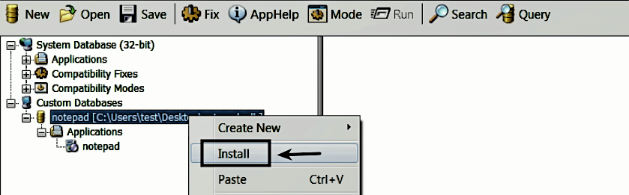
Another method for installing the database is to use a built-in, command-line utility, sdbinst.exe; the database can be installed by using the following command:
sdbinst.exe notepad.sdb
Now, if you invoke notepad.exe, abcd.dll will be loaded from the c:\test directory into Notepad's process address space, as shown here:
