Table of Contents for
Learning Malware Analysis

Version ebook / Retour

Cover image for bash Cookbook, 2nd Edition Learning Malware Analysis by Monnappa K A Published by Packt Publishing, 2018
  1. Learning Malware Analysis
  2. Title Page
  3. Copyright and Credits
  4. Learning Malware Analysis
  5. Dedication
  6. Packt Upsell
  7. Why subscribe?
  8. PacktPub.com
  9. Contributors
  10. About the author
  11. About the reviewers
  12. Packt is searching for authors like you
  13. Table of Contents
  14. Preface
  15. Who this book is for
  16. What this book covers
  17. To get the most out of this book
  18. Download the color images
  19. Conventions used
  20. Get in touch
  21. Reviews
  22. Introduction to Malware Analysis
  23. 1. What Is Malware?
  24. 2. What Is Malware Analysis?
  25. 3. Why Malware Analysis?
  26. 4. Types Of Malware Analysis
  27. 5. Setting Up The Lab Environment
  28. 5.1 Lab Requirements
  29. 5.2 Overview Of Lab Architecture
  30. 5.3 Setting Up And Configuring Linux VM
  31. 5.4 Setting Up And Configuring Windows VM
  32. 6. Malware Sources
  33. Summary
  34. Static Analysis
  35. 1. Determining the File Type
  36. 1.1 Identifying File Type Using Manual Method
  37. 1.2 Identifying File Type Using Tools
  38. 1.3 Determining File Type Using Python
  39. 2. Fingerprinting the Malware
  40. 2.1 Generating Cryptographic Hash Using Tools
  41. 2.2 Determining Cryptographic Hash in Python
  42. 3. Multiple Anti-Virus Scanning
  43. 3.1 Scanning the Suspect Binary with VirusTotal
  44. 3.2 Querying Hash Values Using VirusTotal Public API
  45. 4. Extracting Strings
  46. 4.1 String Extraction Using Tools
  47. 4.2 Decoding Obfuscated Strings Using FLOSS
  48. 5. Determining File Obfuscation
  49. 5.1 Packers and Cryptors
  50. 5.2 Detecting File Obfuscation Using Exeinfo PE
  51. 6. Inspecting PE Header Information
  52. 6.1 Inspecting File Dependencies and Imports
  53. 6.2  Inspecting Exports
  54. 6.3  Examining PE Section Table And Sections
  55. 6.4 Examining the Compilation Timestamp
  56. 6.5 Examining PE Resources
  57. 7. Comparing And Classifying The Malware
  58. 7.1 Classifying Malware Using Fuzzy Hashing
  59. 7.2 Classifying Malware Using Import Hash
  60. 7.3 Classifying Malware Using Section Hash
  61. 7.4 Classifying Malware Using YARA
  62. 7.4.1 Installing YARA
  63. 7.4.2 YARA Rule Basics
  64. 7.4.3 Running YARA
  65. 7.4.4 Applications of YARA
  66. Summary
  67. Dynamic Analysis
  68. 1. Lab Environment Overview
  69. 2. System And Network Monitoring
  70. 3. Dynamic Analysis (Monitoring) Tools
  71. 3.1 Process Inspection with Process Hacker
  72. 3.2 Determining System Interaction with Process Monitor
  73. 3.3 Logging System Activities Using Noriben
  74. 3.4 Capturing Network Traffic With Wireshark
  75. 3.5 Simulating Services with INetSim
  76. 4. Dynamic Analysis Steps
  77. 5. Putting it All Together: Analyzing a Malware Executable
  78. 5.1 Static Analysis of the Sample
  79. 5.2 Dynamic Analysis of the Sample
  80. 6. Dynamic-Link Library (DLL) Analysis
  81. 6.1 Why Attackers Use DLLs
  82. 6.2 Analyzing the DLL Using rundll32.exe
  83. 6.2.1 Working of rundll32.exe
  84. 6.2.2 Launching the DLL Using rundll32.exe
  85. Example 1 – Analyzing a DLL With No Exports
  86. Example 2 – Analyzing a DLL Containing Exports
  87. Example 3 – Analyzing a DLL Accepting Export Arguments
  88. 6.3 Analyzing a DLL with Process Checks
  89. Summary
  90. Assembly Language and Disassembly Primer
  91. 1. Computer Basics
  92. 1.1 Memory
  93. 1.1.1 How Data Resides In Memory
  94. 1.2 CPU
  95. 1.2.1 Machine Language
  96. 1.3 Program Basics
  97. 1.3.1 Program Compilation
  98. 1.3.2 Program On Disk
  99. 1.3.3 Program In Memory
  100. 1.3.4 Program Disassembly (From Machine code To Assembly code)
  101. 2. CPU Registers
  102. 2.1 General-Purpose Registers
  103. 2.2 Instruction Pointer (EIP)
  104. 2.3 EFLAGS Register
  105. 3. Data Transfer Instructions
  106. 3.1 Moving a Constant Into Register
  107. 3.2 Moving Values From Register To Register
  108. 3.3 Moving Values From Memory To Registers
  109. 3.4 Moving Values From Registers To Memory
  110. 3.5 Disassembly Challenge
  111. 3.6 Disassembly Solution
  112. 4. Arithmetic Operations
  113. 4.1 Disassembly Challenge
  114. 4.2 Disassembly Solution
  115. 5. Bitwise Operations
  116. 6. Branching And Conditionals
  117. 6.1 Unconditional Jumps
  118. 6.2 Conditional Jumps
  119. 6.3 If Statement
  120. 6.4 If-Else Statement
  121. 6.5 If-Elseif-Else Statement
  122. 6.6 Disassembly Challenge
  123. 6.7 Disassembly Solution
  124. 7. Loops
  125. 7.1 Disassembly Challenge
  126. 7.2 Disassembly Solution
  127. 8. Functions
  128. 8.1 Stack
  129. 8.2 Calling Function
  130. 8.3 Returning From Function
  131. 8.4 Function Parameters And Return Values
  132. 9. Arrays And Strings
  133. 9.1 Disassembly Challenge
  134. 9.2 Disassembly Solution
  135. 9.3 Strings
  136. 9.3.1 String Instructions
  137. 9.3.2 Moving From Memory To Memory (movsx)
  138. 9.3.3 Repeat Instructions (rep)
  139. 9.3.4 Storing Value From Register to Memory (stosx)
  140. 9.3.5 Loading From Memory to Register (lodsx)
  141. 9.3.6 Scanning Memory (scasx)
  142. 9.3.7 Comparing Values in Memory (cmpsx)
  143. 10. Structures
  144. 11. x64 Architecture
  145. 11.1 Analyzing 32-bit Executable On 64-bit Windows
  146. 12. Additional Resources
  147. 13. Summary
  148. Disassembly Using IDA
  149. 1. Code Analysis Tools
  150. 2. Static Code Analysis (Disassembly) Using IDA
  151. 2.1 Loading Binary in IDA
  152. 2.2 Exploring IDA Displays
  153. 2.2.1 Disassembly Window
  154. 2.2.2 Functions Window
  155. 2.2.3 Output Window
  156. 2.2.4 Hex View Window
  157. 2.2.5 Structures Window
  158. 2.2.6 Imports Window
  159. 2.2.7 Exports Window
  160. 2.2.8 Strings Window
  161. 2.2.9 Segments Window
  162. 2.3 Improving Disassembly Using IDA
  163. 2.3.1 Renaming Locations
  164. 2.3.2 Commenting in IDA
  165. 2.3.3 IDA Database
  166. 2.3.4 Formatting Operands
  167. 2.3.5 Navigating Locations
  168. 2.3.6 Cross-References
  169. 2.3.7 Listing All Cross-References
  170. 2.3.8 Proximity View And Graphs
  171. 3. Disassembling Windows API
  172. 3.1 Understanding Windows API
  173. 3.1.1 ANSI and Unicode API Functions
  174. 3.1.2 Extended API Functions
  175. 3.2 Windows API 32-Bit and 64-Bit Comparison
  176. 4. Patching Binary Using IDA
  177. 4.1 Patching Program Bytes
  178. 4.2 Patching Instructions
  179. 5. IDA Scripting and Plugins
  180. 5.1 Executing IDA Scripts
  181. 5.2 IDAPython
  182. 5.2.1 Checking The Presence Of CreateFile API
  183. 5.2.2 Code Cross-References to CreateFile Using IDAPython
  184. 5.3 IDA Plugins
  185. 6. Summary
  186. Debugging Malicious Binaries
  187. 1. General Debugging Concepts
  188. 1.1 Launching And Attaching To Processes
  189. 1.2 Controlling Process Execution
  190. 1.3 Interrupting a Program with Breakpoints
  191. 1.4 Tracing Program Execution
  192. 2. Debugging a Binary Using x64dbg
  193. 2.1 Launching a New Process in x64dbg
  194. 2.2 Attaching to an Existing Process Using x64dbg
  195. 2.3 x64dbg Debugger Interface
  196. 2.4 Controlling Process Execution Using x64dbg
  197. 2.5 Setting a Breakpoint in x64dbg
  198. 2.6 Debugging 32-bit Malware
  199. 2.7 Debugging 64-bit Malware
  200. 2.8 Debugging a Malicious DLL Using x64dbg
  201. 2.8.1 Using rundll32.exe to Debug the DLL in x64dbg
  202. 2.8.2 Debugging a DLL in a Specific Process
  203. 2.9 Tracing Execution in x64dbg
  204. 2.9.1 Instruction Tracing
  205. 2.9.2 Function Tracing
  206. 2.10 Patching in x64dbg
  207. 3. Debugging a Binary Using IDA
  208. 3.1 Launching a New Process in IDA
  209. 3.2 Attaching to an Existing Process Using IDA
  210. 3.3 IDA's Debugger Interface
  211. 3.4 Controlling Process Execution Using IDA
  212. 3.5 Setting a Breakpoint in IDA
  213. 3.6 Debugging Malware Executables
  214. 3.7 Debugging a Malicious DLL Using IDA
  215. 3.7.1 Debugging a DLL in a Specific Process
  216. 3.8 Tracing Execution Using IDA
  217. 3.9 Debugger Scripting Using IDAPython
  218. 3.9.1 Example – Determining Files Accessed by Malware
  219. 4. Debugging a .NET Application
  220. Summary
  221. Malware Functionalities and Persistence
  222. 1. Malware Functionalities
  223. 1.1 Downloader
  224. 1.2 Dropper
  225. 1.2.1 Reversing a 64-bit Dropper
  226. 1.3 Keylogger
  227. 1.3.1 Keylogger Using GetAsyncKeyState()
  228. 1.3.2 Keylogger Using SetWindowsHookEx()
  229. 1.4 Malware Replication Via Removable Media
  230. 1.5 Malware Command and Control (C2)
  231. 1.5.1 HTTP Command and Control
  232. 1.5.2 Custom Command and Control
  233. 1.6 PowerShell-Based Execution
  234. 1.6.1 PowerShell Command Basics
  235. 1.6.2 PowerShell Scripts And Execution Policy
  236. 1.6.2 Analyzing PowerShell Commands/Scripts
  237. 1.6.3 How Attackers Use PowerShell
  238. 2. Malware Persistence Methods
  239. 2.1 Running the Registry Key
  240. 2.2 Scheduled Tasks
  241. 2.3 Startup Folder
  242. 2.4 Winlogon Registry Entries
  243. 2.5 Image File Execution Options
  244. 2.6 Accessibility Programs
  245. 2.7 AppInit_DLLs
  246. 2.8 DLL Search Order Hijacking
  247. 2.9 COM hijacking
  248. 2.10 Service
  249. Summary
  250. Code Injection and Hooking
  251. 1. Virtual Memory
  252. 1.1 Process Memory Components (User Space)
  253. 1.2 Kernel Memory Contents (Kernel Space)
  254. 2. User Mode And Kernel Mode
  255. 2.1 Windows API Call Flow
  256. 3. Code Injection Techniques
  257. 3.1 Remote DLL Injection
  258. 3.2 DLL Injection Using APC (APC Injection)
  259. 3.3 DLL Injection Using SetWindowsHookEx()
  260. 3.4 DLL Injection Using The Application Compatibility Shim
  261. 3.4.1 Creating A Shim
  262. 3.4.2 Shim Artifacts
  263. 3.4.3 How Attackers Use Shims
  264. 3.4.4 Analyzing The Shim Database
  265. 3.5 Remote Executable/Shellcode Injection
  266. 3.6 Hollow Process Injection (Process Hollowing)
  267. 4. Hooking Techniques
  268. 4.1 IAT Hooking
  269. 4.2 Inline Hooking (Inline Patching)
  270. 4.3 In-memory Patching Using Shim
  271. 5. Additional Resources
  272. Summary
  273. Malware Obfuscation Techniques
  274. 1. Simple Encoding
  275. 1.1 Caesar Cipher
  276. 1.1.1 Working Of Caesar Cipher
  277. 1.1.2 Decrypting Caesar Cipher In Python
  278. 1.2 Base64 Encoding
  279. 1.2.1 Translating Data To Base64
  280. 1.2.2 Encoding And Decoding Base64
  281. 1.2.3 Decoding Custom Base64
  282. 1.2.4 Identifying Base64
  283. 1.3 XOR Encoding
  284. 1.3.1 Single Byte XOR
  285. 1.3.2 Finding XOR Key Through Brute-Force
  286. 1.3.3 NULL Ignoring XOR Encoding
  287. 1.3.4 Multi-byte XOR Encoding
  288. 1.3.5 Identifying XOR Encoding
  289. 2. Malware Encryption
  290. 2.1 Identifying Crypto Signatures Using Signsrch
  291. 2.2 Detecting Crypto Constants Using FindCrypt2
  292. 2.3 Detecting Crypto Signatures Using YARA
  293. 2.4 Decrypting In Python
  294. 3. Custom Encoding/Encryption
  295. 4. Malware Unpacking
  296. 4.1 Manual Unpacking
  297. 4.1.1 Identifying The OEP
  298. 4.1.2 Dumping Process Memory With Scylla
  299. 4.1.3 Fixing The Import Table
  300. 4.2 Automated Unpacking
  301. Summary
  302. Hunting Malware Using Memory Forensics
  303. 1. Memory Forensics Steps
  304. 2. Memory Acquisition
  305. 2.1 Memory Acquisition Using DumpIt
  306. 3. Volatility Overview
  307. 3.1 Installing Volatility
  308. 3.1.1 Volatility Standalone Executable
  309. 3.1.2 Volatility Source Package
  310. 3.2 Using Volatility
  311. 4. Enumerating Processes
  312. 4.1 Process Overview
  313. 4.1.1 Examining the _EPROCESS Structure
  314. 4.1.2 Understanding ActiveProcessLinks
  315. 4.2 Listing Processes Using psscan
  316. 4.2.1 Direct Kernel Object Manipulation (DKOM)
  317. 4.2.2 Understanding Pool Tag Scanning
  318. 4.3 Determining Process Relationships
  319. 4.4 Process Listing Using psxview
  320. 5. Listing Process Handles
  321. 6. Listing DLLs
  322. 6.1 Detecting a Hidden DLL Using ldrmodules
  323. 7. Dumping an Executable and DLL
  324. 8. Listing Network Connections and Sockets
  325. 9. Inspecting Registry
  326. 10. Investigating Service
  327. 11. Extracting Command History
  328. Summary
  329. Detecting Advanced Malware Using Memory Forensics
  330. 1. Detecting Code Injection
  331. 1.1 Getting VAD Information
  332. 1.2 Detecting Injected Code Using VAD
  333. 1.3 Dumping The Process Memory Region
  334. 1.4 Detecting Injected Code Using malfind
  335. 2. Investigating Hollow Process Injection
  336. 2.1 Hollow Process Injection Steps
  337. 2.2 Detecting Hollow Process Injection
  338. 2.3 Hollow Process Injection Variations
  339. 3. Detecting API Hooks
  340. 4. Kernel Mode Rootkits
  341. 5. Listing Kernel Modules
  342. 5.1 Listing Kernel Modules Using driverscan
  343. 6. I/O Processing
  344. 6.1 The Role Of The Device Driver
  345. 6.2 The Role Of The I/O Manager
  346. 6.3 Communicating With The Device Driver
  347. 6.4 I/O Requests To Layered Drivers
  348. 7. Displaying Device Trees
  349. 8. Detecting Kernel Space Hooking
  350. 8.1 Detecting SSDT Hooking
  351. 8.2 Detecting IDT Hooking
  352. 8.3 Identifying Inline Kernel Hooks
  353. 8.4 Detecting IRP Function Hooks
  354. 9. Kernel Callbacks And Timers
  355. Summary
  356. Other Books You May Enjoy
  357. Leave a review - let other readers know what you think

5.3 Setting Up And Configuring Linux VM

To set up the Linux VM, I will use Ubuntu 16.04.2 LTS Linux distribution (http://releases.ubuntu.com/16.04/). The reason I have chosen Ubuntu is that most of the tools covered in this book are either preinstalled or available through the apt-get package manager. The following is a step-by-step procedure to configure Ubuntu 16.04.2 LTS on VMware and VirtualBox. Feel free to follow the instructions given here depending on the virtualization software (either VMware or VirtualBox) installed on your system:


If you are not familiar with installing and configuring virtual machines, refer to VMware's guide at http://pubs.vmware.com/workstation-12/topic/com.vmware.ICbase/PDF/workstation-pro-12-user-guide.pdf or the VirtualBox user manual (https://www.virtualbox.org/manual/UserManual.html).
  1. Download Ubuntu 16.04.2 LTS from http://releases.ubuntu.com/16.04/ and install it in VMware Workstation/Fusion or VirtualBox. If you wish to install any other version of Ubuntu Linux, you are free to do so as long as you are comfortable installing packages and solving any dependency issues.
  2. Install the Virtualization Tools on Ubuntu; this will allow Ubuntu's screen resolution to automatically adjust to match your monitor's geometry and provide additional enhancements, such as the ability to share clipboard content and to copy/paste or drag and drop files across your underlying host machine and the Linux virtual machine. To install virtualization tools on VMware Workstation or VMware Fusion, you can follow the procedure mentioned at https://kb.vmware.com/selfservice/microsites/search.do?language=en_US&cmd=displayKC&externalId=1022525 or watch the video at https://youtu.be/ueM1dCk3o58. Once installed, reboot the system.
  3. If you are using VirtualBox, you must install Guest Additions software. To accomplish this, from the VirtualBox menu, select Devices | Insert guest additions CD image. This will bring up the  Guest Additions Dialog Window. Then click on Run to invoke the installer from the virtual CD. Authenticate with your password when prompted and reboot.
  4. Once the Ubuntu operating system and the virtualization tools are installed, start the Ubuntu VM and install the following tools and packages.
  5. Install pip; pip is a package management system used to install and manage packages written in Python. In this book, I will be running a few Python scripts; some of them rely on third-party libraries. To automate the installation of third-party packages, you need to install pip. Run the following command in the terminal to install and upgrade pip:
$ sudo apt-get update
$ sudo apt-get install python-pip
$ pip install --upgrade pip

The following are some of the tools and Python packages that will be used in this book. To install these tools and Python packages, run these commands in the terminal:

$ sudo apt-get install python-magic
$ sudo apt-get install upx
$ sudo pip install pefile
$ sudo apt-get install yara
$ sudo pip install yara-python
$ sudo apt-get install ssdeep
$ sudo apt-get install build-essential libffi-dev python python-dev \ libfuzzy-dev
$ sudo pip install ssdeep
$ sudo apt-get install wireshark
$ sudo apt-get install tshark
  1. INetSim (http://www.inetsim.org/index.html) is a powerful utility that allows simulating various Internet services (such as DNS, and HTTP) that malware frequently expects to interact with. Later, you will understand how to configure INetSim to simulate services. To install INetSim, use the following commands. The use of INetSim will be covered in detail in Chapter 3, Dynamic Analysis. If you have difficulties installing INetSim, refer to the documentation (http://www.inetsim.org/packages.html):
$ sudo su 
# echo "deb http://www.inetsim.org/debian/ binary/" > \ /etc/apt/sources.list.d/inetsim.list
# wget -O - http://www.inetsim.org/inetsim-archive-signing-key.asc | \
apt-key add -

# apt update
# apt-get install inetsim
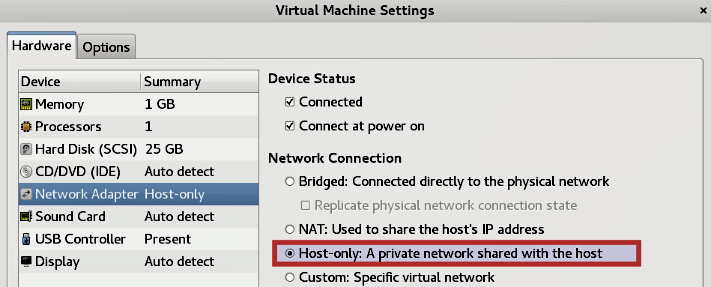
  1. You can now isolate Ubuntu VM within your lab by configuring the virtual appliance to use Host-only network mode. On VMware, bring up the Network Adapter Settings and choose Host-only mode as shown in the following Figure. Save the settings and reboot.
In VirtualBox, shut down Ubuntu VM and then bring up Settings. Select Network and change the adapter settings to Host-only Adapter as shown in the following diagram; click on OK.
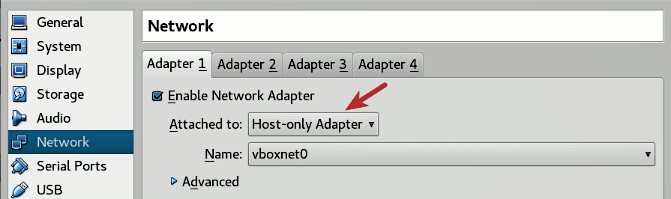
On VirtualBox, sometimes when you choose the Host-only adapter option, the interface name might appear as Not selected. In that case, you need to first create at least one host-only interface by navigating to File| Preferences | Network | Host-only networks | Add host-only network. Click on OK; then bring up the Settings. Select Network and change the adapter settings to Host-only Adapter, as shown in the following screenshot. Click on OK.
  1. Now we will assign a static IP address of 192.168.1.100 to the Ubuntu Linux VM. To do that, power on the Linux VM, open the terminal window, type the command ifconfig, and note down the interface name. In my case, the interface name is ens33. In your case, the interface name might be different. If it is different, you need to make changes to the following steps accordingly. Open the file /etc/network/interfaces using the following command:
$ sudo gedit /etc/network/interfaces

Add the following entries at the end of the file (make sure you replace ens33 with the interface name on your system) and save it:

auto ens33
iface ens33 inet static
address 192.168.1.100
netmask 255.255.255.0

The /etc/network/interfaces file should now look like the one shown here. Newly added entries are highlighted here:

# interfaces(5) file used by ifup(8) and ifdown(8)
auto lo
iface lo inet loopback

auto ens33
iface ens33 inet static
address 192.168.1.100
netmask 255.255.255.0

Then restart the Ubuntu Linux VM. At this point, the IP address of the Ubuntu VM should be set to 192.168.1.100. You can verify that by running the following command:

$ ifconfig
ens33 Link encap:Ethernet HWaddr 00:0c:29:a8:28:0d
inet addr:192.168.1.100 Bcast:192.168.1.255 Mask:255.255.255.0
inet6 addr: fe80::20c:29ff:fea8:280d/64 Scope:Link
UP BROADCAST RUNNING MULTICAST MTU:1500 Metric:1
RX packets:21 errors:0 dropped:0 overruns:0 frame:0
TX packets:49 errors:0 dropped:0 overruns:0 carrier:0
collisions:0 txqueuelen:1000
RX bytes:5187 (5.1 KB) TX bytes:5590 (5.5 KB)
  1. The next step is to configure INetSim so that it can listen to and simulate all the services on the configured IP address 192.168.1.100. By default, it listens on the local interface (127.0.0.1), which needs to be changed to 192.168.1.100. To do that, open the configuration file located at /etc/inetsim/inetsim.conf using the following command:
$ sudo gedit /etc/inetsim/inetsim.conf

Go to the service_bind_address section in the configuration file and add the entry shown here:

service_bind_address   192.168.1.100

The added entry (highlighted) in the configuration file should look like this:

# service_bind_address
#
# IP address to bind services to
#
# Syntax: service_bind_address <IP address>
#
# Default: 127.0.0.1
#
#service_bind_address 10.10.10.1
service_bind_address 192.168.1.100

By default, INetSim's DNS server will resolve all the domain names to 127.0.0.1. Instead of that, we want the domain name to resolve to 192.168.1.100 (the IP address of Linux VM). To do that, go to the dns_default_ip section in the configuration file and add an entry as shown here:

dns_default_ip  192.168.1.100

The added entry (highlighted in the following code) in the configuration file should look like this:

# dns_default_ip
#
# Default IP address to return with DNS replies
#
# Syntax: dns_default_ip <IP address>
#
# Default: 127.0.0.1
#
#dns_default_ip 10.10.10.1
dns_default_ip 192.168.1.100

Once the configuration changes are done, Save the configuration file and launch the INetSim main program. Verify that all the services are running and also check whether the inetsim is listening on 192.168.1.100, as highlighted in the following code. You can stop the service by pressing CTRL+C:

$ sudo inetsim
INetSim 1.2.6 (2016-08-29) by Matthias Eckert & Thomas Hungenberg
Using log directory: /var/log/inetsim/
Using data directory: /var/lib/inetsim/
Using report directory: /var/log/inetsim/report/
Using configuration file: /etc/inetsim/inetsim.conf
=== INetSim main process started (PID 2640) ===
Session ID: 2640
Listening on: 192.168.1.100
Real Date/Time: 2017-07-08 07:26:02
Fake Date/Time: 2017-07-08 07:26:02 (Delta: 0 seconds)
Forking services...
* irc_6667_tcp - started (PID 2652)
* ntp_123_udp - started (PID 2653)
* ident_113_tcp - started (PID 2655)
* time_37_tcp - started (PID 2657)
* daytime_13_tcp - started (PID 2659)
* discard_9_tcp - started (PID 2663)
* echo_7_tcp - started (PID 2661)
* dns_53_tcp_udp - started (PID 2642)
[..........REMOVED.............]
* http_80_tcp - started (PID 2643)
* https_443_tcp - started (PID 2644)
done.
Simulation running.
  1. At some point, you need the ability to transfer files between the host and the virtual machine. To enable that on VMware, power off the virtual machine and bring up the Settings. Select Options | Guest Isolation and check both Enable drag and drop and Enable copy and pasteSave the settings.

On Virtualbox, while the virtual machine is powered off, bring up Settings | General | Advanced and make sure that both Shared Clipboard and Drag 'n' Drop are set to Bidirectional. Click on OK.

  1. At this point, the Linux VM is configured to use Host-only mode, and INetSim is set up to simulate all the services. The last step is to take a snapshot (clean snapshot) and give it a name of your choice so that you can revert it back to the clean state when required. To take a snapshot on  VMware workstation, click on VM | Snapshot | Take Snapshot. On Virtualbox, the same can be done by clicking on Machine | Take Snapshot.
Apart from the drag and drop feature, it is also possible to transfer files from the host machine to the virtual machine using shared folders; refer to the following for VirtualBox (https://www.virtualbox.org/manual/ch04.html#sharedfolders) and to the following for VMware (https://docs.vmware.com/en/VMware-Workstation-Pro/14.0/com.vmware.ws.using.doc/GUID-AACE0935-4B43-43BA-A935-FC71ABA17803.html).