
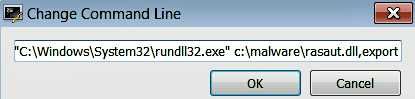
Another effective method is to use rundll32.exe to debug the DLL (let's suppose that you want to debug a malware DLL named rasaut.dll). To do so, first load rundll32.exe from the system32 directory (via File | Open) into the debugger, which will pause the debugger at the system breakpoint or the Entry point of rundll32.exe (depending on the settings mentioned earlier). Then, select Debug | Change Command Line and specify the command-line arguments to rundll32.exe (specify the full path to the DLL and the export function), as follows, and click on OK:
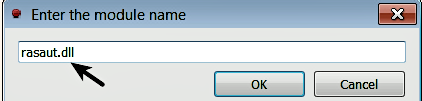
Next, select the Breakpoints tab, right-click inside the Breakpoints window, and choose the Add DLL breakpoint option, which will bring up a dialog window prompting you to enter the module name. Enter the DLL name (in this case, rasaut.dll), shown as follows. This will tell the debugger to break when the DLL (rasaut.dll) is loaded. After configuring these settings, close the debugger:
Next, reopen the debugger and load rundll32.exe again; when you load it again, the previous command-line settings will still be intact. Now, select Debug | Run (F9), till you break at the entry point of the DLL (you may have to select Run (F9) multiple times, till you reach the DLL entry point). You can keep track of where the execution has paused every time you run (F9), by looking at the comment next to the breakpoint address. You can also find the same comment next to the eip register. In the following screenshot, you can see that the execution has paused at the entry point of rasaut.dll. At this point, you can debug the DLL like any other program. You can also set breakpoints on any function exported by the DLL. You can find the export functions by using the Symbols window; after you have found the desired export function, double-click on it (which will take you to the code of the export function in the disassembly window). Then, set a breakpoint at the desired address:
