Table of Contents for
Python Geospatial Development - Third Edition
 Python Geospatial Development - Third Edition
Published by
Packt Publishing, 2016
Python Geospatial Development - Third Edition
Published by
Packt Publishing, 2016
- Cover
- Table of Contents
- Python Geospatial Development Third Edition
- Python Geospatial Development Third Edition
- Credits
- About the Author
- About the Reviewer
- www.PacktPub.com
- Preface
- What you need for this book
- Who this book is for
- Conventions
- Reader feedback
- Customer support
- 1. Geospatial Development Using Python
- Geospatial development
- Applications of geospatial development
- Recent developments
- Summary
- 2. GIS
- GIS data formats
- Working with GIS data manually
- Summary
- 3. Python Libraries for Geospatial Development
- Dealing with projections
- Analyzing and manipulating Geospatial data
- Visualizing geospatial data
- Summary
- 4. Sources of Geospatial Data
- Sources of geospatial data in raster format
- Sources of other types of geospatial data
- Choosing your geospatial data source
- Summary
- 5. Working with Geospatial Data in Python
- Working with geospatial data
- Changing datums and projections
- Performing geospatial calculations
- Converting and standardizing units of geometry and distance
- Exercises
- Summary
- 6. Spatial Databases
- Spatial indexes
- Introducing PostGIS
- Setting up a database
- Using PostGIS
- Recommended best practices
- Summary
- 7. Using Python and Mapnik to Generate Maps
- Creating an example map
- Mapnik concepts
- Summary
- 8. Working with Spatial Data
- Designing and building the database
- Downloading and importing the data
- Implementing the DISTAL application
- Using DISTAL
- Summary
- 9. Improving the DISTAL Application
- Dealing with the scale problem
- Performance
- Summary
- 10. Tools for Web-based Geospatial Development
- A closer look at three specific tools and techniques
- Summary
- 11. Putting It All Together – a Complete Mapping System
- Designing the ShapeEditor
- Prerequisites
- Setting up the database
- Setting up the ShapeEditor project
- Defining the ShapeEditor's applications
- Creating the shared application
- Defining the data models
- Playing with the admin system
- Summary
- 12. ShapeEditor – Importing and Exporting Shapefiles
- Importing shapefiles
- Exporting shapefiles
- Summary
- 13. ShapeEditor – Selecting and Editing Features
- Editing features
- Adding features
- Deleting features
- Deleting shapefiles
- Using the ShapeEditor
- Further improvements and enhancements
- Summary
- Index
We'll next implement the ability to add a new feature. To do this, we'll put an Add Feature button onto the "Edit Shapefile" view. Clicking on this button will call the "Edit Feature" URL, but without a feature ID. We'll then modify the "Edit Feature" view so that if no feature ID is given, a new Feature object is created.
Open the shapefiles application's views.py module, find the edit_shapefile() function, and add the following highlighted lines to this function:
def edit_shapefile(request, shapefile_id):
    try:
        shapefile = Shapefile.objects.get(id=shapefile_id)
    except Shapefile.DoesNotExist:
        raise Http404

    tms_url = "http://"+request.get_host()+"/tms/"
    find_feature_url = "http://" + request.get_host() \
                     + "/editor/find_feature"
    add_feature_url = "http://" + request.get_host() \
                    + "/edit_feature/" + str(shapefile_id)

    return render(request, "select_feature.html",
                  {'shapefile'      : shapefile,
                   'find_feature_url' : find_feature_url,
                   'add_feature_url' : add_feature_url,
                   'tms_url'        : tms_url})
Then, edit the select_feature.html template and add the following highlighted lines to the body of this template:
<body onload="init()">
  <h1>Edit Shapefile</h1>
  <b>Please choose a feature to edit</b>
  <br/>
  <div id="map" class="map"></div>
  <br/>
  <div style="margin-left:20px">
    <button type="button"
     onClick='window.location="{{ add_feature_url }}";'>
      Add Feature
    </button>
    <button type="button"
      onClick='window.location="/";'>
      Cancel
    </button>
  </div>
</body>
This will place an Add Feature button onto the "Select Feature" page. Clicking on that button will call the http://127.0.0.1:8000/edit_feature/N URL (where N is the record ID of the current shapefile). As you can see, this URL supplies the ID of the desired shapefile but not the ID of the feature to edit. This is because we're adding a new feature rather than editing an existing one.
We next need to add a URL pattern to support this URL. Open the urls.py module and add the following entry to the URL pattern list:
  url(r'^edit_feature/(?P<shapefile_id>\d+)$',
      shapeEditor.shapefiles.views.edit_feature),
Then, go back to views.py and change the function definition for the edit_feature() function to look like this:
def edit_feature(request, shapefile_id, feature_id=None):
Notice that the feature_id parameter is now optional. Now, find the following block of code:
  try:
    feature = Feature.objects.get(id=feature_id)
  except Feature.DoesNotExist:
    return HttpResponseNotFound()
You need to replace this block with the following:
  if feature_id == None:
    feature = Feature(shapefile=shapefile)
  else:
    try:
      feature = Feature.objects.get(id=feature_id)
    except Feature.DoesNotExist:
      return HttpResponseNotFound()
This will create a new Feature object if the feature_id value is not specified, but it will still fail if an invalid feature ID is specified.
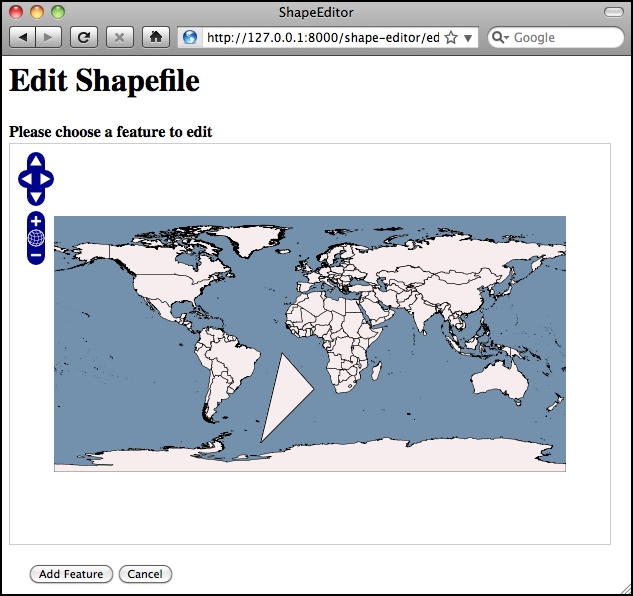
With these changes, you should be able to add a new feature to the shapefile. Go ahead and try it out: run the Django web server if it's not already running, and click on the Edit hyperlink for your imported shapefile. Then, click on the Add New Feature hyperlink, and try creating a new feature. The new feature should appear within the "Select Feature" view: