Table of Contents for
Python Geospatial Development - Third Edition
 Python Geospatial Development - Third Edition
Published by
Packt Publishing, 2016
Python Geospatial Development - Third Edition
Published by
Packt Publishing, 2016
- Cover
- Table of Contents
- Python Geospatial Development Third Edition
- Python Geospatial Development Third Edition
- Credits
- About the Author
- About the Reviewer
- www.PacktPub.com
- Preface
- What you need for this book
- Who this book is for
- Conventions
- Reader feedback
- Customer support
- 1. Geospatial Development Using Python
- Geospatial development
- Applications of geospatial development
- Recent developments
- Summary
- 2. GIS
- GIS data formats
- Working with GIS data manually
- Summary
- 3. Python Libraries for Geospatial Development
- Dealing with projections
- Analyzing and manipulating Geospatial data
- Visualizing geospatial data
- Summary
- 4. Sources of Geospatial Data
- Sources of geospatial data in raster format
- Sources of other types of geospatial data
- Choosing your geospatial data source
- Summary
- 5. Working with Geospatial Data in Python
- Working with geospatial data
- Changing datums and projections
- Performing geospatial calculations
- Converting and standardizing units of geometry and distance
- Exercises
- Summary
- 6. Spatial Databases
- Spatial indexes
- Introducing PostGIS
- Setting up a database
- Using PostGIS
- Recommended best practices
- Summary
- 7. Using Python and Mapnik to Generate Maps
- Creating an example map
- Mapnik concepts
- Summary
- 8. Working with Spatial Data
- Designing and building the database
- Downloading and importing the data
- Implementing the DISTAL application
- Using DISTAL
- Summary
- 9. Improving the DISTAL Application
- Dealing with the scale problem
- Performance
- Summary
- 10. Tools for Web-based Geospatial Development
- A closer look at three specific tools and techniques
- Summary
- 11. Putting It All Together – a Complete Mapping System
- Designing the ShapeEditor
- Prerequisites
- Setting up the database
- Setting up the ShapeEditor project
- Defining the ShapeEditor's applications
- Creating the shared application
- Defining the data models
- Playing with the admin system
- Summary
- 12. ShapeEditor – Importing and Exporting Shapefiles
- Importing shapefiles
- Exporting shapefiles
- Summary
- 13. ShapeEditor – Selecting and Editing Features
- Editing features
- Adding features
- Deleting features
- Deleting shapefiles
- Using the ShapeEditor
- Further improvements and enhancements
- Summary
- Index
One of the challenges of working with geospatial data is that geodetic locations (points on the Earth's surface) are often mapped onto a two-dimensional Cartesian plane using a cartographic projection. We looked at projections in the previous chapter: whenever you have some geospatial data, you need to know which projection that data uses. You also need to know the datum (model of the Earth's shape) assumed by the data.
A common challenge when dealing with geospatial data is that you have to convert data from one projection or datum to another. Fortunately, there is a Python library that makes this task easy: pyproj.
pyproj is a Python "wrapper" around another library called PROJ.4. PROJ.4 is an abbreviation for version 4 of the PROJ library. PROJ was originally written by the US Geological Survey for dealing with map projections and has been widely used in geospatial software for many years. The pyproj library makes it possible to access the functionality of PROJ.4 from within your Python programs.
pyproj is available for MS Windows, Mac OS X, and any POSIX-based operating system. The main web page for pyproj can be found at https://github.com/jswhit/pyproj.
The way you install pyproj will vary depending on which operating system your computer is running:
- For MS Windows, you will first need to install the underlying PROJ.4 library. A binary installer for this can be found at https://github.com/OSGeo/proj.4/wiki. Once PROJ.4 itself has been installed, you need to install the
pyprojlibrary. A Python wheel (.whl) file forpyprojthat works with your version of Python can be downloaded from http://www.lfd.uci.edu/~gohlke/pythonlibs/#pyproj. Once you have downloaded the appropriate.whlfile, you can install it using pip, the Python package manager. Full instructions for installing a Python wheel using pip can be found at https://pip.pypa.io/en/latest/user_guide.html#installing-from-wheels. - For Mac OS X, you can install
pyprojalong with the underlying PROJ.4 library by simply typingpip installpyprojfrom the command line.Note
If this doesn't work, you can install a version of the PROJ.4 framework from http://www.kyngchaos.com/software/frameworks. Once this has been installed, pip should be able to successfully install the
pyprojlibrary. - For Linux, you can install the PROJ.4 library using your favorite package manager and then install
pyprojitself using pip. Alternatively, you can download the source code topyprojand compile and install it yourself.
To ensure that the installation worked, start up the Python command line and try entering the following:
import pyproj
print(pyproj.__version__)
If this works without an error, then you have successfully installed pyproj onto your computer.
pyproj consists of just two classes: Proj and Geod. Proj converts between longitude and latitude values and native map (x,y) coordinates, while Geod performs various great-circle distance and angle calculations. Both are built on top of the PROJ.4 library. Let's take a closer look at these two classes.
Proj is a cartographic transformation class, allowing you to convert geographic coordinates (that is, latitude and longitude values) into cartographic coordinates ((x, y) values, by default in meters) and vice versa.
When you create a new Proj instance, you specify the projection, datum and other values used to describe how the coordinates are to be transformed. For example, to specify the transverse Mercator projection and the WGS84 ellipsoid, you would use the following Python code:
projection = pyproj.Proj(proj='tmerc', ellps='WGS84')
Once you have created a Proj instance, you can use it to convert a latitude and longitude to an (x,y) coordinate using the given projection. You can also use it to do an inverse projection, that is, converting from an (x,y) coordinate back into a latitude and longitude value.
The helpful transform() function can be used to directly convert coordinates from one projection value into another. You simply provide the starting coordinates, the Proj object that describes the starting coordinates' projection, and the desired ending projection. This can be very useful when converting coordinates, either singly or en masse.
Geod is a geodetic computation class. This allows you to perform various great-circle calculations. We looked at great-circle calculations earlier, when considering how to accurately calculate the distance between two points on the Earth's surface. The Geod class, however, can do more than this:
- The
fwd()method takes a starting point, an azimuth (angular direction), and a distance and returns the ending point and the back azimuth (the angle from the end point back to the start point):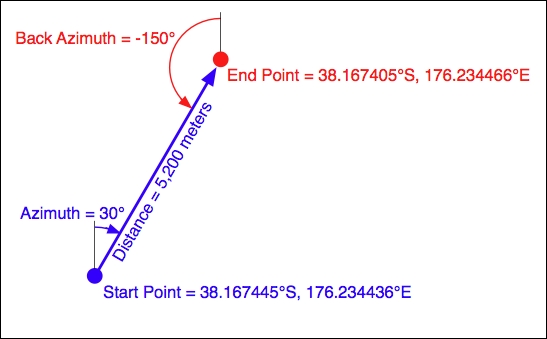
- The
inv()method takes two coordinates and returns the forward and back azimuth as well as the distance between them: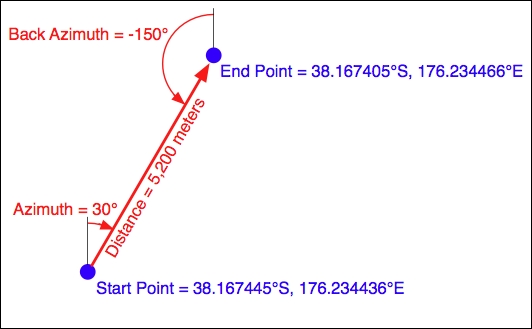
- The
npts()method calculates the coordinates for a number of points spaced equidistantly along a geodesic line running from the start to the end point: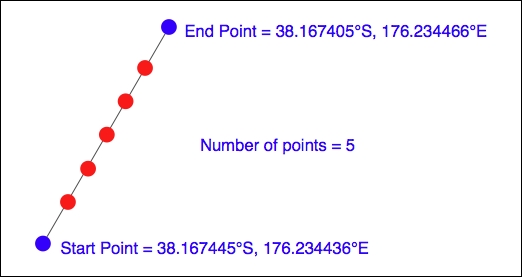
When you create a new Geod object, you specify the ellipsoid to use when performing the geodetic calculations. The ellipsoid can be selected from a number of predefined ellipsoids, or you can enter the parameters for the ellipsoid (equatorial radius, polar radius, and so on) directly.
The following example starts with a location specified using UTM zone 17 coordinates. Using two Proj objects to define the UTM zone 17 and lat/long projections, it translates this location's coordinates into latitude and longitude values:
import pyproj

UTM_X = 565718.523517
UTM_Y = 3980998.9244

srcProj = pyproj.Proj(proj="utm", zone="11",
                      ellps="clrk66", units="m")
dstProj = pyproj.Proj(proj='longlat', ellps='WGS84',
                      datum='WGS84')

long,lat = pyproj.transform(srcProj, dstProj, UTM_X, UTM_Y)

print("UTM zone 17 coordinate " +
      "({:.4f}, {:.4f}) ".format(UTM_X, UTM_Y) +
      "= {:.4f}, {:.4f}".format(long, lat))
This second example takes the calculated lat/long values and, using a Geod object, calculates another point 10 km northeast of that location:
angle    = 315 # 315 degrees = northeast.
distance = 10000

geod = pyproj.Geod(ellps='clrk66')
long2,lat2,invAngle = geod.fwd(long, lat, angle, distance)

print("{:.4f}, {:.4f}".format(lat2, long2) +
      " is 10km northeast of " +
"{:.4f}, {:.4f}".format(lat, long))The documentation available on the pyproj web site, and in the README file provided with the source code, is excellent as far as it goes. It describes how to use the various classes and methods, what they do, and what parameters are required. However, the documentation is rather sparse when it comes to the parameters used when creating a new Proj object. Here is what it says:
"A
Projclass instance is initialized withprojmap projection control parameter key/value pairs. The key/value pairs can either be passed in a dictionary, or as keyword arguments, or as aproj4string (compatible with theprojcommand)."
The documentation does provide a link to a web site listing a number of standard map projections and their associated parameters, but understanding what these parameters mean generally requires you to delve into the PROJ documentation itself. The documentation for PROJ is dense and confusing, even more so because the main manual is written for PROJ version 3, with addendums for versions 4 and 4.3. Attempting to make sense of all this can be quite challenging.
Fortunately, in most cases, you won't need to refer to the PROJ documentation at all. When working with geospatial data using GDAL or OGR, you can easily extract the projection as a "proj4 string", which can be passed directly to the Proj initializer. If you want to hardwire the projection, you can generally choose a projection and ellipsoid using the proj="..." and ellps="..." parameters, respectively. If you want to do more than this, though, you will need to refer to the PROJ documentation for more details.
Note
To find out more about PROJ and read the original documentation, you can find everything you need at https://github.com/OSGeo/proj.4/wiki.