Table of Contents for
Python Geospatial Development - Third Edition
 Python Geospatial Development - Third Edition
Published by
Packt Publishing, 2016
Python Geospatial Development - Third Edition
Published by
Packt Publishing, 2016
- Cover
- Table of Contents
- Python Geospatial Development Third Edition
- Python Geospatial Development Third Edition
- Credits
- About the Author
- About the Reviewer
- www.PacktPub.com
- Preface
- What you need for this book
- Who this book is for
- Conventions
- Reader feedback
- Customer support
- 1. Geospatial Development Using Python
- Geospatial development
- Applications of geospatial development
- Recent developments
- Summary
- 2. GIS
- GIS data formats
- Working with GIS data manually
- Summary
- 3. Python Libraries for Geospatial Development
- Dealing with projections
- Analyzing and manipulating Geospatial data
- Visualizing geospatial data
- Summary
- 4. Sources of Geospatial Data
- Sources of geospatial data in raster format
- Sources of other types of geospatial data
- Choosing your geospatial data source
- Summary
- 5. Working with Geospatial Data in Python
- Working with geospatial data
- Changing datums and projections
- Performing geospatial calculations
- Converting and standardizing units of geometry and distance
- Exercises
- Summary
- 6. Spatial Databases
- Spatial indexes
- Introducing PostGIS
- Setting up a database
- Using PostGIS
- Recommended best practices
- Summary
- 7. Using Python and Mapnik to Generate Maps
- Creating an example map
- Mapnik concepts
- Summary
- 8. Working with Spatial Data
- Designing and building the database
- Downloading and importing the data
- Implementing the DISTAL application
- Using DISTAL
- Summary
- 9. Improving the DISTAL Application
- Dealing with the scale problem
- Performance
- Summary
- 10. Tools for Web-based Geospatial Development
- A closer look at three specific tools and techniques
- Summary
- 11. Putting It All Together – a Complete Mapping System
- Designing the ShapeEditor
- Prerequisites
- Setting up the database
- Setting up the ShapeEditor project
- Defining the ShapeEditor's applications
- Creating the shared application
- Defining the data models
- Playing with the admin system
- Summary
- 12. ShapeEditor – Importing and Exporting Shapefiles
- Importing shapefiles
- Exporting shapefiles
- Summary
- 13. ShapeEditor – Selecting and Editing Features
- Editing features
- Adding features
- Deleting features
- Deleting shapefiles
- Using the ShapeEditor
- Further improvements and enhancements
- Summary
- Index
Now that we know which feature the user wants to edit, our next task is to implement the "Edit Feature" page itself. To do this, we are going to have to create a custom form with a single input field, named geometry, that uses a suitable map-editing widget for editing the feature's geometry.
The process of building this form is a bit involved, thanks to the fact that we have to create a new django.contrib.gis.forms.Form subclass on the fly to handle the different types of geometries that can be edited. Let's put this complexity into a new function within the shared.utils module, which we'll call get_map_frm().
Edit the utils.py module and type in the following code:
def get_map_form(shapefile):
    geometry_field = calc_geometry_field(shapefile.geom_type)

    if geometry_field == "geom_multipoint":
        field = forms.MultiPointField
    elif geometry_field == "geom_multilinestring":
        field = forms.MultiLineStringField
    elif geometry_field == "geom_multipolygon":
        field = forms.MultiPolygonField
    elif geometry_field == "geom_geometrycollection":
        field = forms.GeometryCollectionField
    else:
        raise RuntimeError("Unsupported field: " + geometry_field)

       widget = forms.OpenLayersWidget()

    class MapForm(forms.Form):
        geometry = field(widget=widget)

    return MapForm
You'll also need to add the following import statement to the top of the file:
from django.contrib.gis import forms
The get_map_form() function selects the type of field to edit based on the shapefile's geom_type attribute. For example, if the shapefile contains Point or MultiPoint geometries, we select the MultiPointField class for editing the shapefile's data. Once the field type has been selected, we dynamically create a new django.contrib.gis.forms.Form subclass that uses an instance of that form, with an OpenLayersWidget for editing the geometry's data.
Notice that the get_map_form() function returns the MapForm class rather than an instance of that class; we'll use the returned class to create the appropriate MapForm instances as we need them.
With this function behind us, we can now implement the rest of the "Edit Feature" view. Let's start by setting up the view's URL: open the urls.py module and add the following to the list of URL patterns:
  url(r'^edit_feature/(?P<shapefile_id>\d+)/(?P<feature_id>\d+)$',
      shapeEditor.shapefiles.views.edit_feature),
We're now ready to implement the view function itself. Edit the shapefiles.views module and start defining the edit_feature() function:
def edit_feature(request, shapefile_id, feature_id):
  try:
    shapefile = Shapefile.objects.get(id=shapefile_id)
  except ShapeFile.DoesNotExist:
    return HttpResponseNotFound()

  try:
    feature = Feature.objects.get(id=feature_id)
  except Feature.DoesNotExist:
    return HttpResponseNotFound()
So far, this is quite straightforward: we load the Shapefile object for the current shapefile and the Feature object for the feature we are editing. We next want to load into memory a list of that feature's attributes so that they can be displayed to the user:
  attributes = []
  for attr_value in feature.attributevalue_set.all():
    attributes.append([attr_value.attribute.name,
                       attr_value.value])
  attributes.sort()
This is where things get interesting. We need to create a Django Form object (actually, an instance of the MapForm class created dynamically by the get_map_form() function we wrote earlier), and use this form instance to display the feature to be edited. When the form is submitted, we'll extract the updated geometry and save it back into the Feature object again before redirecting the user back to the "Edit Shapefile"page to select another feature.
As we saw when we created the "Import Shapefile" form, the basic Django idiom for processing a form is as follows:
if request.method == "GET":
    form = MyForm()
    return render(request, "template.html",
                  {'form' : form})
elif request.method == "POST":
    form = MyForm(request.POST)
    if form.is_valid():
        # Extract and save the form's contents here...
        return HttpResponseRedirect("/somewhere/else")
    return render(request, "template.html",
                  {'form' : form})
When the form is to be displayed for the first time, request.method will have a value of GET. In this case, we create a new form object and display the form as part of an HTML template. When the form is submitted by the user, request.method will have the value POST. In this case, a new form object is created that is bound to the submitted POST arguments. The form's contents are then checked, and if they are valid, they are saved and the user is redirected to some other page. If the form is not valid, it will be displayed again along with a suitable error message.
Let's see how this idiom is used by the "Edit Feature" view. Add the following to the end of your new view function:
  geometry_field = \
       utils.calc_geometry_field(shapefile.geom_type)
  form_class = utils.get_map_form(shapefile)

  if request.method == "GET":
    wkt = getattr(feature, geometry_field)
    form = form_class({'geometry' : wkt})

    return render(request, "edit_feature.html",
                  {'shapefile'  : shapefile,
                   'form'       : form,
                   'attributes' : attributes})
  elif request.method == "POST":
    form = form_class(request.POST)
    try:
      if form.is_valid():
        wkt = form.cleaned_data['geometry']
        setattr(feature, geometry_field, wkt)
        feature.save()
        return HttpResponseRedirect("/edit/" +
                                    shapefile_id)
    except ValueError:
      pass

    return render(request, "edit_feature.html",
                  {'shapefile'  : shapefile,
                   'form'       : form,
                   'attributes' : attributes})
As you can see, we call utils.get_map_form() to create a new django.forms.Form subclass, which will be used to edit the feature's geometry. We also call utils.calc_geometry_field() to see which field in the Feature object should be edited.
The rest of this function pretty much follows the Django idiom for form processing. The only interesting thing to note is that we get and set the geometry field (using the getattr() and setattr() functions, respectively) in WKT format. GeoDjango treats geometry fields as if they were character fields that hold the geometry in WKT format. The GeoDjango JavaScript code then takes that WKT data (which is stored in a hidden form field named geometry) and passes it to OpenLayers for display as a vector geometry. OpenLayers allows the user to edit that vector geometry, and the updated geometry is stored back into the hidden geometry field as WKT data. We then extract that updated geometry's WKT text and store it back into the Feature object.
That's all you need to know about the edit_feature() view function. Let's now create the template used by this view. Create a new file named edit_feature.html within the shapefiles application's templates directory, and enter the following text into it:
<html>
<head>
<title>ShapeEditor</title>
{{ form.media }}
</head>
<body>
<h1>Edit Feature</h1>
<form method="POST" action="">
<table>
{{ form.as_table }}
<tr>
<td></td>
<td align="right">
<table>
{% for attr in attributes %}
<tr>
<td>{{ attr.0 }}</td>
<td>{{ attr.1 }}</td>
</tr>
{% endfor %}
</table>
</td>
</tr>
<tr>
<td></td>
<td align="center">
<input type="submit" value="Save"/>
<button type="button" onClick='window.location="/edit/{{ shapefile.id }}";'>
Cancel
</button>
</td>
</tr>
</table>
</form>
</body>
</html>This template uses an HTML table to display the form and calls the form.as_table template function to render the form as HTML table rows. We then display a list of the feature's attributes as additional rows within this table and, finally, add Save and Cancel buttons to the bottom of the form.
With all this code written, we are finally able to edit features within the ShapeEditor:
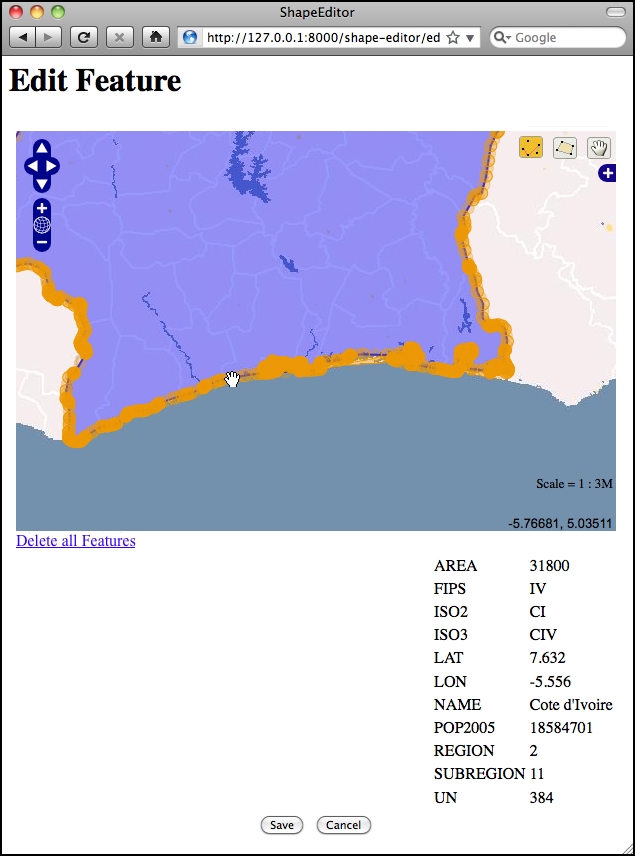
Within this editor, you can make use of a number of GeoDjango's built-in features to edit a geometry:
-
You can click on the Edit Geometry tool (
 ) to select a feature for editing.
-
You can click on the Add Geometry tool (
 ) to start drawing a new geometry.
- When a geometry is selected, you can click on a dark circle and drag it to move the endpoints of a line segment.
- When a geometry is selected, you can click on a light circle to split an existing line segment in two, creating a new point which can then be dragged.
- If you hold the mouse down over a dark circle, you can press the Delete key (or type D) to delete that point. Note that this only works if the geometry has more than three points.
- You can click on the Delete all Features hyperlink to delete the current feature's geometries. We'll look at this hyperlink in more detail shortly.
Once you have finished editing the feature, you can click on the Save button to save the edited features or the Cancel button to abandon the changes.
While this is all working well, there is one rather annoying quirk: GeoDjango lets the user remove the geometries from a map using a hyperlink named Delete all Features. Since we're currently editing a single feature within the shapefile, this hyperlink is rather confusingly named: what it actually does is delete the geometries for this feature, not the feature itself. Let's change the text of this hyperlink to something more meaningful.
Go to the copy of Django that you downloaded, and navigate to the contrib/gis/templates/gis directory. In this directory is a file named openlayers.html. Take a copy of this file, and move it into your shapefiles application's templates directory, renaming it to openlayers-custom.html.
Open your copy of this file, and look near the bottom for the text Delete all Features. Change this to Clear Feature's Geometry, and save your changes.
So far, so good. Now, we need to tell the GeoDjango editing widget to use our custom version of the openlayers.html file. To do this, edit your utils.py module and find your definition of the get_map_form() function. Add the following code immediately after the line that reads widget = forms.OpenLayersWidget():
widget.template_name = "openlayers-custom.html"
If you then try editing a feature, you'll see that your customized version of the openlayers.html file is being used:

By replacing the template, passing parameters to the widget when it is created, and creating your own custom subclass of the BaseGeometryWidget class, you can make various changes to the appearance and functionality of the geometry-editing widget. If you want to see what is possible, take a look at the modules in the django.contrib.gis directory.