Table of Contents for
Practical UNIX and Internet Security, 3rd Edition
 Practical UNIX and Internet Security, 3rd Edition
Published by
O'Reilly Media, Inc., 2003
Practical UNIX and Internet Security, 3rd Edition
Published by
O'Reilly Media, Inc., 2003
- Cover
- Practical Unix & Internet Security, 3rd Edition
- A Note Regarding Supplemental Files
- Preface
- Unix “Security”?
- Scope of This Book
- Which Unix System?
- Conventions Used in This Book
- Comments and Questions
- Acknowledgments
- A Note to Would-Be Attackers
- I. Computer Security Basics
- 1. Introduction: Some Fundamental Questions
- What Is Computer Security?
- What Is an Operating System?
- What Is a Deployment Environment?
- Summary
- 2. Unix History and Lineage
- History of Unix
- Security and Unix
- Role of This Book
- Summary
- 3. Policies and Guidelines
- Planning Your Security Needs
- Risk Assessment
- Cost-Benefit Analysis and Best Practices
- Policy
- Compliance Audits
- Outsourcing Options
- The Problem with Security Through Obscurity
- Summary
- II. Security Building Blocks
- 4. Users, Passwords, and Authentication
- Logging in with Usernames and Passwords
- The Care and Feeding of Passwords
- How Unix Implements Passwords
- Network Account and Authorization Systems
- Pluggable Authentication Modules (PAM)
- Summary
- 5. Users, Groups, and the Superuser
- Users and Groups
- The Superuser (root)
- The su Command: Changing Who You Claim to Be
- Restrictions on the Superuser
- Summary
- 6. Filesystems and Security
- Understanding Filesystems
- File Attributes and Permissions
- chmod: Changing a File’s Permissions
- The umask
- SUID and SGID
- Device Files
- Changing a File’s Owner or Group
- Summary
- 7. Cryptography Basics
- Understanding Cryptography
- Symmetric Key Algorithms
- Public Key Algorithms
- Message Digest Functions
- Summary
- 8. Physical Security for Servers
- Planning for the Forgotten Threats
- Protecting Computer Hardware
- Preventing Theft
- Protecting Your Data
- Story: A Failed Site Inspection
- Summary
- 9. Personnel Security
- Background Checks
- On the Job
- Departure
- Other People
- Summary
- III. Network and Internet Security
- 10. Modems and Dialup Security
- Modems: Theory of Operation
- Modems and Security
- Modems and Unix
- Additional Security for Modems
- Summary
- 11. TCP/IP Networks
- Networking
- IP: The Internet Protocol
- IP Security
- Summary
- 12. Securing TCP and UDP Services
- Understanding Unix Internet Servers and Services
- Controlling Access to Servers
- Primary Unix Network Services
- Managing Services Securely
- Putting It All Together: An Example
- Summary
- 13. Sun RPC
- Remote Procedure Call (RPC)
- Secure RPC (AUTH_DES)
- Summary
- 14. Network-Based Authentication Systems
- Sun’s Network Information Service (NIS)
- Sun’s NIS+
- Kerberos
- LDAP
- Other Network Authentication Systems
- Summary
- 15. Network Filesystems
- Understanding NFS
- Server-Side NFS Security
- Client-Side NFS Security
- Improving NFS Security
- Some Last Comments on NFS
- Understanding SMB
- Summary
- 16. Secure Programming Techniques
- One Bug Can Ruin Your Whole Day . . .
- Tips on Avoiding Security-Related Bugs
- Tips on Writing Network Programs
- Tips on Writing SUID/SGID Programs
- Using chroot( )
- Tips on Using Passwords
- Tips on Generating Random Numbers
- Summary
- IV. Secure Operations
- 17. Keeping Up to Date
- Software Management Systems
- Updating System Software
- Summary
- 18. Backups
- Why Make Backups?
- Backing Up System Files
- Software for Backups
- Summary
- 19. Defending Accounts
- Dangerous Accounts
- Monitoring File Format
- Restricting Logins
- Managing Dormant Accounts
- Protecting the root Account
- One-Time Passwords
- Administrative Techniques for Conventional Passwords
- Intrusion Detection Systems
- Summary
- 20. Integrity Management
- The Need for Integrity
- Protecting Integrity
- Detecting Changes After the Fact
- Integrity-Checking Tools
- Summary
- 21. Auditing, Logging, and Forensics
- Unix Log File Utilities
- Process Accounting: The acct/pacct File
- Program-Specific Log Files
- Designing a Site-Wide Log Policy
- Handwritten Logs
- Managing Log Files
- Unix Forensics
- Summary
- V. Handling Security Incidents
- 22. Discovering a Break-in
- Prelude
- Discovering an Intruder
- Cleaning Up After the Intruder
- Case Studies
- Summary
- 23. Protecting Against Programmed Threats
- Programmed Threats: Definitions
- Damage
- Authors
- Entry
- Protecting Yourself
- Preventing Attacks
- Summary
- 24. Denial of Service Attacks and Solutions
- Types of Attacks
- Destructive Attacks
- Overload Attacks
- Network Denial of Service Attacks
- Summary
- 25. Computer Crime
- Your Legal Options After a Break-in
- Criminal Hazards
- Criminal Subject Matter
- Summary
- 26. Who Do You Trust?
- Can You Trust Your Computer?
- Can You Trust Your Suppliers?
- Can You Trust People?
- Summary
- VI. Appendixes
- A. Unix Security Checklist
- Preface
- Chapter 1: Introduction: Some Fundamental Questions
- Chapter 2: Unix History and Lineage
- Chapter 3: Policies and Guidelines
- Chapter 4: Users, Passwords, and Authentication
- Chapter 5: Users, Groups, and the Superuser
- Chapter 6: Filesystems and Security
- Chapter 7: Cryptography Basics
- Chapter 8: Physical Security for Servers
- Chapter 9: Personnel Security
- Chapter 10: Modems and Dialup Security
- Chapter 11: TCP/IP Networks
- Chapter 12: Securing TCP and UDP Services
- Chapter 13: Sun RPC
- Chapter 14: Network-Based Authentication Systems
- Chapter 15: Network Filesystems
- Chapter 16: Secure Programming Techniques
- Chapter 17: Keeping Up to Date
- Chapter 18: Backups
- Chapter 19: Defending Accounts
- Chapter 20: Integrity Management
- Chapter 21: Auditing, Logging, and Forensics
- Chapter 22: Discovering a Break-In
- Chapter 23: Protecting Against Programmed Threats
- Chapter 24: Denial of Service Attacks and Solutions
- Chapter 25: Computer Crime
- Chapter 26: Who Do You Trust?
- Appendix A: Unix Security Checklist
- Appendix B: Unix Processes
- Appendixes C, D, and E: Paper Sources, Electronic Sources, and Organizations
- B. Unix Processes
- About Processes
- Signals
- Controlling and Examining Processes
- Starting Up Unix and Logging In
- C. Paper Sources
- Unix Security References
- Other Computer References
- D. Electronic Resources
- Mailing Lists
- Web Sites
- Usenet Groups
- Software Resources
- E. Organizations
- Professional Organizations
- U.S. Government Organizations
- Emergency Response Organizations
- Index
- Index
- Index
- Index
- Index
- Index
- Index
- Index
- Index
- Index
- Index
- Index
- Index
- Index
- Index
- Index
- Index
- Index
- Index
- Index
- Index
- Index
- Index
- Index
- Index
- Index
- Index
- About the Authors
- Colophon
- Copyright
Because Unix was designed for use in a time-sharing environment, Unix systems have always maintained log files that recorded who logged into the system and who logged out. Over time, the amount of information in the Unix log files has increased significantly. Today, Unix provides for dramatically expanded logging facilities that record such information as files that are transferred over the network, attempts by users to become the superuser, summary information about all electronic mail messages sent and received, every web page that is downloaded, and much more. In fact, practically any program that engages in periodic or repeating activity, or that runs without user intervention, can record in some log file the fact that it ran.
There are two primary ways that Unix log events can be recorded into a log file:
Logs can be recorded in multiple locations:
The logs can be stored on the computer responsible for the log event. On modern Unix systems, logs are stored in the directory /var/log, and sometimes /var/adm, although other directories can be used by specific programs in specific cases.
The logs can be aggregated and stored on a remote computer. This computer, sometimes called a log server, can be used as a central location for monitoring many computers on a network. A log server can further be configured with a host-based firewall so that it can receive log information from other computers, but also so that the computer is prohibited from transmitting any packets on the network. For a diagram of such a setup, see Figure 21-1.
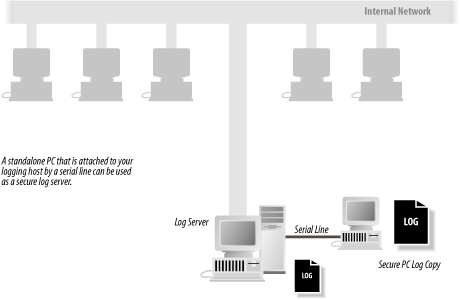
A remote log server can significantly increase the security of an installation. That’s because one of the first things that successful attackers do is erase their tracks. They do this by erasing the log files that showed how they became superuser. Such erasing is relatively easy to do if the logs are stored on the computer that was compromised. It is much harder to erase logs that are stored on a remote system because the remote system must also be compromised. In some cases, this is simply not possible! So a remote log server won’t prevent people from breaking into your systems, but it might prevent them from hiding their traces. A centralized, remote logging system may also be an ideal place to run intrusion detection software on the collected logs.
Tip
In addition to logging on a remote log server, some organizations write log files to write-once media, or log to a printer. Doing so can dramatically increase the security of your logs because it is virtually impossible to erase write-once media without physical access. On the other hand, large amounts of write-once media are difficult to manage. For this reason, interest in using write-once media to manage log files has decreased in recent years.
Most log files are text files that are written line by line by system programs. For example, each time a user on your system tries to become the superuser by using the su command, the su program might append a single line to the log file sulog, which records whether or not the su attempt was successful.
Over the years, different versions of Unix have stored their log files in different directories. Early versions of Unix used the directory /usr/adm; this was changed to /var/adm when diskless workstations were introduced. Today, most versions of Unix store their log files in /var/log. Of course, as any program running as root can create files practically anywhere on the system, many programs still store log files in nonstandard directories.
Within the log file directory you will typically find several dozen files. Some of these files store the logs for a particular program. Other log files store log events from many programs. And in some cases, a single program may log to more than one file. Table 21-1 lists some of the more common Unix log files.
Table 21-1. Common Unix log files (files are stored in /var/log unless otherwise noted)
|
Filename |
Purpose |
|---|---|
|
Process-level accounting | |
|
Logs records of dial-out modems (automatic call units) | |
|
Logs each user’s most recent successful login time, and possibly the last unsuccessful login, too | |
|
Records bad login attempts | |
|
Records output to the system’s “console” and other messages generated from the syslog facility | |
|
Messages generated from the syslog facility that require extra privacy; typically, messages logged with the AUTH or AUTHPRIV facility that may accidentally contain passwords | |
|
Logs use of the su command | |
|
utmp [a] |
Records each user currently logged in |
|
Extended utmp | |
|
wtmp [b] |
Provides a permanent record of each time a user logged in and logged out; also records system shutdowns and startups |
|
Extended wtmp | |
|
Logs errors encountered with the use of external media, such as floppy disks or CD-ROMs | |
|
Logs FTP access | |
[a] Some versions of Unix store the utmp file in the /etc directory. [b] Early versions of System V Unix stored the wtmp file in the /etc directory. | |
The following sections describe some of these files and how to use the Unix syslog facility.
Unix provides a general-purpose logging facility called syslog,[308] which consists of:
- /etc/syslog.conf
A configuration file that specifies which log events should be recorded and where they should be saved.
- syslogd
A daemon that reads the configuration file, reads the log events, and processes them accordingly.
- Log files
A set of files created by the daemon. Typically, these files are in the directory /var/log, but they can actually be placed anywhere in the computer’s filesystem.
- Unix domain socket
Usually, this is /var/run/log or /dev/log; it receives log events from any system program and sends the events to the syslogd daemon.
- /dev/klog
A Unix device that is used to read log messages from the kernel.
- UDP socket
Usually this is port 514; it receives log events from remote hosts and sends the events to the syslogd daemon.
- syslog library
Programs use this library to create syslog events. This library consists of the functions syslog( ), vsyslog( ), openlog( ), closelog( ), and setlogmask( ).
- logger
A program that can be used by scripts to log messages to syslog.
Individual programs that need to have information logged send the information to syslog. The messages can then be logged to various files, devices, or computers, depending on the sender of the message and its severity. Syslog messages can also be generated from within the Unix kernel.
Any program can generate a syslog log message. Each message consists of several parts:
The time that the message was generated
The syslog facility
The syslog priority
The name of the program that generated the message
The process ID that generated the message
The computer where the message was generated
The text of the message
For example, consider this message:
Aug 14 08:02:12 <mail.info> r2 postfix/local[81859]: 80AD8E44308:
to=<jhalonen@ex.com>, relay=local, delay=1, status=bounced (unknown user: "jhalonen")
This message is a log message generated by the postfix program. It means that a message with the ID 80AD8E44308 was received for the user jhalonen@ex.com. The message was bounced because there is no user jhalonen@ex.com. The messages’s facility is mail; the priority is info.
Here are a few more messages:
7 Jan 18:01:44 ntpd[60085]: offset -0.0039 sec freq 76.340 ppm error 0.053344 poll 10

Aug 18 10:11:52 <daemon.notice> r2 named[85]: denied update from [194.90.12.197].2188
for "ex.com" IN

Mar 22 15:01:32 <local0.err> r2 ./capture[498]: capture: ***pcap open fxp1:
BIOCSETIF: fxp1: Device not configured
The syslog facilities are summarized in Table 21-2. Not all facilities are present on all versions of Unix. The syslog priorities are summarized in Table 21-3.
Table 21-2. syslog facilities (not all facilities are available on all versions of syslog)
|
Name |
Facility |
|---|---|
|
auth |
Authorization system, or programs that ask for usernames and passwords (login, su, getty, ftpd, etc.). |
|
authpriv |
Authorization messages that contain privileged information, such as the actual usernames of unsuccessful logins. (This is privileged information because people occasionally type their password instead of their username.) |
|
console |
Messages written to /dev/console by the kernel console driver. |
|
cron |
The cron daemon. |
|
daemon |
Other system daemons. |
|
ftp |
The file transfer daemons ftpd and tftpd. |
|
lpr |
Line printer system. |
|
kern |
Kernel. |
|
local0... local7 |
Reserved for site-specific use. |
|
|
Mail system. |
|
mark |
A timestamp facility that sends out a message periodically (typically, every 20 minutes). |
|
news |
News subsystem. |
|
security |
The security subsystem. Some versions of syslog state that the security facility is “deprecated.” |
|
syslog |
Messages generated internally by syslogd. |
|
user |
Regular user processes. |
|
uucp |
UUCP subsystem. |
Table 21-3. syslog priorities
|
Priority |
Meaning |
|---|---|
|
emerg |
Emergency condition, such as an imminent system crash, usually broadcast to all users |
|
alert |
Condition that should be corrected immediately, such as a corrupted system database |
|
crit |
Critical condition, such as a hardware error |
|
err |
Ordinary error |
|
warning |
Warning |
|
notice |
Condition that is not an error, but possibly should be handled in a special way |
|
info |
Informational message |
|
debug |
Messages that are used when debugging programs |
What syslog does with a log message is determined by the syslog configuration file, usually /etc/syslog.conf. This file specifies which messages are processed and which are ignored.
The /etc/syslog.conf file also controls where messages are logged. A typical syslog.conf file might look like this:
*.err;kern.debug;auth.notice /dev/console
daemon,auth.notice           /var/log/messages
lpr.*                        /var/log/lpd-errs
auth.*                       root,nosmis
auth.*                       @prep.ai.mit.edu
*.emerg                      *
*.alert                      |dectalker
mark.*                       /dev/console
Tip
The format of the syslog.conf configuration file may vary from vendor to vendor. Be sure to check the documentation for your own system. For example, some versions of AIX silently ignore* as priority; one has to use debug. (See the description of priority below.)
Each line of the file contains two parts:
A selector that specifies which kinds of messages to log (e.g., all error messages or all debugging messages from the kernel).
An action field that says what should be done with the message (e.g., put it in a file or send the message to a user’s terminal).
Warning
On some versions of Unix, you must use the tab character between the selector and the action field. If you use a space, it will look the same, but syslog will not work.
Message selectors have two parts: a facility and a priority. kern.debug, for example, selects all debug messages (the priority) generated by the kernel (the facility). It also selects all priorities that are greater than debug. An asterisk in place of either the facility or the priority indicates “all.” (That is, *.debug means all debug messages, while kern.* means all messages generated by the kernel.) You can also use commas to specify multiple facilities. Two or more selectors can be grouped together by using a semicolon. (See the earlier examples.)
The action field specifies one of five actions:[309]
- Log to a file or a device
In this case, the action field consists of a filename (or device name), which must start with a forward slash (e.g., /var/adm/lpd-errs or /dev/console). Beware: logging to /dev/console creates the possibility of a denial of service attack. If you are logging to the console, an attacker can flood your console with log messages, rendering it unusable. If your system supports virtual consoles, as with Linux, you can usually safely log to one of the virtual consoles, and leave the others uncluttered.
- Send a message to a user
In this case, the action field consists of a username (e.g., root). You can specify multiple usernames by separating them with commas (e.g., root,nosmis). The message is written to each terminal where these users are shown to be logged in, according to the utmp file.
- Send a message to all users
In this case, the action field consists of an asterisk (*).
- Pipe the message to a program
In this case, the program is specified after the Unix pipe symbol (|). Note that some versions of syslog do not support logging to programs.
- Send the message to the syslog on another host
In this case, the action field consists of a hostname preceded by an at sign (e.g., @prep.ai.mit.edu).
With the following explanation, understanding the typical syslog.conf configuration file shown earlier becomes easy:
- *.err;kern.debug;auth.notice /dev/console
This line causes all error messages, all kernel debug messages, and all notice messages generated by the authorization system to be printed on the system console. If your system console is a printing terminal, this process will generate a permanent hardcopy that you can file and use for later reference. (Note that kern.debug means all messages of priority debug and above.)
- daemon,auth.notice /var/log/messages
This line causes all notice messages from either the system daemons or the authorization system to be appended to the file /var/log/messages.
Note that this is the second line that mentions auth.notice messages. As a result, auth.notice messages will be sent to both the console and the messages file.
- lpr.* /var/log/lpd-errs
This line causes all messages from the line printer system to be appended to the /var/log/lpd-errs file.
- auth.* root,nosmis
This line causes all messages from the authorization system to be sent to the users root and nosmis. Note, however, that if the users are not logged in, the messages will be lost.
- auth.* @prep.ai.mit.edu
This line causes all authorization messages to be sent to the syslog daemon on the computer prep.ai.mit.edu. If you have a cluster of many different machines, you may wish to have them all perform their loggings on a central (and presumably secure) computer.
- *.emerg *
This line causes all emergency messages to be displayed on every user’s terminal.
- *.alert |dectalker
This line causes all alert messages to be sent to a program called dectalker, which might broadcast the message over a public address system.
- mark.* /dev/console
This line causes the time to be printed on the system console every 20 minutes. This is useful if you have other information being printed on the console, and you want a running clock on the printout.
Some versions of the syslog daemon use additional characters on the lefthand side to specify additional filters or functionality. Consult your documentation to see all of the control that you have over your syslogd through the syslog.conf file!
One of the tremendously powerful aspects of syslog is that log messages can be sent over a network connection. Using the syslog.conf file, you can specify that some or all of the log messages be sent to another machine. For example, in the previous example, all auth.* messages were sent to the machine prep.ai.mit.edu.
One of the problems with the syslog system is that there is no obvious way within it to restrict incoming log messages.[310] In the example, prep.ai.mit.edu will receive the syslog messages whether prep wants them or not. The only control that most versions of syslog have is the -r flag. Specifying the -r flag causes syslogd to reject all remote messages on some systems (or accept them, on most Linux systems!).
syslog’s willingness to accept remote messages can result in a denial of service attack when the port is flooded with messages faster than the syslog daemon can process them. Individuals can also log fraudulent messages. For this reason, you must properly screen your network against outside syslog log messages. Another approach is to use a host-based firewall and only accept messages on UDP port 514 from hosts that are deemed to be safe. (Even so, it is possible for an attacker to mount a denial-of-service attack against your log server if one of the acceptable IP addresses is outside your network because there would be no way for your log server to tell the difference between a legitimate log event and a message from an attacker.)
You can configure a machine so that all log messages are sent to a remote loghost. To do this, add this line to your syslogd.conf file:
*.* @loghost
If you are concerned about the possibility of an attacker eavesdropping on syslog packets, you can use a program such as netcat to transmit the logs between the systems using TCP instead of UDP, and direct the TCP traffic through an SSH or SSL tunnel to provide encryption and integrity protection.
The syslog network protocol has become a de facto[311] standard for logging program and server information over the Internet. Many routers, switches, and remote access devices will transmit syslog messages, and there are syslog servers available for all kinds of computers, even those running Windows.
You may want to insert syslog calls into your own programs to record information of importance. You can do this with the openlog( ) and syslog( ) functions. For example, this program will log “Hi Mom!” to the local0 facility with the info priority:
#include <syslog.h>
#include <stdarg.h>

int main(int argc,char **argv)
{
    openlog(argv[0],LOG_PID,LOG_LOCAL0);
    syslog(LOG_INFO,"Hi Mom!");
    return(0);
}
Now let’s give it a spin:
[simsong@r2 ~] 303 % cc -o mom mom.c
[simsong@r2 ~] 304 % ./mom
[simsong@r2 ~] 305 % tail -1 /var/log/local0.log
Aug 18 23:44:46 <local0.info> r2 ./mom[6581]: Hi Mom!
[simsong@r2 ~] 306 %
If you are writing shell scripts, you can also log to syslog. Usually, systems with syslog come with the logger command. To log a warning message about a user trying to execute a shell file with invalid parameters, you might include:
logger -t ThisProg -p user.notice "Called without required # of parameters"
The Unix syslog facility allows any user to create log entries. This capability opens up the possibility for false data to be entered into your logs. An interesting story of such logging was given to us by Alec Muffet:
A friend of mine—a Unix sysadmin—enrolled as a mature student at a local polytechnic in order to secure the degree that had been eluding him for the past four years.
One of the other students on his Computer Science course was an obnoxious geek user who was shoulder surfing people and generally making a nuisance of himself, and so my friend determined to take revenge.
The site was running an early version of Ultrix on an 11/750, but the local operations staff were somewhat paranoid about security, had removed world execute from su and left it group-execute to those in the wheel group, or similar; in short, only the sysadmin staff should have execute access for su.
Hence, the operations staff were somewhat worried to see messages with the following scrolling up the console:
BAD SU: geekuser ON ttyp4 AT 11:05:20
BAD SU: geekuser ON ttyp4 AT 11:05:24
BAD SU: geekuser ON ttyp4 AT 11:05:29
BAD SU: geekuser ON ttyp4 AT 11:05:36
...
When the console eventually displayed:
SU: geekuser ON ttyp4 AT 11:06:10all hell broke loose: the operations staff panicked at the thought of an undergrad running around the system as root and pulled the plug (!) on the machine. The system administrator came into the terminal room, grabbed geekuser, took him away and shouted at him for half an hour, asking (a) why was he hacking, (b) how was he managing to execute su and (c) how he had guessed the root password?
Nobody had noticed my friend in the corner of the room, quietly running a script that periodically issued the following command, redirected into /dev/console, which was world-writable:
echo BAD SU: geekuser ON ttyp4 AT `date`The moral, of course, is that you shouldn’t panic, and that you should treat your audit trail with suspicion.
Log files grow with time. In fact, unless you make some provisions for pruning your system’s log files, your log files will grow and grow until they fill up the partition on which they reside.
Early Unix systems relied on their human operators to manually prune the log files. Most sites found this an onerous task; many sites developed software that would automatically roll over the log files as needed. This task was complicated because some programs keep an open file handle pointing to their log files and need to be sent a signal (typically a kill -1) when the log file is renamed.
The newsyslog program provides a unified system for rotating log files.[312] Designed to run on an hourly basis, the program reads a configuration file that specifies the names of log files and rules that determine when the files should be rotated and how that rotation should be done. newsyslog has many features, including:
Log files can be automatically rotated when they reach a certain size or a certain age, or at predetermined times.
The rotated log files are given sensible names, such as logfile, logfile.0, logfile.1, and so on.
The mode, owner, and group of the rotated log files can be automatically set.
The rotated log files can be optionally compressed.
The syslog process is automatically sent a kill signal when the files are rotated.
Other processes can be sent signals as needed when their log files are rolled over, provided that the PID of the process is stored in a file (which is a Unix convention).
The newsyslog program is typically run hourly from cron. When the program runs, it examines its configuration file and determines which of the log files need to be rotated. It then rotates the necessary files and exits.
The format of each line in the file is shown in Table 21-4. A sample configuration file is shown in Example 21-1.
Table 21-4. The format of the /etc/newsyslog.conf configuration file
|
Column |
Purpose |
Example |
|---|---|---|
|
logfilename |
The name of the log file to be rotated. |
/var/log/messages |
|
[owner:group] |
An optional owner and group for the rotated log files. |
root:wheel |
|
mode |
The octal mode for the rotated log files. |
600 |
|
count |
The number of rotated log files to keep. |
3 |
|
size |
The size, in kilobytes, at which point the log file should be rotated. Use * to ignore size. |
100 |
|
when |
The time when the log file should be rotated. A number specifies a number of hours. Use * to ignore time. Some versions of newsyslog allow times to also be specified in ISO 8601 format or by specifying a repeating hour, day of the week, day of the month, or month of the year. Consult your newsyslog documentation for detailed information. |
168 (weekly) |
|
[ZJB] |
Z compresses archives with gzip. J compresses files with bzip2. B specifies that the file is binary, which prevents newsyslog from inserting a text message in the file indicating that it has been rolled over. |
Z |
|
[pidfile] |
Specifies an optional file that contains the PID of a process to be sent a signal when the corresponding log file is rotated over. |
/var/run/httpd.pid |
|
[sig_num] |
Specifies the signal number to send the process when the log file is rotated. By default, signal 1 (SIGHUP) is sent. |
1 |
Example 21-1. A sample /etc/newsyslog.conf configuration file
# logfilename          [owner:group]    mode count size when [ZJB] [pidfile] [sig_num]
/var/log/cron                           600  3     100  *     Z
/var/log/amd.log                        644  7     100  *     Z
/var/log/kerberos.log                   644  7     100  *     Z
/var/log/lpd-errs                       644  7     100  *     Z
/var/log/maillog                        644  7     *    168   Z
/var/log/messages                       644  5     100  *     Z
/var/log/all.log                        600  7     *    @T00  Z
/var/log/slip.log                       600  3     100  *     Z
/var/log/ppp.log                        600  3     100  *     Z
/var/log/security                       600  10    100  *     Z
/var/log/wtmp                           644  3     1000 *     B
/var/log/daily.log                      640  7     *    @T00  Z
/var/log/weekly.log                     640  5     1    $W6D0 Z
/var/log/monthly.log                    640  12    *    $M1D0 Z
/var/log/console.log                    640  5     100  *     Z
newsyslog is widely used on Unix systems. However, the default configuration file is very conservative. Many sites may wish to modify their /etc/newsyslog.conf configuration file so that logs are kept for longer periods of time. Log rotation should be coordinated with other backup procedures so that you can access a continuous log history. Another good idea is to generate MD5 or SHA-1 cryptographic checksums of logs when they are rotated so that you can verify their integrity in the future. (This is considerably easier with rotation software that allows you to run arbitrary commands after rotation, like logrotate.)
Swatch is the System Watchdog. Developed by E. Todd Atkins at Stanford’s EE Computer Facility, Swatch is a simple Perl program that monitors log files and alerts you if a particular pattern is noticed. Swatch allows a great deal of flexibility.
Although Swatch is not currently included as standard software with any Unix distribution, it is available at http://www.oit.ucsb.edu/~eta/swatch/. Swatch seems well-suited to organizations operating between 1 and 20 servers. Organizations with a larger number of servers tend to create their own log file analysis tools. If you are at such an organization, you may wish to learn about Swatch to see which features would be appropriate to put into your own system. Or you might want to try to use Swatch, because it’s pretty good.[313]
Swatch has two modes of operation. It can be run in batch, scanning a log file according to a preset configuration. Alternatively, Swatch can monitor your log files in real time, looking at lines as they are added.
Swatch is run from the command line:
% swatch options input-sourceThe following are the options that you are most likely to use when running Swatch:
-
-cconfig_file Specifies a configuration file to use. By default, Swatch uses the file ~/.swatchrc, which probably isn’t what you want to use. (You will probably want to use different configuration files for different log files.)
-
-rrestart_time Allows you to tell Swatch to restart itself after a certain amount of time. Time may be in the form
hh:mm[am|pm]to specify an absolute time, or in the form+hh:mm, meaning a timehhhours andmmminutes in the future.
The input source is specified with the following arguments:
-
-ffilename Specifies a file for Swatch to examine. Swatch will do a single pass through the file.
-
-pprogram Specifies a program for Swatch to run and examines the results.
-
-tfilename Specifies a file for Swatch to examine on a continual basis. Swatch will examine each line of text as it is added.
-
-Iinput_separator Specifies the separator that Swatch will use to separate each input record of the input file. By default, Swatch uses the newline.
Swatch’s operation is controlled by a configuration file. Each line of the file consists of four tab-delimited fields, and has the form:
/pattern/[,/pattern/,...]action[,action,...] [[[HH:]MM:]SS] [start:length]
The first field specifies a pattern that is scanned for on each line of the log file. The pattern is in the form of a Perl regular expression, which is similar to regular expressions used by egrep. If more than one pattern is specified, then a match on any pattern will signify a match.
The second field specifies an action to be taken each time a pattern in the first field is matched. Swatch supports the following actions:
-
echo[=mode] Prints the matched line. You can specify an optional mode, which may be normal, bold, underscore, blink, or inverse.
-
bell[=N] Prints the matched line and rings the bell. You can specify a number
Nto cause the bell to ringNtimes.-
exec=command Executes the specified command. If you specify $0 or $* in the configuration file, the symbol will be replaced by the entire line from the log file. If you specify $N, the symbol will be replaced by the Nth field from the log file line.
-
system=command Similar to the
exec=action, except that Swatch will not process additional lines from the log file until thecommandhas finished executing.-
ignore Ignores the matched line.
-
mail[=address:address:...] Sends electronic mail to the specified address containing the matched line. If no address is specified, the mail will be sent to the user who is running the program.
-
pipe=command Pipes the matched lines into the specified
command.-
write[=user:user:...] Writes the matched lines on the user’s terminal with the write command.
The third and fourth fields are optional. They give you a technique for controlling identical lines which are sent to the log file. If you specify a time, then Swatch will not alert you for identical lines that are sent to the log file within the specified period of time. Instead, Swatch will merely notify you when the first line is triggered, and then after the specified period of time has passed. The fourth field specifies the location within the log file where the timestamp takes place.
For example, on one system, you may have a process that generates the following message repeatedly in the log file:
Apr  3 01:01:00 next routed[9055]: bind: Bad file number
Apr  3 02:01:00 next routed[9135]: bind: Bad file number
Apr  3 03:01:00 next routed[9198]: bind: Bad file number
Apr  3 04:01:00 next routed[9273]: bind: Bad file number
You can catch the log file message with the following Swatch configuration line:
/routed.*bind/ echo 24:00:00 0:16
This line should cause Swatch to report the routed message only once a day, with the following message:
*** The following was seen 20 times in the last 24 hours(s):

==> next routed[9273]: bind: Bad file number
Be sure that you use the tab character to separate the fields in your configuration file. If you use spaces, you may get an error message like this:
parse error in file /tmp/..swatch..2097 at line 24, next 2 tokens
 "/routed.*bind
/ echo"
parse error in file /tmp/..swatch..2097 at line 27, next token "}"
Execution of /tmp/..swatch..2097 aborted due to compilation errors.Unix records the last time that each user logged into the system in the lastlog log file. This time is displayed each time you log in:
login: ti
password: books2sell

Last login: Tue Jul 12 07:49:59 on tty01
This time is also reported when the finger command is used:
% finger tim
Login name: tim           In real life: Tim Hack
Directory: /Users/tim     Shell: /bin/csh
Last login Tue Jul 12 07:49:59 on tty01
No unread mail
No Plan.
%
Some versions derived from System V Unix display both the last successful login and the last unsuccessful login when a user logs into the system:
login: tim
password: books2sell

Last successful login for tim : Tue Jul 12 07:49:59 on tty01
Last unsuccessful login for tim : Tue Jul 06 09:22:10 on tty01
Try to teach your users to check the last login time each time they log in. If the displayed time doesn’t correspond to the last time a user used the system, somebody else might have been using his account. If this happens, the user should immediately notify the system administrator.
Unfortunately, the design of the lastlog mechanism is such that the previous contents of the file are overwritten at each login. As a result, if a user is inattentive for even a moment, or if the login message clears the screen, the user may not notice a suspicious time. Furthermore, even if a suspicious time is noted, it is no longer available for the system administrator to examine.
One way to compensate for this design flaw is to have a cron-spawned task periodically make an on-disk copy of the file that can be examined at a later time. For instance, you could have a shell file run every six hours to do the following:
mv /var/log/lastlog.3 /var/log/lastlog.4
mv /var/log/lastlog.2 /var/log/lastlog.3
mv /var/log/lastlog.1 /var/log/lastlog.2
cp /var/log/lastlog /var/log/lastlog.1
This will preserve the contents of the file in six-hour periods. If backups are done every day, then the file will also be preserved in the backups for later examination.
If you have saved copies of the lastlog file, you will need a way to read the contents. Unfortunately, there is no utility under standard versions of Unix that allows you to read one of these files and print all the information. Therefore, you need to write your own. The Perl script shown in Example 21-2 will work on Linux systems, and you can modify it to work on others.[314]
Example 21-2. Script that reads lastlog file
#!/usr/local/bin/perl

$fname = (shift || "/var/log/lastlog");
setpwent;
while (($name, $junk, $uid) = getpwent) {
    $names{$uid} = $name;
}
endpwent;

# Size of the "line" and "host" fields, in bytes.
# These values are for Linux. On Solaris, use 8 and 16, respectively.
$linesize = 32;
$hostsize = 256;

$recordsize = $linesize + $hostsize + 4; # 4 bytes for the time value
$unpacktemplate = "l A$linesize A$hostsize";
open(LASTL, $fname);
for ($uid = 0; read(LASTL, $record, $recordsize); $uid++) {
    ($time, $line, $host) = unpack($unpacktemplate, $record);
    next unless $time;

    $host = "($host)" if $host;
    ($sec, $min, $hour, $mday, $mon, $year) = localtime($time);
    $year += 1900;
    printf "%-16s %-12s %10s %s\n",
           $names{$uid}, $line, "$mday/$mon/$year", $host;
}
close LASTL;
This program starts by checking for a command-line argument (the “shift”); if none is present, it uses the default. Next, it builds an associative array of UIDs to login names. After this initialization, the program reads a record at a time from the lastlog file. Each binary record is then unpacked and decoded. The stored time is decoded into something more understandable, and then the output is printed.
While the lastlog file is designed to provide quick access to the last time that a person logged into the system, it does not provide a detailed history recording the use of each account. For that, Unix uses the wtmp log file.
Unix keeps track of who is currently logged into the system with a special file called utmp. This is a binary file that contains a record for every active tty line, and generally does not grow to be more than a few kilobytes in length (at the most). It is usually found in /etc, /var/adm, or /var/run. A second file, wtmp, keeps a record of both logins and logouts. This file grows every time a user logs in or logs out, and can grow to be many megabytes in length unless it is pruned. It is usually found in /var/adm or /var/log.
In Berkeley-derived versions of Unix, the entries in the utmp and wtmp files contain:
Name of the terminal device used for login
Username
Hostname that the connection originated from, if the login was made over a network
Time that the user logged on
In System V Unix derivatives, the wtmp file is placed in /etc/wtmp and is also used for accounting. The AT&T System V.3.2 utmp and wtmp entries contain:
Username
Terminal line number
Device name
Process ID of the login shell
Code that denotes the type of entry
Exit status of the process
Time that the entry was made
The extended wtmpx file used by Solaris, IRIX, and other SVR4 Unix operating systems includes the following:[315]
Username (32 characters instead of 8)
inittab ID (indicates the type of connection; see Appendix B)
Terminal name (32 characters instead of 12)
Device name
Process ID of the login shell
Code that denotes the type of entry
Exit status of the process
Time that the entry was made
Session ID
Unused bytes for future expansions
Remote hostname (for logins that originated over a network)
Unix programs that report the users that are currently logged into the system (who, whodo, w, users , and finger) do so by scanning the /etc/utmp file. The write command checks this file to see if a user is currently logged in, and determines which terminal he is logged in at.
The last program, which prints a detailed report of the times of the most recent user logins, does so by scanning the wtmp file.
The ps command gives you a more accurate account of who is currently using your system than the who, whodo, users, and finger commands because under some circumstances, users can have processes running without having their usernames appear in the utmp or wtmp files. (For example, a user may have left a program running and then logged out, or used the rsh command instead of rlogin.)
However, the commands who, users, and finger have several advantages over ps:
They often present their information in a format that is easier to read than the ps output.
They sometimes contain information not present in the ps output, such as the names of remote host origins.
They may run significantly faster than ps.
When you use the su command (see Section 5.3 in Chapter 5), it creates a new process with both the process’s real UID and effective UID altered. This gives you the ability to access another user’s files, and run programs as the other user.
Because su does not change your entry in the utmp or the wtmp files, the finger command will continue to display the account to which you logged in, not the one that you sued to. Many other programs as well may not work properly when used from within a su subshell, as they determine your username from the utmp entry and not from the real or effective UID.
Note that different versions of the su command have different options available that allow you to reset your environment, run a different command shell, or otherwise modify the default behavior. One common argument is a simple dash, as in su - user. This form will cause the shell for user to start up as if it were a login shell.
Thus, the su command should be used with caution. While it is useful for quick tests, because it does not properly update the utmp and wtmp files, it can cause substantial confusion to other users and to some system utilities.
Every time a user logs in or logs out, Unix makes a record in the wtmp file. The last program displays the contents of this file in an understandable form.[316] If you run last with no arguments, the command displays all logins and logouts on every device. last will display the entire file; you can abort the display by pressing the interrupt character (usually Ctrl-C).
% last
dpryor    ttyp3    std.com          Sat Mar 11 12:21 - 12:24  (00:02)
simsong   ttyp2    204.17.195.43    Sat Mar 11 11:56 - 11:57  (00:00)
simsong   ttyp1    204.17.195.43    Sat Mar 11 11:37   still logged in
dpryor    console                   Wed Mar  8 10:47 - 17:41 (2+06:53)
devon     console                   Wed Mar  8 10:43 - 10:47  (00:03)
simsong   ttyp3    pleasant.cambrid Mon Mar  6 16:27 - 16:28  (00:01)
dpryor    ftp      mac4             Fri Mar  3 16:31 - 16:33  (00:02)
dpryor    console                   Fri Mar  3 12:01 - 10:43 (4+22:41)
simsong   ftp      pleasant.cambrid Fri Mar  3 08:40 - 08:56  (00:15)
simsong   ttyp2    pleasant.cambrid Thu Mar  2 20:08 - 21:08  (00:59)
...
In this display, you can see that five login sessions have been active since March 7th: simsong, dpryor, devon, dpyror (again), and simsong (again). Two of the users (dpryor and devon) logged on to the computer console. The main user of this machine is probably the user dpryor. (In fact, this computer is a workstation sitting on dpryor’s desk.) The terminal name ftp indicates that dpryor was logged in for FTP file transfer. Other terminal names may also appear here, depending on your system type and configuration; for instance, you might have an entry showing pc-nfs as an entry type.
The last command allows you to specify a username or a terminal as an argument to prune the amount of information displayed. If you provide a username, last displays logins and logouts only for that user. If you provide a terminal name, last displays logins and logouts only for the specified terminal.
% last dpryor
dpryor    ttyp3    std.com          Sat Mar 11 12:21 - 12:24  (00:02)
dpryor    console                   Wed Mar  8 10:47 - 17:41 (2+06:53)
dpryor    ftp      mac4             Fri Mar  3 16:31 - 16:33  (00:02)
dpryor    console                   Fri Mar  3 12:01 - 10:43 (4+22:41)
dpryor    ftp      mac4             Mon Feb 27 10:43 - 10:45  (00:01)
dpryor    ttyp6    std.com          Sun Feb 26 01:12 - 01:13  (00:01)
dpryor    ftp      mac4             Thu Feb 23 14:42 - 14:43  (00:01)
dpryor    ftp      mac4             Thu Feb 23 14:20 - 14:25  (00:04)
dpryor    ttyp3    mac4             Wed Feb 22 13:04 - 13:06  (00:02)
dpryor    console                   Tue Feb 21 09:57 - 12:01 (10+02:04)
You may wish to issue the last command every morning to see if there were unexpected logins during the previous night.
On some systems, the wtmp file also logs shutdowns and reboots.
The wtmp file will continue to grow until you have no space left on your computer’s hard disk. For this reason, many vendors include shell scripts with their Unix releases that zero the wtmp file automatically on a regular basis (such as once a week or once a month). These scripts are run automatically by the cron program.
For example, some monthly shell scripts contain a statement that looks like this:
# Zero the log file.
cat /dev/null >/var/adm/wtmp
Instead of this simple-minded approach, you may wish to make a copy of the wtmp file first, so you’ll be able to refer to logins in the previous month. To do so, you must locate the shell script that zeros your log file and add the following lines:
# Make a copy of the log file and zero the old one.
mv /var/adm/wtmp /var/adm/wtmp.old
cp /dev/null /var/adm/wtmp
chmod 600 /var/adm/wtmp
Most versions of the last command allow you to specify a file to use other than wtmp by using the -f option. For example:
% last -f /var/adm/wtmp.oldSome versions of the last command do not allow you to specify a different wtmp file to search through. If you need to check this previous copy and you are using one of these systems, you will need to momentarily place the copy of the wtmp file back into its original location. For example, you might use the following shell script to do the trick:
#!/bin/sh
mv /var/adm/wtmp /var/adm/wtmp.real
mv /var/adm/wtmp.old /var/adm/wtmp
last $*
mv /var/adm/wtmp /var/adm/wtmp.old
mv /var/adm/wtmp.real /var/adm/wtmp
This approach has a serious problem: any logins and logouts will be logged to the wtmp.old file while the command is running.
If you are using a System V-based version of Unix (including Solaris), you can log failed login attempts in a special file called /var/adm/loginlog.
To log failed login attempts, you must specifically create this file with the following sequence of commands:
#touch /var/adm/loginlog# chmod 600 /var/adm/loginlog# chown root /var/adm/loginlog
After this file is created, Unix will log all failed login attempts to your system. A “failed login attempt” is defined as a login attempt in which a user tries to log into your system but types a bad password five times in a row. Normally, System V Unix hangs up on the caller (or disconnects the Telnet connection) after the fifth attempt. If this file exists, Unix will also log the fact that five bad attempts occurred.
The contents of the file look like this:
# cat /var/adm/loginlog
simsong:/dev/pts/8:Mon Oct 7 00:42:14 2002
simsong:/dev/pts/8:Mon Oct 7 00:42:20 2002
simsong:/dev/pts/8:Mon Oct 7 00:42:26 2002
simsong:/dev/pts/8:Mon Oct 7 00:42:39 2002
simsong:/dev/pts/8:Mon Oct 7 00:42:50 2002
#[308] syslog was originally developed at the University of California at Berkeley for the Berkeley sendmail program. Since then, syslog has been ported to several System V-based systems, and is now widely available. The uses of syslog have similarly been expanded.
[309] Some versions of syslog support additional actions, such as logging to a proprietary error management system.
[310] There are third-party syslog replacements, such as syslog-ng (http://www.balabit.hu/en/downloads/syslog-ng/), that provide considerably more control over the receipt of remote logs and support TCP-based remote logging and filtering based on regular expressions.
[311] The standard is described by RFC 3164, but that is an informational RFC, not an Internet draft or standard.
[312] Most Linux systems insted use the logrotate program, which provides essentially the same features.
[313] Or logcheck, a similar program that is simpler to use but less flexible in the actions it can take.
[314] The layout of the
lastlog file is usually documented in an include
file such as /usr/include/lastlog.h or
/usr/include/bits/utmp.h. For example, to adapt the script
to Solaris 2.5.1, change the $linesize and
$hostsize variables as explained (these values are
from the /usr/include/lastlog.h file), and the
script should default to /var/adm/lastlog
instead of /var/log/lastlog.
[315] Modern Linux systems store all of this information in their standard utmp and wtmp files instead.
[316] On some SVR4 systems you can use the who -a command to view the contents of the wtmp file. Check your documentation to see which command version you should use on your system.