Table of Contents for
Practical UNIX and Internet Security, 3rd Edition
 Practical UNIX and Internet Security, 3rd Edition
Published by
O'Reilly Media, Inc., 2003
Practical UNIX and Internet Security, 3rd Edition
Published by
O'Reilly Media, Inc., 2003
- Cover
- Practical Unix & Internet Security, 3rd Edition
- A Note Regarding Supplemental Files
- Preface
- Unix “Security”?
- Scope of This Book
- Which Unix System?
- Conventions Used in This Book
- Comments and Questions
- Acknowledgments
- A Note to Would-Be Attackers
- I. Computer Security Basics
- 1. Introduction: Some Fundamental Questions
- What Is Computer Security?
- What Is an Operating System?
- What Is a Deployment Environment?
- Summary
- 2. Unix History and Lineage
- History of Unix
- Security and Unix
- Role of This Book
- Summary
- 3. Policies and Guidelines
- Planning Your Security Needs
- Risk Assessment
- Cost-Benefit Analysis and Best Practices
- Policy
- Compliance Audits
- Outsourcing Options
- The Problem with Security Through Obscurity
- Summary
- II. Security Building Blocks
- 4. Users, Passwords, and Authentication
- Logging in with Usernames and Passwords
- The Care and Feeding of Passwords
- How Unix Implements Passwords
- Network Account and Authorization Systems
- Pluggable Authentication Modules (PAM)
- Summary
- 5. Users, Groups, and the Superuser
- Users and Groups
- The Superuser (root)
- The su Command: Changing Who You Claim to Be
- Restrictions on the Superuser
- Summary
- 6. Filesystems and Security
- Understanding Filesystems
- File Attributes and Permissions
- chmod: Changing a File’s Permissions
- The umask
- SUID and SGID
- Device Files
- Changing a File’s Owner or Group
- Summary
- 7. Cryptography Basics
- Understanding Cryptography
- Symmetric Key Algorithms
- Public Key Algorithms
- Message Digest Functions
- Summary
- 8. Physical Security for Servers
- Planning for the Forgotten Threats
- Protecting Computer Hardware
- Preventing Theft
- Protecting Your Data
- Story: A Failed Site Inspection
- Summary
- 9. Personnel Security
- Background Checks
- On the Job
- Departure
- Other People
- Summary
- III. Network and Internet Security
- 10. Modems and Dialup Security
- Modems: Theory of Operation
- Modems and Security
- Modems and Unix
- Additional Security for Modems
- Summary
- 11. TCP/IP Networks
- Networking
- IP: The Internet Protocol
- IP Security
- Summary
- 12. Securing TCP and UDP Services
- Understanding Unix Internet Servers and Services
- Controlling Access to Servers
- Primary Unix Network Services
- Managing Services Securely
- Putting It All Together: An Example
- Summary
- 13. Sun RPC
- Remote Procedure Call (RPC)
- Secure RPC (AUTH_DES)
- Summary
- 14. Network-Based Authentication Systems
- Sun’s Network Information Service (NIS)
- Sun’s NIS+
- Kerberos
- LDAP
- Other Network Authentication Systems
- Summary
- 15. Network Filesystems
- Understanding NFS
- Server-Side NFS Security
- Client-Side NFS Security
- Improving NFS Security
- Some Last Comments on NFS
- Understanding SMB
- Summary
- 16. Secure Programming Techniques
- One Bug Can Ruin Your Whole Day . . .
- Tips on Avoiding Security-Related Bugs
- Tips on Writing Network Programs
- Tips on Writing SUID/SGID Programs
- Using chroot( )
- Tips on Using Passwords
- Tips on Generating Random Numbers
- Summary
- IV. Secure Operations
- 17. Keeping Up to Date
- Software Management Systems
- Updating System Software
- Summary
- 18. Backups
- Why Make Backups?
- Backing Up System Files
- Software for Backups
- Summary
- 19. Defending Accounts
- Dangerous Accounts
- Monitoring File Format
- Restricting Logins
- Managing Dormant Accounts
- Protecting the root Account
- One-Time Passwords
- Administrative Techniques for Conventional Passwords
- Intrusion Detection Systems
- Summary
- 20. Integrity Management
- The Need for Integrity
- Protecting Integrity
- Detecting Changes After the Fact
- Integrity-Checking Tools
- Summary
- 21. Auditing, Logging, and Forensics
- Unix Log File Utilities
- Process Accounting: The acct/pacct File
- Program-Specific Log Files
- Designing a Site-Wide Log Policy
- Handwritten Logs
- Managing Log Files
- Unix Forensics
- Summary
- V. Handling Security Incidents
- 22. Discovering a Break-in
- Prelude
- Discovering an Intruder
- Cleaning Up After the Intruder
- Case Studies
- Summary
- 23. Protecting Against Programmed Threats
- Programmed Threats: Definitions
- Damage
- Authors
- Entry
- Protecting Yourself
- Preventing Attacks
- Summary
- 24. Denial of Service Attacks and Solutions
- Types of Attacks
- Destructive Attacks
- Overload Attacks
- Network Denial of Service Attacks
- Summary
- 25. Computer Crime
- Your Legal Options After a Break-in
- Criminal Hazards
- Criminal Subject Matter
- Summary
- 26. Who Do You Trust?
- Can You Trust Your Computer?
- Can You Trust Your Suppliers?
- Can You Trust People?
- Summary
- VI. Appendixes
- A. Unix Security Checklist
- Preface
- Chapter 1: Introduction: Some Fundamental Questions
- Chapter 2: Unix History and Lineage
- Chapter 3: Policies and Guidelines
- Chapter 4: Users, Passwords, and Authentication
- Chapter 5: Users, Groups, and the Superuser
- Chapter 6: Filesystems and Security
- Chapter 7: Cryptography Basics
- Chapter 8: Physical Security for Servers
- Chapter 9: Personnel Security
- Chapter 10: Modems and Dialup Security
- Chapter 11: TCP/IP Networks
- Chapter 12: Securing TCP and UDP Services
- Chapter 13: Sun RPC
- Chapter 14: Network-Based Authentication Systems
- Chapter 15: Network Filesystems
- Chapter 16: Secure Programming Techniques
- Chapter 17: Keeping Up to Date
- Chapter 18: Backups
- Chapter 19: Defending Accounts
- Chapter 20: Integrity Management
- Chapter 21: Auditing, Logging, and Forensics
- Chapter 22: Discovering a Break-In
- Chapter 23: Protecting Against Programmed Threats
- Chapter 24: Denial of Service Attacks and Solutions
- Chapter 25: Computer Crime
- Chapter 26: Who Do You Trust?
- Appendix A: Unix Security Checklist
- Appendix B: Unix Processes
- Appendixes C, D, and E: Paper Sources, Electronic Sources, and Organizations
- B. Unix Processes
- About Processes
- Signals
- Controlling and Examining Processes
- Starting Up Unix and Logging In
- C. Paper Sources
- Unix Security References
- Other Computer References
- D. Electronic Resources
- Mailing Lists
- Web Sites
- Usenet Groups
- Software Resources
- E. Organizations
- Professional Organizations
- U.S. Government Organizations
- Emergency Response Organizations
- Index
- Index
- Index
- Index
- Index
- Index
- Index
- Index
- Index
- Index
- Index
- Index
- Index
- Index
- Index
- Index
- Index
- Index
- Index
- Index
- Index
- Index
- Index
- Index
- Index
- Index
- Index
- About the Authors
- Colophon
- Copyright
Backups are important only if you value the work that you do on your computer. If you use your computer as a paperweight, then you don’t need to make backups.
Years ago, making daily backups was a common practice because computer hardware would often fail for no obvious reason. A backup was the only protection against data loss. Today, hardware failure is still a good reason to back up your system. Hard disk failures are a random process: even though a typical hard disk will now last for five years or more, an organization that has 20 or 30 hard disks can expect a significant drive failure every few months. Drives frequently fail without warning—sometimes only a few days after they have been put into service. It’s prudent, therefore, to back up your system on a regular basis.
Backups can also be an important tool for securing computers against attacks. Specifically, a full backup allows you to see what an intruder has changed by comparing the files on the computer with the files on the backup. We recommend that you make your first backup of your computer after you install its operating system, load your applications, and install all of the necessary security patches. Not only will this first backup allow you to analyze your system after an attack to see what has been modified, but it will also save the time of rebuilding your system from scratch in the event of a hardware failure.
Backups serve many different purposes in a typical organization:
- Archival information
Backups provide archival information that lets you compare current versions of software and databases with older ones. This capability lets you determine what you’ve changed—intentionally or by accident. It also provides an invaluable resource if you ever need to go back and reconstruct the history of a project, either as an academic exercise or to provide evidence in a court case. Being able to review multiple backups to determine how a document changed over time, when it changed, or who changed it, is probably the most important use of backups.
- User error
Users—especially novice users—accidentally delete their files. With graphical user interfaces, it’s all too easy to accidentally drag one folder on top of another with the same name. Making periodic backups makes it possible to restore files that are accidentally deleted, protecting users from their own mistakes. Mistakes aren’t limited to novices, either. More than one expert has accidentally overwritten a file by issuing an incorrect editor or compiler command, or accidentally reformatting a Unix filesystem by typing
newfs/dev/ad0cinstead ofnewfs/dev/da0c.- System staff error
Sometimes your system staff may make a mistake. For example, a system administrator deleting old accounts might accidentally delete an active one.
- Hardware failure
Hardware breaks from time to time, often destroying data in the process: disk crashes are not unheard of. If you have a backup, you can restore the data on a different physical disk.
- Software failure
Many application programs have been known to occasionally corrupt their data files. If you have a backup and your application program suddenly deletes half of your 500 × 500-cell spreadsheet, you will be able to recover your data.
- Electronic break-ins and vandalism
Computer attackers and malicious viruses frequently alter or delete data. Your backups may prove invaluable in recovering from a break-in or a virus incident.
- Theft
Computers are easy to steal and all too easy to sell. Cash from your insurance company can buy you a new computer, but it can’t bring back your data. Not only should you make a backup, you should also take it out of your computer and store it in a safe place—there are too many cases of tape drives holding backups stolen along with the computer system.
- Natural disasters
Sometimes rain falls and buildings are washed away. Sometimes the earth shakes and buildings are demolished. Fires are also very effective at destroying the places where we keep our computers. Mother Nature is inventive and not always kind. As with theft, your insurance company can buy you a new computer, but it can’t bring back your data.
- Other disasters
Sometimes Mother Nature isn’t to blame: truck bombs explode, gas pipes leak and cause explosions, and coffee spills through ventilation holes. We even know of one instance in which EPA inspectors came into a building and found asbestos in the A/C ducts, so they forced everyone to leave within 10 minutes, then sealed the building for several months!
With all of these different uses for backups, it’s not surprising that there are so many different forms of backups in use today. Here are just a few:
Copy your critical files to a high-density removable magnetic or optical disk.
Periodically copy your disk to a spare or “mirror” disk.
Instantaneously mirror two disks using either software or hardware RAID (Redundant Arrays of Independent Disks) systems.
Make periodic zip, sit, or tar archives of your important files. You can keep these backups on your primary system or you can copy them to another computer, possibly at a different location.
Make backups onto magnetic or optical tape.
Back up your files over a network or over the Internet to another computer that you own, or to an Internet backup service. Some of these services can be exceedingly sophisticated. For example, the services can examine the MD5 checksums of your files and back up only files that are “unique.” Thus, if you have a thousand computers, each with a copy of Microsoft Office, none of those application files need to be copied over the network to add them to the backup.
There are two approaches to computer backup systems:
Back up everything that is unique to your system—user accounts, datafiles, and important system directories that have been customized for your computer. This approach saves tape or disk and decreases the amount of time that a backup takes; in the event of a system failure, you recover by reinstalling your computer’s operating system, reloading all of the applications, and then restoring your backup tapes.
Back up everything, because restoring a complete system is easier than restoring an incomplete one, and tape is cheap.
We recommend the second approach. While some of the information you back up is already “backed up” on the original distribution disks or tapes you used to load the system onto your hard disk, distribution disks or tapes sometimes get lost. Furthermore, as your system ages, programs get installed in the operating system’s reserved directories as security holes are discovered and patched, and as other changes occur. If you’ve ever tried to restore your system after a disaster,[266] you know how much easier the process is when everything is in the same place.
For this reason, we recommend that you store everything from your system (and that means everything necessary to reinstall the system from scratch—every last file) onto backup media at regular, predefined intervals. How often you do this depends on the speed of your backup equipment and the amount of storage space allocated for backups. You might want to do a total backup once a week, or you might want to do it only twice a year. But please do it!
There are three basic types of backups:
- Level-zero backup
Makes a copy of your original system. When your system is first installed, before people have started to use it, back up every file and program on the system. Such a backup can be invaluable after a break-in.[267]
- Full backup
Makes a copy to the backup device of every file on your computer. This method is similar to a level-zero backup, except that you do it on a regular basis.
- Incremental backup
Makes a copy to the backup device of only those items in a filesystem that have been modified after a particular event (such as the application of a vendor patch) or date (such as the date of the last full backup).
Full backups and incremental backups work together. A common backup strategy is:
Make a full backup on the first day of every other week.
Make an incremental backup every evening of everything that has been modified since the last full backup.[268]
Most administrators of large systems plan and store their backups by disk drive or partition. Different partitions usually require different backup strategies. Some partitions, such as your system partitions (if they are separate), should probably be backed up whenever you make a change to them, on the theory that every change that you make to them is too important to lose. You should use full backups with these systems, rather than incremental backups, because they are usable only in their entirety. Likewise, partitions that are used solely for storing application programs really need to be backed up only when new programs are installed or when the configuration of existing programs is changed.
On the other hand, partitions that are used for keeping user files are more amenable to incremental backups. But you may wish to make such backups frequently to minimize the amount of work that would be lost in the event of a failure.
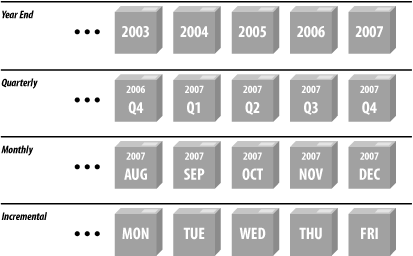
When you make incremental backups, use a rotating set of backup disks or tapes.[269] The backup you do tonight shouldn’t write over the tape you used for your backup last night. Otherwise, if your computer crashes in the middle of tonight’s backup, you would lose the data on the disk, the data in tonight’s backup (because it is incomplete), and the data in last night’s backup (because you partially overwrote it with tonight’s backup). Ideally, perform an incremental backup once a night, and have a different tape for every night of the week, as shown in Figure 18-1. The freeware Amanda backup system and most commercial backup systems automate this practice.
You can use two distinct sets of backup tapes to create a tandem backup. With this backup strategy, you create two complete backups (call them A and B) on successive backup occasions. Then, when you perform your first incremental backup, the “A incremental,” you back up all of the files that were created or modified after the last A backup, even if they are on the B backup. The second time you perform an incremental backup, the “B incremental,” you write out all of the files that were created or modified since the last B backup (even if they are on the A incremental backup). This system protects you against media failure because every file is backed up in two locations. It does, however, double the amount of time that you will spend performing backups.
Tapes are physical media, and each time you run them through your disk drive they degrade somewhat. Based on your experience with your tape drive and media, you should set a lifetime for each tape. Some vendors establish limits for their tapes (for example, 3 years or 2,000 cycles), but others do not. Be certain to see what the vendor recommends—and don’t push that limit. The few pennies you may save by using a tape beyond its useful range will not offset the cost of a major loss.
If you make your backups to tape, follow the preventative maintenance schedule of your tape drive vendor, and use an appropriate cleaning cartridge or other process as recommended. Being unable to read a tape because a drive is dirty is inconvenient; discovering that the data you’ve written to tape is corrupt and no one can read it is a disaster.
On a regular basis you should attempt to restore a few files chosen at random from your backups to make sure that your equipment and software are functioning properly. Not only will this reveal if the backups are comprehensive, but the exercise of doing the restoration may also provide some insight. Stories abound about computer centers that have lost disk drives and gone to their backup tapes, only to find them all unreadable. This scenario can occur as a result of bad tapes, improper backup procedures, faulty software, operator error (see the sidebar), or other problems.
At least once a year, you should attempt to restore your entire system completely from backups to ensure that your entire backup system is working properly. Starting with a different, unconfigured computer, see if you can restore all of your tapes and get the new computer operational. Sometimes you will discover that some critical file is missing from your backup tapes. These practice trials are the best times to discover a problem and fix it.
Backup nightmares abound. One of this book’s reviewers told us about a large Chicago law firm that never bothered to verify backups. They had to wait until their hard drive crashed to learn that their tape drive’s stepper motor had stopped stepping and was writing the entire backup to a single track, with later data overwriting earlier data in the same backup. We have also heard many stories about how the tape drive used to make the backup tapes had a speed or alignment problem. Such a problem results in the tapes being readable by the drive that made them, but unreadable by every other tape drive in the world! Be sure that you try loading your tapes, CD-ROMs and disks on other drives when you check them.
It may take a week or a month to realize that a file has been deleted. Therefore, you should keep some backup tapes for a week, some for a month, and some for several months. Many organizations make yearly or quarterly backups that they archive indefinitely. After all, tape is cheap. Some organizations decide to keep their yearly or biannual backups “forever”—it’s a small investment in the event that they should ever be needed again.
Tip
Other organizations have established strict “data retention” or “data destruction” policies that specify a maximum time that backups may be kept. For more information about this, see Section 18.1.7 later in this chapter.
You may wish to keep on your system an index or listing of the names of the files on your backup tapes. This way, if you ever need to restore a file, you can find the right tape to use by scanning the index, rather than by reading every single tape. Having a printed copy of these indexes is also a good idea, especially if you keep the online index on a system that may need to be restored!
Note
If you keep your backups for a long period of time, you should be sure to migrate the data on your backups each time you purchase a new backup system. Otherwise, you might find yourself stuck with a lot of tapes that can’t be read by anyone, anywhere. This happened in the late 1980s to the MIT Artificial Intelligence Laboratory, which had a collection of research reports and projects from the 1970s on seven-track tape. One day, the lab started a project to put all of the old work online once more. The only problem was that there didn’t appear to be a working seven-track tape drive anywhere in the country that the lab could use to restore the data. NASA has encountered similar problems with old satellite climate data.
Migrating backups is especially important in industries that are legally mandated to retain records for a certain period of time.
Backups pose a double problem for computer security. On the one hand, your backup tape is your safety net; ideally, it should be kept far away from your computer system so that a local disaster cannot ruin both. On the other hand, the backup contains a complete copy of every file on your system, so the backup itself must be carefully protected.
If you use tape drives to make backups, be sure to take the tape out of the drive. One company in San Francisco that made backups every day never bothered removing the cartridge tape from their drive. When their computer was stolen over a long weekend by professional thieves who went through a false ceiling in their office, they lost everything. “The lesson is that the removable storage media is much safer when you remove it from the drive,” said an employee after the incident.
If possible, avoid storing your backup tapes in the same room as your computer system. Any disaster that might damage or destroy your computers is likely to damage or destroy anything in the immediate vicinity of those computers as well.
You may wish to consider investing in a fireproof safe to protect your backup tapes. However, the safe should be placed off site, rather than right next to your computer system. While fireproof safes do protect against fire and theft, they don’t protect your data against explosion, many kinds of water damage, and building collapse.
Be certain that any safe you use for storing backups is actually designed for storing computer media. One of the fireproof lockboxes from the neighborhood discount store might not be magnetically safe for your tapes. It might be heat-resistant enough for storing paper, but not for storing magnetic tape, which cannot withstand the same high temperatures. Also, some of the generic fire-resistant boxes for paper are designed with a liquid in the walls that evaporates or foams when exposed to heat to help protect paper inside. Unfortunately, these chemicals can damage the plastic in magnetic tape or CD-ROMs.
After you have removed a backup tape from a drive, do yourself a favor and flip the write-protect switch. A write-protected tape cannot be accidentally erased.
If you are using the tape for incremental backups, you can flip the write-protect switch when you remove the tape, and then flip it again when you reinsert the tape later. If you forget to unprotect the tape, your software will probably give you an error and let you try again. On the other hand, having the tape write-protected will save your data if you accidentally put the wrong tape in the tape drive, or run a program on the wrong tape.
File protections and passwords protect the information stored on your computer’s hard disk, but anybody who has your backup tapes can restore your files (and read the information contained in them) on another computer. For this reason, keep your backup tapes under lock and key.
In the early 1990s an employee at a computer magazine pocketed a 4 mm cartridge backup tape that was on the system manager’s desk. When the employee got the tape home, he discovered that it contained hundreds of megabytes of personal files, articles in progress, customer and advertising lists, contracts, and detailed business plans for a new venture that the magazine’s parent company was planning. The tape also included tens of thousands of dollars worth of computer application programs, many of which were branded with the magazine’s name and license numbers. Quite a find for an insider who was setting up a competing publication!
When you transfer your backup tapes from your computer to the backup location, protect the tapes at least as well as you normally protect the computers themselves. Letting a messenger carry the tapes from building to building may not be appropriate if the material on the tapes is sensitive. Getting information from a tape by bribing an underpaid courier, posing as the package’s intended recipient, or even knocking him unconscious and stealing it, is usually easier and cheaper than breaching a firewall, cracking some passwords, and avoiding detection online.
The use of encryption can dramatically improve security for backup tapes. Years ago encryption was done in hardware using special tape drives. Today, backup encryption is largely done with software, which is usually as secure and offers more flexible key management. Unfortunately, this flexibility can cause problems if it is not managed properly.
If you do choose to encrypt your backup tapes, be sure that the decryption key is known by more than one person, or escrow the key with a third party. After all, the backups are worthless if the only person with the key forgets it, becomes incapacitated, or quits and refuses to divulge the information.
Here are some recommendations for storing a backup tape’s encryption key:
Change your keys infrequently if you change them at all. If you do change your keys, you must remember the old ones as well as the new, which probably means writing them all down in the same place. So you don’t really get much improvement in security from changing the keys. Physical security of your backup tape should be your first line of defense.
Store copies of the key on pieces of paper in sealed envelopes. Give the envelopes to each member of your organization’s board of directors, or chief officers. Small companies and individuals can entrust the envelopes to their attorneys.
If your organization uses an encryption system such as PGP that allows a message to be encrypted for multiple recipients, encrypt and distribute the backup decryption key so that it can be decrypted by anyone on the board.
Alternately, consider a secret-sharing system so that the key can be decrypted by two or three board members working together, but not by a board member working on her own.
Finally, some firms should be careful about backing up too much information or holding it for too long. Recently, backup tapes have become targets in lawsuits and criminal investigations. Backup tapes can be obtained by subpoena in criminal investigations or during discovery in lawsuits.
For this reason, many organizations have adopted “data retention” or “data destruction” policies. These policies typically mandate that all files pertaining to a matter be destroyed a certain time after the matter is closed or the transaction is settled.
Frequently, data retention policies are influenced by government regulations. For example, the federal government might mandate that a particular firm retain its records for three years to assist in assuring the firm’s compliance with a particular regulation. The firm might then implement a retention policy mirroring this regulatory requirement, and further require that all records (including backup tapes) be destroyed after three years and one day.
Many firms (and universities) decide to set limits on data retention of user files to reduce the overhead in doing searches. A typical tactic in civil suits is to seek discovery of all versions of all files that might contain a certain set of keywords, or that were likely to be touched by certain people. The time and effort required to comply with such “fishing expeditions” can be quite extensive, and often is not reimbursed. If the copies don’t exist, then there is no need to do the search! However, bear in mind that destruction of information covered under applicable law or destruction of data after receipt of a valid court order is illegal and may result in both fines and jail time. Keep the images of Oliver North and Enron in mind, and remember that wholesale destruction of records is not always appropriate, even if the records are past their prime.
To assist in implementing retention policies, you may wish to segregate potentially sensitive data so that it is stored on separate backup tapes. For example, you can store applications on one tape, pending cases on another tape, and library files and archives on a third. In this manner, you can comply with policies and regulations for your datafiles, while keeping other backups according to schedules that are dictated by other motivations.
Back up your data, but back up with caution and a plan.
The key to deciding upon a good strategy for backups is to understand the importance and time-sensitivity of your data. As a start, we suggest that the answers to the following questions will help you plan your backups:
How quickly do you need to resume operations after a complete loss of the main system?
How quickly do you need to resume operations after a partial loss?
Can you perform backups while the system is “live”?
Can you perform restores while the system is “live”?
What data do you need restored first? Next? Last?
Of the users you must listen to, who will complain the most if his data is not available?
What will cause the biggest loss if it is not available?
Who loses data most often from equipment or human failures?
How many spare copies of the backups must you have to feel safe?
How long do you need to keep each backup?
How much are you willing or able to spend?
In the following sections, we outline some typical backup strategies for several different situations.
Many users do not back up their workstations on a regular basis: they think that backing up their data is too much effort. Unfortunately, they don’t consider the effort required to retype everything that they’ve ever done to recover their records.
Here is a simple backup strategy for users with PCs or standalone workstations.
- Full backups
Once a month, or after a major software package is installed, back up the entire system. At the beginning of each year, make two complete backups and store them in different locations.
- Project-related backups
Back up current projects and critical files with specially written Perl or shell scripts. For example, you might have a Perl script that backs up all of the files for a program you are writing, or all of the chapters of your next book. These files can be bundled and compressed into a single tar file, which can often then be stored on a CD-ROM or saved over the network to another computer.
- Home directory and mail spool backups
If your system is on a network, write a shell script that backs up your home directory to a remote machine. This backup should also include a copy of your mail spool file if it is not stored beneath your home directory (for example, if your incoming mail is stored in /var/spool/mail/yourname). Set the script to automatically run once a day, or as often as is feasible. But beware: if you are not careful, you could easily overwrite your backup with a bad copy before you realize that something needs to be restored. Spending a few extra minutes to set things up properly (for example, by keeping three or four home-directory backups on different machines, each updated on a different day of the week) can save you a lot of time (and panic) later.
This strategy never uses incremental backups; instead, complete backups of a particular set of files are always created. Such project-related backups tend to be incredibly comforting and occasionally valuable. (We found this to be the case in preparation of the third edition of this book—one of us accidentally overwrote the changes another had made, and the backups saved many days of effort!)
- Monthly backups
Keep the monthly backups for two years; keep the yearly backups forever.
- Project-related backups
Keep until the project is complete, and then keep a final copy forever. Rotate two or more backup files; ideally, one should be on another host at a different site.
- Home directory and mail spool backups
One backup is kept for each weekday that the backup script is run. Each weekday’s backup overwrites the backup from the previous week, so each backup is effectively retained for one week.
Most small groups rely on a single server with up to a few dozen workstations. In our example, the organization has a single server with several disks, 15 workstations, and a DAT tape backup drive.
The organization doesn’t have much money to spend on system administration, so it sets up a system for backing up the most important files over the network to a specially designed server.
- Server configuration
Partitions #1, #2, and #3: /, /usr, /var (standard Unix filesystems).
Partition #4: /users (user files).
Partition #5: /localapps (locally installed applications).
- Client configuration
Clients are run as “network workstations” and are not backed up. Most clients are equipped with a single hard disk, which is used for copies of applications and the operating system.
One client is equipped with a high-capacity hard drive that is used for remote backups from the server.
- Monthly backups
Once a month, a full backup of each server partition is made onto its own tape with the Unix dump utility.
- Weekly backups
Once a week, incremental backups on partitions #1, #2, #3, and #5 are written to a tape (level 1 dump). A full backup of the /users filesystem is then added to the end of that tape (level 0 dump).
- Daily backups
An incremental backup of the /users filesystem is written to a file which is stored on the local hard disk of the client with the large disk drive. The backup is compressed and encrypted as it is stored so that it is not accessible to the person using the workstation.
- Hourly backups
Every hour, a special directory, /users/activeprojects, is archived in a tar file. This file is sent over the network to the client workstation with the high-capacity drive. The last eight files are kept, giving immediate backups in the event that a user accidentally deletes or corrupts a file. The system checks the client to make sure that it has adequate space on the drive before beginning each hourly backup.
The daily and hourly backups are done automatically via scripts run by the cron daemon. All monthly and weekly backups are done with shell scripts that are run manually. The scripts both perform the backup and then verify that the data on the tape can be read back, but the backups do not verify that the data on the tape is the same as that on the disk. (No easy verification method exists for the standard dump/restore programs on many Unix systems, although Linux’s restore -C can compare data on tape to data on disk.)
Automated systems should be inspected on a routine basis to make sure they are still working as planned. You may have the script notify you when completed, sending a list of any errors to a human (in addition to logging them in a file).
- Monthly backups
Keep for a full calendar year. Keep each quarterly backup as a permanent archive for a few years. Keep the year-end backups forever.
- Weekly backups
Keep on four tapes, which are recycled each month. Throw out these tapes every 5 years (60 uses), although the organization will probably have a new tape drive within 5 years that uses a different form of tapes.
- Daily backups
Keep one day’s backup. Each day’s backup overwrites the previous day’s.
Most large decentralized organizations, such as universities, operate networks with thousands of users and a high degree of autonomy between system operators. The primary goal of the backup system of these organizations is to minimize downtime in the event of hardware failure or network attack; if possible, the system can also restore user files deleted or damaged by accident.
- Primary servers
Partitions #1, #2, #3: /, /usr, /var (standard Unix filesystems).
Partition #4: user files.
- Secondary server (matches each primary)
Partitions #1, #2, #3: /, /usr, /var (standard Unix filesystems).
Partitions #4, #5, #6: backup staging area for /, /usr, and /var of primary server.
Partition #7: backup staging area for user files.
- Client configuration
Clients are run as “dataless workstations” and are not backed up. The clients receive software distributions from a trusted server over the network on a rotating basis. (Each night, some or all machines are chosen from the list.) Each distribution includes all files and results in a reload of a fresh copy of the operating system. These distributions keep the systems up to date, discourage local storage by users, and reduce the impact (and lifetime) of Trojan horses and other unauthorized modifications of the operating system.
Every night, the backup staging area is synchronized with the contents of the partitions on its matching primary server using the rsync [270] program. The following morning, the entire disk is copied to a high-speed tape drive.
Using special secondary servers dramatically eases the load of writing backup tapes. This strategy also provides a hot replacement system should the primary server fail.
Furthermore, the backup system provides a “safety net” for users who accidentally delete their files—these files can instantly be recovered from the backup system, often without the involvement of the system management.
Backups are retained for two weeks. During that time, users can have their files restored to a special “restoration” area, perhaps for a small fee. Users who want archival backups for longer than two weeks must arrange backups of their own. One of the reasons for this decision is privacy: users should have a reasonable expectation that if they delete their files, the backups will be erased at some point!
Many banks and other large firms have requirements for minimum downtime in the event of a failure. Thus, current and complete backups that are ready to go at a moment’s notice are vital. In this scheme we use redundant servers, clustered database systems, and elaborate tape farms to provide for adequate backup.
The organization sets up two duplicate servers: one in New York City, the other at a facility in upstate Pennsylvania where real estate is cheap (and it is only a 2-hour drive from New York). Each server is configured with a RAID device for its local disk. RAID can be configured for RAID level 1 (disk mirroring) or RAID level 5 (redundancy provided through the use of parity and error-correcting codes).
Both the primary site in New York and the secondary site in Pennsylvania run identical software installations. The database servers are configured in tandem so that all transactions sent to the primary machine are simultaneously sent to the secondary machine. Software developed and maintained by the database vendor assures that the two systems are kept in sync, and updates them as necessary.
Instead of having software patches, updates, and new systems automatically mirrored from the primary to the secondary, all of these software modifications are carefully planned out, then applied to a test system. After thorough testing with static copies of data, the software is then installed on the secondary machine for testing with near-live data. That installation is then tested. If no adverse impacts are found, the software update is then applied to the primary machine.
Development is done on a separate development system. After thorough testing and review, it is deployed in the same manner as with system patches, described above.
If a failure of the main system occurs, the remote system is activated. Any pending transactions are replayed on the database, and it then becomes the primary site. The primary site can be brought back online during scheduled downtime. Meanwhile, a disaster recovery plan is initiated whereby the development system (at yet another location) is brought up to mirror the now primary system until the original primary system is brought back on line.
Backups are done from the secondary machine, which presumably has a lower load because it is not serving queries, running only test scripts and receiving database updates. If the backup system is a managed storage solution, such as an EMC Symmetrix, the system takes a snapshot of each disk partition, and it is these snapshots that are backed up.
Every morning, encrypted DVD-ROMs are made of the contents of the backup system. The DVDs are then copied, and the copies sent by bonded courier to different branch offices around the country.
[266] Imagine having to reapply 75 vendor “jumbo patches” or “hot fixes” by hand, plus all the little security patches you got off the Internet and derived from this book, plus all the tweaks to optimize performance—and imagine doing this for each system you manage. Ouch!
[267] We recommend that you also do such a backup immediately after you restore your system after recovering from a break-in. Even if you have left a hole open and the intruder returns, you’ll save a lot of time if you are able to fix the hole in the backup, rather than starting from scratch again.
[268] This kind of incremental backup is sometimes called a differential backup, as it stores everything that differs from the last full backup. Some backup systems use multiple levels of incremental backups—the level 4 backup contains changes since the last level 3 backup, which contains changes since the last level 2 backup, and so on. To completely restore the system, you must load the last backup tape at each level. For most systems, however, a simple two-level (full and differential) backup approach is suitable.
[269] Of course, all tapes also rotate around a spindle. “Rotating” means that the tapes are rotated with each other according to a schedule.
[270] rsync examines the files and copies only files that have changed. Deleted files are removed.