Table of Contents for
Practical UNIX and Internet Security, 3rd Edition
 Practical UNIX and Internet Security, 3rd Edition
Published by
O'Reilly Media, Inc., 2003
Practical UNIX and Internet Security, 3rd Edition
Published by
O'Reilly Media, Inc., 2003
- Cover
- Practical Unix & Internet Security, 3rd Edition
- A Note Regarding Supplemental Files
- Preface
- Unix “Security”?
- Scope of This Book
- Which Unix System?
- Conventions Used in This Book
- Comments and Questions
- Acknowledgments
- A Note to Would-Be Attackers
- I. Computer Security Basics
- 1. Introduction: Some Fundamental Questions
- What Is Computer Security?
- What Is an Operating System?
- What Is a Deployment Environment?
- Summary
- 2. Unix History and Lineage
- History of Unix
- Security and Unix
- Role of This Book
- Summary
- 3. Policies and Guidelines
- Planning Your Security Needs
- Risk Assessment
- Cost-Benefit Analysis and Best Practices
- Policy
- Compliance Audits
- Outsourcing Options
- The Problem with Security Through Obscurity
- Summary
- II. Security Building Blocks
- 4. Users, Passwords, and Authentication
- Logging in with Usernames and Passwords
- The Care and Feeding of Passwords
- How Unix Implements Passwords
- Network Account and Authorization Systems
- Pluggable Authentication Modules (PAM)
- Summary
- 5. Users, Groups, and the Superuser
- Users and Groups
- The Superuser (root)
- The su Command: Changing Who You Claim to Be
- Restrictions on the Superuser
- Summary
- 6. Filesystems and Security
- Understanding Filesystems
- File Attributes and Permissions
- chmod: Changing a File’s Permissions
- The umask
- SUID and SGID
- Device Files
- Changing a File’s Owner or Group
- Summary
- 7. Cryptography Basics
- Understanding Cryptography
- Symmetric Key Algorithms
- Public Key Algorithms
- Message Digest Functions
- Summary
- 8. Physical Security for Servers
- Planning for the Forgotten Threats
- Protecting Computer Hardware
- Preventing Theft
- Protecting Your Data
- Story: A Failed Site Inspection
- Summary
- 9. Personnel Security
- Background Checks
- On the Job
- Departure
- Other People
- Summary
- III. Network and Internet Security
- 10. Modems and Dialup Security
- Modems: Theory of Operation
- Modems and Security
- Modems and Unix
- Additional Security for Modems
- Summary
- 11. TCP/IP Networks
- Networking
- IP: The Internet Protocol
- IP Security
- Summary
- 12. Securing TCP and UDP Services
- Understanding Unix Internet Servers and Services
- Controlling Access to Servers
- Primary Unix Network Services
- Managing Services Securely
- Putting It All Together: An Example
- Summary
- 13. Sun RPC
- Remote Procedure Call (RPC)
- Secure RPC (AUTH_DES)
- Summary
- 14. Network-Based Authentication Systems
- Sun’s Network Information Service (NIS)
- Sun’s NIS+
- Kerberos
- LDAP
- Other Network Authentication Systems
- Summary
- 15. Network Filesystems
- Understanding NFS
- Server-Side NFS Security
- Client-Side NFS Security
- Improving NFS Security
- Some Last Comments on NFS
- Understanding SMB
- Summary
- 16. Secure Programming Techniques
- One Bug Can Ruin Your Whole Day . . .
- Tips on Avoiding Security-Related Bugs
- Tips on Writing Network Programs
- Tips on Writing SUID/SGID Programs
- Using chroot( )
- Tips on Using Passwords
- Tips on Generating Random Numbers
- Summary
- IV. Secure Operations
- 17. Keeping Up to Date
- Software Management Systems
- Updating System Software
- Summary
- 18. Backups
- Why Make Backups?
- Backing Up System Files
- Software for Backups
- Summary
- 19. Defending Accounts
- Dangerous Accounts
- Monitoring File Format
- Restricting Logins
- Managing Dormant Accounts
- Protecting the root Account
- One-Time Passwords
- Administrative Techniques for Conventional Passwords
- Intrusion Detection Systems
- Summary
- 20. Integrity Management
- The Need for Integrity
- Protecting Integrity
- Detecting Changes After the Fact
- Integrity-Checking Tools
- Summary
- 21. Auditing, Logging, and Forensics
- Unix Log File Utilities
- Process Accounting: The acct/pacct File
- Program-Specific Log Files
- Designing a Site-Wide Log Policy
- Handwritten Logs
- Managing Log Files
- Unix Forensics
- Summary
- V. Handling Security Incidents
- 22. Discovering a Break-in
- Prelude
- Discovering an Intruder
- Cleaning Up After the Intruder
- Case Studies
- Summary
- 23. Protecting Against Programmed Threats
- Programmed Threats: Definitions
- Damage
- Authors
- Entry
- Protecting Yourself
- Preventing Attacks
- Summary
- 24. Denial of Service Attacks and Solutions
- Types of Attacks
- Destructive Attacks
- Overload Attacks
- Network Denial of Service Attacks
- Summary
- 25. Computer Crime
- Your Legal Options After a Break-in
- Criminal Hazards
- Criminal Subject Matter
- Summary
- 26. Who Do You Trust?
- Can You Trust Your Computer?
- Can You Trust Your Suppliers?
- Can You Trust People?
- Summary
- VI. Appendixes
- A. Unix Security Checklist
- Preface
- Chapter 1: Introduction: Some Fundamental Questions
- Chapter 2: Unix History and Lineage
- Chapter 3: Policies and Guidelines
- Chapter 4: Users, Passwords, and Authentication
- Chapter 5: Users, Groups, and the Superuser
- Chapter 6: Filesystems and Security
- Chapter 7: Cryptography Basics
- Chapter 8: Physical Security for Servers
- Chapter 9: Personnel Security
- Chapter 10: Modems and Dialup Security
- Chapter 11: TCP/IP Networks
- Chapter 12: Securing TCP and UDP Services
- Chapter 13: Sun RPC
- Chapter 14: Network-Based Authentication Systems
- Chapter 15: Network Filesystems
- Chapter 16: Secure Programming Techniques
- Chapter 17: Keeping Up to Date
- Chapter 18: Backups
- Chapter 19: Defending Accounts
- Chapter 20: Integrity Management
- Chapter 21: Auditing, Logging, and Forensics
- Chapter 22: Discovering a Break-In
- Chapter 23: Protecting Against Programmed Threats
- Chapter 24: Denial of Service Attacks and Solutions
- Chapter 25: Computer Crime
- Chapter 26: Who Do You Trust?
- Appendix A: Unix Security Checklist
- Appendix B: Unix Processes
- Appendixes C, D, and E: Paper Sources, Electronic Sources, and Organizations
- B. Unix Processes
- About Processes
- Signals
- Controlling and Examining Processes
- Starting Up Unix and Logging In
- C. Paper Sources
- Unix Security References
- Other Computer References
- D. Electronic Resources
- Mailing Lists
- Web Sites
- Usenet Groups
- Software Resources
- E. Organizations
- Professional Organizations
- U.S. Government Organizations
- Emergency Response Organizations
- Index
- Index
- Index
- Index
- Index
- Index
- Index
- Index
- Index
- Index
- Index
- Index
- Index
- Index
- Index
- Index
- Index
- Index
- Index
- Index
- Index
- Index
- Index
- Index
- Index
- Index
- Index
- About the Authors
- Colophon
- Copyright
Although passwords are an important element of computer security, users often receive only cursory instructions about selecting them.
If you are a user, be aware that by picking a bad password—or by revealing your password to an untrustworthy individual—you are potentially compromising your entire computer’s security. If you are a system administrator, you should make sure that all of your users are familiar with the issues raised in this section.
A bad password is any password that is easily guessed.
Bad Passwords
When picking passwords, avoid the following:
Your name, spouse’s name, or partner’s name
Your pet’s name or your child’s name
Names of close friends or coworkers
The name of your company, school, department, or group
Names of your favorite fantasy characters
Your boss’s name
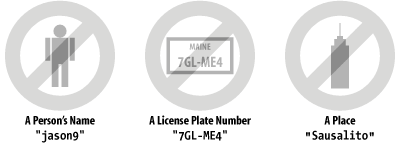
Anybody’s name
The name of the operating system you’re using
Information in the GECOS field of your passwd file entry (discussed later in this chapter)
The hostname of your computer
Any part of your Social Security number
Anybody’s birth date
Other information easily obtained about you (e.g., address, alma mater)
Any username on the computer in any form (as is, capitalized, doubled, etc.)
A word in the English dictionary or in a foreign dictionary
Passwords of all the same letter
Simple patterns of letters on the keyboard, like
qwertyAny of the above spelled backwards
In the movie Real Genius, a computer recluse
named Laszlo Hollyfeld breaks into a top-secret military computer
over the telephone by guessing passwords. Laszlo starts by typing the
password AAAAAA, then trying
AAAAAB, then AAAAAC, and so on,
until he finally finds the password that matches.
Real-life
computer crackers are far more sophisticated. Instead of typing each
password by hand, attackers use their computers to open network
connections (or make phone calls) then try the passwords,
automatically retrying when they are disconnected. Instead of trying
every combination of letters, starting with AAAAAA
(or whatever), attackers use
hit lists of common passwords such as
wizard or demo. Even a modest
home computer with a good password-guessing program can try many
thousands of passwords in less than a day’s time.
Some hit lists used by crackers are several hundred thousand words in
length, and include words in many different languages.[35]
Therefore, a password that anybody on the
planet
[36]
might use for a password is probably a bad password choice for you.
What’s a popular and bad password? Some examples are
your name, your partner’s name, or your
parents’ names. Other bad passwords are these names
backwards or followed by a single digit. Short passwords are also
bad, because there are fewer of them: they are, therefore, more
easily guessed. Especially bad are “magic
words” from computer games, such as
xyzzy. Magic words look secret and unguessable,
but in fact they are widely known. Other bad choices include phone
numbers, characters from your favorite movies or books, local
landmark names, favorite drinks, or famous computer scientists (see
the sidebar Bad Passwords for still more bad choices).
These words backwards or capitalized are also weak. Replacing the
letter “l” (lowercase
“L”) with
“1” (numeral one), the letter
“o” with
“0” (numeral zero), or
“E” with
“3,” adding a digit to either end,
or other simple modifications of common words are also weak. Words in
other languages are no better. Dictionaries for dozens of languages
are available for download on the Internet, including Klingon! There
are also dictionaries available that consist solely of words
frequently chosen as passwords.
Many versions of Unix make a minimal attempt to prevent users from picking bad passwords. For example, under some versions of Unix, if you attempt to pick a password with fewer than six letters or letters that are all the same case, the passwd program will ask the user to “Please pick a different password” followed by some explanation of the local requirements for a password. After three tries, however, some versions of the passwd program relent and let the user pick a short one. Better versions allow the administrator to require a minimum number of letters, a requirement for nonalphabetic characters, and other restrictions. However, some administrators turn these requirements off because users complain about them! Users will likely complain more loudly if their computers are broken into.
Surprisingly, a significant percentage of all computers that do not explicitly check for bad passwords contain at least one account in which the username and the password are the same or extremely similar. Such accounts are often called “Joes.” Joe accounts are easy for crackers to find and trivial to penetrate. Attackers can find an entry point into far too many systems simply by checking every account to see whether it is a Joe account. This is one reason why it is dangerous for your computer to make a list of all of the valid usernames available to the outside world.
Good passwords are passwords that are difficult to guess. The best passwords are difficult to guess because they include some subset of the following characteristics:
Have both uppercase and lowercase letters
Have digits and/or punctuation characters as well as letters
May include some control characters and/or spaces[37]
Are easy to remember, so they do not have to be written down
Are seven or eight characters long.
Can be typed quickly, so somebody cannot determine what you type by watching over your shoulder
It’s easy to pick a good password. Here are some suggestions:
Take two short words and combine them with a special character or a number, like
robot4myoreye-con.Put together an acronym that’s special to you, like
Anotfsw(Ack, none of this fancy stuff works),aUpegcbm(All Unix programmers eat green cheese but me), orTtl*Hiww(Twinkle, twinkle, little star. How I wonder what . . . ).Create a nonsense word by alternating consonant and vowel sounds, like
huroMork. These words are usually easy to pronounce and remember.
Of course, robot4my, eye-con,
Anotfsw, Ttl*Hiww,
huroMork, and aUpegcbm are now
all bad passwords because they’ve been printed here.
If you have several computer accounts, you may wish to have the same password on every machine, so you have less you need to remember. This is called password synchronization.
Password synchronization can increase security if the synchronization allows you to use a good password that is hard to guess. Systems that provide for automated password synchronization make it easy to change your password and have that change reflected everywhere.
On the other hand, password synchronization can decrease security if the password is compromised—suddenly all of your accounts will be vulnerable! Even worse, with password synchronization you may not even know that your password has been compromised!
Password synchronization is also problematic for usernames and passwords that are used for web sites. Many people will use the same username and password at many web sites—even web sites that are potentially being run by untrustworthy individuals or organizations. A simple way to capture usernames and passwords is to set up a web site that offers “a chance of winning $10,000” to anybody who registers with an email address and sets up a password upon entry.
If you are thinking of using the same password on many machines, here are some points to consider:
One common approach used by people with accounts on many machines is to have a base password that can be modified for each different machine. For example, your base password might be
kxyzzyfollowed by the first letter of the name of the computer you’re using. On a computer named athena your password would bekxyzzya, while on a computer named ems your password would bekxyzzye. (Don’t, of course, use this exact method of varying your passwords.)Another common approach is to create a different, random password for each machine. Store these passwords in a file that is encrypted—either manually encrypted with a program such as PGP, or automatically encrypted using a “password keeper” program.
To simplify access to remote systems, configure your remote accounts for ssh-based access using your ssh key. Make sure that this key is kept encrypted using an ssh passphrase. For day-to-day use, the ssh passphrase is all that needs to be remembered. However, for special cases or when changing the password, you can refer to your encrypted file of all the passwords. See the manual page for ssh-keygen for specific instructions.
In the movie War Games, there is the canonical story about a high school student who breaks into his school’s academic computer and changes his grades; he does this by walking into the school’s office, looking at the academic officer’s terminal, and noting that the telephone number, username, and password are written on a Post-It note.
Unfortunately, the fictional story has actually happened—in fact, it has happened hundreds of times over.
Users are admonished to “never write down your password.” The reason is simple enough: if you write down your password, somebody else can find it and use it to break into your computer. A password that is memorized is more secure than the same password written down, simply because there is less opportunity for other people to learn it. On the other hand, a password that must be written down to be remembered is quite likely a password that is not going to be guessed easily.[38] If you write your password on something kept in your wallet, the chances of somebody who steals your wallet using the password to break into your computer account are remote indeed.[39]
If you must write down your password, then at least follow a few precautions:
When you write it down, don’t identify your password as being a password.
Don’t include the name of the account, network name, or phone number of the computer on the same piece of paper as your password.
Don’t attach the password to your terminal, keyboard, or any part of your computer.
Don’t write your actual password. Instead, disguise it by mixing in other characters or by scrambling the written version of the password in a way that you can remember. For example, if your password is
Iluvfred, you might writefredIluvorvfredxyIuor perhapsLastweek,IlostUncleVernon's`friedrice&eggplant delight'recipe--remembertocallhimafter3:00p.m.—to throw off a potential wallet-snatcher.[40]
Of course, you can always encrypt your passwords in a handy file on a machine where you remember the password. Many people store their passwords in an encrypted form on a PDA (handheld computer). The only drawback to this approach is when you can’t get to your file, or your PDA has gone missing (or its batteries die)—how do you log on to report the problem?
Here are some other things to avoid:
Don’t record a password online (in a file, database, or email message), unless the password is encrypted.
Likewise, never send a password to another user via electronic mail. In The Cuckoo’s Egg, Cliff Stoll tells of how a single intruder broke into system after system by searching for the word
passwordin text files and electronic mail messages. With this simple trick, the intruder learned of the passwords of many accounts on many different computers across the country.Don’t use your login password as the password of application programs. For instance, don’t use your login password as your password to an online MUD (multiuser dungeon) game or for a web server account. The passwords in those applications are controlled by others and may be visible to the wrong people.
Don’t use the same password for different computers managed by different organizations. If you do, and an attacker learns the password for one of your accounts, all will be compromised.
[35] In contrast, if you were to program a home computer to try all
6-letter combinations from AAAAAA to
ZZZZZZ, it would have to try 308,915,776 different
passwords. Guessing one password per second, that would require
nearly 10 years. Many Unix systems make this process even slower by
introducing delays between login attempts.
[36] If you believe that beings from other planets have access to your computer account, then you should not pick a password that they can guess, either, although this may be the least of your problems.
[37] In some cases, using spaces may be problematic. An attacker who is in a position to listen carefully can distinguish the sound of the space bar from the sound of other keys. Similarly, Shift or Control key combinations have a distinctive sound, but there are many shifted characters and only one space.
[38] We should note that in the 12 years since we originally wrote this, we have added lots more accounts and passwords and have more frequent “senior moments.” Thus, we perhaps should be a little less emphatic about this point.
[39] Unless, of course, you happen to be an important person, and your wallet is stolen or rifled as part of an elaborate plot. In their book Cyberpunks, authors John Markoff and Katie Hafner describe a woman named “Susan Thunder” who broke into military computers by doing just that: she would pick up an officer at a bar and go home with him. Later that night, while the officer was sleeping, Thunder would get up, go through the man’s wallet, and look for telephone numbers, usernames, and passwords.
[40] We hope that last one required some thought. The 3:00 p.m. means to start with the third word and take the first letter of every word. With some thought, you can come up with something equally obscure that you will remember.