Table of Contents for
Practical UNIX and Internet Security, 3rd Edition
 Practical UNIX and Internet Security, 3rd Edition
Published by
O'Reilly Media, Inc., 2003
Practical UNIX and Internet Security, 3rd Edition
Published by
O'Reilly Media, Inc., 2003
- Cover
- Practical Unix & Internet Security, 3rd Edition
- A Note Regarding Supplemental Files
- Preface
- Unix “Security”?
- Scope of This Book
- Which Unix System?
- Conventions Used in This Book
- Comments and Questions
- Acknowledgments
- A Note to Would-Be Attackers
- I. Computer Security Basics
- 1. Introduction: Some Fundamental Questions
- What Is Computer Security?
- What Is an Operating System?
- What Is a Deployment Environment?
- Summary
- 2. Unix History and Lineage
- History of Unix
- Security and Unix
- Role of This Book
- Summary
- 3. Policies and Guidelines
- Planning Your Security Needs
- Risk Assessment
- Cost-Benefit Analysis and Best Practices
- Policy
- Compliance Audits
- Outsourcing Options
- The Problem with Security Through Obscurity
- Summary
- II. Security Building Blocks
- 4. Users, Passwords, and Authentication
- Logging in with Usernames and Passwords
- The Care and Feeding of Passwords
- How Unix Implements Passwords
- Network Account and Authorization Systems
- Pluggable Authentication Modules (PAM)
- Summary
- 5. Users, Groups, and the Superuser
- Users and Groups
- The Superuser (root)
- The su Command: Changing Who You Claim to Be
- Restrictions on the Superuser
- Summary
- 6. Filesystems and Security
- Understanding Filesystems
- File Attributes and Permissions
- chmod: Changing a File’s Permissions
- The umask
- SUID and SGID
- Device Files
- Changing a File’s Owner or Group
- Summary
- 7. Cryptography Basics
- Understanding Cryptography
- Symmetric Key Algorithms
- Public Key Algorithms
- Message Digest Functions
- Summary
- 8. Physical Security for Servers
- Planning for the Forgotten Threats
- Protecting Computer Hardware
- Preventing Theft
- Protecting Your Data
- Story: A Failed Site Inspection
- Summary
- 9. Personnel Security
- Background Checks
- On the Job
- Departure
- Other People
- Summary
- III. Network and Internet Security
- 10. Modems and Dialup Security
- Modems: Theory of Operation
- Modems and Security
- Modems and Unix
- Additional Security for Modems
- Summary
- 11. TCP/IP Networks
- Networking
- IP: The Internet Protocol
- IP Security
- Summary
- 12. Securing TCP and UDP Services
- Understanding Unix Internet Servers and Services
- Controlling Access to Servers
- Primary Unix Network Services
- Managing Services Securely
- Putting It All Together: An Example
- Summary
- 13. Sun RPC
- Remote Procedure Call (RPC)
- Secure RPC (AUTH_DES)
- Summary
- 14. Network-Based Authentication Systems
- Sun’s Network Information Service (NIS)
- Sun’s NIS+
- Kerberos
- LDAP
- Other Network Authentication Systems
- Summary
- 15. Network Filesystems
- Understanding NFS
- Server-Side NFS Security
- Client-Side NFS Security
- Improving NFS Security
- Some Last Comments on NFS
- Understanding SMB
- Summary
- 16. Secure Programming Techniques
- One Bug Can Ruin Your Whole Day . . .
- Tips on Avoiding Security-Related Bugs
- Tips on Writing Network Programs
- Tips on Writing SUID/SGID Programs
- Using chroot( )
- Tips on Using Passwords
- Tips on Generating Random Numbers
- Summary
- IV. Secure Operations
- 17. Keeping Up to Date
- Software Management Systems
- Updating System Software
- Summary
- 18. Backups
- Why Make Backups?
- Backing Up System Files
- Software for Backups
- Summary
- 19. Defending Accounts
- Dangerous Accounts
- Monitoring File Format
- Restricting Logins
- Managing Dormant Accounts
- Protecting the root Account
- One-Time Passwords
- Administrative Techniques for Conventional Passwords
- Intrusion Detection Systems
- Summary
- 20. Integrity Management
- The Need for Integrity
- Protecting Integrity
- Detecting Changes After the Fact
- Integrity-Checking Tools
- Summary
- 21. Auditing, Logging, and Forensics
- Unix Log File Utilities
- Process Accounting: The acct/pacct File
- Program-Specific Log Files
- Designing a Site-Wide Log Policy
- Handwritten Logs
- Managing Log Files
- Unix Forensics
- Summary
- V. Handling Security Incidents
- 22. Discovering a Break-in
- Prelude
- Discovering an Intruder
- Cleaning Up After the Intruder
- Case Studies
- Summary
- 23. Protecting Against Programmed Threats
- Programmed Threats: Definitions
- Damage
- Authors
- Entry
- Protecting Yourself
- Preventing Attacks
- Summary
- 24. Denial of Service Attacks and Solutions
- Types of Attacks
- Destructive Attacks
- Overload Attacks
- Network Denial of Service Attacks
- Summary
- 25. Computer Crime
- Your Legal Options After a Break-in
- Criminal Hazards
- Criminal Subject Matter
- Summary
- 26. Who Do You Trust?
- Can You Trust Your Computer?
- Can You Trust Your Suppliers?
- Can You Trust People?
- Summary
- VI. Appendixes
- A. Unix Security Checklist
- Preface
- Chapter 1: Introduction: Some Fundamental Questions
- Chapter 2: Unix History and Lineage
- Chapter 3: Policies and Guidelines
- Chapter 4: Users, Passwords, and Authentication
- Chapter 5: Users, Groups, and the Superuser
- Chapter 6: Filesystems and Security
- Chapter 7: Cryptography Basics
- Chapter 8: Physical Security for Servers
- Chapter 9: Personnel Security
- Chapter 10: Modems and Dialup Security
- Chapter 11: TCP/IP Networks
- Chapter 12: Securing TCP and UDP Services
- Chapter 13: Sun RPC
- Chapter 14: Network-Based Authentication Systems
- Chapter 15: Network Filesystems
- Chapter 16: Secure Programming Techniques
- Chapter 17: Keeping Up to Date
- Chapter 18: Backups
- Chapter 19: Defending Accounts
- Chapter 20: Integrity Management
- Chapter 21: Auditing, Logging, and Forensics
- Chapter 22: Discovering a Break-In
- Chapter 23: Protecting Against Programmed Threats
- Chapter 24: Denial of Service Attacks and Solutions
- Chapter 25: Computer Crime
- Chapter 26: Who Do You Trust?
- Appendix A: Unix Security Checklist
- Appendix B: Unix Processes
- Appendixes C, D, and E: Paper Sources, Electronic Sources, and Organizations
- B. Unix Processes
- About Processes
- Signals
- Controlling and Examining Processes
- Starting Up Unix and Logging In
- C. Paper Sources
- Unix Security References
- Other Computer References
- D. Electronic Resources
- Mailing Lists
- Web Sites
- Usenet Groups
- Software Resources
- E. Organizations
- Professional Organizations
- U.S. Government Organizations
- Emergency Response Organizations
- Index
- Index
- Index
- Index
- Index
- Index
- Index
- Index
- Index
- Index
- Index
- Index
- Index
- Index
- Index
- Index
- Index
- Index
- Index
- Index
- Index
- Index
- Index
- Index
- Index
- Index
- Index
- About the Authors
- Colophon
- Copyright
Now that we have a basic understanding of how filesystems work, we’ll turn our attention to understanding how filesystems influence the security of a Unix system. Nearly all of this discussion will be concerned with the metadata that a filesystem contains—the filenames, permissions, timestamps, and access control attributes.
You can use the ls command to list all of the files in a directory. For instance, to list all the files in your current directory, type:
% ls
instructions  invoice       letter       more-stuff   notes      stats
%
Actually, ls alone won’t list all of the files. Files and directories beginning with a dot (“.”) are hidden from the ls command but are shown if you use ls -a:
% ls -a
.  ..  .indent  instructions  invoice  letter  notes  more-stuff  stats
%
The entries for “.” and “..” refer to the current directory and its parent directory, respectively. The file .indent is a hidden file. If you use ls -A instead of ls -a, you’ll see hidden files, but “.” and “..” will not be shown.
You can get a more detailed listing by using the ls -lF command:
% ls -lF
total 161
-rw-r--r-- 1 sian    user          505 Feb  9 13:19 instructions
-rw-r--r-- 1 sian    user         3159 Feb  9 13:14 invoice
-rw-r--r-- 1 sian    user         6318 Feb  9 13:14 letter
-rw------- 1 sian    user        15897 Feb  9 13:20 more-stuff
-rw-r----- 1 sian    biochem      4320 Feb  9 13:20 notes
-rwxr-xr-x 1 sian    user       122880 Feb  9 13:26 stats*
%
The first line of output generated by the ls
command (total 161 in the example above) indicates
the number of KBs taken up by the files in the directory. Each of the
other lines of output contains the fields, from left to right, as
described in Table 6-2.
Table 6-2. ls output
|
Field contents |
Meaning |
|---|---|
|
- |
The file’s type; for regular files, this field is always a dash |
|
rw-r—r— |
The file’s permissions |
|
1 |
The number of “hard” links to the file; the number of “names” for the file |
|
sian |
The name of the file’s owner |
|
user |
The name of the file’s group |
|
505 |
The file’s size, in bytes |
|
Feb 9 13:19 |
The file’s modification time |
|
instructions |
The file’s name |
The ls -F option makes it easier for you to understand the listing by printing a special character after the filename to indicate what it is, as shown in Table 6-3.
Table 6-3. ls -F tag meanings
|
Symbol |
Meaning |
|---|---|
|
(blank) |
Regular file |
|
* |
File has the execute bit set, typical of executable programs or command files |
|
/ |
Directory |
|
= |
Socket |
|
@ |
Symbolic link |
|
> |
A door, which is a special construct in Sun’s Solaris that is currently in development; used for interprocess communication |
|
| |
A FIFO (a First-In, First-Out buffer, which is a special kind of named pipe) |
|
% |
A whiteout[a] |
[a] If you have two filesystems mounted in a union filesystem and the upper-layer filesystem has an empty directory, that directory will white out the entries in the lower-layer filesystem. This is indicated by the “%” whiteout character. | |
Thus, in the directory shown earlier, the execute bit of the file stats is set; the rest of the files are regular files.
The ls command has dozens of options. Because different people typically like to see different pieces of information when they list files, you may wish to read the manual page for the ls command that is on your system and then set up aliases so that you will have these options run by default when you type “ls.” For instance, Spaf has an alias “lf” that runs ls with the options -FA, an alias “ll” that runs ls with the options -FAl, and “lb” that runs ls with the options -FAbx (the -b switch shows printable octal representations of nonprinting characters, and the -x switch sorts filenames across rows rather than down columns).
The times shown with the ls -l command are the modification times of the file contents, frequently called the file’s mtime. You can obtain the time of last access (the atime ) by providing the -u option (for example, by typing ls -lu). These times are automatically updated by the Unix operating system.
Knowing when a file was last modified or accessed can be important in many circumstances. For example, if a person has been using your account, you can look at the mtimes of files to infer which files the person modified. Unfortunately, the mtime and atime can’t strictly be trusted, because they can be changed by the file’s owner or the superuser by calling a function (utimes( )) within the Unix kernel. This function exists so that archive programs like tar and unzip can restore a file’s modification time in addition to its contents. Additionally, the times reflect the system clock at the time of access or modification, so if the clock is incorrect or is changed, the times may not be accurate.
Because a file’s mtime and atime cannot be trusted, system administrators and security professionals need to be in the habit of checking the inode change time (ctime ) using the ls -c option; for example, ls -lc. As with the mtime and the atime, the ctime is automatically updated by the operating system—in this case, whenever a change is made to the inode of the file. But unlike with mtime and atime, unprivileged users cannot change a file’s ctime. The ctime reflects the time of last writing, protection change, or change of owner. An attacker may change the mtime or atime of a file, but the ctime will usually be correct.
Note that we said “usually.” A clever attacker who gains superuser status can change the system clock and then touch the inode to force a misleading ctime on a file. Furthermore, an attacker can change the ctime by writing to the raw disk device and bypassing the operating system checks altogether. And if you are using Linux with the ext2 filesystem, an attacker can modify the inode contents directly using the debugfs command.
For this reason, if the superuser account on your system has been compromised, you should not assume that any of the three times stored with any file or directory are correct.
Tip
Some programs will change the ctime on a file without actually changing the file itself. This can be misleading when you are looking for suspicious activity. The file command is one such offender. The discrepancy occurs because file opens the file for reading to determine its type, thus changing the atime on the file. By default, most versions of file then reset the atime to its original value, but in so doing change the ctime. Some security scanning programs use the file program within them (or employ similar functionality), and this may result in wide-scale changes in ctime unless they are run on a read-only version of the filesystem.
The file permissions on each line of the ls listing tell you what the file is and what kind of file access (that is, the ability to read, write, or execute) is granted to various users on your system.
Here are two examples of file permissions:
-rw-------
drwxr-xr-x
The first character of the file’s mode field indicates the type of file (described in Table 6-4).
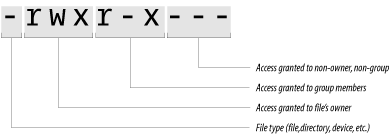
The next nine characters taken in groups of three indicate who on your computer can do what with the file. There are three kinds of permissions:
- r
Permission to read
- w
Permission to write
- x
Permission to execute
Similarly, there are three classes of permissions:
In the ls -l command privileges are illustrated graphically (see Figure 6-2).
The terms read, write, and execute have very specific meanings for files, as shown in Table 6-5.
Table 6-5. File permissions
File permissions apply to devices, named sockets, and FIFOs exactly as they do for regular files. If you have write access, you can write information to the file or other object; if you have read access, you can read from it; and if you don’t have either access, you’re out of luck.
File permissions do not apply to symbolic links. Whether you can read the contents of a file pointed to by a symbolic link depends on that file’s permissions, not the link’s. In fact, symbolic links are almost always created with a file permission of “rwxrwxrwx” (or mode 0777, as explained later in this chapter). These file permissions are then ignored by the operating system.
Note the following facts about file permissions:
You can have execute access without having read access. In such a case, the program can be run by a person without giving them permission to read the contents of the file or make a copy of the program. This ability is useful in case you wish to hide the function of a program, but you should not depend on this behavior, as there are ways on some operating systems to circumvent the protection.
If you have read access but not execute access, you can then make a copy of the file and run it for yourself. The copy, however, will be different in two important ways: it will have a different absolute pathname, and it will be owned by you, rather than by the original program’s owner.
On some versions of Unix, an executable command script must have both its read bit and its execute bit set to allow people to run it.
On Solaris systems, there may be an additional character following the permission characters:
-rwx--x--x+ 3 spaf spaf 24219 May 17 00:52 example
The + symbol indicates that this file (or other
item) has an extended ACL associated with it. An
Access Control List (ACL) provides
a more comprehensive set of permissions on the file than can be
described with the single user/single group model. ACLs are discussed
later in this chapter.
Because file permissions determine who can read and modify the information stored in your files, they are your primary method for protecting the data that you store on your Unix system.
Most people think that file permissions are pretty basic stuff. Nevertheless, many Unix systems have had security breaches because their file permissions are not properly set, and several provide automated tools for checking the permissions of important system files on a regular basis.
Tip
Sun’s NFS servers allow a client to read any file that has either the read or the execute permission set. They do so because there is no difference, from the NFS server’s point of view, between a request to read the contents of a file by a user who is using the read( ) system call and a request to execute the file by a user who is using the exec( ) system call. In both cases, the contents of the file need to be transferred from the NFS server to the NFS client. (For a detailed description, see Chapter 15.)
Consider the directory listing presented earlier in this chapter:
% ls -lF
total 161
-rw-r--r-- 1 sian     user        505 Feb  9 13:19 instructions
-rw-r--r-- 1 sian     user       3159 Feb  9 13:14 invoice
-rw-r--r-- 1 sian     user       6318 Feb  9 13:14 letter
-rw------- 1 sian     user      15897 Feb  9 13:20 more-stuff
-rw-r----- 1 sian     biochem    4320 Feb  9 13:20 notes
-rwxr-xr-x 1 sian     user     122880 Feb  9 13:26 stats*
-------r-x 1 sian     user     989987 Mar  6 08:13 weird-file
%
In this example, any user on the system can read the files instructions, invoice, letter, or stats because they all have the letter r in the “other” column of the permissions field. The file notes can be read only by user sian or by users who are in the biochem group. And only sian can read the information in the file more-stuff.
A more interesting set of permissions is present on weird-file. User sian owns the file but cannot access it. Members of group user also are not allowed access. However, any user except sian and who is also not in the group user can read and execute the file.[66] Some variant of these permissions is useful in some cases where you want to make a file readable or executable by others, but you don’t want to accidentally overwrite or execute it yourself. If you are the owner of the file and the permissions deny you access, it does not matter if you are in the group, or if other bits are set to allow the access.
Of course, the superuser can read any file on the system, and anybody who knows Sian’s password can log in as sian and read her files (including weird-file, if sian changes the permissions first).
Unix stores the contents of directories in nodes that are similar to the nodes used for regular files, but they are specially marked so that they can be modified only by the operating system.
As with other files, directories have a full complement of security attributes: owner, group, and permission bits. But because directories are interpreted in a special way by the filesystem, the permission bits have special meanings (see Table 6-6).
Table 6-6. Permissions for directories
If you want to prevent other users from reading the contents of your files, you have two choices:
You can set the permission of each file to 0600, so only you have read/write access.
You can put the files in a directory and set the permission of that directory to 0700, which prevents other users from accessing the files in the directory (or in any of the directory’s subdirectories) unless there is a hard link to each file from somewhere else.
Note the following:
You must have execute access for a directory to make it your current directory (via cd or chdir) or to change to any directory beneath (contained in) that directory.
If you do not have execute access to a directory, you cannot access the files within that directory, even if you own them.
If you have execute access to a directory but do not have read access, you cannot list the names of files in the directory (e.g., you cannot read the contents of the directory). However, if you have access to individual files, you can run programs in the directory or open files in it. Some sites use this technique to create secret files—files that users can access only if they know the files’ full pathnames.
To unlink a file from a directory, you need to have write and execute access to that directory, but not to the file itself.
If you have read access to a directory but do not have execute access, you can display a short listing of the files in the directory (ls); however, you will not be able to find out anything about the files other than their names and inode numbers (ls -i) because you can’t stat the files. Remember that the directory itself contains only name and inode information.
This processing can cause quite a bit of confusion if you are not expecting it. For example:
% ls
-ldF convdr------ 4 rachel 1024 Jul 6 09:42 conv/ %ls conv3ps.prn bizcard.ps letterhead.eps retlab.eps %ls -l convconv/3ps.prn not found conv/bizcard.ps not found conv/letterhead.eps not found conv/retlab.eps not found total 0 %