Table of Contents for
The IDA Pro Book, 2nd Edition
 The IDA Pro Book, 2nd Edition
Published by
No Starch Press, 2011
The IDA Pro Book, 2nd Edition
Published by
No Starch Press, 2011
- Cover
- The IDA Pro Book
- PRAISE FOR THE FIRST EDITION OF THE IDA PRO BOOK
- Acknowledgments
- Introduction
- I. Introduction to IDA
- 1. Introduction to Disassembly
- The What of Disassembly
- The Why of Disassembly
- The How of Disassembly
- Summary
- 2. Reversing and Disassembly Tools
- Summary Tools
- Deep Inspection Tools
- Summary
- 3. IDA Pro Background
- Obtaining IDA Pro
- IDA Support Resources
- Your IDA Installation
- Thoughts on IDA’s User Interface
- Summary
- II. Basic IDA Usage
- 4. Getting Started with IDA
- IDA Database Files
- Introduction to the IDA Desktop
- Desktop Behavior During Initial Analysis
- IDA Desktop Tips and Tricks
- Reporting Bugs
- Summary
- 5. IDA Data Displays
- Secondary IDA Displays
- Tertiary IDA Displays
- Summary
- 6. Disassembly Navigation
- Stack Frames
- Searching the Database
- Summary
- 7. Disassembly Manipulation
- Commenting in IDA
- Basic Code Transformations
- Basic Data Transformations
- Summary
- 8. Datatypes and Data Structures
- Creating IDA Structures
- Using Structure Templates
- Importing New Structures
- Using Standard Structures
- IDA TIL Files
- C++ Reversing Primer
- Summary
- 9. Cross-References and Graphing
- IDA Graphing
- Summary
- 10. The Many Faces of IDA
- Using IDA’s Batch Mode
- Summary
- III. Advanced IDA Usage
- 11. Customizing IDA
- Additional IDA Configuration Options
- Summary
- 12. Library Recognition Using FLIRT Signatures
- Applying FLIRT Signatures
- Creating FLIRT Signature Files
- Summary
- 13. Extending IDA’s Knowledge
- Augmenting Predefined Comments with loadint
- Summary
- 14. Patching Binaries and Other IDA Limitations
- IDA Output Files and Patch Generation
- Summary
- IV. Extending IDA’s Capabilities
- 15. IDA Scripting
- The IDC Language
- Associating IDC Scripts with Hotkeys
- Useful IDC Functions
- IDC Scripting Examples
- IDAPython
- IDAPython Scripting Examples
- Summary
- 16. The IDA Software Development Kit
- The IDA Application Programming Interface
- Summary
- 17. The IDA Plug-in Architecture
- Building Your Plug-ins
- Installing Plug-ins
- Configuring Plug-ins
- Extending IDC
- Plug-in User Interface Options
- Scripted Plug-ins
- Summary
- 18. Binary Files and IDA Loader Modules
- Manually Loading a Windows PE File
- IDA Loader Modules
- Writing an IDA Loader Using the SDK
- Alternative Loader Strategies
- Writing a Scripted Loader
- Summary
- 19. IDA Processor Modules
- The Python Interpreter
- Writing a Processor Module Using the SDK
- Building Processor Modules
- Customizing Existing Processors
- Processor Module Architecture
- Scripting a Processor Module
- Summary
- V. Real-World Applications
- 20. Compiler Personalities
- RTTI Implementations
- Locating main
- Debug vs. Release Binaries
- Alternative Calling Conventions
- Summary
- 21. Obfuscated Code Analysis
- Anti–Dynamic Analysis Techniques
- Static De-obfuscation of Binaries Using IDA
- Virtual Machine-Based Obfuscation
- Summary
- 22. Vulnerability Analysis
- After-the-Fact Vulnerability Discovery with IDA
- IDA and the Exploit-Development Process
- Analyzing Shellcode
- Summary
- 23. Real-World IDA Plug-ins
- IDAPython
- collabREate
- ida-x86emu
- Class Informer
- MyNav
- IdaPdf
- Summary
- VI. The IDA Debugger
- 24. The IDA Debugger
- Basic Debugger Displays
- Process Control
- Automating Debugger Tasks
- Summary
- 25. Disassembler/Debugger Integration
- IDA Databases and the IDA Debugger
- Debugging Obfuscated Code
- IdaStealth
- Dealing with Exceptions
- Summary
- 26. Additional Debugger Features
- Debugging with Bochs
- Appcall
- Summary
- A. Using IDA Freeware 5.0
- Using IDA Freeware
- B. IDC/SDK Cross-Reference
- Index
- About the Author

It is a simple fact that no application can meet every need of every user. It is just not possible to anticipate every potential use case that may arise. Application developers are faced with the choice of responding to an endless stream of feature requests or offering users a means to solve their own problems. IDA takes the latter approach by integrating scripting features that allow users to exercise a tremendous amount of programmatic control over IDA’s actions.
Potential uses for scripts are infinite and can range from simple one-liners to full-blown programs that automate common tasks or perform complex analysis functions. From an automation standpoint, IDA scripts can be viewed as macros,[95] while from an analysis point of view, IDA’s scripting languages serve as the query languages that provide programmatic access to the contents of an IDA database. IDA supports scripting using two different languages. IDA’s original, embedded scripting language is named IDC, perhaps because its syntax bears a close resemblance to C. Since the release of IDA 5.4,[96] integrated scripting with Python has also been supported through the integration of the IDAPython plug-in by Gergely Erdelyi.[97] For the remainder of this chapter we will cover the basics of writing and executing both IDC and Python scripts as well as some of the more useful functions available to script authors.
Before diving into the details of either scripting language, it is useful to understand the most common ways that scripts can be executed. Three menu options, File ▸ Script File, File ▸ IDC Command, and File ▸ Python Command[98] are available to access IDA’s scripting engine. Selecting File ▸ Script File indicates that you wish to run a standalone script, at which point you are presented with a file-selection dialog that lets you choose the script to run. Each time you run a new script, the program is added to a list of recent scripts to provide easy access to edit or rerun the script. Figure 15-1 shows the Recent Scripts window accessible via the View ▸ Recent Scripts menu option.
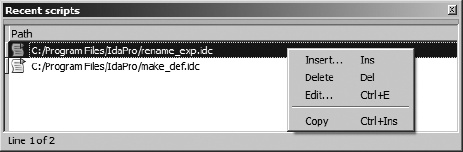
Double-clicking a listed script causes the script to be executed. A pop-up, context-sensitive menu offers options to remove a script from the list or to open a script for editing using the editor specified under Options ▸ General on the Misc tab.
As an alternative to executing a standalone script file, you may elect to open a script entry dialog using File ▸ IDC Command or File ▸ Python Command. Figure 15-2 shows the resulting script entry dialog (for an IDC script in this case), which is useful in situations where you wish to execute only a few statements but don’t want to go to the trouble of creating a standalone script file.
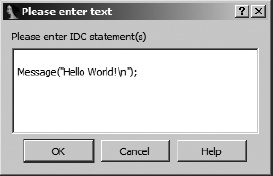
Some restrictions apply to the types of statements that you can enter in the script dialog, but the dialog is very useful in cases where creating a full-blown script file is overkill.
The last way to easily execute script commands is to use IDA’s command line. The command line is available only in GUI versions of IDA, and its presence is controlled by the value of the DISPLAY_COMMAND_LINE option in <IDADIR>/cfg/idagui.cfg. The command line has been enabled by default since IDA 5.4. Figure 15-3 shows the command line as it appears in the lower-left corner of the IDA workspace, beneath the output window.
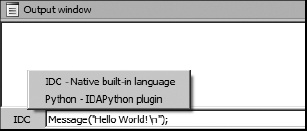
The interpreter that will be used to execute the command line is labeled to the left of the command-line entry box. In Figure 15-3, the command line is configured to execute IDC statements. Clicking this label opens the pop-up menu shown in Figure 15-3, allowing either interpreter (IDC or Python) to be associated with the command line.
Although the command line contains only a single line of text, you can enter multiple statements by separating each statement with a semicolon. As a convenience, the history of recent commands is accessible with the up arrow key. If you find yourself frequently needing to execute very short scripts, you will find the command line very useful.
With a basic ability to execute scripts under our belts, it is time to focus on the specifics of IDA’s two available scripting languages, IDC and Python. We begin with a description of IDA’s native scripting language, IDC, and conclude with a discussion of IDA’s Python integration, which will rely heavily on the foundation built by the IDC sections that follow.
[95] Many applications offer facilities that allow users to record sequences of actions into a single complex action called a macro. Replaying or triggering a macro causes the entire sequence of recorded steps to be executed. Macros provided an easy means to automate a complex series of actions.
[96] For a comprehensive list of features introduced with each new version of IDA, visit http://www.hex-rays.com/idapro/idanew48.htm.