Table of Contents for
The IDA Pro Book, 2nd Edition
 The IDA Pro Book, 2nd Edition
Published by
No Starch Press, 2011
The IDA Pro Book, 2nd Edition
Published by
No Starch Press, 2011
- Cover
- The IDA Pro Book
- PRAISE FOR THE FIRST EDITION OF THE IDA PRO BOOK
- Acknowledgments
- Introduction
- I. Introduction to IDA
- 1. Introduction to Disassembly
- The What of Disassembly
- The Why of Disassembly
- The How of Disassembly
- Summary
- 2. Reversing and Disassembly Tools
- Summary Tools
- Deep Inspection Tools
- Summary
- 3. IDA Pro Background
- Obtaining IDA Pro
- IDA Support Resources
- Your IDA Installation
- Thoughts on IDA’s User Interface
- Summary
- II. Basic IDA Usage
- 4. Getting Started with IDA
- IDA Database Files
- Introduction to the IDA Desktop
- Desktop Behavior During Initial Analysis
- IDA Desktop Tips and Tricks
- Reporting Bugs
- Summary
- 5. IDA Data Displays
- Secondary IDA Displays
- Tertiary IDA Displays
- Summary
- 6. Disassembly Navigation
- Stack Frames
- Searching the Database
- Summary
- 7. Disassembly Manipulation
- Commenting in IDA
- Basic Code Transformations
- Basic Data Transformations
- Summary
- 8. Datatypes and Data Structures
- Creating IDA Structures
- Using Structure Templates
- Importing New Structures
- Using Standard Structures
- IDA TIL Files
- C++ Reversing Primer
- Summary
- 9. Cross-References and Graphing
- IDA Graphing
- Summary
- 10. The Many Faces of IDA
- Using IDA’s Batch Mode
- Summary
- III. Advanced IDA Usage
- 11. Customizing IDA
- Additional IDA Configuration Options
- Summary
- 12. Library Recognition Using FLIRT Signatures
- Applying FLIRT Signatures
- Creating FLIRT Signature Files
- Summary
- 13. Extending IDA’s Knowledge
- Augmenting Predefined Comments with loadint
- Summary
- 14. Patching Binaries and Other IDA Limitations
- IDA Output Files and Patch Generation
- Summary
- IV. Extending IDA’s Capabilities
- 15. IDA Scripting
- The IDC Language
- Associating IDC Scripts with Hotkeys
- Useful IDC Functions
- IDC Scripting Examples
- IDAPython
- IDAPython Scripting Examples
- Summary
- 16. The IDA Software Development Kit
- The IDA Application Programming Interface
- Summary
- 17. The IDA Plug-in Architecture
- Building Your Plug-ins
- Installing Plug-ins
- Configuring Plug-ins
- Extending IDC
- Plug-in User Interface Options
- Scripted Plug-ins
- Summary
- 18. Binary Files and IDA Loader Modules
- Manually Loading a Windows PE File
- IDA Loader Modules
- Writing an IDA Loader Using the SDK
- Alternative Loader Strategies
- Writing a Scripted Loader
- Summary
- 19. IDA Processor Modules
- The Python Interpreter
- Writing a Processor Module Using the SDK
- Building Processor Modules
- Customizing Existing Processors
- Processor Module Architecture
- Scripting a Processor Module
- Summary
- V. Real-World Applications
- 20. Compiler Personalities
- RTTI Implementations
- Locating main
- Debug vs. Release Binaries
- Alternative Calling Conventions
- Summary
- 21. Obfuscated Code Analysis
- Anti–Dynamic Analysis Techniques
- Static De-obfuscation of Binaries Using IDA
- Virtual Machine-Based Obfuscation
- Summary
- 22. Vulnerability Analysis
- After-the-Fact Vulnerability Discovery with IDA
- IDA and the Exploit-Development Process
- Analyzing Shellcode
- Summary
- 23. Real-World IDA Plug-ins
- IDAPython
- collabREate
- ida-x86emu
- Class Informer
- MyNav
- IdaPdf
- Summary
- VI. The IDA Debugger
- 24. The IDA Debugger
- Basic Debugger Displays
- Process Control
- Automating Debugger Tasks
- Summary
- 25. Disassembler/Debugger Integration
- IDA Databases and the IDA Debugger
- Debugging Obfuscated Code
- IdaStealth
- Dealing with Exceptions
- Summary
- 26. Additional Debugger Features
- Debugging with Bochs
- Appcall
- Summary
- A. Using IDA Freeware 5.0
- Using IDA Freeware
- B. IDC/SDK Cross-Reference
- Index
- About the Author
IDA makes it easy to navigate to things that you know about and designs many of its data displays to summarize specific types of information (names, strings, imports, and so on), making them easy to find as well. However, what features are offered to help you conduct more general searches through your databases? If you take time to review the contents of the Search menu, you will find a long list of options, the majority of which take you to the next item in some category. For example, Search ▸ Next Code moves the cursor to the next location containing an instruction. You may also wish to familiarize yourself with the options available on the Jump menu. For many of these, you are presented with a list of locations to choose from. Jump ▸ Jump to Function, for example, brings up a list of all functions, allowing you to quickly choose one and navigate to it. While these canned search features may often be useful, two types of general-purpose searches are worth more detailed discussion: text searches and binary searches.
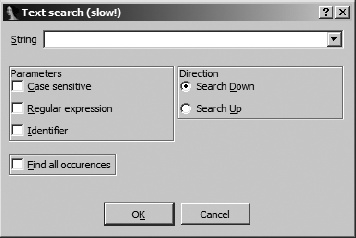
IDA text searches amount to substring searches through the disassembly listing view. Text searches are initiated via Search ▸ Text (hotkey: alt-T), which opens the dialog shown in Figure 6-7. A number of self-explanatory options dictate specific details concerning the search to be performed. As shown, POSIX-style regular expressions are permitted. The Identifier search is somewhat misnamed. In reality it restricts the search to find whole words only and can match any whole word on an assembly line, including opcode mnemonics or constant values. An Identifier search for 401116 would fail to find a symbol named loc_401116.
Selecting Find all occurences causes the search results to be opened in a new window, allowing easy navigation to any single match of the search criteria. Finally, the previous search can be repeated to locate the next match using ctrl-T or Search ▸ Next Text.
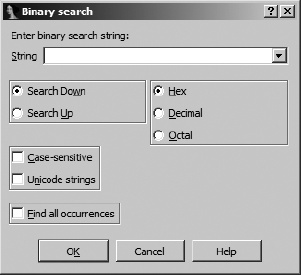
If you need to search for specific binary content such as a known sequence of bytes, then text searches are not the answer. Instead, you need to use IDA’s binary search facilities. While the text search searches the disassembly window, the binary search will search only the content portion of the Hex View window. Either the hex dump or the ASCII dump can be searched, depending on how the search string is specified. A binary search is initiated using Search ▸ Sequence of Bytes, or alt-B. Figure 6-8 shows the Binary Search dialog. To search for a sequence of hex bytes, the search string should be specified as a space-separated list of two-digit hex values such as CA FE BA BE, which offers identical behavior as a search for ca fe ba be, despite the availability of a Case-sensitive option.
To alternatively search for embedded string data (effectively searching the ASCII dump portion of the Hex View window), you must surround the search strings with quotes. Use the Unicode strings option to search for the Unicode version of your search string.
The Case-sensitive option can be a cause of confusion. For string searches it is fairly straightforward; a search for “hello” will successfully find “HELLO” if Case-sensitive is not selected. Things get a little interesting if you perform a hex search and leave Case-sensitive unchecked. If you conduct a case-insensitive search for E9 41 C3, you may be surprised when your search matches E9 61 C3. The two strings are considered to match because 0x41 corresponds to the character A while 0x61 corresponds to a. So, even though you have specified a hex search, 0x41 is considered equivalent to 0x61 because you failed to specify a case-sensitive search.
Note
When conducting hex searches, make sure that you specify Case-sensitive if you want to restrict the search to exact matches. This is important if you are searching for specific opcode sequences rather than ASCII text.
Searching for subsequent matches for binary data is done using ctrl-B or Search ▸ Next Sequence of Bytes. Finally, it is not necessary to conduct your binary searches from within the Hex View window. IDA allows you to specify binary search criteria while the disassembly view is active, in which case a successful search will jump the disassembly window to the location whose underlying bytes match the specified search criteria.