Table of Contents for
The IDA Pro Book, 2nd Edition
 The IDA Pro Book, 2nd Edition
Published by
No Starch Press, 2011
The IDA Pro Book, 2nd Edition
Published by
No Starch Press, 2011
- Cover
- The IDA Pro Book
- PRAISE FOR THE FIRST EDITION OF THE IDA PRO BOOK
- Acknowledgments
- Introduction
- I. Introduction to IDA
- 1. Introduction to Disassembly
- The What of Disassembly
- The Why of Disassembly
- The How of Disassembly
- Summary
- 2. Reversing and Disassembly Tools
- Summary Tools
- Deep Inspection Tools
- Summary
- 3. IDA Pro Background
- Obtaining IDA Pro
- IDA Support Resources
- Your IDA Installation
- Thoughts on IDA’s User Interface
- Summary
- II. Basic IDA Usage
- 4. Getting Started with IDA
- IDA Database Files
- Introduction to the IDA Desktop
- Desktop Behavior During Initial Analysis
- IDA Desktop Tips and Tricks
- Reporting Bugs
- Summary
- 5. IDA Data Displays
- Secondary IDA Displays
- Tertiary IDA Displays
- Summary
- 6. Disassembly Navigation
- Stack Frames
- Searching the Database
- Summary
- 7. Disassembly Manipulation
- Commenting in IDA
- Basic Code Transformations
- Basic Data Transformations
- Summary
- 8. Datatypes and Data Structures
- Creating IDA Structures
- Using Structure Templates
- Importing New Structures
- Using Standard Structures
- IDA TIL Files
- C++ Reversing Primer
- Summary
- 9. Cross-References and Graphing
- IDA Graphing
- Summary
- 10. The Many Faces of IDA
- Using IDA’s Batch Mode
- Summary
- III. Advanced IDA Usage
- 11. Customizing IDA
- Additional IDA Configuration Options
- Summary
- 12. Library Recognition Using FLIRT Signatures
- Applying FLIRT Signatures
- Creating FLIRT Signature Files
- Summary
- 13. Extending IDA’s Knowledge
- Augmenting Predefined Comments with loadint
- Summary
- 14. Patching Binaries and Other IDA Limitations
- IDA Output Files and Patch Generation
- Summary
- IV. Extending IDA’s Capabilities
- 15. IDA Scripting
- The IDC Language
- Associating IDC Scripts with Hotkeys
- Useful IDC Functions
- IDC Scripting Examples
- IDAPython
- IDAPython Scripting Examples
- Summary
- 16. The IDA Software Development Kit
- The IDA Application Programming Interface
- Summary
- 17. The IDA Plug-in Architecture
- Building Your Plug-ins
- Installing Plug-ins
- Configuring Plug-ins
- Extending IDC
- Plug-in User Interface Options
- Scripted Plug-ins
- Summary
- 18. Binary Files and IDA Loader Modules
- Manually Loading a Windows PE File
- IDA Loader Modules
- Writing an IDA Loader Using the SDK
- Alternative Loader Strategies
- Writing a Scripted Loader
- Summary
- 19. IDA Processor Modules
- The Python Interpreter
- Writing a Processor Module Using the SDK
- Building Processor Modules
- Customizing Existing Processors
- Processor Module Architecture
- Scripting a Processor Module
- Summary
- V. Real-World Applications
- 20. Compiler Personalities
- RTTI Implementations
- Locating main
- Debug vs. Release Binaries
- Alternative Calling Conventions
- Summary
- 21. Obfuscated Code Analysis
- Anti–Dynamic Analysis Techniques
- Static De-obfuscation of Binaries Using IDA
- Virtual Machine-Based Obfuscation
- Summary
- 22. Vulnerability Analysis
- After-the-Fact Vulnerability Discovery with IDA
- IDA and the Exploit-Development Process
- Analyzing Shellcode
- Summary
- 23. Real-World IDA Plug-ins
- IDAPython
- collabREate
- ida-x86emu
- Class Informer
- MyNav
- IdaPdf
- Summary
- VI. The IDA Debugger
- 24. The IDA Debugger
- Basic Debugger Displays
- Process Control
- Automating Debugger Tasks
- Summary
- 25. Disassembler/Debugger Integration
- IDA Databases and the IDA Debugger
- Debugging Obfuscated Code
- IdaStealth
- Dealing with Exceptions
- Summary
- 26. Additional Debugger Features
- Debugging with Bochs
- Appcall
- Summary
- A. Using IDA Freeware 5.0
- Using IDA Freeware
- B. IDC/SDK Cross-Reference
- Index
- About the Author
Properly formatted data can be as important in developing an understanding of a program’s behavior as properly formatted code. IDA takes information from a variety of sources and uses many algorithms in order to determine the most appropriate way to format data within a disassembly. A few examples serve to illustrate how data formats are selected.
Datatypes and/or sizes can be inferred from the manner in which registers are used. An instruction observed to load a 32-bit register from memory implies that the associated memory location holds a 4-byte datatype (though we may not be able to distinguish between a 4-byte integer and a 4-byte pointer).
Function prototypes can be used to assign datatypes to function parameters. IDA maintains a large library of function prototypes for exactly this purpose. Analysis is performed on the parameters passed to functions in an attempt to tie a parameter to a memory location. If such a relationship can be uncovered, then a datatype can be applied to the associated memory location. Consider a function whose single parameter is a pointer to a CRITICAL_SECTION (a Windows API datatype). If IDA can determine the address passed in a call to this function, then IDA can flag that address as a CRITICAL_SECTION object.
Analysis of a sequence of bytes can reveal likely datatypes. This is precisely what happens when a binary is scanned for string content. When long sequences of ASCII characters are encountered, it is not unreasonable to assume that they represent character arrays.
In the next few sections we discuss some basic transformations that you can perform on data within your disassemblies.
The simplest way to modify a piece of data is to adjust its size. IDA offers a number of data size/type specifiers. The most commonly encountered specifiers are db, dw, and dd, representing 1-, 2-, and 4-byte data, respectively. The first way to change a data item’s size is via the Options ▸ Setup Data Types dialog shown in Figure 7-8.
There are two parts to this dialog. The left side of the dialog contains a column of buttons used to immediately change the data size of the currently selected item. The right side of the dialog contains a column of checkboxes used to configure what IDA terms the data carousel. Note that for each button on the left, there is a corresponding checkbox on the right. The data carousel is a revolving list of datatypes that contains only those types whose checkboxes are selected. Modifying the contents of the data carousel has no immediate impact on the IDA display. Instead, each type on the data carousel is listed on the context-sensitive menu that appears when you right-click a data item. Thus, it is easier to reformat data to a type listed in the data carousel than to a type not listed in the data carousel. Given the datatypes selected in Figure 7-8, right-clicking a data item would offer you the opportunity to reformat that item as byte, word, or double-word data.
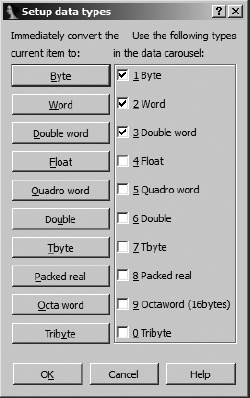
The name for the data carousel derives from the behavior of the associated data formatting hotkey: D. When you press D, the item at the currently selected address is reformatted to the next type in the data carousel list. With the three-item list specified previously, an item currently formatted as db toggles to dw, an item formatted as dw toggles to dd, and an item formatted as dd toggles back to db to complete the circuit around the carousel. Using the data hotkey on a nondata item such as code causes the item to be formatted as the first datatype in the carousel list (db in this case).
Toggling through datatypes causes data items to grow, shrink, or remain the same size. If an item’s size remains the same, then the only observable change is in the way the data is formatted. If you reduce an item’s size, from dd (4 bytes) to db (1 byte) for example, any extra bytes (3 in this case) become undefined. If you increase the size of an item, IDA complains if the bytes following the item are already defined and asks you, in a roundabout way, if you want IDA to undefine the next item in order to expand the current item. The message you encounter in such cases is “Directly convert to data?” This message generally means that IDA will undefine a sufficient number of succeeding items to satisfy your request. For example, when converting byte data (db) to double-word data (dd), 3 additional bytes must be consumed to form the new data item.
Datatypes and sizes can be specified for any location that describes data, including stack variables. To change the size of stack-allocated variables, open the detailed stack frame view by double-clicking the variable you wish to modify; then change the variable’s size as you would any other variable.
IDA recognizes a large number of string formats. By default, IDA searches for and formats C-style null-terminated strings. To force data to be converted to a string, utilize the options on the Edit ▸ Strings menu to select a specific string style. If the bytes beginning at the currently selected address form a string of the selected style, IDA groups those bytes together into a single-string variable. At any time, you can use the A hotkey to format the currently selected location in the default string style.
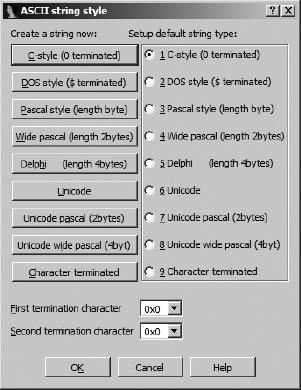
Two dialogs are responsible for the configuration of string data. The first, shown in Figure 7-9, is accessed via Options ▸ ASCII String Style, though ASCII in this case is a bit of a misnomer, as a much wider variety of string styles are understood.
Similar to the datatype configuration dialog, the buttons on the left are used to create a string of the specified style at the currently selected location. A string is created only if the data at the current location conforms to the specified string format. For Character terminated strings, up to two termination characters can be specified toward the bottom of the dialog. The radio buttons on the right of the dialog are used to specify the default string style associated with the use of the strings hotkey (A).
The second dialog used to configure string operations is the Options ▸ General dialog, shown in Figure 7-10, where the Strings tab allows configuration of additional strings-related options. While you can specify the default string type here as well using the available drop-down box, the majority of available options deal with the naming and display of string data, regardless of their type. The Name generation area on the right of the dialog is visible only when the Generate names option is selected. When name generation is turned off, string variables are given dummy names beginning with the asc_ prefix.
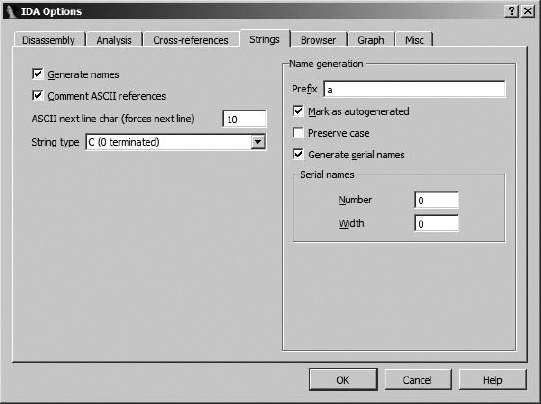
When name generation is enabled, the Name generation options control how IDA generates names for string variables. When Generate serial names is not selected (the default), the specified prefix is combined with characters taken from the string to generate a name that does not exceed the current maximum name length. An example of such a string appears here:
.rdata:00402069 aThisIsACharact db 'This is a Character array',0
Title case is used in the name, and any characters that are not legal to use within names (such as spaces) are omitted when forming the name. The Mark as autogenerated option causes generated names to appear in a different color (dark blue by default) than user-specified names (blue by default). Preserve case forces the name to use characters as they appear within the string rather than converting them to title case. Finally, Generate serial names causes IDA to serialize names by appending numeric suffixes (beginning with Number). The number of digits in generated suffixes is controlled by the Width field. As configured in Figure 7-10, the first three names to be generated would be a000, a001, and a002.
One of the drawbacks to disassembly listings derived from higher-level languages is that they provide very few clues regarding the size of arrays. In a disassembly listing, specifying an array can require a tremendous amount of space if each item in the array is specified on its own disassembly line. The following listing shows data declarations that follow the named variable unk_402060. The fact that only the first item in the listing is referenced by any instructions suggests that it may be the first element in an array. Rather than being referenced directly, additional elements within arrays are often referenced using more complex index computations to offset from the beginning of the array.
.rdata:00402060 unk_402060      db    0    ; DATA XREF: sub_401350+8↑o
.rdata:00402060                            ; sub_401350+18↑o
.rdata:00402061                 db    0
.rdata:00402062                 db    0
.rdata:00402063                 db    0
.rdata:00402064                 db    0
.rdata:00402065                 db    0
.rdata:00402066                 db    0
.rdata:00402067                 db    0
.rdata:00402068                 db    0
.rdata:00402069                 db    0
.rdata:0040206A                 db    0
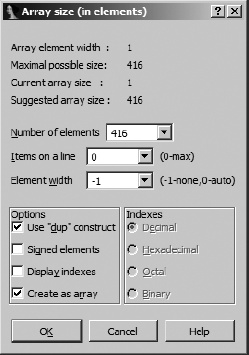
IDA provides facilities for grouping consecutive data definitions together into a single array definition. To create an array, select the first element of the array (we chose unk_402060) and use Edit ▸ Array to launch the array-creation dialog shown in Figure 7-11. If a data item has been defined at a given location, then an Array option will be available when you right-click the item. The type of array to be created is dictated by the datatype associated with the item selected as the first item in the array. In this case we are creating an array of bytes.
Note
Prior to creating an array, make sure that you select the proper size for array elements by changing the size of the first item in the array to the appropriate value.
Following are descriptions of useful fields for array creation:
- Array element width
This value indicates the size of an individual array element (1 byte in this case) and is dictated by the size of the data value that was selected when the dialog was launched.
- Maximum possible size
This value is automatically computed as the maximum number of elements (not bytes) that can be included in the array before another defined data item is encountered. Specifying a larger size may be possible but will require succeeding data items to be undefined in order to absorb them into the array.
- Number of elements
This is where you specify the exact size of the array. The total number of bytes occupied by the array can be computed as Number of elements × Array element width.
- Items on a line
Specifies the number of elements to be displayed on each disassembly line. This can be used to reduce the amount of space required to display the array.
- Element width
This value is for formatting purposes only and controls the column width when multiple items are displayed on a single line.
- Use “dup” construct
This option causes identical data values to be grouped into a single item with a repetition specifier.
- Signed elements
Dictates whether data is displayed as signed or unsigned values.
- Display indexes
Causes array indexes to be displayed as regular comments. This is useful if you need to locate specific data values within large arrays. Selecting this option also enables the Indexes radio buttons so you can choose the display format for each index value.
- Create as array
Not checking this may seem to go against the purpose of the dialog, and it is usually left checked. Uncheck it if your goal is simply to specify some number of consecutive items without grouping them into an array.
Accepting the options specified in Figure 7-11 results in the following compact array declaration, which can be read as an array of bytes (db) named byte_402060 consisting of the value 0 repeated 416 (1A0h) times.
.rdata:00402060 byte_402060     db 1A0h dup(0)     ; DATA XREF: sub_401350+8↑o
.rdata:00402060                                    ; sub_401350+18↑o
The net effect is that 416 lines of disassembly have been condensed to a single line (largely due to the use of dup). In the next chapter we will discuss the creation of arrays within stack frames.