Table of Contents for
The IDA Pro Book, 2nd Edition
 The IDA Pro Book, 2nd Edition
Published by
No Starch Press, 2011
The IDA Pro Book, 2nd Edition
Published by
No Starch Press, 2011
- Cover
- The IDA Pro Book
- PRAISE FOR THE FIRST EDITION OF THE IDA PRO BOOK
- Acknowledgments
- Introduction
- I. Introduction to IDA
- 1. Introduction to Disassembly
- The What of Disassembly
- The Why of Disassembly
- The How of Disassembly
- Summary
- 2. Reversing and Disassembly Tools
- Summary Tools
- Deep Inspection Tools
- Summary
- 3. IDA Pro Background
- Obtaining IDA Pro
- IDA Support Resources
- Your IDA Installation
- Thoughts on IDA’s User Interface
- Summary
- II. Basic IDA Usage
- 4. Getting Started with IDA
- IDA Database Files
- Introduction to the IDA Desktop
- Desktop Behavior During Initial Analysis
- IDA Desktop Tips and Tricks
- Reporting Bugs
- Summary
- 5. IDA Data Displays
- Secondary IDA Displays
- Tertiary IDA Displays
- Summary
- 6. Disassembly Navigation
- Stack Frames
- Searching the Database
- Summary
- 7. Disassembly Manipulation
- Commenting in IDA
- Basic Code Transformations
- Basic Data Transformations
- Summary
- 8. Datatypes and Data Structures
- Creating IDA Structures
- Using Structure Templates
- Importing New Structures
- Using Standard Structures
- IDA TIL Files
- C++ Reversing Primer
- Summary
- 9. Cross-References and Graphing
- IDA Graphing
- Summary
- 10. The Many Faces of IDA
- Using IDA’s Batch Mode
- Summary
- III. Advanced IDA Usage
- 11. Customizing IDA
- Additional IDA Configuration Options
- Summary
- 12. Library Recognition Using FLIRT Signatures
- Applying FLIRT Signatures
- Creating FLIRT Signature Files
- Summary
- 13. Extending IDA’s Knowledge
- Augmenting Predefined Comments with loadint
- Summary
- 14. Patching Binaries and Other IDA Limitations
- IDA Output Files and Patch Generation
- Summary
- IV. Extending IDA’s Capabilities
- 15. IDA Scripting
- The IDC Language
- Associating IDC Scripts with Hotkeys
- Useful IDC Functions
- IDC Scripting Examples
- IDAPython
- IDAPython Scripting Examples
- Summary
- 16. The IDA Software Development Kit
- The IDA Application Programming Interface
- Summary
- 17. The IDA Plug-in Architecture
- Building Your Plug-ins
- Installing Plug-ins
- Configuring Plug-ins
- Extending IDC
- Plug-in User Interface Options
- Scripted Plug-ins
- Summary
- 18. Binary Files and IDA Loader Modules
- Manually Loading a Windows PE File
- IDA Loader Modules
- Writing an IDA Loader Using the SDK
- Alternative Loader Strategies
- Writing a Scripted Loader
- Summary
- 19. IDA Processor Modules
- The Python Interpreter
- Writing a Processor Module Using the SDK
- Building Processor Modules
- Customizing Existing Processors
- Processor Module Architecture
- Scripting a Processor Module
- Summary
- V. Real-World Applications
- 20. Compiler Personalities
- RTTI Implementations
- Locating main
- Debug vs. Release Binaries
- Alternative Calling Conventions
- Summary
- 21. Obfuscated Code Analysis
- Anti–Dynamic Analysis Techniques
- Static De-obfuscation of Binaries Using IDA
- Virtual Machine-Based Obfuscation
- Summary
- 22. Vulnerability Analysis
- After-the-Fact Vulnerability Discovery with IDA
- IDA and the Exploit-Development Process
- Analyzing Shellcode
- Summary
- 23. Real-World IDA Plug-ins
- IDAPython
- collabREate
- ida-x86emu
- Class Informer
- MyNav
- IdaPdf
- Summary
- VI. The IDA Debugger
- 24. The IDA Debugger
- Basic Debugger Displays
- Process Control
- Automating Debugger Tasks
- Summary
- 25. Disassembler/Debugger Integration
- IDA Databases and the IDA Debugger
- Debugging Obfuscated Code
- IdaStealth
- Dealing with Exceptions
- Summary
- 26. Additional Debugger Features
- Debugging with Bochs
- Appcall
- Summary
- A. Using IDA Freeware 5.0
- Using IDA Freeware
- B. IDC/SDK Cross-Reference
- Index
- About the Author
When you are happy with your loading options and click OK to close the dialog, the real work of loading the file begins. At this point, IDA’s goal is to load the selected executable file into memory and to analyze the relevant portions. This results in the creation of an IDA database whose components are stored in four files, each with a base name matching the selected executable and whose extensions are .id0, .id1, .nam, and .til. The .id0 file contains the content of a B-tree–style database, while the .id1 file contains flags that describe each program byte. The .nam file contains index information related to named program locations as displayed in IDA’s Names window (discussed further in Chapter 5). Finally, the .til file is used to store information concerning local type definitions specific to a given database. The formats of each of these files are proprietary to IDA, and they are not easily edited outside of the IDA environment.
For convenience, these four files are archived, and optionally compressed, into a single IDB file whenever you close your current project. When people refer to an IDA database, they are typically referring to the IDB file. An uncompressed database file is usually 10 times the size of the original input binary file. When the database is closed properly, you should never see files with .id0, .id1, .nam, or .til extensions in your working directories. Their presence often indicates that a database was not closed properly (for example, when IDA crashes) and that the database may be corrupt.
It is important to understand that once a database has been created for a given executable, IDA no longer requires access to that executable unless you intend to use IDA’s integrated debugger to debug the executable itself. From a security standpoint, this is a nice feature. For instance, when you are analyzing a malware sample, you can pass the associated database among analysts without passing along the malicious executable itself. There are no known cases in which an IDA database has been used as an attack vector for malicious software.
At its heart, IDA is nothing more than a database application. New databases are created and populated automatically from executable files. The various displays that IDA offers are simply views into the database that reveal information in a format useful to the software reverse engineer. Any modifications that users make to the database are reflected in the views and saved with the database, but these changes have no effect on the original executable file. The power of IDA lies in the tools it contains to analyze and manipulate the data within the database.
Once you have chosen a file to analyze and specified your options, IDA initiates the creation of a database. For this process, IDA turns control over to the selected loader module, whose job it is to load the file from disk, parse any file-header information that it may recognize, create various program sections containing either code or data as specified in the file’s headers, and, finally, identify specific entry points into the code before returning control to IDA. In this regard, IDA loader modules behave much as operating system loaders behave. The IDA loader will determine a virtual memory layout based on information contained in the program file headers and configure the database accordingly.
Once the loader has finished, the disassembly engine within IDA takes over and begins passing one address at a time to the selected processor module. The processor module’s job is to determine the type of instruction located at that address, the length of the instruction at that address, and the location(s) at which execution can continue from that address (e.g., is the current instruction sequential or branching?). When IDA is comfortable that it has found all of the instructions in the file, it makes a second pass through the list of instruction addresses and asks the processor module to generate the assembly language version of each instruction for display.
Following this disassembly, IDA automatically conducts additional analysis of the binary file to extract additional information likely to be useful to the analyst. Users can expect to find some or all of the following information incorporated into the database once IDA completes its initial analysis:
- Compiler identification
It is often useful to know what compiler was used to build a piece of software. Identifying the compiler that was used can help us understand function-calling conventions used in a binary as well as determine what libraries the binary may be linked with. When a file is loaded, IDA attempts to identify the compiler that was used to create the input file. If the compiler can be identified, the input file is scanned for sequences of boilerplate code known to be used by that compiler. Such functions are color coded in an effort to reduce the amount of code that needs to be analyzed.
- Function argument and local variable identification
Within each identified function (addresses that are targets of call instructions), IDA performs a detailed analysis of the behavior of the stack pointer register in order to both recognize accesses to variables located within the stack and understand the layout of the function’s stack frame.[32] Names are automatically generated for such variables based on their use as either local variables within the function or as arguments passed into the function as part of the function call process.
- Datatype information
Utilizing knowledge of common library functions and their required parameters, IDA adds comments to the database to indicate the locations at which parameters are passed into these functions. These comments save the analyst a tremendous amount of time by providing information that would otherwise need to be retrieved from various application programming interface (API) references.
Any time you close a database, whether you are closing IDA altogether or simply switching to a different database, you are presented with the Save Database dialog, as shown in Figure 4-6.
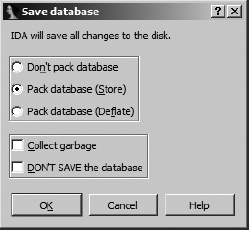
If this is the initial save of a newly created database, the new database filename is derived from the input filename by replacing the input extension with the .idb extension (e.g., example.exe yields a database named example.idb). When the input file has no extension, .idb is appended to form the name of the database (e.g., httpd yields httpd.idb). The available save options and their associated implications are summarized in the following list:
- Don’t pack database
This option simply flushes changes to the four database component files and closes the desktop without creating an IDB file. This option is not recommended when closing your databases.
- Pack database (Store)
Selecting the Store option results in the four database component files being archived into a single IDB file. Any previous IDB will be overwritten without confirmation. No compression is used with the Store option. Once the IDB file has been created, the four database component files are deleted.
- Pack database (Deflate)
The Deflate option is identical to the Store option, with the exception that the database component files are compressed within the IDB archive.
- Collect garbage
Requesting garbage collection causes IDA to delete any unused memory pages from the database prior to closing it. Select this option in conjunction with Deflate in order to create the smallest possible IDB file. This option is not generally required unless disk space is at a premium.
- DON’T SAVE the database
You may wonder why anyone would choose not to save his work. It turns out that this option is the only way to discard changes that you have made to a database since the last time it was saved. When this option is selected, IDA simply deletes the four database component files and leaves any existing IDB file untouched. Using this option is as close as you will get to an undo or revert capability while using IDA.
Granted, reopening an existing database doesn’t involve rocket science,[33] so you may be wondering why this topic is covered at all. Under ordinary circumstances, returning to work on an existing database is as simple as selecting the database using one of IDA’s file-opening methods. Database files open much faster the second (and subsequent) time around because there is no analysis to perform. As an added bonus, IDA restores your IDA desktop to the same state it was in at the time it was closed.
Now for the bad news. Believe or not, IDA crashes on occasion. Whether because of a bug in IDA itself or because of a bug in some bleeding-edge plug-in you have installed, crashes leave open databases in a potentially corrupt state. Once you restart IDA and attempt to reopen the affected database, you are likely to see one of the dialogs shown in Figure 4-7 and Figure 4-8.
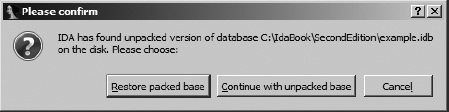
When IDA crashes, there is no opportunity for IDA to close the active database, and the intermediate database files do not get deleted. If this was not the first time that you were working with a particular database, you may have a situation in which both an IDB file and potentially corrupt intermediate files are present at the same time. The IDB file represents the last-known good state of the database, while the intermediate files contain any changes that may have been made since the last save operation. In this case, you will be offered the choice to revert to the saved version or resume use of the open, potentially corrupt version, as shown in Figure 4-7. Choosing Continue with Unpacked Base by no means guarantees that you will recover your work. The unpacked database is probably in an inconsistent state, which will prompt IDA to offer the dialog shown in Figure 4-8. In this case, IDA itself recommends that you consider restoring from the packed data, so consider yourself warned if you opt to go with a repaired database.
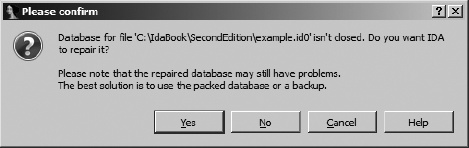
When an active database has never been saved, thus leaving only intermediate files present at the time of the crash, IDA offers the repair option in Figure 4-8 as soon as you try to open the original executable file again.