Table of Contents for
OpenLayers 3 : Beginner's Guide
 OpenLayers 3 : Beginner's Guide
Published by
Packt Publishing, 2015
OpenLayers 3 : Beginner's Guide
Published by
Packt Publishing, 2015
- Cover
- Table of Contents
- OpenLayers 3 Beginner's Guide
- OpenLayers 3 Beginner's Guide
- Credits
- About the Authors
- About the Reviewers
- www.PacktPub.com
- Preface
- What you need for this book
- Who this book is for
- Sections
- Time for action – heading
- Conventions
- Reader feedback
- Customer support
- 1. Getting Started with OpenLayers
- Advantages of using OpenLayers
- What, technically, is OpenLayers?
- Anatomy of a web mapping application
- Connecting to Google, Bing Maps, and other mapping APIs
- Time for action – downloading OpenLayers
- Time for action – creating your first map
- Where to go for help
- OpenLayers issues
- OpenLayers source code repository
- Getting live news from RSS and social networks
- Summary
- 2. Key Concepts in OpenLayers
- Time for action – creating a map
- Time for action – using the JavaScript console
- Time for action – overlaying information
- OpenLayers' super classes
- Key-Value Observing with the Object class
- Time for action – using bindTo
- Working with collections
- Summary
- 3. Charting the Map Class
- Time for action – creating a map
- Map renderers
- Time for action – rendering a masterpiece
- Map properties
- Time for action – target practice
- Map methods
- Time for action – creating animated maps
- Events
- Views
- Time for action – linking two views
- Summary
- 4. Interacting with Raster Data Source
- Layers in OpenLayers 3
- Common operations on layers
- Time for action – changing layer properties
- Tiled versus untiled layers
- Types of raster sources
- Tiled images' layers and their sources
- Time for action – creating a Stamen layer
- Time for action – creating a Bing Maps layer
- Time for action – creating tiles and adding Zoomify layer
- Image layers and their sources
- Using Spherical Mercator raster data with other layers
- Time For action – playing with various sources and layers together
- Time For action – applying Zoomify sample knowledge to a single raw image
- Summary
- 5. Using Vector Layers
- Time for action – creating a vector layer
- How the vector layer works
- The vector layer class
- Vector sources
- Time for action – using the cluster source
- Time for action – creating a loader function
- Time for action – working with the TileVector source
- Time for action – a drag and drop viewer for vector files
- Features and geometries
- Time for action – geometries in action
- Time for action – interacting with features
- Summary
- 6. Styling Vector Layers
- Time for action – basic styling
- The style class
- Time for action – using the icon style
- Have a go hero – using the circle style
- Multiple styles
- Time for action – using multiple styles
- Style functions
- Time for action – using properties to style features
- Interactive styles
- Time for action – creating interactive styles
- Summary
- 7. Wrapping Our Heads Around Projections
- Time for action – using different projection codes
- Time for action – determining coordinates
- OpenLayers projection class
- Transforming coordinates
- Time for action – coordinate transforms
- Time for action – setting up Proj4js.org
- Time for action – reprojecting extent
- Time for action – using custom projection with WMS sources
- Time for action – reprojecting geometries in vector layers
- Summary
- 8. Interacting with Your Map
- Time for action – converting your local or national authorities data into web mapping formats
- Time for action – testing the use cases for ol.interaction.Select
- Time for action – more options with ol.interaction.Select
- Introducing methods to get information from your map
- Time for action – understanding the forEachFeatureAtPixel method
- Time for action – understanding the getGetFeatureInfoUrl method
- Adding a pop-up on your map
- Time for action – introducing ol.Overlay with a static example
- Time for action – using ol.Overlay dynamically with layers information
- Time for action – using ol.interaction.Draw to share new information on the Web
- Time for action – using ol.interaction.Modify to update drawing
- Understanding interactions and their architecture
- Time for action – configuring default interactions
- Discovering the other interactions
- Time for action – using ol.interaction.DragRotateAndZoom
- Time for action – making rectangle export to GeoJSON with ol.interaction.DragBox
- Summary
- 9. Taking Control of Controls
- Adding controls to your map
- Time for action – starting with the default controls
- Controls overview
- Time for action – changing the default attribution styles
- Time for action – finding your mouse position
- Time for action – configuring ZoomToExtent and manipulate controls
- Creating a custom control
- Time for action – extending ol.control.Control to make your own control
- Summary
- 10. OpenLayers Goes Mobile
- Using a web server
- Time for action – go mobile!
- The Geolocation class
- Time for action – location, location, location
- The DeviceOrientation class
- Time for action – a sense of direction
- Debugging mobile web applications
- Debugging on iOS
- Debugging on Android
- Going offline
- Time for action – MANIFEST destiny
- Going native with web applications
- Time for action – track me
- Summary
- 11. Creating Web Map Apps
- Using geospatial data from Flickr
- Time for action – getting Flickr data
- A simple application
- Time for Action – adding data to your map
- Styling the features
- Time for action – creating a style function
- Creating a thumbnail style
- Time for action – switching to JSON data
- Time for action – creating a thumbnail style
- Turning our example into an application
- Time for action – adding the select interaction
- Time for action – handling selection events
- Time for action – displaying photo information
- Using real time data
- Time for action – getting dynamic data
- Wrapping up the application
- Time for action – adding dynamic tags to your map
- Deploying an application
- Creating custom builds
- Creating a combined build
- Time for action – creating a combined build
- Creating a separate build
- Time for action – creating a separate build
- Summary
- A. Object-oriented Programming – Introduction and Concepts
- Going further
- B. More details on Closure Tools and Code Optimization Techniques
- Introducing Closure Library, yet another JavaScript library
- Time for action – first steps with Closure Library
- Making custom build for optimizing performance
- Time for action – playing with Closure Compiler
- Applying your knowledge to the OpenLayers case
- Time for action - running official examples with the internal OpenLayers toolkit
- Time for action - building your custom OpenLayers library
- Syntax and styles
- Time for action – using Closure Linter to fix JavaScript
- Summary
- C. Squashing Bugs with Web Debuggers
- Time for action – opening Chrome Developer Tools
- Explaining Chrome Developer debugging controls
- Time for action – using DOM manipulation with OpenStreetMap map images
- Time for action – using breakpoints to explore your code
- Time for action – playing with zoom button and map copyrights
- Using the Console panel
- Time for action – executing code in the Console
- Time for action – creating object literals
- Time for action – interacting with a map
- Improving Chrome and Developer Tools with extensions
- Debugging in other browsers
- Summary
- D. Pop Quiz Answers
- Chapter 5, Using Vector Layers
- Chapter 7, Wrapping Our Heads Around Projections
- Chapter 8, Interacting with Your Map
- Chapter 9, Taking Control of Controls
- Chapter 10, OpenLayers Goes Mobile
- Appendix B, More details on Closure Tools and Code Optimization Techniques
- Appendix C, Squashing Bugs with Web Debuggers
- Index
The Google, Yahoo!, Bing, and ESRI's Mapping APIs allow you to connect with their map server backend. Their APIs also usually provide a client-side interface.
The Google Maps API, for instance, is fairly powerful. You have the ability to add markers, plot routes, and use KML data (things you can also do in OpenLayers)—but the main drawback is that your mapping application relies totally on Google. The map client and map server are provided by a third party. This is not inherently a bad thing, and for many projects, Google Maps and the others like it, are a good fit.
However, there are quite a few drawbacks such as:
- You're not in control of the backend
- You can't really customize the map server backend, and it can change any time
- There may be commercial restrictions, or some costs involved for consuming maps images or other services such as geocoding or routing for car traffic
- These other APIs also cannot provide you with anything near the amount of flexibility and customization that an open source mapping application framework (that is, OpenLayers) offers
Note
Although we mentioned Google Maps API as one of the main maps, its support in OpenLayers is limited. As there are more tiles providers nowadays, it's not worth it to have code maintenance to support Google Maps API, a third party code that can break the main library, as sometimes happened earlier with the OpenLayers 2 API.
So, what's with the layers in OpenLayers? Well, OpenLayers allows you to have multiple different backend servers that your map can use. To access a web map server, you declare a layer and add it to your map with OpenLayers.
For instance, if you wanted to have a Bing Maps and an OpenStreetMap service displayed on your map, you would use OpenLayers to create a layer referencing Bing Maps and another one for OpenStreetMap, and then add them to your OpenLayers map. We'll soon see an example with an OpenStreetMap layer, so don't worry if you're a little confused.
Like layers of an onion, each layer is above and will cover up the previous one; the order that you add in the layers is important. With OpenLayers, you can arbitrarily set the overall transparency of any layer, so you are easily able to control how many layers cover each other up, and dynamically change the layer order at any time.
Most of the time, you make a distinction between base layers and non-base layers. Base layers are layers below the others and are used as a background on your maps to give general context. When you choose one base layer, the others will not be shown. On the top of base layers, you have non-base layers used to emphasize particular topics. You can also choose to use only overlay layers if you're considering that they are enough to understand the map. As a classical example, you could have a Bing map as your base layer, a layer with satellite imagery that is semi-transparent, and a vector layer, all active on your map at once. A vector layer is a powerful layer that allows for the addition of markers and various geometric objects to our maps—we'll cover it in Chapter 5, Using Vector Layers. Thus, in this example, your map would have three separate layers. We'll study in detail about layers and how to use and combine them in Chapter 4, Interacting with Raster Data Source.
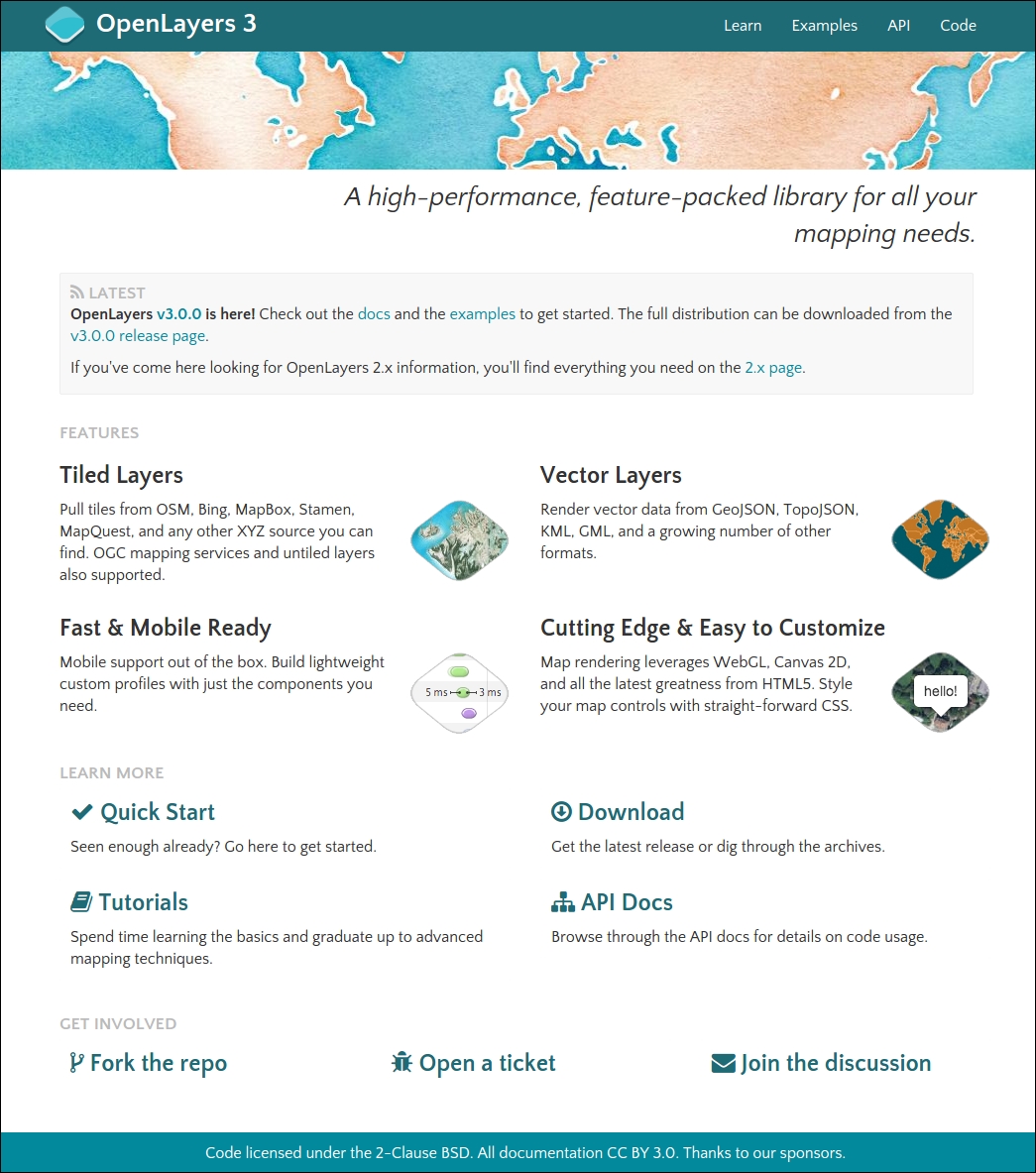
The website for OpenLayers 3 is located at http://openlayers.org. Have a look at the following screenshot:
To begin, you need to download a copy of OpenLayers (or we can directly link to the library—but we'll download a local copy). You can download the compressed library as a .zip by clicking on the green button at the bottom of the release page at https://github.com/openlayers/ol3/releases/tag/v3.0.0.
We will cover the website links by following the different areas of the main web page. Let's start with the navigation bar located at the top right area:
- First link, Learn refers to the documentation for the OpenLayers library.
- Examples points to the list of the latest examples available for the current development library. At the time of writing, you can see 95 of them. You can filter the list of examples with keywords to find your way.
- API redirects to the API documentation. It documents the API where you can find the syntax, methods, and properties for all the core library components. Without it, it would be impossible to find your way within the library.
- Last link, Code is simply the link to the Github library account located at http://github.com/openlayers/ol3, for people who want to contribute or learn more about the core library code.
- In the central area, the main content is divided from top to bottom in four parts:
- The first block LATEST speaks for itself. It's the latest news about the project.
- The FEATURES part is a good reminder and teaser about what you can do with the OpenLayers library.
- The LEARN MORE part is one of the most important parts of the web page:
- With Quick Start, you can learn a simple way to make your first map.
- The Download section is the place to find all release codes hosted at GitHub. You can also find the releases notes — the list of evolution and fixes to the library core code.
- The Tutorials section is the entry to learn more after the Quick Start. At the time of writing, it's nearly empty. It should grow following the library adoption curve.
- The API Docs section is one of the keys of OpenLayers. It documents the API where you can find the syntax, methods, and properties for all the core library components. Without it, it would be impossible to find your way within the library.
- GET INVOLVED, the last block, is also important when you want to find help or make a contribution:
- Fork the repo sends you to the URL of the official development repository on Github.
- Open a ticket is the place where you can create a ticket. You can do it to describe an unexpected behavior when using the library, or if you want to ask for a new feature in the library, or if you are an advanced user or a developer and wish to submit code or give your opinion on an existing ticket.
- The last topic Join the discussion links to the official OpenLayers 3 mailing list.
Tip
Be aware that currently both versions of OpenLayers exist
- The version 2.13, the latest version of the 2.x series of the library and all related content, hosted at: http://openlayers.org/two
- The latest version, the 3.0.0 version, hosted at: http://openlayers.org