Table of Contents for
OpenLayers 3 : Beginner's Guide
 OpenLayers 3 : Beginner's Guide
Published by
Packt Publishing, 2015
OpenLayers 3 : Beginner's Guide
Published by
Packt Publishing, 2015
- Cover
- Table of Contents
- OpenLayers 3 Beginner's Guide
- OpenLayers 3 Beginner's Guide
- Credits
- About the Authors
- About the Reviewers
- www.PacktPub.com
- Preface
- What you need for this book
- Who this book is for
- Sections
- Time for action – heading
- Conventions
- Reader feedback
- Customer support
- 1. Getting Started with OpenLayers
- Advantages of using OpenLayers
- What, technically, is OpenLayers?
- Anatomy of a web mapping application
- Connecting to Google, Bing Maps, and other mapping APIs
- Time for action – downloading OpenLayers
- Time for action – creating your first map
- Where to go for help
- OpenLayers issues
- OpenLayers source code repository
- Getting live news from RSS and social networks
- Summary
- 2. Key Concepts in OpenLayers
- Time for action – creating a map
- Time for action – using the JavaScript console
- Time for action – overlaying information
- OpenLayers' super classes
- Key-Value Observing with the Object class
- Time for action – using bindTo
- Working with collections
- Summary
- 3. Charting the Map Class
- Time for action – creating a map
- Map renderers
- Time for action – rendering a masterpiece
- Map properties
- Time for action – target practice
- Map methods
- Time for action – creating animated maps
- Events
- Views
- Time for action – linking two views
- Summary
- 4. Interacting with Raster Data Source
- Layers in OpenLayers 3
- Common operations on layers
- Time for action – changing layer properties
- Tiled versus untiled layers
- Types of raster sources
- Tiled images' layers and their sources
- Time for action – creating a Stamen layer
- Time for action – creating a Bing Maps layer
- Time for action – creating tiles and adding Zoomify layer
- Image layers and their sources
- Using Spherical Mercator raster data with other layers
- Time For action – playing with various sources and layers together
- Time For action – applying Zoomify sample knowledge to a single raw image
- Summary
- 5. Using Vector Layers
- Time for action – creating a vector layer
- How the vector layer works
- The vector layer class
- Vector sources
- Time for action – using the cluster source
- Time for action – creating a loader function
- Time for action – working with the TileVector source
- Time for action – a drag and drop viewer for vector files
- Features and geometries
- Time for action – geometries in action
- Time for action – interacting with features
- Summary
- 6. Styling Vector Layers
- Time for action – basic styling
- The style class
- Time for action – using the icon style
- Have a go hero – using the circle style
- Multiple styles
- Time for action – using multiple styles
- Style functions
- Time for action – using properties to style features
- Interactive styles
- Time for action – creating interactive styles
- Summary
- 7. Wrapping Our Heads Around Projections
- Time for action – using different projection codes
- Time for action – determining coordinates
- OpenLayers projection class
- Transforming coordinates
- Time for action – coordinate transforms
- Time for action – setting up Proj4js.org
- Time for action – reprojecting extent
- Time for action – using custom projection with WMS sources
- Time for action – reprojecting geometries in vector layers
- Summary
- 8. Interacting with Your Map
- Time for action – converting your local or national authorities data into web mapping formats
- Time for action – testing the use cases for ol.interaction.Select
- Time for action – more options with ol.interaction.Select
- Introducing methods to get information from your map
- Time for action – understanding the forEachFeatureAtPixel method
- Time for action – understanding the getGetFeatureInfoUrl method
- Adding a pop-up on your map
- Time for action – introducing ol.Overlay with a static example
- Time for action – using ol.Overlay dynamically with layers information
- Time for action – using ol.interaction.Draw to share new information on the Web
- Time for action – using ol.interaction.Modify to update drawing
- Understanding interactions and their architecture
- Time for action – configuring default interactions
- Discovering the other interactions
- Time for action – using ol.interaction.DragRotateAndZoom
- Time for action – making rectangle export to GeoJSON with ol.interaction.DragBox
- Summary
- 9. Taking Control of Controls
- Adding controls to your map
- Time for action – starting with the default controls
- Controls overview
- Time for action – changing the default attribution styles
- Time for action – finding your mouse position
- Time for action – configuring ZoomToExtent and manipulate controls
- Creating a custom control
- Time for action – extending ol.control.Control to make your own control
- Summary
- 10. OpenLayers Goes Mobile
- Using a web server
- Time for action – go mobile!
- The Geolocation class
- Time for action – location, location, location
- The DeviceOrientation class
- Time for action – a sense of direction
- Debugging mobile web applications
- Debugging on iOS
- Debugging on Android
- Going offline
- Time for action – MANIFEST destiny
- Going native with web applications
- Time for action – track me
- Summary
- 11. Creating Web Map Apps
- Using geospatial data from Flickr
- Time for action – getting Flickr data
- A simple application
- Time for Action – adding data to your map
- Styling the features
- Time for action – creating a style function
- Creating a thumbnail style
- Time for action – switching to JSON data
- Time for action – creating a thumbnail style
- Turning our example into an application
- Time for action – adding the select interaction
- Time for action – handling selection events
- Time for action – displaying photo information
- Using real time data
- Time for action – getting dynamic data
- Wrapping up the application
- Time for action – adding dynamic tags to your map
- Deploying an application
- Creating custom builds
- Creating a combined build
- Time for action – creating a combined build
- Creating a separate build
- Time for action – creating a separate build
- Summary
- A. Object-oriented Programming – Introduction and Concepts
- Going further
- B. More details on Closure Tools and Code Optimization Techniques
- Introducing Closure Library, yet another JavaScript library
- Time for action – first steps with Closure Library
- Making custom build for optimizing performance
- Time for action – playing with Closure Compiler
- Applying your knowledge to the OpenLayers case
- Time for action - running official examples with the internal OpenLayers toolkit
- Time for action - building your custom OpenLayers library
- Syntax and styles
- Time for action – using Closure Linter to fix JavaScript
- Summary
- C. Squashing Bugs with Web Debuggers
- Time for action – opening Chrome Developer Tools
- Explaining Chrome Developer debugging controls
- Time for action – using DOM manipulation with OpenStreetMap map images
- Time for action – using breakpoints to explore your code
- Time for action – playing with zoom button and map copyrights
- Using the Console panel
- Time for action – executing code in the Console
- Time for action – creating object literals
- Time for action – interacting with a map
- Improving Chrome and Developer Tools with extensions
- Debugging in other browsers
- Summary
- D. Pop Quiz Answers
- Chapter 5, Using Vector Layers
- Chapter 7, Wrapping Our Heads Around Projections
- Chapter 8, Interacting with Your Map
- Chapter 9, Taking Control of Controls
- Chapter 10, OpenLayers Goes Mobile
- Appendix B, More details on Closure Tools and Code Optimization Techniques
- Appendix C, Squashing Bugs with Web Debuggers
- Index
What we are customizing are the controls introduced in Chapter 9, Taking Control of Controls. It's time to try it: practicing things on your own will improve your comprehension. For this, we will reuse the OpenStreetMap example from Chapter 1, Getting Started with OpenLayers, and customize the position for zoom buttons and map copyrights.
- In the Sources panel, open the
ol.cssfile and use the Format button to make it more readable as this file is a.cssminified file on one line. - Find the
.ol-zoomclass in theol.cssfile. - Replace the
left : 0.5em;parameter withright : 0.5em;to make changes to zoom buttons. - Now, it's time to change copyrights. So, like in the previous case, look for the CSS class,
.ol-attribution:not(.ol-collapsed). - Change the property background,
rgba(255,255,255,0.8);, torgba(255,0,0,.4);.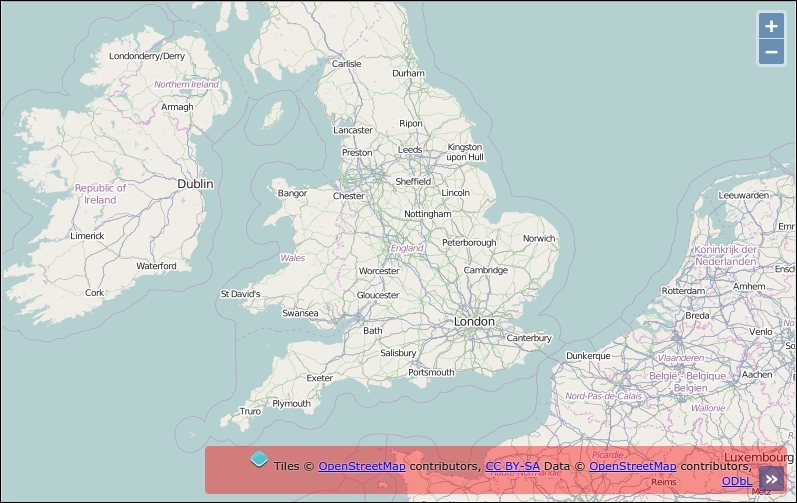
In the previous example, you played with HTML content. Here, the focus was to cover how you can change the style on the fly. We set the position of the zoom control to the top right and we also changed the background for attribution when you open the attributions collapsible block (credits to maps data and tiles) to red with an opacity change. We encourage you to perform more tests on your own to assimilate the way the panel works.
If you are a web designer working on the code or a web developer requiring to make some designs, we advise you to play a lot with this powerful panel. It can greatly speed up your development time when you master it. If you are always editing CSS in your browser, you should consider looking into the Workspace functionality we've already talked about.
The Chrome DevTools Console panel is where we'll spend most of our time. It acts as a powerful JavaScript command line, or interpreter, which means we can type in JavaScript code and execute it right away—no need to save or edit any files. We can also inspect values when we are stopped at a breakpoint in the Sources panel and want to inspect the context at this time.
Another thing that makes this panel so useful is that we can interact directly with the DOM (Document Object Model)—any HTML element on the web page, including any existing JavaScript code the page contains. So, this means we're able to interact with our OpenLayers map on the fly, issuing command and testing code to instantly see what works and what doesn't. As you can imagine, this saves a ton of time!
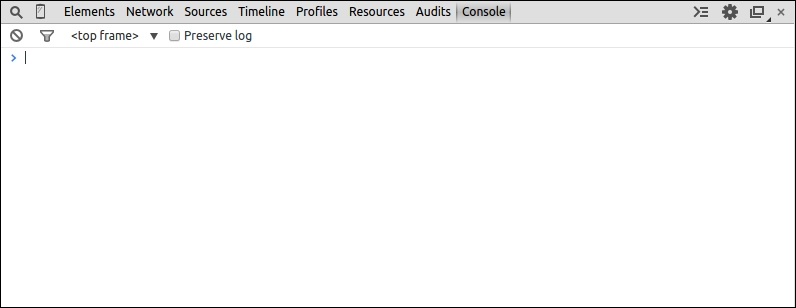
You can choose and type in the console on one line or multi-lines. To use multi-lines, type Shift + Enter to return without executing code.
When you need to discover the structure of an object, the Console panel is a very valuable tool, especially when you want to take a peek at JavaScript components. Assuming we are looking at a page that includes OpenLayers, we can quickly see all of OpenLayer's classes, functions, and so on. It is not a replacement for the API docs, but serves as a good, quick way to view such information.
It looks like the screenshot that follows:
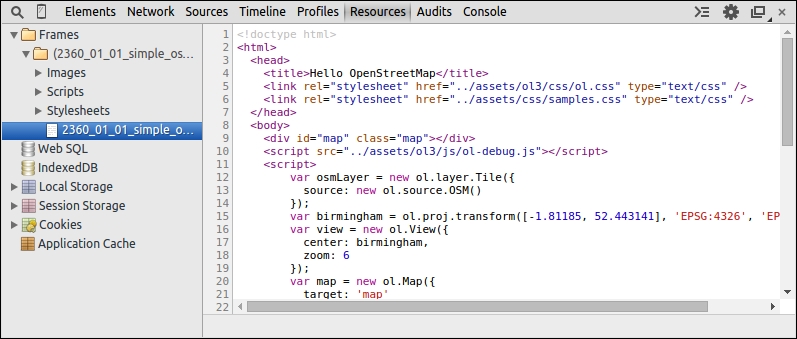
With it, you have a classification of all types of resources. You get all resources depending on frames such as the images, CSS, and HTML files. It is a good way to know what your web page loads.
You also can see all persistent storage. Persistent storage are Web SQL, IndexedDB, Local Storage, Session Storage, and Cookies. Although they might not mean much to you, they provide features, not directly related to OpenLayers, can be useful as they are HTML5 features. We invite you to discover their purpose by visiting http://html5demos.com.
With this various storage, you can keep information for customizing users' experiences. For example, you can use them to customize the language for a web application, store the zoom level for a displayed map, and so on.
To complete and end this panel description, the last thing we need to inspect is the Application Cache. It is the most useful function for our book in Chapter 10, OpenLayers Goes Mobile. It helps you inspect the data cached using the MANIFEST file.
These three panels are not really useful for beginners. They target advanced developers mainly for performances purposes:
- The Timeline panel enables you to record how the page content is processed to display the final image you see in the browser.
- The Profile panel is mainly to evaluate computer resources consumed by the web page such as the memory consumed by JavaScript, the CSS selectors efficiency, and the overall memory allocation.
- The Audits panel, like the name indicates, is an audit to give you information for improving performances at the network level or CSS levels for example.
If you want more information about these panels, visit the official documentation of Chrome DevTools at https://developers.google.com/chrome-developer-tools/.
Each panel serves a certain purpose and all of Google Chrome DevTools' panels are extremely useful, but throughout this book, we will be mainly focusing on the following panels:
- The Console panel (Command-line JavaScript)
- The Elements panel
- The Sources panel
- The Network panel
These four panels are the ones that we should use the most throughout this book. We can occasionally come back to the other panels, but we don't need to spend a whole lot of time with them. However, before we conclude this chapter, let's get a bit more familiar with the Console panel, since we will need it in most of our chapters.