Table of Contents for
OpenLayers 3 : Beginner's Guide
 OpenLayers 3 : Beginner's Guide
Published by
Packt Publishing, 2015
OpenLayers 3 : Beginner's Guide
Published by
Packt Publishing, 2015
- Cover
- Table of Contents
- OpenLayers 3 Beginner's Guide
- OpenLayers 3 Beginner's Guide
- Credits
- About the Authors
- About the Reviewers
- www.PacktPub.com
- Preface
- What you need for this book
- Who this book is for
- Sections
- Time for action – heading
- Conventions
- Reader feedback
- Customer support
- 1. Getting Started with OpenLayers
- Advantages of using OpenLayers
- What, technically, is OpenLayers?
- Anatomy of a web mapping application
- Connecting to Google, Bing Maps, and other mapping APIs
- Time for action – downloading OpenLayers
- Time for action – creating your first map
- Where to go for help
- OpenLayers issues
- OpenLayers source code repository
- Getting live news from RSS and social networks
- Summary
- 2. Key Concepts in OpenLayers
- Time for action – creating a map
- Time for action – using the JavaScript console
- Time for action – overlaying information
- OpenLayers' super classes
- Key-Value Observing with the Object class
- Time for action – using bindTo
- Working with collections
- Summary
- 3. Charting the Map Class
- Time for action – creating a map
- Map renderers
- Time for action – rendering a masterpiece
- Map properties
- Time for action – target practice
- Map methods
- Time for action – creating animated maps
- Events
- Views
- Time for action – linking two views
- Summary
- 4. Interacting with Raster Data Source
- Layers in OpenLayers 3
- Common operations on layers
- Time for action – changing layer properties
- Tiled versus untiled layers
- Types of raster sources
- Tiled images' layers and their sources
- Time for action – creating a Stamen layer
- Time for action – creating a Bing Maps layer
- Time for action – creating tiles and adding Zoomify layer
- Image layers and their sources
- Using Spherical Mercator raster data with other layers
- Time For action – playing with various sources and layers together
- Time For action – applying Zoomify sample knowledge to a single raw image
- Summary
- 5. Using Vector Layers
- Time for action – creating a vector layer
- How the vector layer works
- The vector layer class
- Vector sources
- Time for action – using the cluster source
- Time for action – creating a loader function
- Time for action – working with the TileVector source
- Time for action – a drag and drop viewer for vector files
- Features and geometries
- Time for action – geometries in action
- Time for action – interacting with features
- Summary
- 6. Styling Vector Layers
- Time for action – basic styling
- The style class
- Time for action – using the icon style
- Have a go hero – using the circle style
- Multiple styles
- Time for action – using multiple styles
- Style functions
- Time for action – using properties to style features
- Interactive styles
- Time for action – creating interactive styles
- Summary
- 7. Wrapping Our Heads Around Projections
- Time for action – using different projection codes
- Time for action – determining coordinates
- OpenLayers projection class
- Transforming coordinates
- Time for action – coordinate transforms
- Time for action – setting up Proj4js.org
- Time for action – reprojecting extent
- Time for action – using custom projection with WMS sources
- Time for action – reprojecting geometries in vector layers
- Summary
- 8. Interacting with Your Map
- Time for action – converting your local or national authorities data into web mapping formats
- Time for action – testing the use cases for ol.interaction.Select
- Time for action – more options with ol.interaction.Select
- Introducing methods to get information from your map
- Time for action – understanding the forEachFeatureAtPixel method
- Time for action – understanding the getGetFeatureInfoUrl method
- Adding a pop-up on your map
- Time for action – introducing ol.Overlay with a static example
- Time for action – using ol.Overlay dynamically with layers information
- Time for action – using ol.interaction.Draw to share new information on the Web
- Time for action – using ol.interaction.Modify to update drawing
- Understanding interactions and their architecture
- Time for action – configuring default interactions
- Discovering the other interactions
- Time for action – using ol.interaction.DragRotateAndZoom
- Time for action – making rectangle export to GeoJSON with ol.interaction.DragBox
- Summary
- 9. Taking Control of Controls
- Adding controls to your map
- Time for action – starting with the default controls
- Controls overview
- Time for action – changing the default attribution styles
- Time for action – finding your mouse position
- Time for action – configuring ZoomToExtent and manipulate controls
- Creating a custom control
- Time for action – extending ol.control.Control to make your own control
- Summary
- 10. OpenLayers Goes Mobile
- Using a web server
- Time for action – go mobile!
- The Geolocation class
- Time for action – location, location, location
- The DeviceOrientation class
- Time for action – a sense of direction
- Debugging mobile web applications
- Debugging on iOS
- Debugging on Android
- Going offline
- Time for action – MANIFEST destiny
- Going native with web applications
- Time for action – track me
- Summary
- 11. Creating Web Map Apps
- Using geospatial data from Flickr
- Time for action – getting Flickr data
- A simple application
- Time for Action – adding data to your map
- Styling the features
- Time for action – creating a style function
- Creating a thumbnail style
- Time for action – switching to JSON data
- Time for action – creating a thumbnail style
- Turning our example into an application
- Time for action – adding the select interaction
- Time for action – handling selection events
- Time for action – displaying photo information
- Using real time data
- Time for action – getting dynamic data
- Wrapping up the application
- Time for action – adding dynamic tags to your map
- Deploying an application
- Creating custom builds
- Creating a combined build
- Time for action – creating a combined build
- Creating a separate build
- Time for action – creating a separate build
- Summary
- A. Object-oriented Programming – Introduction and Concepts
- Going further
- B. More details on Closure Tools and Code Optimization Techniques
- Introducing Closure Library, yet another JavaScript library
- Time for action – first steps with Closure Library
- Making custom build for optimizing performance
- Time for action – playing with Closure Compiler
- Applying your knowledge to the OpenLayers case
- Time for action - running official examples with the internal OpenLayers toolkit
- Time for action - building your custom OpenLayers library
- Syntax and styles
- Time for action – using Closure Linter to fix JavaScript
- Summary
- C. Squashing Bugs with Web Debuggers
- Time for action – opening Chrome Developer Tools
- Explaining Chrome Developer debugging controls
- Time for action – using DOM manipulation with OpenStreetMap map images
- Time for action – using breakpoints to explore your code
- Time for action – playing with zoom button and map copyrights
- Using the Console panel
- Time for action – executing code in the Console
- Time for action – creating object literals
- Time for action – interacting with a map
- Improving Chrome and Developer Tools with extensions
- Debugging in other browsers
- Summary
- D. Pop Quiz Answers
- Chapter 5, Using Vector Layers
- Chapter 7, Wrapping Our Heads Around Projections
- Chapter 8, Interacting with Your Map
- Chapter 9, Taking Control of Controls
- Chapter 10, OpenLayers Goes Mobile
- Appendix B, More details on Closure Tools and Code Optimization Techniques
- Appendix C, Squashing Bugs with Web Debuggers
- Index
Closure Tools are a set of utilities used for web development. It is mainly supported by Google, but is open source under the Apache License Version 2.0, a well-established permissive license. The name Closure Tools hides under it a lot of subtools, which will make your life as an apprentice developer easier. It includes a JavaScript optimizer, a JavaScript library, a templating library, a style checker and style fixer, and at last, a stylesheet language. Just to illustrate how powerful this set can be, think that most Google JavaScript applications, such as Gmail or Google Maps, use these components.
Why are we introducing you to these tools?
The OpenLayers 3 library itself depends on the Closure Library, the JavaScript library attached to Closure Tools. Its main goal is to leverage cross-browser support. You also know you can write your application in pure JavaScript.
However, you can also consider Closure for advanced uses like creating your own component such as controls and buttons with special behavior inherited from an existing OpenLayers component. You will also get some useful UI components. It is also a good toolset to achieve better file compression when you want an efficient web mapping application, using the Closure Compiler, another utility from the Closure Tools bundle.
We will not review all Closure Tools but only the most useful. Specifically, we will cover the following topics:
- Understanding the Closure Tools concepts
- How to use the Closure Library and a small review of the main components' families
- Why Closure Compiler is different from others compiler tools
- How to use it with Closure Library and with other JavaScript libraries. Application of Closure Tools in OpenLayers for improving our way of developing web-mapping applications
- The use of the already hidden workflow in OpenLayers code that relies on Closure Tools
- Best practices for creating readable code and how to detect and fix errors using both Closure style checker and style fixer
If you have ever done a bit of web development, and in particular, JavaScript, you must have heard about jQuery, the most popular JavaScript library with more than 50 percent of the worldwide websites using it. To not reinvent the wheel, the OpenLayers development team chose Closure Library rather than jQuery. Why was this decision made? For a better understanding, you need a bit of history of the Web.
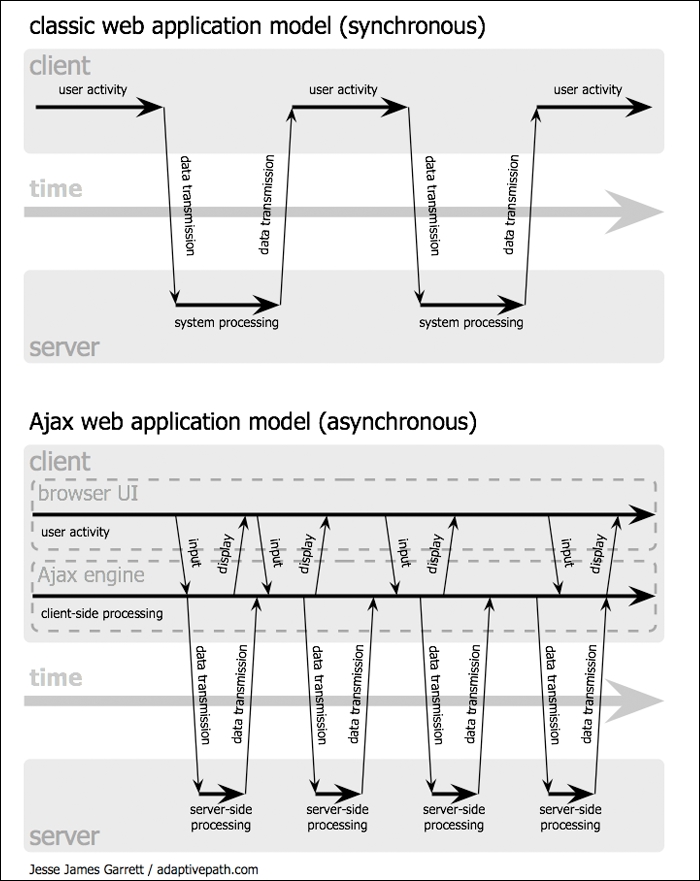
In the olden days, there wasn't a lot of JavaScript. All applications were created using simple HTML and CSS. There was dynamic content when reloading a full page using a server-side such as PHP or Java. However, people wanted a smoother web navigation experience. With the way AJAX works it was possible, as illustrated in the following figure, and people began to focus more and more on the client-side:
The main two problems associated with this evolution are:
- The more files you have, the more your browser will wait to display pages. The issue here comes from the processing cost to ask for the file, wait for it and then use it. This behavior is called latency. For example, imagine you are at the checkout counter at the supermarket; if ten clients buy one apple, the billing will take longer, than if one client buys ten apples.
- The second drawback of this evolution is that browsers have to load more and more resources such as images, CSS, and JavaScript.
- The bigger the files are, the longer it will take to retrieve and process the content. The main cause for this is the limited bandwidth. For example, when you are cooking pasta, the more water you put in, the longer you have to wait for the pasta to cook.
When you are at home, you don't really suffer from bandwidth restriction, but in other cases, you will always suffer from high latency. If you are planning to work on mobile support with limited bandwidth, high latency, and a browser with limited memory, it can be a pain.
A good part of the solution lies in compression.
You have three levels of compression available for JavaScript, depending on technology:
- Combine without compacting all JavaScript in one file
- Combine and compact all JavaScript in one file
- Combine, compact, and obfuscate the code
For performance, the last method will work the best, and the Closure Library is the only JavaScript library able to work this way, when combined with Closure Compiler.
Closure Tools, in particular, Closure Library and Closure Compiler are among the best tools to deal with this case.
Although both tools are tightly related, we will review the most useful functions related to Google Closure Library and later explain how to use Closure Compiler to optimize code.