Let's write a Qt application that has a couple of buttons in the dialog. Qt supports a variety of useful layout managers that act as an invisible canvas where many QWidgets can be arranged before they are attached to a window or dialog. Each dialog or window can have only one layout. Every widget can be added to only one layout; however, many layouts can be combined to design a professional UI.
Let's start writing the code now. In this project, we are going to write code in a modular fashion, hence we are going to create three files with the names MyDlg.h, MyDlg.cpp, and main.cpp.
The game plan is as follows:
- Create a single instance of QApplication.
- Create a custom dialog by inheriting QDialog.
- Create three buttons.
- Create a horizontal box layout.
- Add the three buttons to the invisible horizontal box layout.
- Set the horizontal box layout's instance as our dialog's layout.
- Show the dialog.
- Start the event loop on QApplication.
It is important that we follow clean code practices so that our code is easy to understand and can be maintained by anyone. As we are going to follow industry best practices, let's declare the dialog in a header file called MyDlg.h, define the dialog in the source file called MyDlg.cpp, and use MyDlg.cpp in main.cpp that has the main function. Every time MyDlg.cpp requires a header file, let's make it a practice to include all the headers only in MyDlg.h; with this, the only header we will see in MyDlg.cpp is MyDlg.h.
By the way, did I tell you Qt follows the camel casing coding convention? Yes, I did mention it right now. By now, you will have observed that all Qt classes start with the letter Q because Qt inventors loved the letter "Q" in Emacs and they were so obsessed with that font type that they decided to use the letter Q everywhere in Qt.
One last suggestion. Wouldn't it be easy for others to locate the dialog class if the name of the file and the name of the class were similar? I can hear you say yes. All set! Let's start coding our Qt application. First, refer to the following screenshot:
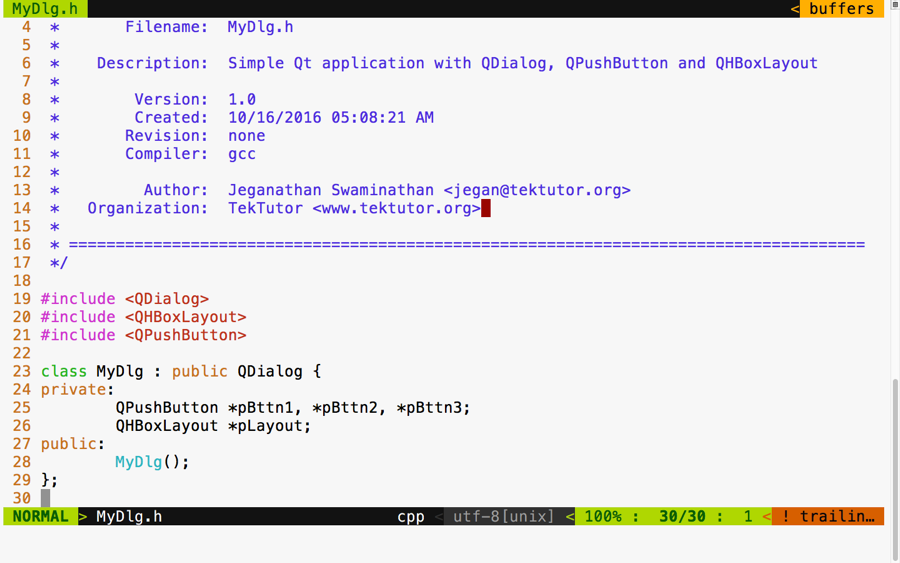
In the preceding screenshot, we declared a class with the name MyDlg. It has one layout, three buttons, and a constructor. Now refer to this screenshot:
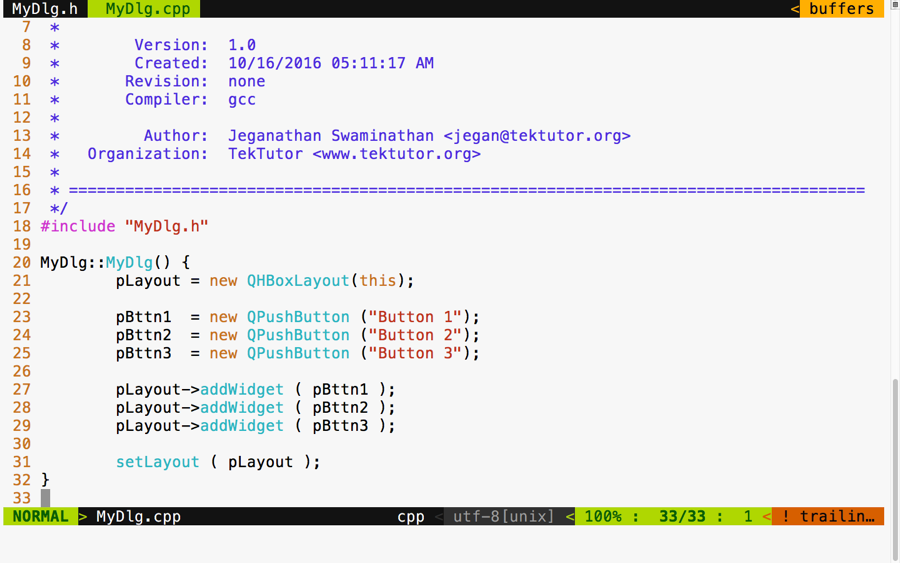
As you can see in the preceding screenshot, we defined the MyDlg constructor and instantiated the layout and the three buttons. In lines 27 through 29, we added three buttons to the layout. In line number 31, we associated the layout to our dialog. That's all it takes. In the following screenshot, we defined our main function, which creates an instance of QApplication:
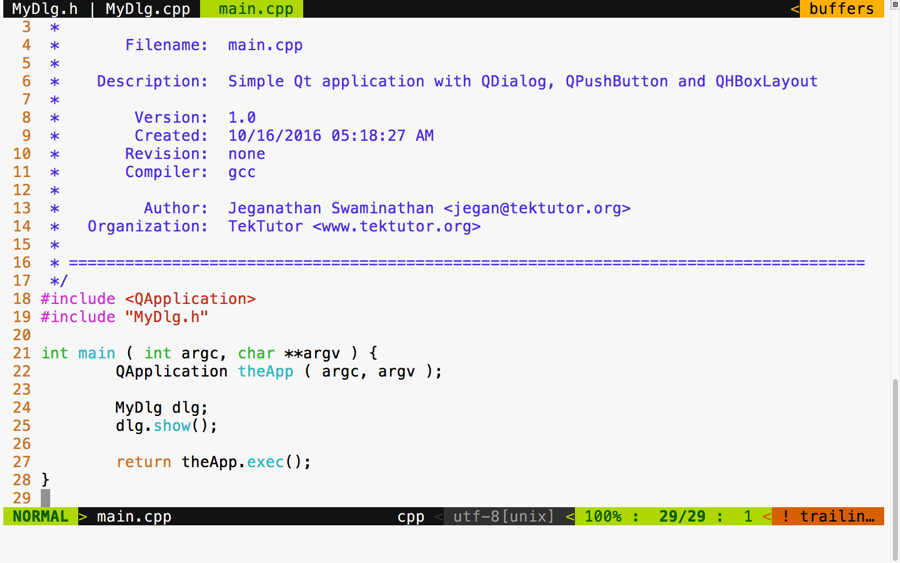
We followed this up by creating our custom dialog instance and displaying the dialog. Finally, at line 27, we started the event loop so that MyDlg could respond to user interactions. Refer to the following screenshot:
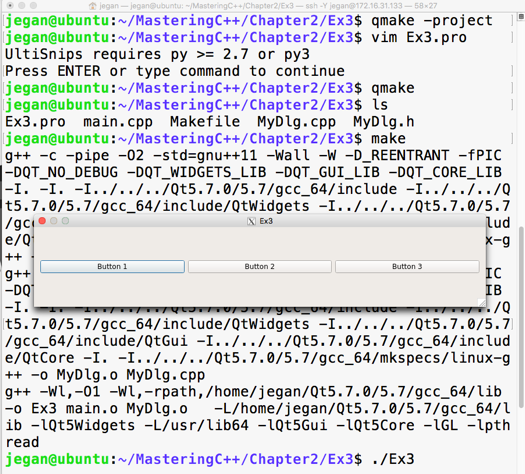
The preceding screenshot demonstrates the build and execution procedures, and there is our cute application. Actually, you can try playing with the dialog to understand the horizontal layout better. First, stretch the dialog horizontally and notice all the buttons' width increase; then, see whether you can reduce the dialog's width to notice all the buttons' width decrease. That's the job of any layout manager. A layout manager arranges widgets and retrieves the size of the window and divides the height and width equally among all its child widgets. Layout managers keep notifying all their child widgets about any resize events. However, it is up to the respective child widget to decide whether they want to resize themselves or ignore the layout resize signals.
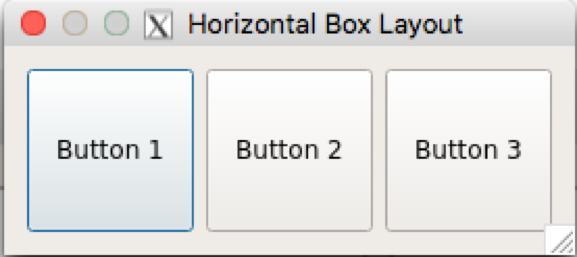
To check this behavior, try stretching out the dialog vertically. As you increase the height of the dialog, the dialog's height should increase, but the buttons will not increase their height. This is because every Qt Widget has its own preferred size policy; as per their size policy, they may respond or ignore certain layout resize signals.
If you want the buttons to stretch vertically as well, QPushButton offers a way to get this done. In fact, QPushButton extends from QWidget just like any other widget. The setSizePolicy() method comes to QPushButton from its base class, that is, QWidget:
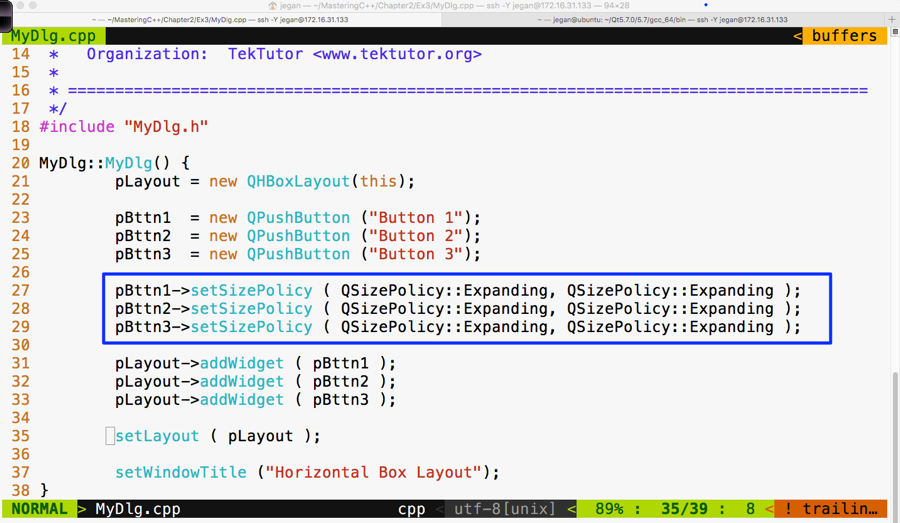
Did you notice line number 37? Yes, I have set the window title within the constructor of MyDlg to keep our main function compact and clean.
Make sure you have built your project using the make utility before launching your application:
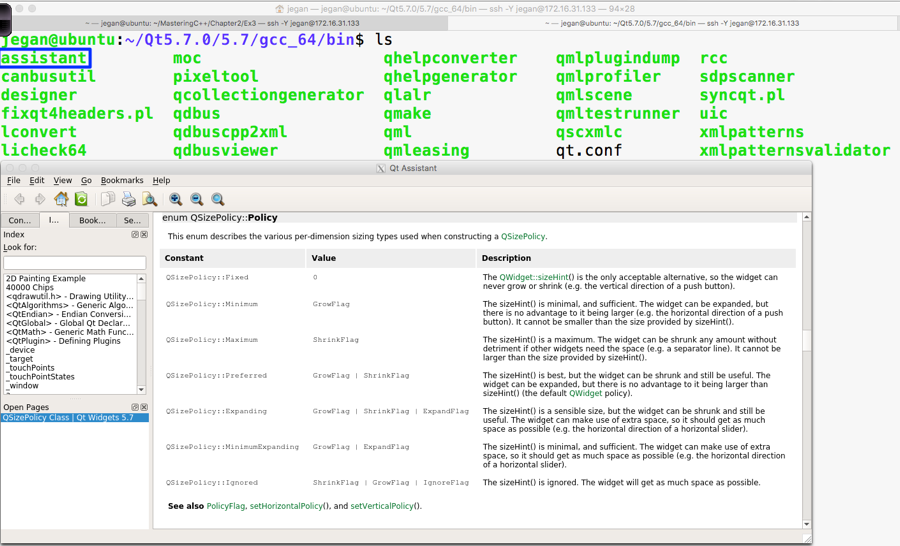
In the highlighted section, we have overridden the default size policy of all the buttons. In line number 27, the first parameter QSizePolicy::Expanding refers to the horizontal policy and the second parameter refers to the vertical policy. To find other possible values of QSizePolicy, refer to the assistant that comes in handy with the Qt API reference, as shown in the following screenshot: