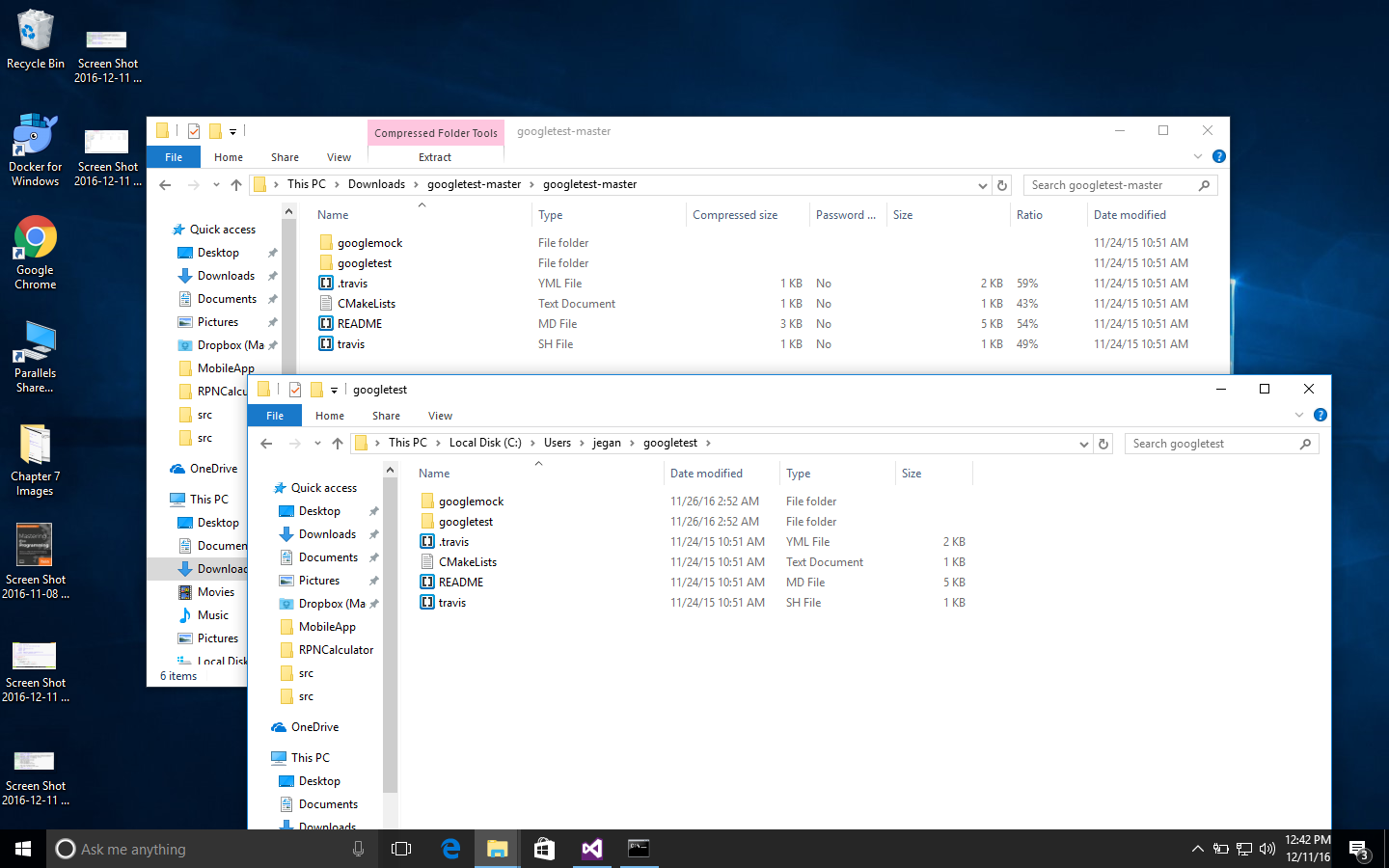
First, we need to download the Google test framework .zip file from https://github.com/google/googletest/archive/master.zip. The next step is to extract the .zip file in some directory. In my case, I have extracted it into the googletest folder and copied all the contents of googletest googletest-mastergoogletest-master to the googletest folder, as shown in Figure 7.11:
It is time to create a simple project in Visual Studio. I have used Microsoft Visual Studio Community 2015. However, the procedure followed here should pretty much remain the same for other versions of Visual Studio, except that the options might be available in different menus.
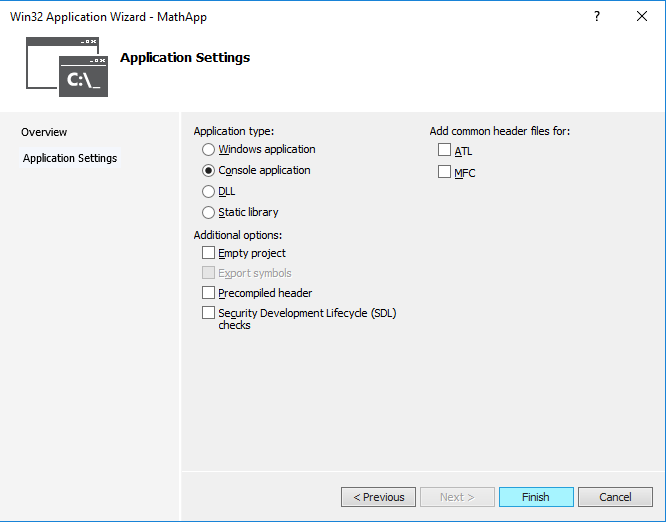
You need to create a new project named MathApp by navigating to New Project | Visual Studio | Windows | Win32 | Win32 Console Application, as shown in Figure 7.12. This project is going to be the production code to be tested.
Let's add the MyMath class to the MathApp project. The MyMath class is the production code that will be declared in MyMath.h and defined in MyMath.cpp.
Let's take a look at the MyMath.h header file shown in Figure 7.13:
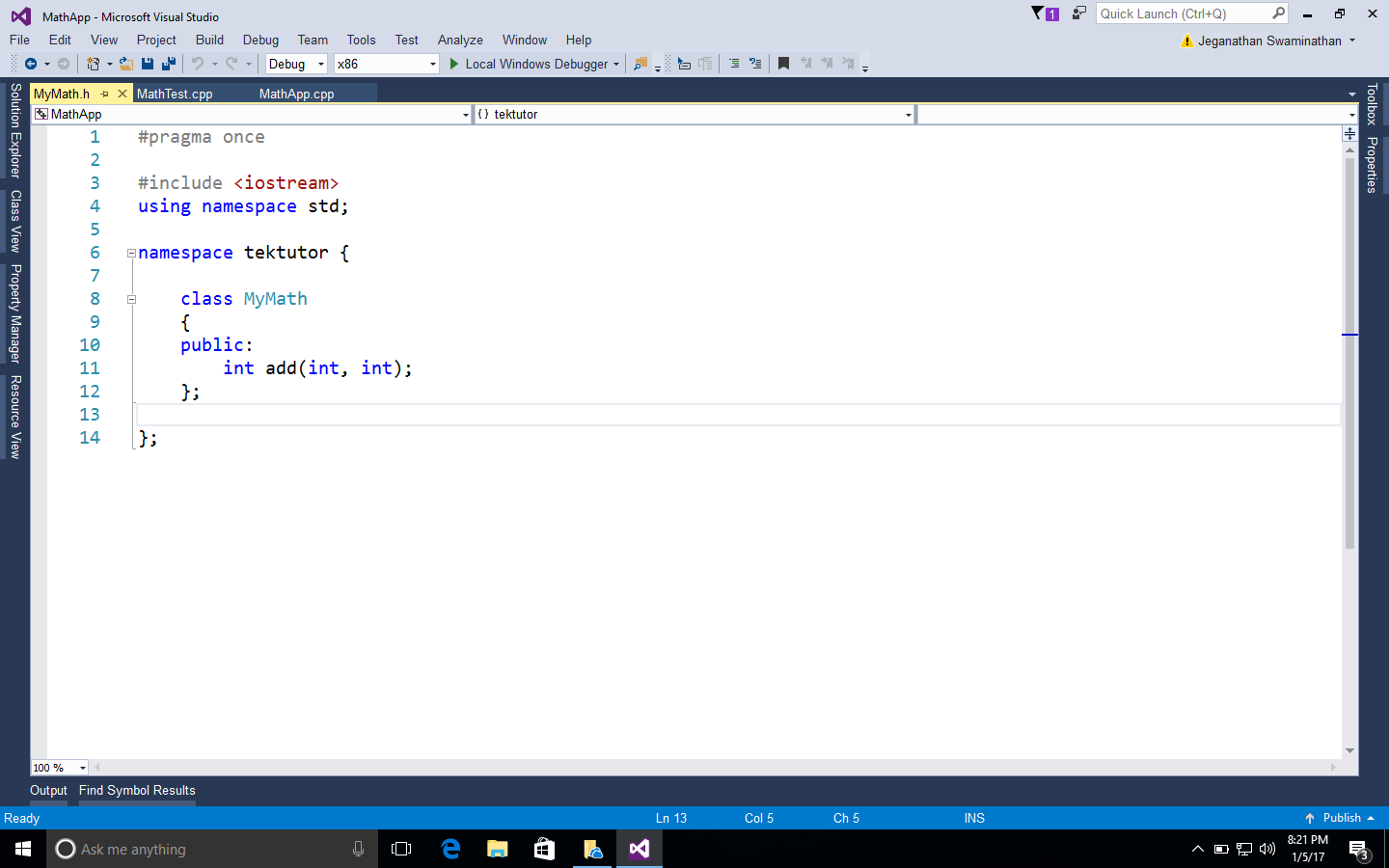
The definition of the MyMath class looks as shown in Figure 7.14:
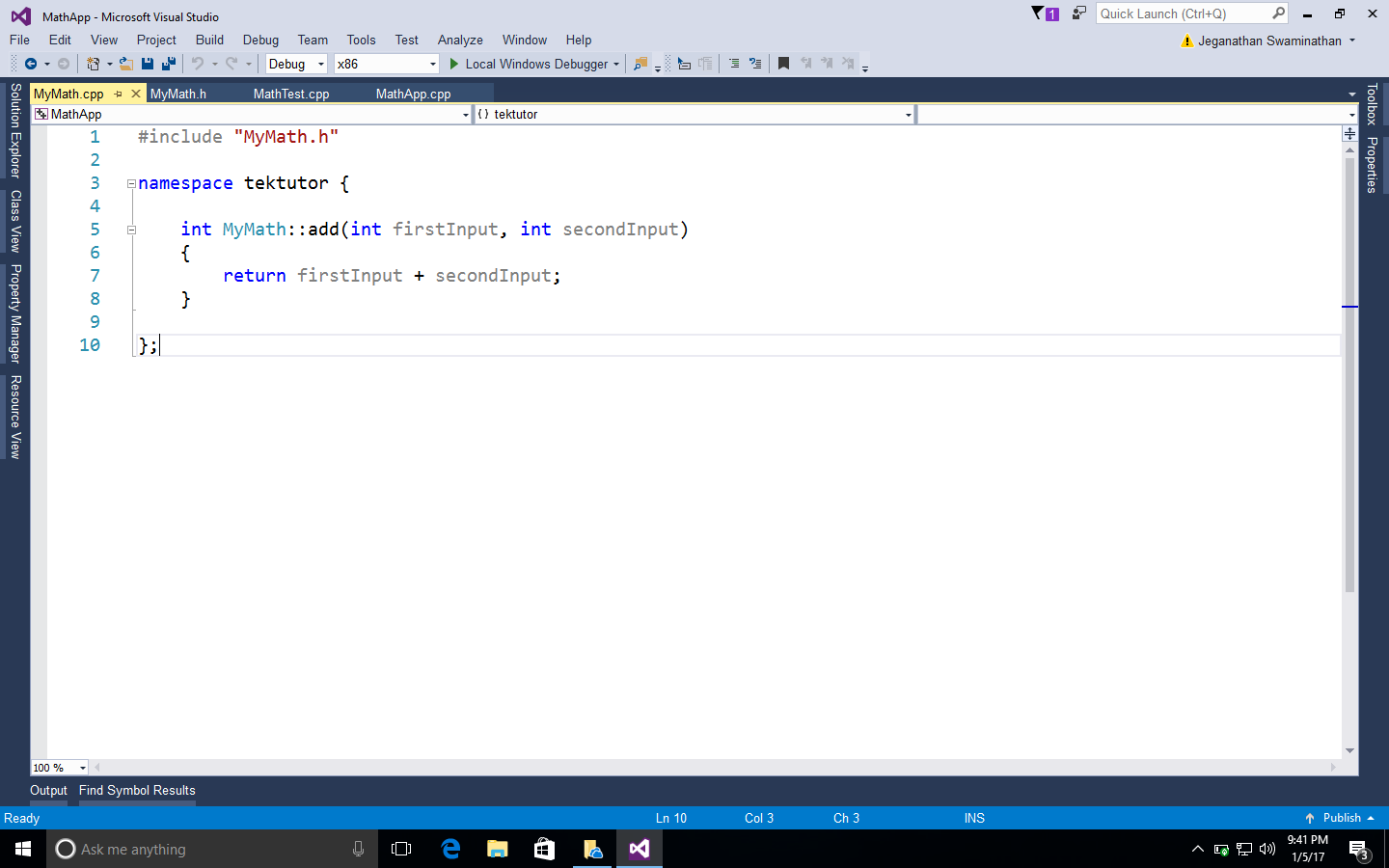
As it is a console application, it is mandatory to supply the main function, as shown in Figure 7.15:
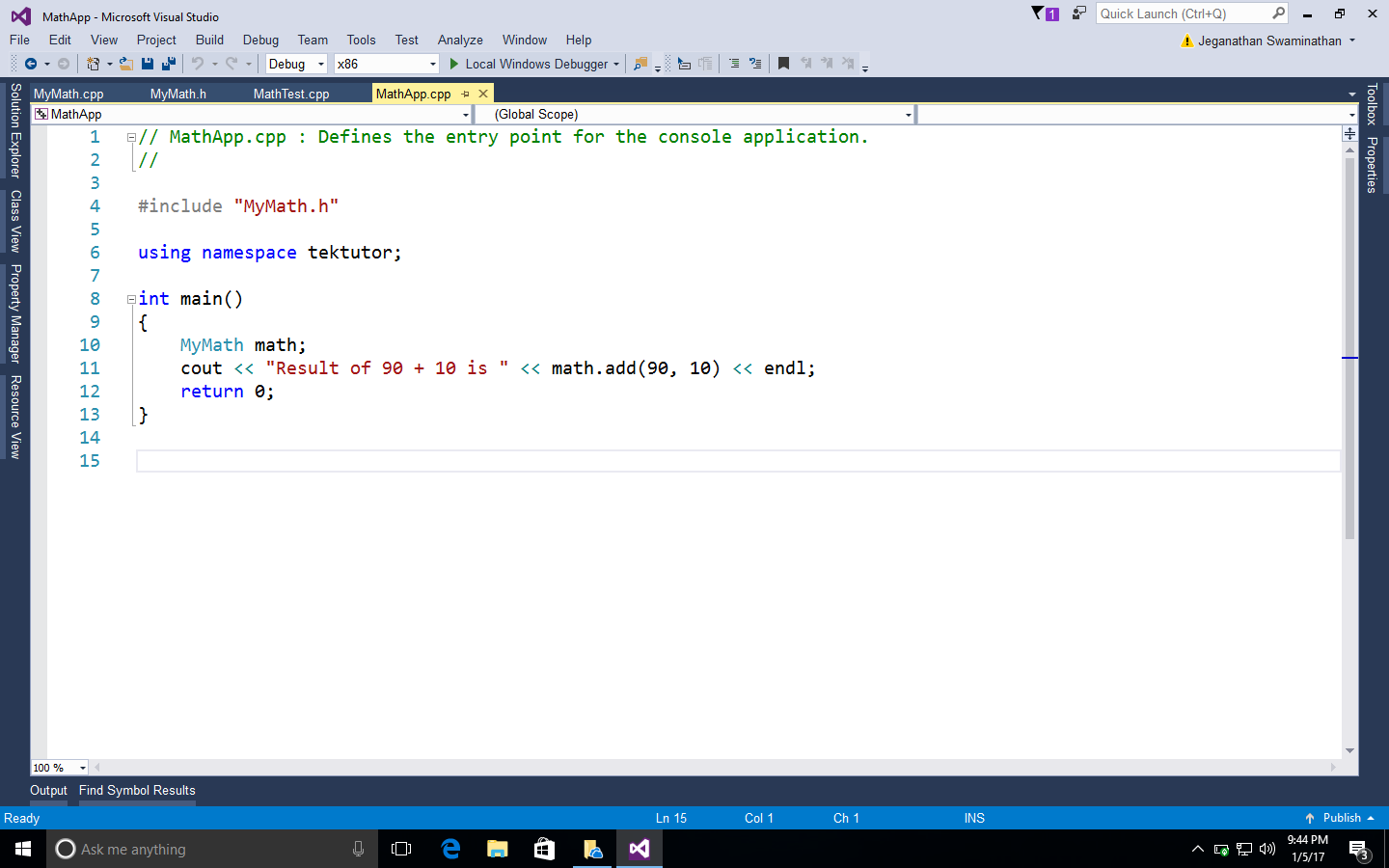
Next, we are going to add a static library project named GoogleTestLib to the same MathApp project solution, as shown in Figure 7.16:
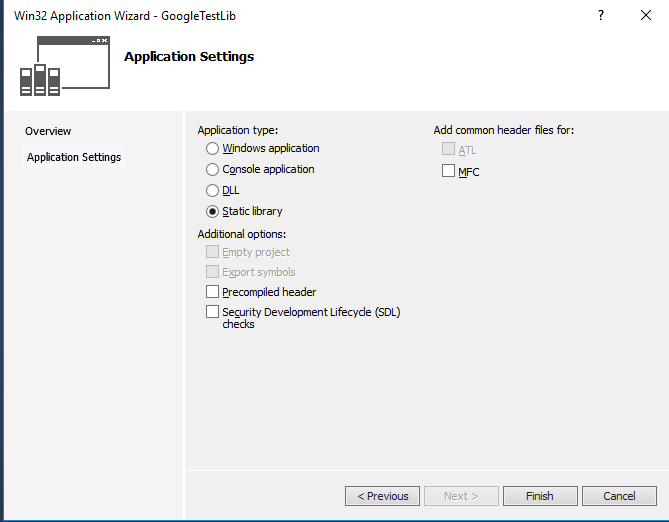
Next, we need to add the following source files from the Google test framework to our static library project:
C:Usersjegangoogletestgoogletestsrcgtest-all.cc
C:Usersjegangoogletestgooglemocksrcgmock-all.cc
C:Usersjegangoogletestgooglemocksrcgmock_main.cc
In order to compile the static library, we need to include the following header file paths in GoogleTestLib/Properties/VC++ Directories/Include directories:
C:Usersjegangoogletestgoogletest
C:Usersjegangoogletestgoogletestinclude
C:Usersjegangoogletestgooglemock
C:Usersjegangoogletestgooglemockinclude
You may have to customize the paths based on where you have copied/installed the Google test framework in your system.
Now it's time to add the MathTestApp Win32 console application to the MathApp solution. We need to make MathTestApp as a StartUp project so that we can directly execute this application. Let's ensure there are no source files in the MathTestApp project before we add a new source file named MathTest.cpp to the MathTestApp project.
We need to configure the same set of Google test framework include paths we added to the GoogleTestLib static library. In addition to this, we must also add the MathApp project directory as the test project will refer to the header file in the MathApp project, as follows. However, customize the paths as per the directory structure you follow for this project in your system:
C:Usersjegangoogletestgoogletest
C:Usersjegangoogletestgoogletestinclude
C:Usersjegangoogletestgooglemock
C:Usersjegangoogletestgooglemockinclude
C:ProjectsMasteringC++ProgrammingMathAppMathApp
In the MathAppTest project, make sure you have added references to MathApp and GoogleTestLib so that the MathAppTest project will compile the other two projects when it senses changes in them.
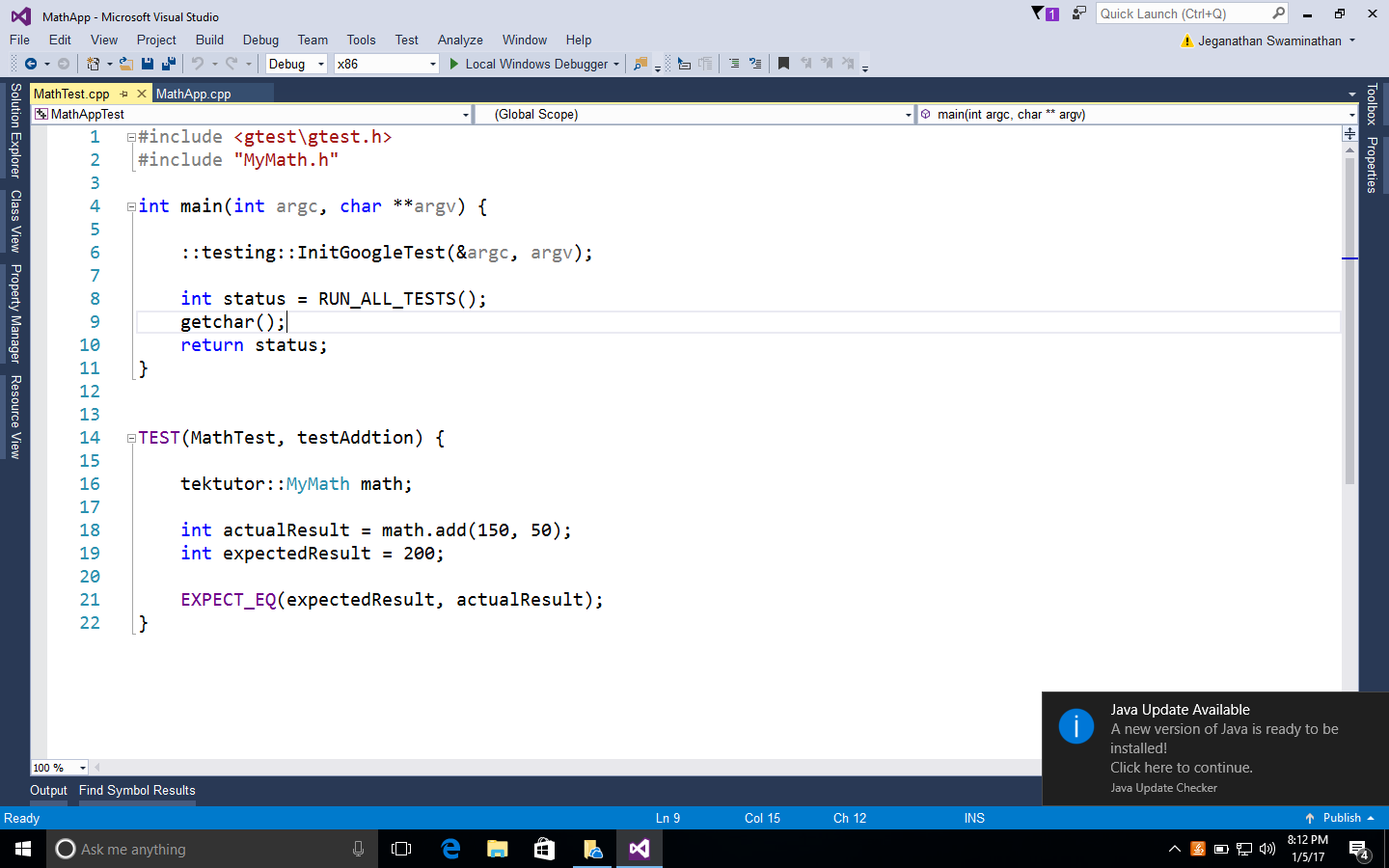
Great! We are almost done. Now let's implement MathTest.cpp, as shown in Figure 7.17:
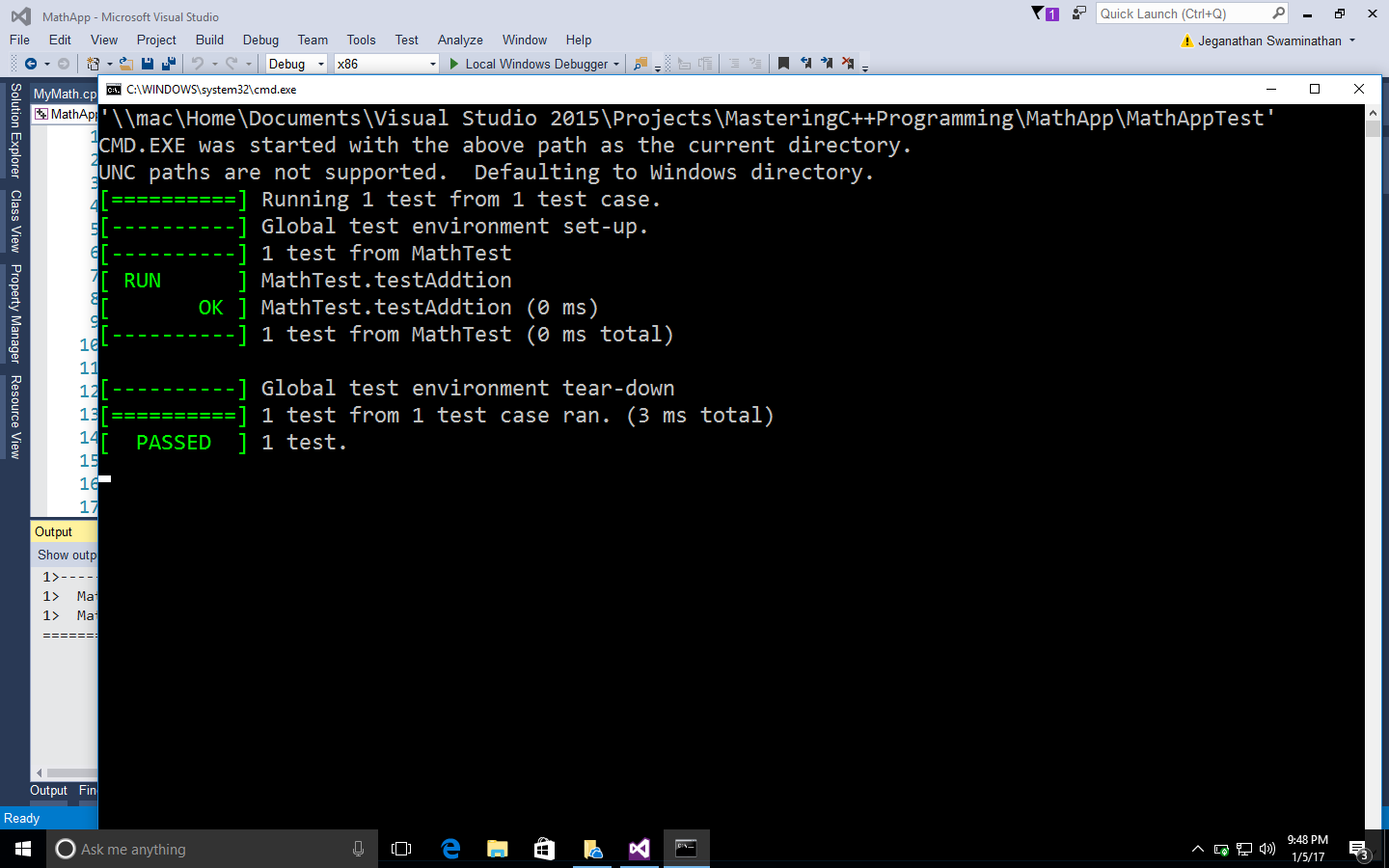
Everything is ready now; let's run the test cases and check the result: