
If you get a similar output to that shown in Figure 5.1, you are all set to get your hands dirty. Let's write our first Qt application, as shown in the following screenshot:
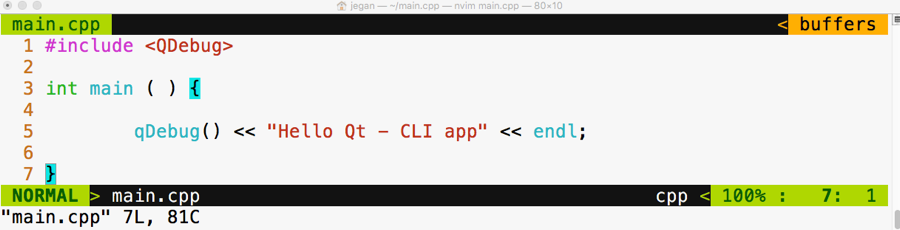
In the first line, we have included the QDebug header from the QtCore module. If you observe closely, the qDebug() function resembles the C++ cout ostream operator. The qDebug() function is going to be your good friend in the Qt world while you are debugging your code. The QDebug class has overloaded the C++ ostream operator in order to add support for Qt data types that aren't supported by the C++ compiler.
In old school fashion, I'm kind of obsessed with the Terminal to achieve pretty much anything while coding as opposed to using some fancy Integrated Development Environments (IDEs). You may either love or hate this approach, which is quite natural. The good part is there is nothing going to stand between you and Qt/C++ as you are going to use plain and simple yet powerful text editors, such as Vim, Emacs, Sublime Text, Atom, Brackets, or Neovim, so you will learn almost all the essentials of how Qt projects and qmake work; IDEs make your life easy, but they hide a lot of the essential stuff that every serious developer must know. So it's a trade-off. I leave it to you to decide whether to use your favorite plain text editor or Qt Creator IDE or any other fancy IDE. I'm going to stick with the refactored Vim editor called Neovim, which looks really cool. Figure 5.2 will give you an idea of the Neovim editor's look and feel.
Let's get back to business. Let's see how to compile this code in the command line the geeky way. Well, before that, you may want to know about the qmake tool. It is a proprietary make utility of Qt. The qmake utility is nothing more than a make tool, but it is aware of Qt-specific stuff so it knows about moc, signals, slots, and so on, which a typical make utility will be unaware of.
The following command should help you create a .pro file. The name of the .pro file will be decided by the qmake utility, based on the project folder name. The .pro file is the way the Qt Creator IDE combines related files as a single project. Since we aren't going to use Qt Creator, we will use the .pro file to create Makefile in order to compile our Qt project just like a plain C++ project.
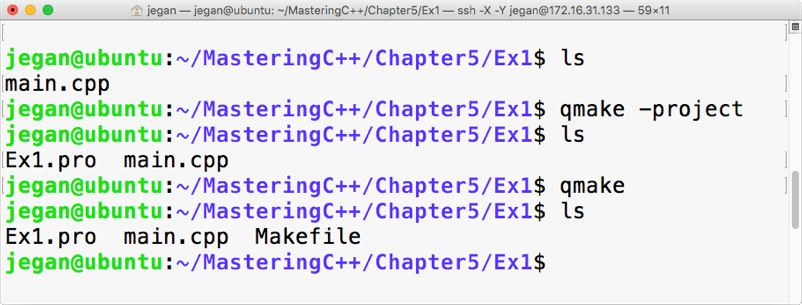
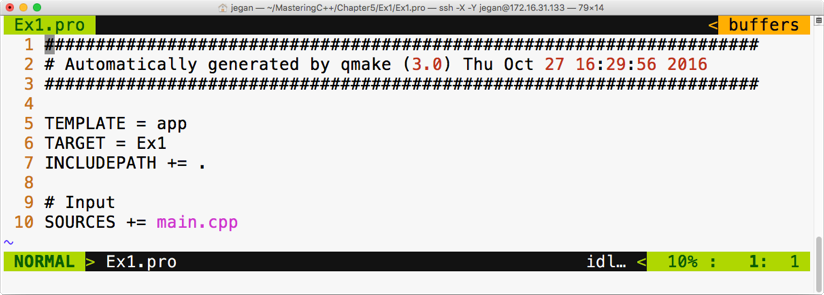
When you issue the qmake -project command, qmake will scan through the current folder and all the subfolders under the current folder and include the headers and source files in Ex1.pro. By the way, the .pro file is a plain text file that can be opened using any text editor, as shown in Figure 5.4:
Now it's time to create Makefile taking Ex1.pro as an input file. As the Ex1.pro file is present in the current directory, we don't have to explicitly supply Ex1.pro as an input file to autogenerate Makefile. The idea is that once we have a .pro file, all we would need to do is generate Makefile from the .pro file issuing command: qmake. This will do all the magic of creating a full-blown Makefile for your project that you can use to build your project with the make utility, as shown in the following screenshot:
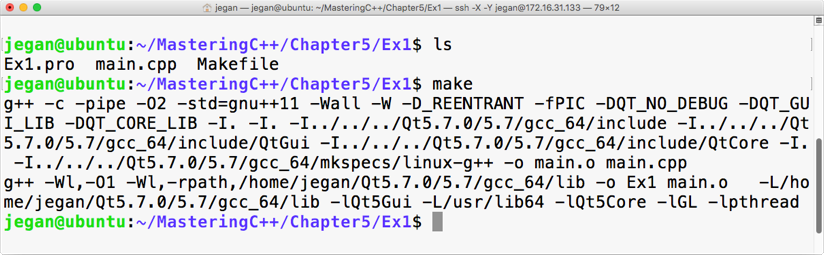
This is the point we have been waiting for, right? Yes, let's execute our first Qt Hello World program, as shown in the following screenshot:
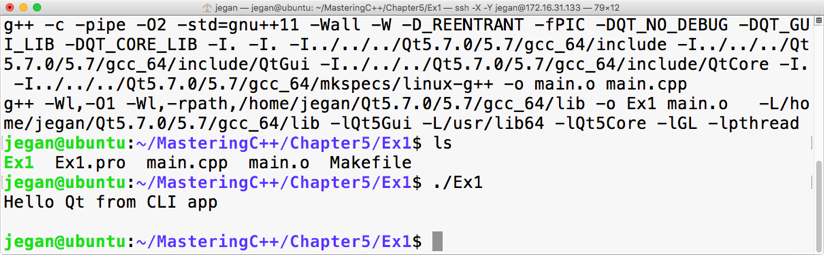
Congratulations! You have completed your first Qt application. In this exercise, you learned how to set up and configure Qt in Ubuntu and how to write a simple Qt console application and then build and run it. The best part is you learned all of this from the command line.