Table of Contents for
PHP 7: Real World Application Development
 PHP 7: Real World Application Development
Published by
Packt Publishing, 2016
PHP 7: Real World Application Development
Published by
Packt Publishing, 2016
- Cover
- Table of Contents
- PHP 7: Real World Application Development
- PHP 7: Real World Application Development
- PHP 7: Real World Application Development
- Credits
- Preface
- What you need for this learning path
- Who this learning path is for
- Reader feedback
- Customer support
- 1. Module 1
- 1. Building a Foundation
- PHP 7 installation considerations
- Using the built-in PHP web server
- Defining a test MySQL database
- Installing PHPUnit
- Implementing class autoloading
- Hoovering a website
- Building a deep web scanner
- Creating a PHP 5 to PHP 7 code converter
- 2. Using PHP 7 High Performance Features
- Understanding the abstract syntax tree
- Understanding differences in parsing
- Understanding differences in foreach() handling
- Improving performance using PHP 7 enhancements
- Iterating through a massive file
- Uploading a spreadsheet into a database
- Recursive directory iterator
- 3. Working with PHP Functions
- Developing functions
- Hinting at data types
- Using return value data typing
- Using iterators
- Writing your own iterator using generators
- 4. Working with PHP Object-Oriented Programming
- Developing classes
- Extending classes
- Using static properties and methods
- Using namespaces
- Defining visibility
- Using interfaces
- Using traits
- Implementing anonymous classes
- 5. Interacting with a Database
- Using PDO to connect to a database
- Building an OOP SQL query builder
- Handling pagination
- Defining entities to match database tables
- Tying entity classes to RDBMS queries
- Embedding secondary lookups into query results
- Implementing jQuery DataTables PHP lookups
- 6. Building Scalable Websites
- Creating a generic form element generator
- Creating an HTML radio element generator
- Creating an HTML select element generator
- Implementing a form factory
- Chaining $_POST filters
- Chaining $_POST validators
- Tying validation to a form
- 7. Accessing Web Services
- Converting between PHP and XML
- Creating a simple REST client
- Creating a simple REST server
- Creating a simple SOAP client
- Creating a simple SOAP server
- 8. Working with Date/Time and International Aspects
- Using emoticons or emoji in a view script
- Converting complex characters
- Getting the locale from browser data
- Formatting numbers by locale
- Handling currency by locale
- Formatting date/time by locale
- Creating an HTML international calendar generator
- Building a recurring events generator
- Handling translation without gettext
- 9. Developing Middleware
- Authenticating with middleware
- Using middleware to implement access control
- Improving performance using the cache
- Implementing routing
- Making inter-framework system calls
- Using middleware to cross languages
- 10. Looking at Advanced Algorithms
- Using getters and setters
- Implementing a linked list
- Building a bubble sort
- Implementing a stack
- Building a binary search class
- Implementing a search engine
- Displaying a multi-dimensional array and accumulating totals
- 11. Implementing Software Design Patterns
- Creating an array to object hydrator
- Building an object to array hydrator
- Implementing a strategy pattern
- Defining a mapper
- Implementing object-relational mapping
- Implementing the Pub/Sub design pattern
- 12. Improving Web Security
- Filtering $_POST data
- Validating $_POST data
- Safeguarding the PHP session
- Securing forms with a token
- Building a secure password generator
- Safeguarding forms with a CAPTCHA
- Encrypting/decrypting without mcrypt
- 13. Best Practices, Testing, and Debugging
- Using Traits and Interfaces
- Universal exception handler
- Universal error handler
- Writing a simple test
- Writing a test suite
- Generating fake test data
- Customizing sessions using session_start parameters
- A. Defining PSR-7 Classes
- Implementing PSR-7 value object classes
- Developing a PSR-7 Request class
- Defining a PSR-7 Response class
- 2. Module 2
- 1. Setting Up the Environment
- Setting up Debian or Ubuntu
- Setting up CentOS
- Setting up Vagrant
- Summary
- 2. New Features in PHP 7
- New operators
- Uniform variable syntax
- Miscellaneous features and changes
- Summary
- 3. Improving PHP 7 Application Performance
- HTTP server optimization
- HTTP persistent connection
- Content Delivery Network (CDN)
- CSS and JavaScript optimization
- Full page caching
- Varnish
- The infrastructure
- Summary
- 4. Improving Database Performance
- Storage engines
- The Percona Server - a fork of MySQL
- MySQL performance monitoring tools
- Percona XtraDB Cluster (PXC)
- Redis – the key-value cache store
- Memcached key-value cache store
- Summary
- 5. Debugging and Profiling
- Profiling with Xdebug
- PHP DebugBar
- Summary
- 6. Stress/Load Testing PHP Applications
- ApacheBench (ab)
- Siege
- Load testing real-world applications
- Summary
- 7. Best Practices in PHP Programming
- Test-driven development (TDD)
- Design patterns
- Service-oriented architecture (SOA)
- Being object-oriented and reusable always
- PHP frameworks
- Version control system (VCS) and Git
- Deployment and Continuous Integration (CI)
- Summary
- A. Tools to Make Life Easy
- Git – A version control system
- Grunt watch
- Summary
- B. MVC and Frameworks
- Laravel
- Lumen
- Apigility
- Summary
- 3. Module 3
- 1. Ecosystem Overview
- Summary
- 2. GoF Design Patterns
- Structural patterns
- Behavioral patterns
- Summary
- 3. SOLID Design Principles
- Open/closed principle
- Liskov substitution principle
- Interface Segregation Principle
- Dependency inversion principle
- Summary
- 4. Requirement Specification for a Modular Web Shop App
- Wireframing
- Defining a technology stack
- Summary
- 5. Symfony at a Glance
- Creating a blank project
- Using Symfony console
- Controller
- Routing
- Templates
- Forms
- Configuring Symfony
- The bundle system
- Databases and Doctrine
- Testing
- Validation
- Summary
- 6. Building the Core Module
- Dependencies
- Implementation
- Unit testing
- Functional testing
- Summary
- 7. Building the Catalog Module
- Dependencies
- Implementation
- Unit testing
- Functional testing
- Summary
- 8. Building the Customer Module
- Dependencies
- Implementation
- Unit testing
- Functional testing
- Summary
- 9. Building the Payment Module
- Dependencies
- Implementation
- Unit testing
- Functional testing
- Summary
- 10. Building the Shipment Module
- Dependencies
- Implementation
- Unit testing
- Functional testing
- Summary
- 11. Building the Sales Module
- Dependencies
- Implementation
- Unit testing
- Functional testing
- Summary
- 12. Integrating and Distributing Modules
- Understanding GitHub
- Understanding Composer
- Understanding Packagist
- Summary
- Bibliography
- Index
Every web application has CSS and JavaScript files. Nowadays, it is common that most applications have lots of CSS and JavaScript files to make the application attractive and interactive. Each CSS and JavaScript file needs a browser to send a request to the server to fetch the file. So, the more the CSS and JavaScript files you have, the more requests the browser will need to send, thus affecting its performance.
Each file has a content size, and it takes time for the browser to download it. For example, if we have 10 CSS files of 10 KB each and 10 JavaScript files of 50 KB each, the total content size of the CSS files is 100 KB, and for JavaScript it is 500 KB—600 KB for both types of files. This is too much, and the browser will take time to download them.
Note
Performance plays a vital role in web applications. Even Google counts performance in its indexing. Don't think of a file that has a few KBs and takes a 1 ms to download because when it comes to performance, each millisecond is counted. The best thing is to optimize, compress, and cache everything.
In this section, we will discuss two ways to optimize our CSS and JS, which are as follows:
- Merging
- Minifying
In the merging process, we can merge all the CSS files into a single file, and the same process is carried out with JavaScript files, thus creating a single file for CSS and JavaScript. If we have 10 files for CSS, the browser sends 10 requests for all these files. However, if we merge them in a single file, the browser will send only one request, and thus, the time taken for nine requests is saved.
In the minifying process, all the empty lines, comments, and extra spaces are removed from the CSS and JavaScript files. This way, the size of the file is reduced, and the file loads fast.
For example, let's say you have the following CSS code in a file:
.header {
  width: 1000px;
  height: auto;
  padding: 10px
}

/* move container to left */
.float-left {
  float: left;
}

/* Move container to right */
.float-right {
  float: right;
}
After minifying the file, we will have CSS code similar to the following:
.header{width:100px;height:auto;padding:10px}.float-left{float:left}.float-right{float:right}Similarly for JavaScript, let's consider that we have the following code in a JavaScript file:
/* Alert on page load */
$(document).ready(function() {
  alert("Page is loaded");
});

/* add three numbers */
function addNumbers(a, b, c) {
  return a + b + c;
}
Now, if the preceding file is minified, we will have the following code:
$(document).ready(function(){alert("Page is loaded")});function addNumbers(a,b,c){return a+b+c;}It can be noted in the preceding examples that all the unnecessary white spaces and new lines are removed. Also, it places the complete file code in one single line. All code comments are removed. This way, the file size is reduced, which helps the file be loaded fast. Also, this file will consume less bandwidth, which is useful if the server resources are limited.
Most open source applications, such as Magento, Drupal, and WordPress, provide either built-in support or support the application by third-party plugins/modules. Here, we won't cover how to merge CSS or JavaScript files in these applications, but we will discuss a few tools that can merge CSS and JavaScript files.
Minify is a set of libraries completely written in PHP. Minify supports both merging and minifying for both CSS and JavaScript files. Its code is completely object-oriented and namespaced, so it can be embedded into any current or proprietary framework.
Note
The Minify homepage is located at http://minifier.org. It is also hosted on GitHub at https://github.com/matthiasmullie/minify. It is important to note that the Minify library uses a path converter library, which is written by the same author. The path converter library can be downloaded from https://github.com/matthiasmullie/path-converter. Download this library and place it in the same folder as the minify libraries.
Now, let's create a small project that we will use to minify and merge CSS and JavaScript files. The folder structure of the project will be as in the following screenshot:
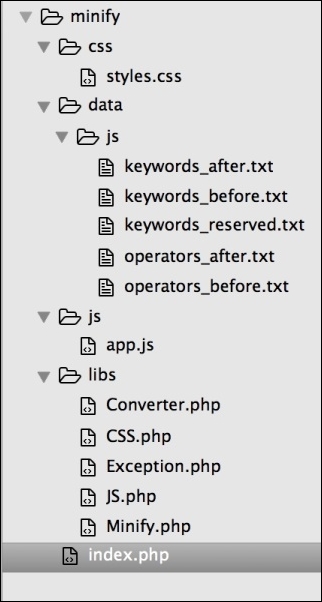
In the preceding screenshot, the complete project structure is shown. The project name is minify. The css folder has all of our CSS files, including the minified or merged ones. Similarly, the js folder has all our JavaScript files, including the minified or merged ones. The libs folder has the Minify library along with the Converter library. Index.php has our main code to minify and merge CSS and JavaScript files.
So, let's start by minifying our CSS and JavaScript files using the following code in index.php:
include('libs/Converter.php');
include('libs/Minify.php');
include('libs/CSS.php');
include('libs/JS.php');
include('libs/Exception.php');

use MatthiasMullie\Minify;

/* Minify CSS */
$cssSourcePath = 'css/styles.css';
$cssOutputPath = 'css/styles.min.css';
$cssMinifier = new Minify\CSS($cssSourcePath);
$cssMinifier->minify($cssOutputPath);

/* Minify JS */
$jsSourcePath = 'js/app.js';
$jsOutputPath = 'js/app.min.js';
$jsMinifier = new Minify\JS($jsSourcePath);
$jsMinifier->minify($jsOutputPath);
The preceding code is simple. First, we included all our required libraries. Then, in the Minify CSS block, we created two path variables: $cssSourcePath, which has the path to the CSS file that we need to minify, and $cssOutputPath, which has path to the minified CSS file that will be generated.
After this, we instantiated an object of the CSS.php class and passed the CSS file that we need to minify. Finally, we called the minify method of the CSS class and passed the output path along with the filename, which will generate the required file for us.
The same explanation goes for the JS minifying process.
If we run the preceding PHP code, all the files are in place, and everything goes fine, then two new filenames will be created: styles.min.css and app.min.js. These are the new minified versions of their original files.
Now, let's use Minify to merge multiple CSS and JavaScript files. First, add some CSS and JavaScript files to the respective folders in the project. After this, we just need to add a little code to the current code. In the following code, I will skip including all the libraries, but these files have to be loaded whenever you need to use Minify:
/* Minify CSS */
$cssSourcePath = 'css/styles.css';
$cssOutputPath = 'css/styles.min.merged.css';
$cssMinifier = new Minify\CSS($cssSourcePath);
$cssMinifier->add('css/style.css');
$cssMinifier->add('css/forms.js');
$cssMinifier->minify($cssOutputPath);

/* Minify JS */
$jsSourcePath = 'js/app.js';
$jsOutputPath = 'js/app.min.merged.js';
$jsMinifier = new Minify\JS($jsSourcePath);
$jsMinifier->add('js/checkout.js');
$jsMinifier->minify($jsOutputPath);
Now, take a look at the highlighted code. In the CSS part, we saved the minified and merged file as style.min.merged.css, but naming is not important; it is all up to our own choice.
Now, we will simply use the add method of the $cssMinifier and $jsMinifier objects to add new files and then call minify. This causes all the additional files to be merged in the initial file and then minified, thus generating a single merged and minified file.
According to its official website, Grunt is a JavaScript task runner. It automates certain repetitive tasks so that you don't have to work repeatedly. It is an awesome tool and is widely used among web programmers.
Installing Grunt is very easy. Here, we will install it on MAC OS X, and the same method is used for most Linux systems, such as Debian and Ubuntu.
If Node.js and npm are installed on your machine, just fire up the following command in your terminal:
sudo npm install –g grunt
This will install Grunt CLI. If everything goes fine, then the following command will show you the version the of Grunt CLI:
grunt –version
The output of the preceding command is grunt-cli v0.1.13; as of writing this book, this version is available.
Grunt provides you with a command-line, which enables you to run a Grunt command. A Grunt project requires two files in your project file tree. One is package.json, which is used by npm and lists Grunt and the Grunt plugins that the project needs as DevDependencies.
The second file is the GruntFile, which is stored as GruntFile.js or GruntFile.coffee and is used to configure and define Grunt tasks and load Grunt plugins.
Now, we will use the same preceding project, but our folder structure will be as follows:
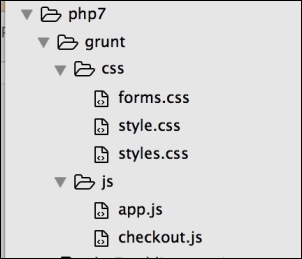
Now, open the terminal in your project root and issue the following command:
sudo npm init
This will generate the package.json file by asking a few questions. Now, open the package.json file and modify it so that the contents of the final package.json files look similar to the following:
{
  "name" : "grunt"  //Name of the project
  "version : "1.0.0" //Version of the project
  "description" : "Minify and Merge JS and CSS file",
  "main" : "index.js",
  "DevDependencies" : {
    "grunt" : "0.4.1", //Version of Grunt

    //Concat plugin version used to merge css and js files
    "grunt-contrib-concat" : "0.1.3"

    //CSS minifying plugin
    "grunt-contrib-cssmin" : "0.6.1",

    //Uglify plugin used to minify JS files.
    "grunt-contrib-uglify" : "0.2.0"

   },
"author" : "Altaf Hussain",
"license" : ""
}
I added comments to different parts of the package.json file so that it is easy to understand. Note that for the final file, we will remove the comments from this file.
It can be seen that in the DevDependencies section, we added three Grunt plugins used for different tasks.
The next step is to add GruntFile. Let's create a file called GruntFile.js in our project root similar to the package.json file. Place the following contents in GruntFile:
module.exports = function(grunt) {
   /*Load the package.json file*/
   pkg: grunt.file.readJSON('package.json'),
  /*Define Tasks*/
  grunt.initConfig({
    concat: {
      css: {
        src: [
        'css/*' //Load all files in CSS folder
],
         dest: 'dest/combined.css' //Destination of the final combined file.

      }, //End of CSS
js: {
      src: [
     'js/*' //Load all files in js folder
],
      dest: 'dest/combined.js' //Destination of the final combined file.

    }, //End of js

}, //End of concat
cssmin:  {
  css: {
    src : 'dest/combined.css',
    dest : 'dest/combined.min.css'
}
},//End of cssmin
uglify: {
  js: {
    files: {
      'dest/combined.min.js' : ['dest/combined.js'] // destination Path : [src path]
    }
  }
} //End of uglify

}); //End of initConfig

grunt.loadNpmTasks('grunt-contrib-concat');
grunt.loadNpmTasks('grunt-contrib-uglify');
grunt.loadNpmTasks('grunt-contrib-cssmin');
grunt.registerTask('default', ['concat:css', 'concat:js', 'cssmin:css', 'uglify:js']);

}; //End of module.exports
The preceding code is simple and self-explanatory, and the comments are added whenever needed. At the top, we loaded our package.json file, and after this, we defined different tasks along with their src and destination files. Remember that every task's src and destination syntax is different, and it depends on the plugin. After initConfig block, we loaded different plugins and npm tasks and then registered them with GRUNT.
Now, let's run our tasks.
First, let's combine CSS and JavaScript files and store them in their respective destinations defined in our tasks list in GruntFile via the following command:
grunt concat
After running the preceding command in your terminal, if you see a message such as Done, without errors, then the task is completed successfully.
In the same way, let's minify our css file using the following command:
grunt cssmin
Then, we will minify our JavaScript file using the following command:
grunt uglify
Now, it may seem like a lot of work to use Grunt, but it provides some other features that can make a developer's life easy. For example, what if you need to change your JavaScript and CSS files? Should you run all the preceding commands again? No, Grunt provides a watch plugin, which activates and executes all the files in the destination paths in the tasks, and if any changes occur, it runs the tasks automatically.
For a more detailed learning, take a look at Grunt's official website at http://gruntjs.com/.