Table of Contents for
Linux Essentials for Cybersecurity, First Edition
 Linux Essentials for Cybersecurity, First Edition
Published by
Pearson IT Certification, 2018
Linux Essentials for Cybersecurity, First Edition
Published by
Pearson IT Certification, 2018
- Cover Page
- Title Page
- Copyright Page
- Contents at a Glance
- Table of Contents
- About the Author
- Dedication
- Acknowledgments
- About the Technical Reviewers
- We Want to Hear from You!
- Reader Services
- Introduction
- Part I: Introducing Linux
- Chapter 1: Distributions and Key Components
- Chapter 2: Working on the Command Line
- Chapter 3: Getting Help
- Chapter 4: Editing Files
- Chapter 5: When Things Go Wrong
- Part II: User and Group Accounts
- Chapter 6: Managing Group Accounts
- Chapter 7: Managing User Accounts
- Chapter 8: Develop an Account Security Policy
- Part III: File and Data Storage
- Chapter 9: File Permissions
- Chapter 10: Manage Local Storage: Essentials
- Chapter 11: Manage Local Storage: Advanced Features
- Chapter 12: Manage Network Storage
- Chapter 13: Develop a Storage Security Policy
- Part IV: Automation
- Chapter 14: Crontab and At
- Chapter 15: Scripting
- Chapter 16: Common Automation Tasks
- Chapter 17: Develop an Automation Security Policy
- Part V: Networking
- Chapter 18: Networking Basics
- Chapter 19: Network Configuration
- Chapter 20: Network Service Configuration: Essential Services
- Chapter 21: Network Service Configuration: Web Services
- Chapter 22: Connecting to Remote Systems
- Chapter 23: Develop a Network Security Policy
- Part VI: Process and Log Administration
- Chapter 24: Process Control
- Chapter 25: System Logging
- Part VII: Software Management
- Chapter 26: Red Hat–Based Software Management
- Chapter 27: Debian-Based Software Management
- Chapter 28: System Booting
- Chapter 29: Develop a Software Management Security Policy
- Part VIII: Security Tasks
- Chapter 30: Footprinting
- Chapter 31: Firewalls
- Chapter 32: Intrusion Detection
- Chapter 33: Additional Security Tasks
- Appendix A: Answers to Review Questions
- Appendix B: Resource Guide
- Glossary
Chapter 14 Crontab and At
Nobody wants to sit at a computer for 24 hours a day, monitoring the system health and ensuring routine tasks are completed. This is where the automation tools of crontab and at come into play.
By default, any user can create a crontab entry that will result in a daemon executing a program on a routine basis. Regular users make use of this feature to perform routine operations that they would normally have to remember to perform manually. System administrators use this feature to ensure the health and security of the operating system.
However, if you want to execute a program just once in the future, the at system is a better solution. With this feature, you can schedule the execution of a command or a set of commands at one specific time in the future.
This chapter covers both of these automation tools, including how a system administrator can secure them from misuse.
After reading this chapter and completing the exercises, you will be able to do the following:
Set up user crontab tables.
Administer system crontab tables.
Configure a command to execute once in the future with the at command.
Secure the crontab and at commands by limiting which users can schedule tasks using these commands.
Using crontab
The crontab command allows a user to view or modify their crontab file. The crontab file allows a user to schedule a command to be executed on a regular basis, such as once an hour or twice a month.
Important options for the crontab command are included in Table 14-1.
Table 14-1 Important crontab Command Options
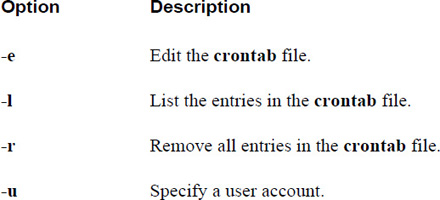
Each line of the crontab table is broken into fields, separated by one or more space characters. Table 14-2 describes these fields.
Table 14-2 Fields of the crontab Table

For example, the following crontab entry will execute the /home/bob/rpt.pl script during every weekday (Monday–Friday) every month starting at 08:30 in the morning and every half hour until 16:30 (4:30 p.m.) in the afternoon:
0,30 8-16 * 1-12 1-5 /home/bob/rpt.pl
To create a crontab entry, execute the crontab command with the -e option:
student@onecoursesource:~# crontab -e
The crontab command will place you into an editor to allow for creation or editing of crontab entries. By default, it will use the vi editor. You can modify this by changing the EDITOR variable, which was covered in the “Environment Variables” section of Chapter 2, “Working on the Command Line.”
What Could Go Wrong?
Note that if you make any syntax mistakes while adding or modifying crontab entries, the crontab command will notify you of this when you exit the editor. For example, in the following output, there was an error in the minute field of line number 1:
"/tmp/crontab.6or0Y9":1: bad minute
errors in crontab file, can't install.
Do you want to retry the same edit?
You can answer Y or N at the prompt. An answer of Y will place you back in the editor where you will need to fix your error and then exit the editor again. An answer of N will discard all changes you made to the crontab table.
Be aware, however, that if what you enter is a logical mistake, such as typing 4 for the hour instead of 16, the system will not alert you because the command syntax is valid.
When finished editing your crontab entries, just exit the editor as you normally would. For example, if you are using the vi editor, enter :wq while in the command mode.
Security Highlight
Each user has their own collection of crontab entries. These entries are stored in files that only the root user has access to. These files are typically located in the /var/spool/cron directory.
To display the current user’s crontab table, execute the crontab command with the -l option:
student@onecoursesource:~# crontab -l
0,30 8-16 * 1-12 1-5 /home/bob/rpt.pl
As an administrator, you can view or edit crontab tables of other users by using the -u option:
root@onecoursesource:~# crontab -l -u student
0,30 8-16 * 1-12 1-5 /home/bob/rpt.pl
To remove the entire crontab table, execute the crontab command with the -r option:
student@onecoursesource:~# crontab -r
Configure User Access to the cron Service
As the administrator, you can use configuration files to determine if a user can use the crontab commands. The /etc/cron.deny and /etc/cron.allow files are used to control access to the crontab command.
The format of each of these files is one username per line. Here’s an example:
[root@localhost ~]$ cat /etc/cron.deny
alias
backup
bin
daemon
ftp
games
gnats
guest
irc
lp
mail
man
nobody
operator
proxy
sync
sys
www-data
Table 14-3 describes how the /etc/cron.deny and /etc/cron.allow files work, and Figure 14-1 provides some additional information.
Table 14-3 Details Regarding How the /etc/cron.deny and /etc/cron.allow Files Work
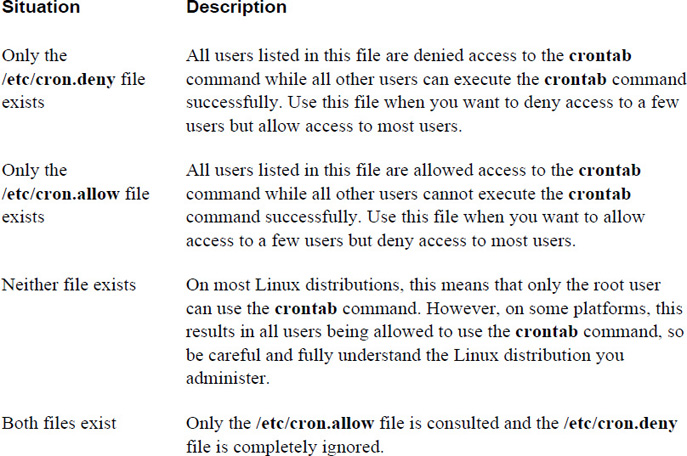
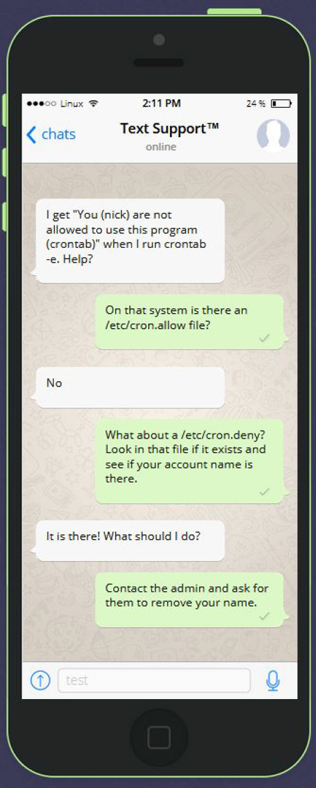
Figure 14-1 Text Support—Why Can’t I Use crontab?
Security Highlight
On systems where regular users normally work, it is better to use the /etc/cron.deny file and place all system accounts in that file. Then, if more regular users are added to the system, they have access to the crontab command without any additional work.
On systems where regular users are not supposed to work (like servers), it is better to use the /etc/cron.allow file and only include the select few accounts that should have access to the crontab command.
/etc/crontab
The /etc/crontab file acts as the system crontab. The system administrator edits this file to enable executing system-critical processes at specific intervals.
Security Highlight
The /etc/crontab file is critical not only to perform system maintenance, but also to automate security scans. Only the root user has access to modify this file, but regular users can view the contents by default on most distributions. Consider removing the read permission of the “others” permission set to avoid prying eyes from seeing what scans you are performing.
Here is a sample /etc/crontab file:
[root@localhost ~]$ more /etc/crontab
SHELL=/bin/sh
PATH=/usr/local/sbin:/usr/local/bin:/sbin:/bin:/usr/sbin:/usr/bin

# m h dom mon dow user  command
17 *    * * *   root    cd / && run-parts /etc/cron.hourly
Each configuration line describes a process to execute, when to execute it, and what username to use when executing the process. Each line is broken into fields, separated by one or more space characters. Table 14-4 describes these fields.
Table 14-4 Fields of the /etc/crontab File

Most default /etc/crontab files are designed to execute a script called run-parts. This script accepts a directory name as an argument. The script will execute all the programs (likely scripts themselves) in the specified directory.
For example, in the following /etc/crontab entry, the current directory is first changed to the / directory by the cd command, and then all the programs in the /etc/cron.hourly directory are executed:
[root@localhost ~]$ tail -n 1 /etc/crontab
17 *    * * *   root    cd / && run-parts /etc/cron.hourly
Most distributions will have /etc/crontab entries for run-parts for the following directories:
• /etc/cron.hourly: Contains programs that will be executed once per hour
• /etc/cron.daily: Contains programs that will be executed once per day
• /etc/cron.weekly: Contains programs that will be executed once per week
• /etc/cron.monthly: Contains programs that will be executed once per month
This means that if you want to execute something once per day, you do not have to create an entry in the /etc/crontab file. You could place a program in the /etc/cron.daily directory instead. This is how many developers handle tasks that need to be automated. As a result, after you install some software, you may find a new program in one or more of these directories.
Security Highlight
Keep in mind that any program placed in any of the /etc/cron.{hourly,daily,weekly,monthy} directories will be executed as the root user. Because of this elevated privilege, you should be careful with any program you place in these directories. After installing software, be sure to check these directories to check for new entries. You can also automate this task, as you will learn in Chapter 15, “Scripting.”
In addition to the entries in the /etc/crontab file, system crontab entries can be found in the /etc/cron.d directory. This makes it easier for software developers to add custom entries (as opposed to editing the /etc/crontab file directly). So, look at all the files in the /etc/cron.d directory as well as the entries in the /etc/crontab file when determining all the system cron jobs that will be executed.
Security Highlight
Become familiar with all the files and directories mentioned in this section. Be aware of what is supposed to be in these locations because hackers will often add entries in the system crontab file or the /etc/cron.{hourly,daily,weekly,monthy} directories to create backdoors into the system. This technique is used after the hacker gains root access to the system and is designed to make it easy to regain access even after their breach is discovered.
For example, if a hacker gains access to the system as the root user, then they could create a small script in the /etc/cron.daily directory that resets the root password (to something that they know). Even if they are discovered, they just need to wait until the next day because the root password will soon be set to something they know.
If you find an entry you do not recognize, go view the contents of the file that will be executed to determine whether the file is legitimate or if there is a potential security issue if the file is allowed to execute.
/etc/anacrontab
The component of the crontab system that executes commands as scheduled is the crond daemon. This is a process that runs in the background, waking up every minute and executing commands as necessary.
One issue with the system crontab (the /etc/crontab file and the files in the /etc/cron.d directory) is what happens when the system is turned off and a command is supposed to be executed. Important system commands can be skipped in situations like this. Consider the following scenario: There are several crontab entries on a user’s Linux laptop that are designed to run at night. This user routinely will shut down the laptop every day before leaving work. The next morning, the user turns on the laptop. Unfortunately, none of the aforementioned crontab entries will be executed because when the commands were supposed to be executed, the crond daemon was not running because the laptop was not turned on.
The /etc/anacrontab file is used by the anacron command to determine how to execute commands that were missed by the crond daemon while a system was shut down. A typical /etc/anscrontab file looks like the following:
[root@localhost ~]$ cat /etc/anacrontab
SHELL=/bin/sh
PATH=/sbin:/bin:/usr/sbin:/usr/bin
MAILTO=root
# the maximal random delay added to the base delay of the jobs
RANDOM_DELAY=45
# the jobs will be started during the following hours only
START_HOURS_RANGE=3-22

#period in days  delay in minutes  job-identifier   command
1         5    cron.daily     nice run-parts /etc/cron.daily
7        25    cron.weekly    nice run-parts /etc/cron.weekly
@monthly 45cron.monthly   nice run-parts /etc/cron.monthly
The lines at the bottom of this file describe what commands to run and when to run them. Each line is broken into fields, separated by one or more space characters. Table 14-5 describes these fields.
Table 14-5 Fields of the /etc/anacrontab File
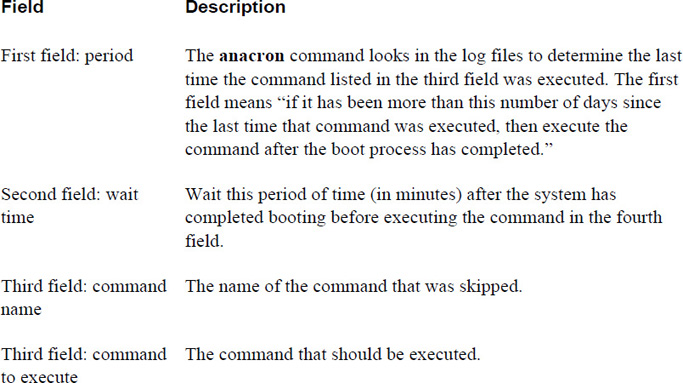
For example, the following line means “execute the nice run-parts /etc/cron.daily command 5 minutes after the system boots if it has been one day or more since the last time the cron.daily command was executed”:
1 5 cron.daily nice run-parts /etc/cron.daily
Note
On some modern Linux distributions, the anacron utility has been made obsolete because the modern crond daemon handles this function. However, if your system still uses the anacron utility, you should be aware of how it works because you should maintain this file to match the operations that the system crontab tables perform.
Using at
The at command is used to schedule one or more commands to be executed at one specific time in the future. The syntax for the command is at time, where time indicates when you want to execute a command. For example, the following will allow you to schedule a command to run at 5:00 p.m. tomorrow:
at 5pm tomorrow
at>
When provided the at> prompt, enter a command to execute at the specified time. To execute multiple commands, press the Enter key for another at> prompt.
When complete, hold down the Ctrl key and press the letter d. This results in an <EOT> message and creates the at job. Here’s an example:
[root@localhost ~]$ at 5pm tomorrow
at>/home/bob/rpt.pl
at>echo "report complete" | mail bob
at><EOT>
job 1 at Thu Feb 23 17:00:00 2017
atq
The atq command lists the current user’s at jobs:
[root@localhost ~]$ atq
1       Thu Feb 23 17:00:00 2018 a bob
The output includes a job number (1 in the previous example), the date the command will execute, and the username (bob).
atrm
To remove an at job before it is executed, run the atrm command followed by the job number to remove. For example:
[root@localhost ~]$ atq
1       Thu Feb 23 17:00:00 2018 a bob
[root@localhost ~]$ atrm 1
~/shared$ atq
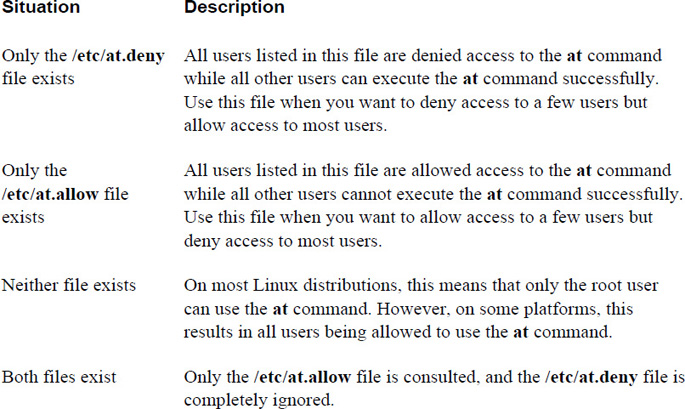
Configure User Access to at services
As the administrator, you can use configuration files to determine if a user can use the at command. The /etc/at.deny and /etc/at.allow files are used to control access to the at command. Note that this is the same method as controlling access to the crontab command, but the filenames are different.
The format of each of these files is one username per line. For example:
[root@localhost ~]$ cat /etc/at.deny
alias
backup
bin
daemon
ftp
games
gnats
guest
irc
lp
mail
man
nobody
operator
proxy
sync
sys
www-data
Table 14-6 describes how the /etc/at.deny and /etc/at.allow files work.
Table 14-6 Details Regarding How the /etc/at.deny and /etc/at.allow Files Work
Conversational Learning™ — crontab vs. at
Gary: Hi, Julia. Can you explain in which situations I would use the crontab command versus when I would use the at command?
Julia: Sure, suppose you want to run a command sometime in the future. For example, you want to see who is logged in to the system at 2 p.m. next Saturday. In that case, you could use the at command to execute the who command at that specific time.
Gary: OK, so when would I use the crontab command?
Julia: Suppose you need to execute a command on a regular basis. For example, every two weeks you need to automate the executing of the payroll batch program. In that case, you would use the crontab command.
Gary: OK, makes sense. Thank you.
Julia: No problem!
Summary
The Linux operating system offers several ways to schedule tasks such as running programs in the future. Two tools, crontab and at, were covered in this chapter. Learning to automate repetitive tasks aids in efficiency, both for you as a system administrator and for system consistency. The “Security Highlight” sidebars in this chapter help to identify areas to check, as automation may pose a security risk.
Key Terms
Review Questions
1. The _____ option to the crontab command will remove all entries in the current user’s crontab.
2. Which field of a crontab file is used to specify the day of the week?
a. 2
b. 3
c. 4
d. 5
3. Which files are used to control who can use the crontab command? (Choose two.)
a. /etc/cron.deny
b. /etc/cron.permit
c. /etc/cron.block
d. /etc/cron.allow
4. The /etc/_____ file is used by the system administrator to execute system-critical processes at specific intervals.
5. The _____ command will display the current user’s at jobs.