Table of Contents for
Linux Essentials for Cybersecurity, First Edition
 Linux Essentials for Cybersecurity, First Edition
Published by
Pearson IT Certification, 2018
Linux Essentials for Cybersecurity, First Edition
Published by
Pearson IT Certification, 2018
- Cover Page
- Title Page
- Copyright Page
- Contents at a Glance
- Table of Contents
- About the Author
- Dedication
- Acknowledgments
- About the Technical Reviewers
- We Want to Hear from You!
- Reader Services
- Introduction
- Part I: Introducing Linux
- Chapter 1: Distributions and Key Components
- Chapter 2: Working on the Command Line
- Chapter 3: Getting Help
- Chapter 4: Editing Files
- Chapter 5: When Things Go Wrong
- Part II: User and Group Accounts
- Chapter 6: Managing Group Accounts
- Chapter 7: Managing User Accounts
- Chapter 8: Develop an Account Security Policy
- Part III: File and Data Storage
- Chapter 9: File Permissions
- Chapter 10: Manage Local Storage: Essentials
- Chapter 11: Manage Local Storage: Advanced Features
- Chapter 12: Manage Network Storage
- Chapter 13: Develop a Storage Security Policy
- Part IV: Automation
- Chapter 14: Crontab and At
- Chapter 15: Scripting
- Chapter 16: Common Automation Tasks
- Chapter 17: Develop an Automation Security Policy
- Part V: Networking
- Chapter 18: Networking Basics
- Chapter 19: Network Configuration
- Chapter 20: Network Service Configuration: Essential Services
- Chapter 21: Network Service Configuration: Web Services
- Chapter 22: Connecting to Remote Systems
- Chapter 23: Develop a Network Security Policy
- Part VI: Process and Log Administration
- Chapter 24: Process Control
- Chapter 25: System Logging
- Part VII: Software Management
- Chapter 26: Red Hat–Based Software Management
- Chapter 27: Debian-Based Software Management
- Chapter 28: System Booting
- Chapter 29: Develop a Software Management Security Policy
- Part VIII: Security Tasks
- Chapter 30: Footprinting
- Chapter 31: Firewalls
- Chapter 32: Intrusion Detection
- Chapter 33: Additional Security Tasks
- Appendix A: Answers to Review Questions
- Appendix B: Resource Guide
- Glossary
Chapter 3 Getting Help
Because you are likely just beginning to learn Linux, the operating system will seem huge. Thousands of commands and hundreds of features are at your disposal… if you know how to use them. In fact, learning how to operate in Linux is going to put a tax on the grey matter between your ears. Fortunately, you don’t need to memorize everything.
Linux comes with a great help system. Almost every command, feature, configuration file, and service has enough documentation to help you when your brain refuses to recall that important option, setting, or value. In this chapter, you learn how to make use of this documentation.
After reading this chapter and completing the exercises, you will be able to do the following:
Discover information about commands by using specific command-line options.
Get help about a command, feature, or configuration file by using man or info pages
Use additional documentation on the system to solve problems.
Man Pages
To discover additional information about a command or configuration file, you can use the man (short for manual) page. For example, to learn more about the ls command, execute man ls.
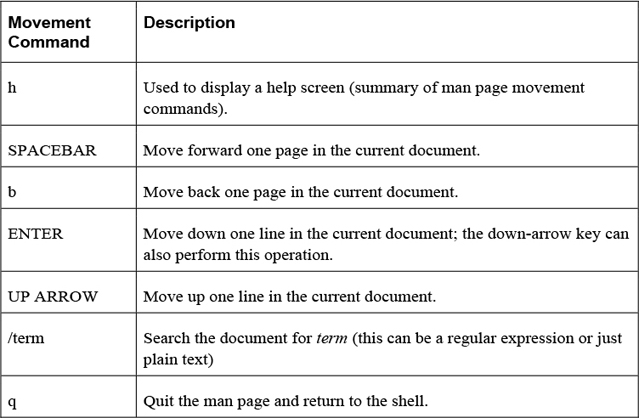
You can use the keyboard keys to navigate when viewing the content on a man page. Table 3-1 highlights the more useful movement commands.
Man Page Components
Each man page is broken into many different components. See Figure 3-1 for a demonstration of some of the components of the man page for the ls command.
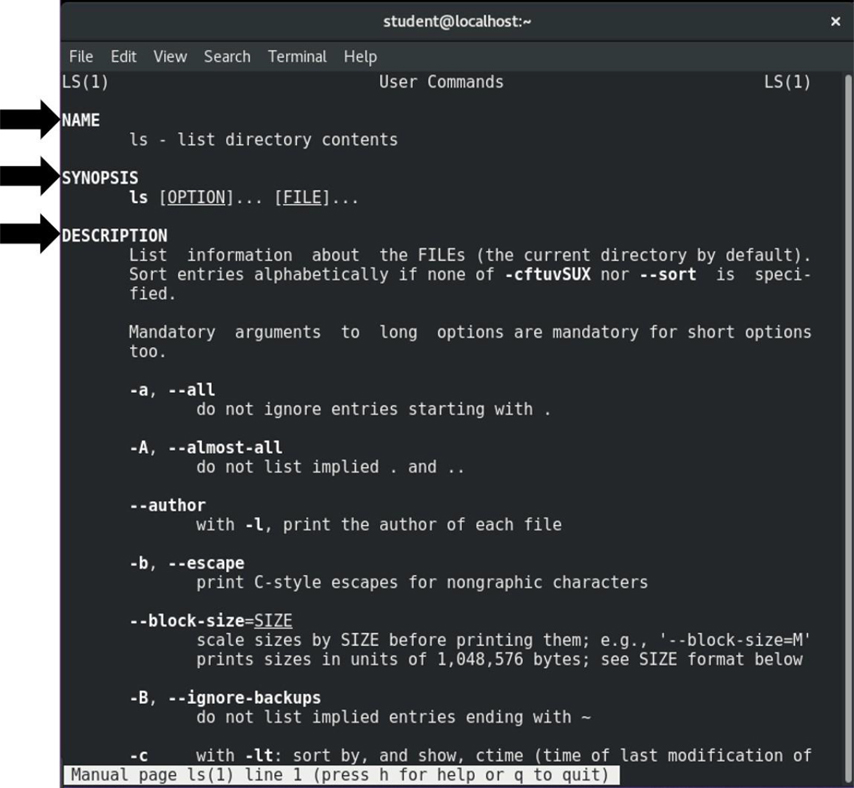
Figure 3-1 Components of the ls Command Man Page
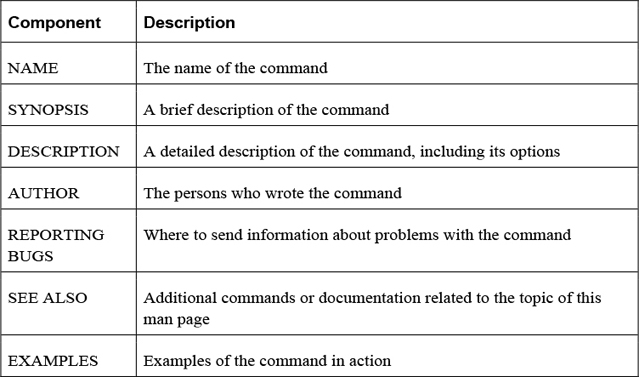
Table 3-2 describes the most common components.
Table 3-2 Common Components of ls Command
Man Page Sections
Because of the large number of man pages (remember, there are thousands of commands, utilities, and configuration files), they are broken into categories called “sections.” In some cases, the section will need to be included as an argument. For example, man passwd (the man page for the passwd command) will produce a different document than man 5 passwd (the man page for the /etc/passwd file).
When you view a man page, the section is indicated in parentheses in the upper-left corner of the screen, as shown in Figure 3-2.
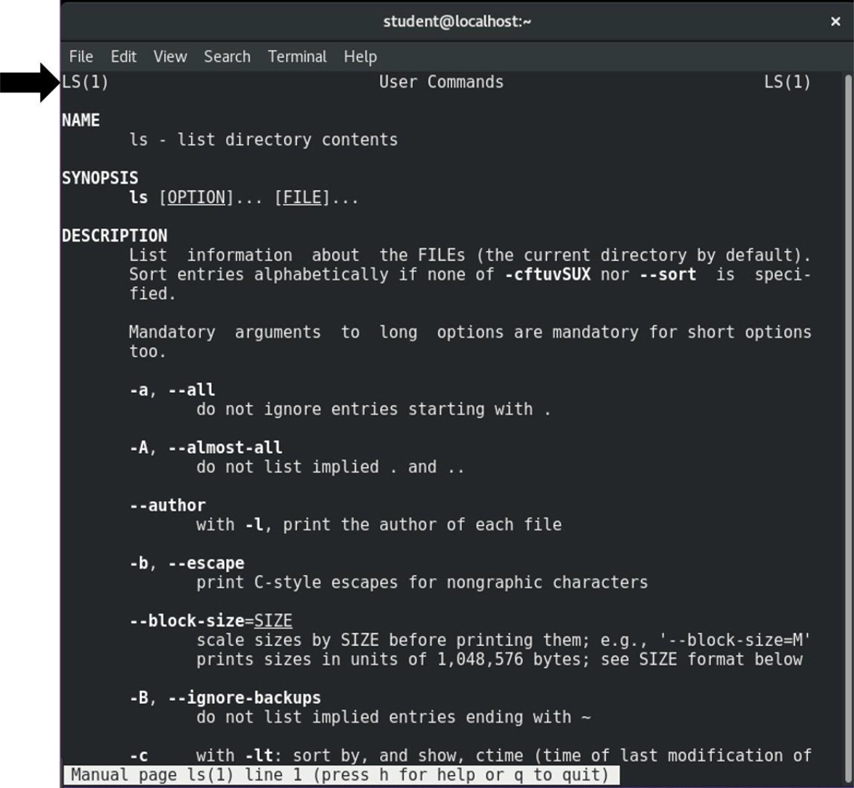
Figure 3-2 Man Page Section for the ls Command
The primary sections are detailed in Table 3-3.
Table 3-3 Primary Section for the ls Command
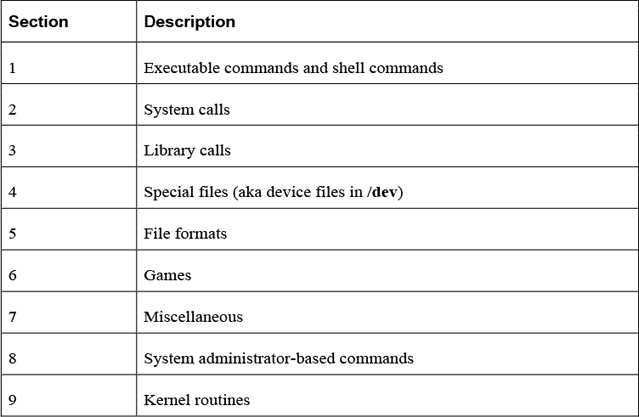
You may wonder how you are supposed to know the specific man page sections. You can see this information by using the man -f command:
[student@onecoursesource.com ~]$ man -f passwd
passwd (1)                - change user password
passwd (1ssl)             - compute password hashes
passwd (5)           - the password file
Note
The man -f command is the same as the whatis command:
[student@onecoursesource.com ~]$ whatis passwd
passwd (1)                - change user password
passwd (1ssl)             - compute password hashes
passwd (5)           - the password file
The man -f command will list all the sections in a command or configuration file for any existing man page. If you do not know the exact name of the command or configuration file, you can use the -k option to the man command and have it search for a “keyword,” as shown in Example 3-1.
Example 3-1 The man -k Command
student@onecoursesource.com:~$ man -k password | head -n 5
chage (1)            - change user password expiry information
chgpasswd (8)        - update group passwords in batch mode
chpasswd (8)         - update passwords in batch mode
cpgr (8)             - copy with locking the given file to the password ...
cppw (8)             - copy with locking the given file to the password ...
Note
The man -k command is the same as the apropos command.
In some cases you might not get a response back when you use the man -f or man -k command. For example, you might get something like the following:
[student@onecoursesource.com ~]$ man -k passwd
passwd: nothing appropriate.
This could be because the database that holds a list of man pages and descriptions has not been built or updated. To build this database, run the mandb command as the root user, as shown in Example 3-2.
root@onecoursesource.com:~# mandb
Purging old database entries in /usr/share/man...
Processing manual pages under /usr/share/man...
…
Processing manual pages under /usr/share/man/pt_BR...
Processing manual pages under /usr/local/man...
0 man subdirectories contained newer manual pages.
456 manual pages were added.
0 stray cats were added.
7 old database entries were purged.
Man Page Locations
In some cases, a man command might not be in a standard location. This may happen when you install third-party software and the software developer chooses to place man pages in a location where they are not typically installed.
In these situations, you should specify an alternate location for the man page. To specify an alternate man page location, you can use the -M option:
[student@onecoursesource.com ~]$ man -M /opt/man testcmd
Alternatively, you can create a MANPATH variable:
[student@ onecoursesource.com ~]$ MANPATH=/opt/man
[student@ onecoursesource.com ~]$ man testcmd
Note
The previous examples are purely for demonstration and will not function on your system unless you have a man page for testcmd in the /opt/man directory.
Command Help Options
Some commands support an option that provides some basic help features. In most cases, help is displayed by using the --help option, as shown in Example 3-3.
Example 3-3 The First Few Lines of the Output of the date --help Command
student@onecoursesource.com:~$ date --help | head -n 3
Usage: date [OPTION]... [+FORMAT]
  or:  date [-u|--utc|--universal] [MMDDhhmm[[CC]YY][.ss]]
Display the current time in the given FORMAT, or set the system date.
This output is useful to remind yourself of options and features of the command without having to read through the entire man page for the command.
Note
A few commands use -h instead of --help to display basic help features.
The help Command
The help command provides information only for built-in shell commands, as these commands don’t have separate man pages. For example, you might expect that the cd command has a man page because it is a valid command, but because it is a built-in shell command, there is no man page for it, as shown here:
student@localhost:~$ man cd
No manual entry for cd
There is a help page for the cd command that can be viewed by running the command help cd.
Helpful hint: Do not try to memorize which commands are built-in shell commands. If you get a “No manual entry…” error when trying to view a man page, just try to use the help command instead. Alternatively, you can get a list of all the built-in commands by running the help -s command, as shown in Example 3-4.
Example 3-4 The Last Ten Lines of the Output of the help -s Command
student@onecoursesource.com:~$ help -s | tail
export [-fn] [name[=va>  typeset [-aAfFgilrtux>
 false                    ulimit [-SHabcdefilmn>
 fc [-e ename] [-lnr] [>  umask [-p] [-S] [mode>
 fg [job_spec]            unalias [-a] name [na>
 for NAME [in WORDS ...>  unset [-f] [-v] [-n] >
 for (( exp1; exp2; exp>  until COMMANDS; do CO>
 function name { COMMAN>  variables - Names and>
 getopts optstring name>  wait [-n] [id ...]
 hash [-lr] [-p pathnam>  while COMMANDS; do CO>
 help [-dms] [pattern .>  { COMMANDS ; }
The info Command
Almost every command and configuration file has a man page because this is the technique for documenting these features. Somewhat new are info pages. Whereas each man page is simply a single text document, info pages are more like reading content from a website that has hyperlinks to provide more structure.
For example, type the command info ls and use the arrow keys to move down to the “* Menu:” section. You will see a “table of contents” that looks like Figure 3-3.
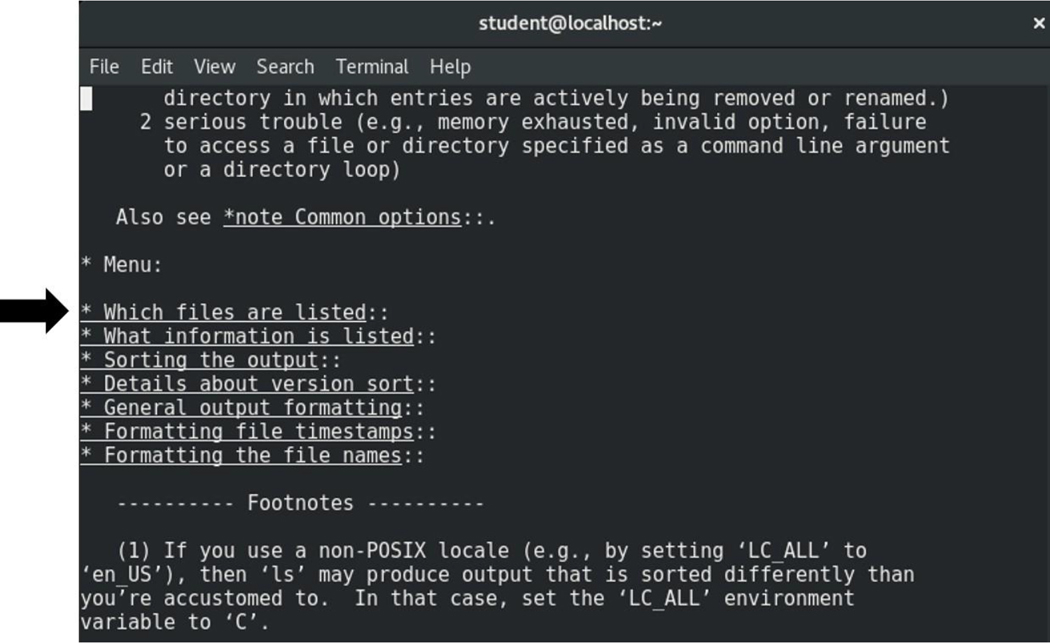
Figure 3-3 Hyperlinks in the ls Info Page
If you move your cursor to the “* Sorting the output::” line and then press the Enter key, you will be moved to a document that describes how you can sort the output of the ls command. You have moved into a sub-node (“10.1.3 Sorting the output”, for example). To move back to the higher-level node, press the u key (u for up).
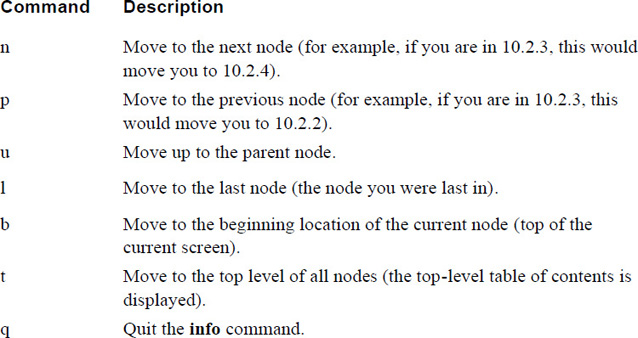
The Table 3-4 describes additional movement commands for the info command.
Table 3-4 Movement Commands for the info Command
You may be wondering why there are both info and man pages and which one you should use. The following are some answers to these questions:
• Man pages have been around for a very long time (since the early days of Unix in the early 1970s). Although they might not be as easy to read, they offer a standard way for developers to provide documentation.
• Info pages are more user friendly, but also require more work for developers to create.
• Often a command will have a man page but not an info page. In these cases, the info command will display the man page.
• Info pages often read more like a tutorial; man pages read more like documentation.
• Man pages have the advantage in that they are easier to print than info pages.
• Overall, having both provides flexibility. Use the method that you like best.
The /usr/share/doc Directory
Additional documentation may also be provided in the /usr/share/doc directory. Which documentation is available in this directory depends on what software has been installed. Example 3-5 provides some typical output.
Example 3-5 Typical Contents of the /usr/share/doc Directory
student@onecoursesource.com:~$ ls /usr/share/doc
aufs-tools        libstdc++-5-dev
cgroupfs-mount    libxml2
gcc-5-base        libxml2-dev
icu-devtools      libxslt1.1
libexpat1-dev     libxslt1-dev
libffi6           linux-headers-4.4.0-51
libffi-dev        linux-headers-4.4.0-51-generic
libicu55          lxc-docker-1.9.1
libicu-dev        python-apt
libpython2.7      unzip
libpython2.7-dev  zip
libpython-dev
The contents of the /usr/share/doc directory are a collection of subdirectories that provide additional documentation for specific software packages. For example, Example 3-5 includes a subdirectory named zip. This directory contains documentation about the zip software package, as shown here:
student@onecoursesource.com$ ls /usr/share/doc/zip
changelog.Debian.gz  copyright  WHATSNEW
changelog.gz     TODO
There are no predefined requirements for the contents of these documentation subdirectories; the software vendor decides what content is added. Most commonly you will find copyright notifications, a changelog (changes made to the software over time), a README file that describes the software package, and other useful information.
Internet Resources
One great source of information is the website of the distribution you are using. All the major distributions provide additional documentation in the form of guides. For example, Figure 3-4 demonstrates a few of the guides provided on the website for Red Hat Enterprise Linux (https://access.redhat.com/documentation/en-us/red_hat_enterprise_linux).
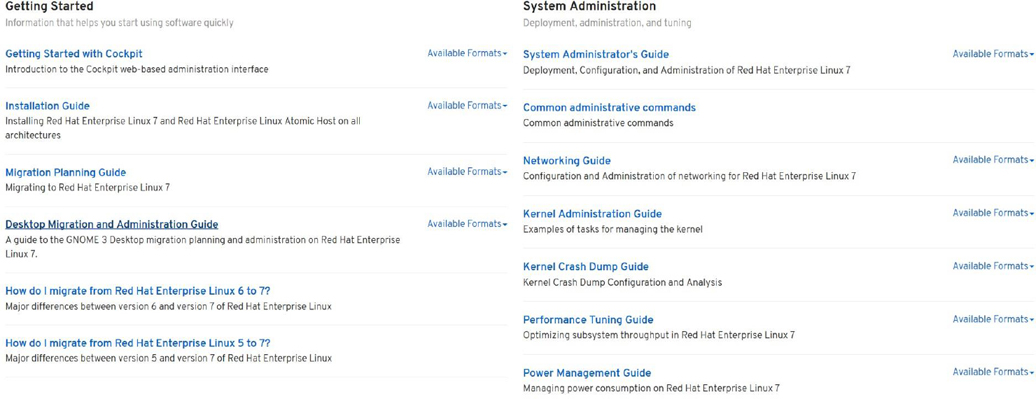
Figure 3-4 Documentation Available for Red Hat Enterprise Linux
In addition to the documentation provided by the distributions, you should also consider that Linux includes many open source projects. Each of these projects typically has some documentation that might provide you with additional information or user guides.
For example, in Chapter 2, “Working on the Command Line,” the gzip utility was introduced. This utility is one of many projects from the GNUSoftware Foundation. It has an excellent user guide available on the site https://www.gnu.org/software/gzip/manual/gzip.html.
Because there are so many of these projects, it is not feasible to provide a complete list of all the documentation pages. Typically, the man or info page for the corresponding command will provide a URL, but you can also find these websites with a simple Internet search.
There are also many websites devoted to additional Linux documentation, blogs, news and forums. There are too many to list in this book, but a few of the more useful ones are provided in the following list:
• The Linux Documentation Project: http://www.tldp.org/. Note that some content on this site is outdated, but the Advanced Bash Shell Scripting guide is a diamond in the rough.
• Linux Today: www.linuxtoday.com.
• Linux Forums: http://www.linuxforums.org.
Security Highlight
The authors do not want to discount the value of an Internet or “Google” search. However, the assumption is that you already possess the skill of searching the Internet. One caveat, which you likely already know: not everything you find on the Internet is accurate, so always try to find multiple sources of information when using the Internet as a source. Using bad information can pose a security risk in addition to frustrating you.
Conversational Learning™ — Where Should I Start?
Gary: Hi, Julia. I’m a bit overwhelmed. Can you give me some advice?
Julia: Of course, Gary. Always happy to help.
Gary: I just learned about all these great places to find useful information about Linux, but now I have no idea in what order I should start searching!
Julia: Ah, yes, information overload… or information sources in this case.
Gary: And I thought options were always a good thing!
Julia: Ha, not always. OK, so suppose you already know a command and you just can’t remember how an option works. I’d suggest running the command with the --help option or maybe looking at the man page for the command.
Gary: Sounds like a good idea.
Julia: If you don’t know anything about the command, then the info page might be better because it is easier to read.
Gary: Got it.
Julia: If there is a feature that seems specific to a distribution, I would go seek information on the documentation website for that feature.
Gary: OK, any other suggestions?
Julia: When all else fails, forums are a great place to ask questions. And, of course, you can always ask me!
Gary: Thanks, Julia!
Summary
Knowing where to turn for help is important when dealing with a massive operating system like Linux. In this chapter, you learned how to use command options to see helpful information about a specific command. You also learned how to use man pages and info pages to see detailed information about how commands and configuration files work. You also learned how to find additional documentation in the /usr/share/doc directory.
Key terms
Review Questions
1. The _____ character can be used while viewing a man page in order to search for a term in the document.
2. Which man page section is for file formats?
a. 1
b. 3
c. 5
d. 7
3. Which the following will display a list of man pages that match a keyword?
a. man -keyword
b. man -k
c. whereis
d. whatis
4. The _____ command will provide information about built-in shell commands.
5. The _____ key will move you to the previous node while viewing an info page.