Table of Contents for
Linux Shell Scripting Bootcamp
 Linux Shell Scripting Bootcamp
Published by
Packt Publishing, 2017
Linux Shell Scripting Bootcamp
Published by
Packt Publishing, 2017
- Cover
- Table of Contents
- Linux Shell Scripting Bootcamp
- Linux Shell Scripting Bootcamp
- Credits
- About the Author
- Acknowledgement
- About the Reviewer
- www.PacktPub.com
- Customer Feedback
- Preface
- What you need for this book
- Who this book is for
- Conventions
- Reader feedback
- Customer support
- 1. Getting Started with Shell Scripting
- Demonstrating the use of scripts
- Summary
- 2. Working with Variables
- Validating parameters using conditional statements
- Comparison operators for strings
- Environment variables
- Summary
- 3. Using Loops and the sleep Command
- Screen manipulation
- Indenting your code
- Using the for statement
- Leaving a loop early
- The sleep command
- Watching a process
- Creating numbered backup files
- Summary
- 4. Creating and Calling Subroutines
- File redirection
- Command piping
- Subroutines
- Using parameters
- Making a current backup of your work
- Summary
- 5. Creating Interactive Scripts
- Summary
- 6. Automating Tasks with Scripts
- Summary
- 7. Working with Files
- Reading files
- Reading and writing files
- Reading and writing files interactively
- File checksums
- File encryption
- Summary
- 8. Working with wget and curl
- wget and recursion
- wget options
- curl
- Summary
- 9. Debugging Scripts
- Automatic backups
- More syntax errors
- Logic errors
- Using set to debug scripts
- Summary
- 10. Scripting Best Practices
- ssh and scp
- Find and use a good text editor
- Environment variables and aliases
- ssh prompt
- Testing an archive
- Progress indicator
- Creating new commands from a template
- Alerting the user
- Summary
- Index
Normally the defaults used by wget are good enough for most users, however, you may need to tweak things from time to time to get it to work the way you want it to.
Here is a partial list of some of the wget options:
|
wget option |
Explanation |
|---|---|
|
|
Output messages to a |
|
|
Try number times before giving up on the connection. |
|
|
Continue to download a partially downloaded file from a previous |
|
|
Display the headers sent by the server. |
|
|
The quota, or total amount of bytes that will be downloaded. Number can be in bytes, kilobytes (k), or megabytes (m). Set to 0 or inf for no quota. |
|
|
This specifies the maximum recursion level. The default is 5. |
|
|
This is good for when trying to create a mirror of a site. It is equivalent to using the |
Another thing you may try is to turn on debugging with the -d option. Note that this will only work if your version of wget was compiled with debug support. Let's see what happens when I try it on my system:
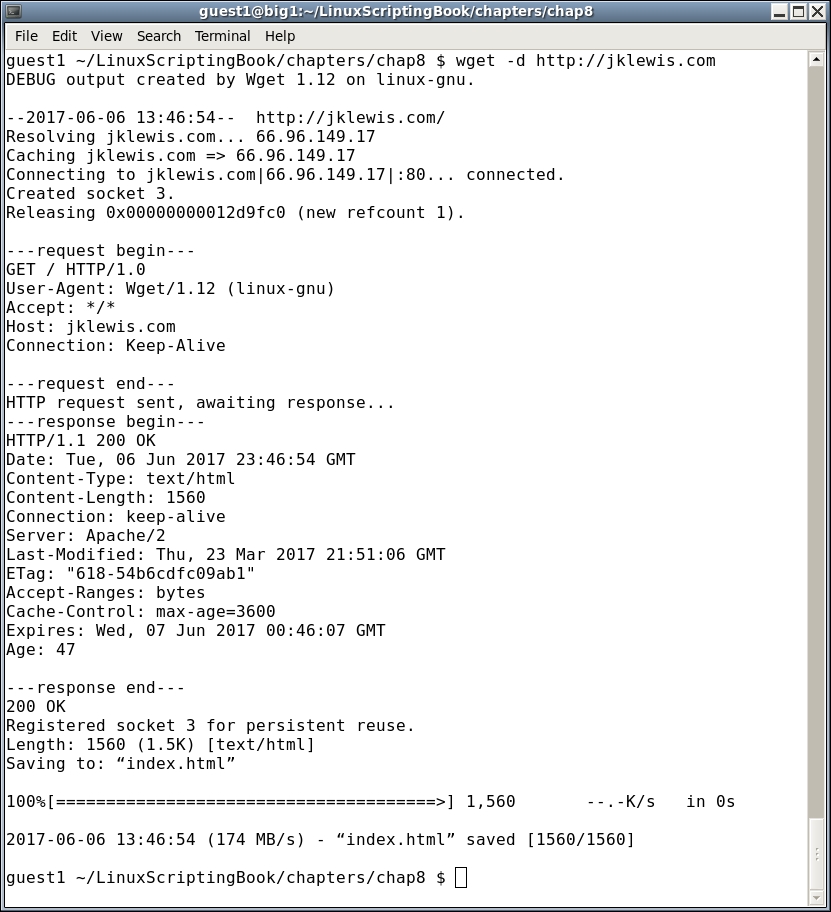
I wasn't sure if debugging was turned on or not, now I know. This output might not be very useful unless you are a developer, however, if you ever need to send in a bug report on wget they are going to ask for the debug output.
As you can see, wget is a very powerful program with several options.