Table of Contents for
Linux Shell Scripting Bootcamp
 Linux Shell Scripting Bootcamp
Published by
Packt Publishing, 2017
Linux Shell Scripting Bootcamp
Published by
Packt Publishing, 2017
- Cover
- Table of Contents
- Linux Shell Scripting Bootcamp
- Linux Shell Scripting Bootcamp
- Credits
- About the Author
- Acknowledgement
- About the Reviewer
- www.PacktPub.com
- Customer Feedback
- Preface
- What you need for this book
- Who this book is for
- Conventions
- Reader feedback
- Customer support
- 1. Getting Started with Shell Scripting
- Demonstrating the use of scripts
- Summary
- 2. Working with Variables
- Validating parameters using conditional statements
- Comparison operators for strings
- Environment variables
- Summary
- 3. Using Loops and the sleep Command
- Screen manipulation
- Indenting your code
- Using the for statement
- Leaving a loop early
- The sleep command
- Watching a process
- Creating numbered backup files
- Summary
- 4. Creating and Calling Subroutines
- File redirection
- Command piping
- Subroutines
- Using parameters
- Making a current backup of your work
- Summary
- 5. Creating Interactive Scripts
- Summary
- 6. Automating Tasks with Scripts
- Summary
- 7. Working with Files
- Reading files
- Reading and writing files
- Reading and writing files interactively
- File checksums
- File encryption
- Summary
- 8. Working with wget and curl
- wget and recursion
- wget options
- curl
- Summary
- 9. Debugging Scripts
- Automatic backups
- More syntax errors
- Logic errors
- Using set to debug scripts
- Summary
- 10. Scripting Best Practices
- ssh and scp
- Find and use a good text editor
- Environment variables and aliases
- ssh prompt
- Testing an archive
- Progress indicator
- Creating new commands from a template
- Alerting the user
- Summary
- Index
This next script is similar to one in Chapter 5, Creating Interactive Scripts. It reads the file specified, displays a form, and allows the user to edit and then save it:
#!/bin/sh
# 6/2/2017
# Chapter 7 - Script 6

trap catchCtrlC INT          # Initialize the trap

# Subroutines
catchCtrlC()
{
 move 13 0
 savefile
 movestr 23 0 "Script terminated by user."
 echo ""                     # carriage return
 exit 0
}

cls()
{
 tput clear
}

move()                       # move cursor to row, col
{
 tput cup $1 $2
}

movestr()                    # move cursor to row, col
{
 tput cup $1 $2
 echo -n "$3"                # display string
}

checktermsize()
{
 rc1=0                       # default is no error
 if [[ $LINES -lt $1 || $COLUMNS -lt $2 ]] ; then
  rc1=1                      # set return code
 fi
 return $rc1
}

init()                       # set up the cursor position array
{
 srow[0]=2;  scol[0]=7       # name
 srow[1]=4;  scol[1]=12      # address 1
 srow[2]=6;  scol[2]=12      # address 2
 srow[3]=8;  scol[3]=7       # city
 srow[4]=8;  scol[4]=37      # state
 srow[5]=8;  scol[5]=52      # zip code
 srow[6]=10; scol[6]=8       # email
}

drawscreen()                 # main screen draw routine
{
 cls                         # clear the screen
 movestr 0 25 "Chapter 7 - Script 6"

 movestr 2 1  "Name: ${array[0]}"
 movestr 4 1  "Address 1: ${array[1]}"
 movestr 6 1  "Address 2: ${array[2]}"
 movestr 8 1  "City: ${array[3]}"
 movestr 8 30 "State: ${array[4]}"
 movestr 8 42 "Zip code: ${array[5]}"
 movestr 10 1 "Email: ${array[6]}"
}

getdata()
{
 x=0                         # start at the first field
 while [ true ]
 do
  row=${srow[x]}; col=${scol[x]}
  move $row $col
  read var
  if [ -n "$var" ] ; then    # if not blank assign to array
    array[$x]=$var
  fi
  let x++
  if [ $x -eq $sizeofarray ] ; then
   x=0                       # go back to first field
  fi
 done

 return 0
}

savefile()
{
 rm $FN 2> /dev/null         # remove any existing file
 echo "Writing file $FN ..."
 y=0
 while [ $y -lt $sizeofarray ]
 do
  echo "$y - '${array[$y]}'"            # display to screen
  echo "${array[$y]}" >> "$FN"          # write to file
  let y++
 done
 echo "File written."
 return 0
}

getfile()
{
 x=0
 if [ -n "$FN" ] ; then      # check that file exists
  while IFS= read -r linevar # use read to put line into linevar
  do
   array[$x]="$linevar"
   let x++
  done < $FN                 # the file to use as input
 fi
 return 0
}

# Code starts here
if [ $# -ne 1 ] ; then
 echo "Usage: script6 file"
 echo " Reads existing file or creates a new file"
 echo " and allows user to enter data into fields."
 echo " Press Ctrl-C to end."
 exit 255
fi

FN=$1                        # filename (input and output)
sizeofarray=7                # number of array elements
checktermsize 25 80
rc=$?
if [ $rc -ne 0 ] ; then
 echo "Please size the terminal to 25x80 and try again."
 exit 1
fi

init                         # initialize the screen array
getfile                      # read in file if it exists
drawscreen                   # draw the screen
getdata                      # read in the data and put into the fields

exit 0
Here is what this looks like on my system:
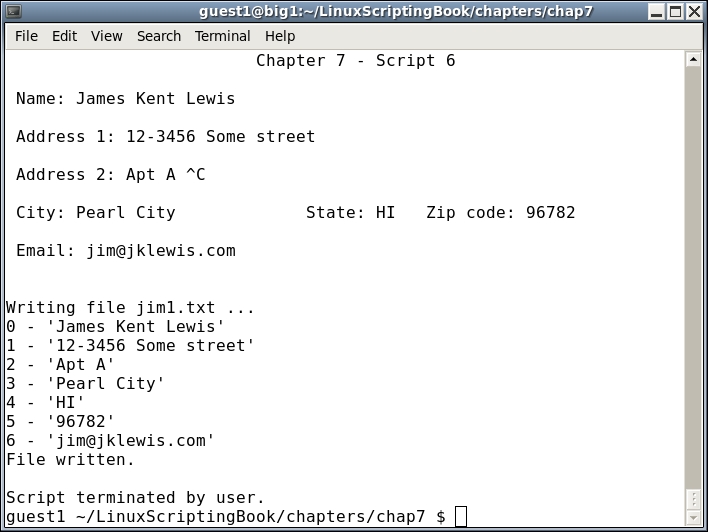
Here is a description of the code:
- The first thing that gets set up in this script is a trap of Ctrl + C which causes the file to be saved and the script to end.
- The subroutines are defined.
- The
getdataroutine is used to read the user input. - The
savefileroutine writes out the data array. - The
getfileroutine reads the file, if it exists, into the array. - The parameters are checked as one filename is required.
- The
FNvariable is set to the name of the file. - When using arrays it's a good idea to have a set size, that is,
sizeofarray. - The size of the terminal is checked to make sure it is 25x80 (or 80x25 depending on your GUI).
- The
initroutine is called which sets up the screen array. - The routines
getfileanddrawscreenare called. - The
getdataroutine is used to move the cursor and get the data from the fields into the proper array location. - Ctrl + C is used to save the file and terminate the script.
This is an example of how a simple screen input/output routine can be developed in Bash. This script could use a few refinements, here is a partial list:
- Check an existing file for a specific header. This could help insure the file is in the correct format and avoid a syntax error.
- Check the input file to make sure it is text and not binary. Hint: Use the file and
grepcommands. - If the file cannot be written out properly make sure to catch the error gracefully.