Table of Contents for
Linux Shell Scripting Bootcamp
 Linux Shell Scripting Bootcamp
Published by
Packt Publishing, 2017
Linux Shell Scripting Bootcamp
Published by
Packt Publishing, 2017
- Cover
- Table of Contents
- Linux Shell Scripting Bootcamp
- Linux Shell Scripting Bootcamp
- Credits
- About the Author
- Acknowledgement
- About the Reviewer
- www.PacktPub.com
- Customer Feedback
- Preface
- What you need for this book
- Who this book is for
- Conventions
- Reader feedback
- Customer support
- 1. Getting Started with Shell Scripting
- Demonstrating the use of scripts
- Summary
- 2. Working with Variables
- Validating parameters using conditional statements
- Comparison operators for strings
- Environment variables
- Summary
- 3. Using Loops and the sleep Command
- Screen manipulation
- Indenting your code
- Using the for statement
- Leaving a loop early
- The sleep command
- Watching a process
- Creating numbered backup files
- Summary
- 4. Creating and Calling Subroutines
- File redirection
- Command piping
- Subroutines
- Using parameters
- Making a current backup of your work
- Summary
- 5. Creating Interactive Scripts
- Summary
- 6. Automating Tasks with Scripts
- Summary
- 7. Working with Files
- Reading files
- Reading and writing files
- Reading and writing files interactively
- File checksums
- File encryption
- Summary
- 8. Working with wget and curl
- wget and recursion
- wget options
- curl
- Summary
- 9. Debugging Scripts
- Automatic backups
- More syntax errors
- Logic errors
- Using set to debug scripts
- Summary
- 10. Scripting Best Practices
- ssh and scp
- Find and use a good text editor
- Environment variables and aliases
- ssh prompt
- Testing an archive
- Progress indicator
- Creating new commands from a template
- Alerting the user
- Summary
- Index
Now let's really get into subroutines. To do this we will use more of the tput commands:
tput cup <row><col>         # moves the cursor to row, col
tput cup 0 0                # cursor to the upper left hand side
tput cup $LINES $COLUMNS    # cursor to bottom right hand side
tput clear                  # clears the terminal screen
tput smso                   # bolds the text that follows
tput rmso                   # un-bolds the text that follows
Here is the script. This was mainly written to show the concept of a subroutine, however, it can also be used as a guide on writing interactive tools.
#!/bin/sh
# 6/13/2017
# script4

# Subroutines
cls()
{
 tput clear
 return 0
}

home()
{
 tput cup 0 0
 return 0
}

end()
{
 let x=$COLUMNS-1
 tput cup $LINES $x
 echo -n "X"                 # no newline or else will scroll
}

bold()
{
 tput smso
}

unbold()
{
 tput rmso
}

underline()
{
 tput smul
}

normalline()
{
 tput rmul
}

# Code starts here
rc=0                         # return code
if [ $# -ne 1 ] ; then
 echo "Usage: script4 parameter"
 echo "Where parameter can be: "
 echo " home      - put an X at the home position"
 echo " cls       - clear the terminal screen"
 echo " end       - put an X at the last screen position"
 echo " bold      - bold the following output"
 echo " underline - underline the following output"
 exit 255
fi

parm=$1                      # main parameter 1

if [ "$parm" = "home" ] ; then
 echo "Calling subroutine home."
 home
 echo -n "X"
elif [ "$parm" = "cls" ] ; then
 cls
elif [ "$parm" = "end" ] ; then
 echo "Calling subroutine end."
 end
elif [ "$parm" = "bold" ] ; then
 echo "Calling subroutine bold."
 bold
 echo "After calling subroutine bold."
 unbold
 echo "After calling subroutine unbold."
elif [ "$parm" = "underline" ] ; then
 echo "Calling subroutine underline."
 underline
 echo "After subroutine underline."
 normalline
 echo "After subroutine normalline."
else
 echo "Unknown parameter: $parm"
 rc=1
fi

exit $rc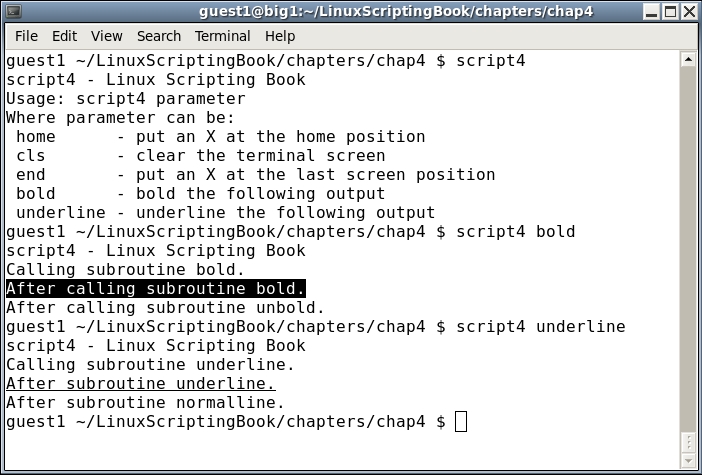
Try this on your system. If you run it with the home parameter it might look a little strange to you. The code puts a capital X at the home position (0,0) and this causes the prompt to print one character over. Nothing is wrong here, it just looks a little weird. Don't worry if this still doesn't make sense to you, just go ahead and look at Script 5.