Table of Contents for
Linux Shell Scripting Bootcamp
 Linux Shell Scripting Bootcamp
Published by
Packt Publishing, 2017
Linux Shell Scripting Bootcamp
Published by
Packt Publishing, 2017
- Cover
- Table of Contents
- Linux Shell Scripting Bootcamp
- Linux Shell Scripting Bootcamp
- Credits
- About the Author
- Acknowledgement
- About the Reviewer
- www.PacktPub.com
- Customer Feedback
- Preface
- What you need for this book
- Who this book is for
- Conventions
- Reader feedback
- Customer support
- 1. Getting Started with Shell Scripting
- Demonstrating the use of scripts
- Summary
- 2. Working with Variables
- Validating parameters using conditional statements
- Comparison operators for strings
- Environment variables
- Summary
- 3. Using Loops and the sleep Command
- Screen manipulation
- Indenting your code
- Using the for statement
- Leaving a loop early
- The sleep command
- Watching a process
- Creating numbered backup files
- Summary
- 4. Creating and Calling Subroutines
- File redirection
- Command piping
- Subroutines
- Using parameters
- Making a current backup of your work
- Summary
- 5. Creating Interactive Scripts
- Summary
- 6. Automating Tasks with Scripts
- Summary
- 7. Working with Files
- Reading files
- Reading and writing files
- Reading and writing files interactively
- File checksums
- File encryption
- Summary
- 8. Working with wget and curl
- wget and recursion
- wget options
- curl
- Summary
- 9. Debugging Scripts
- Automatic backups
- More syntax errors
- Logic errors
- Using set to debug scripts
- Summary
- 10. Scripting Best Practices
- ssh and scp
- Find and use a good text editor
- Environment variables and aliases
- ssh prompt
- Testing an archive
- Progress indicator
- Creating new commands from a template
- Alerting the user
- Summary
- Index
This chapter will show how to use wget and curl to gather information directly from the internet.
The topics covered in this chapter are:
- Show how to get information using
wget. - Show how to get information using
curl.
Scripts that can gather data in this way can be very powerful tools to have at your disposal. As you will see from this chapter, you can get stock quotes, lake levels, just about anything automatically from web sites anywhere in the world.
You may have already heard about or even used the wget program. It is a command line utility that can be used to download files from the Internet.
Here is a screenshot showing wget in its most simplest form:
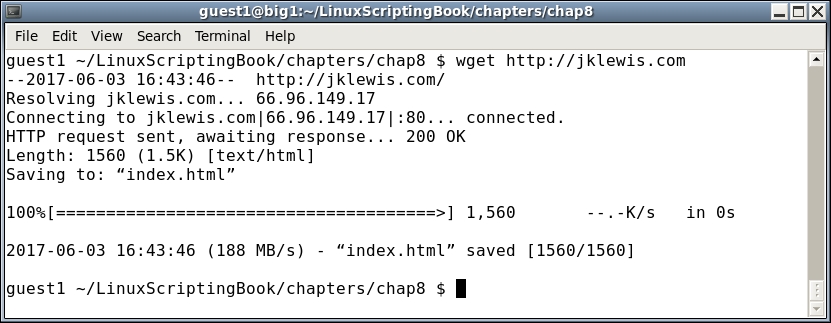
In the output you can see that wget downloaded the index.html file from my jklewis.com website.
This is the default behavior of wget. The standard usage is:
wget [options] URL
where URL stands for Uniform Resource Locator, or address of the website.
Here is just a short list of the many available options with wget:
|
Parameter |
Explanation |
|---|---|
|
|
|
|
|
same as |
|
|
output file, copy the file to this name |
|
|
turn debugging on |
|
|
quiet mode |
|
|
verbose mode |
|
|
recursive mode |
Let's try another example:
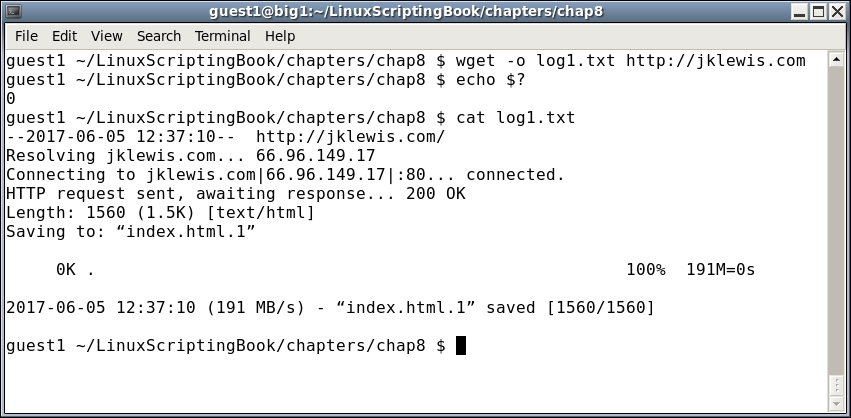
The -o option was used in this case. The return code was checked and a code of 0 means no failure. There was no output because it was directed to the log file which was displayed by the cat command.
The -o option, write output to file, was used in this case. There was no output displayed because it was directed to the log file which was then shown by the cat command. The return code from wget was checked and a code of 0 means no failure.
Notice that this time it named the downloaded file index.html.1. This is because index.html was created in the previous example. The author of this application did it this way to avoid overwriting a previously downloaded file. Very nice!
Take a look at this next example:
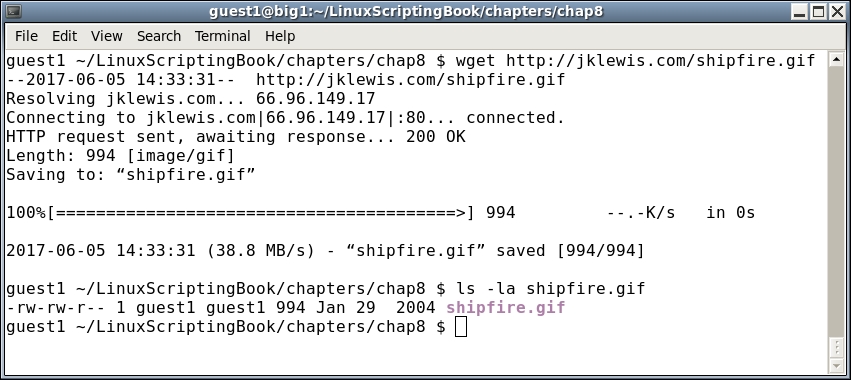
Here we are telling wget to download the file given (shipfire.gif).
In this next screenshot we show how wget will return a useful error code:
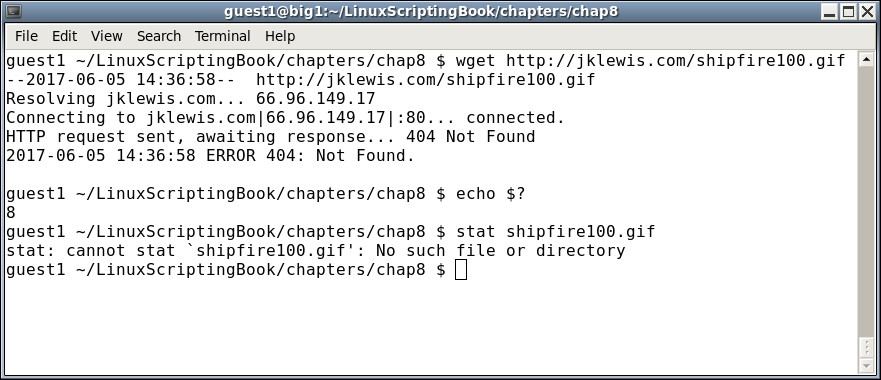
This error occurred because there is no file named shipfire100.gif in the base directory on my website. Notice how the output shows a 404 Not Found message, this is seen very often on the Web. In general, it means a requested resource was not available at that time. In this case the file isn't there and so that message appears.
Note too how wget returned an 8 error code. The man page for wget shows this for the possible exit codes from wget:
|
Error codes |
Explanation |
|---|---|
|
|
No problems occurred. |
|
|
Generic error code. |
|
|
Parse error. For instance when parsing command-line options, the |
|
|
File I/O error. |
|
|
Network failure. |
|
|
SSL verification failure. |
|
|
Username/password authentication failure. |
|
|
Protocol errors. |
|
|
Server issued an error response. |
A return of 8 makes pretty good sense. The server could not find the file and so returned a 404 error code.
Now is a good time to mention the different wget configuration files. There are two main files, /etc/wgetrc is the default location of the global wget startup file. In most cases you probably should not edit this unless you really want to make changes that affect all users. The file $HOME/.wgetrc is a better place to put any options you would like. A good way to do this is to open both /etc/wgetrc and $HOME/.wgetrc in your text editor and then copy the stanzas you want into your $HOME./wgetrc file.
For more information on the wget config files consult the man page (man wget).
Now let's see wget in action. I wrote this a while back to keep track of the water level in the lake I used to go boating in:
#!/bin/sh
# 6/5/2017
# Chapter 8 - Script 1

URL=http://www.arlut.utexas.edu/omg/weather.html
FN=weather.html
TF=temp1.txt                 # temp file
LF=logfile.txt               # log file

loop=1
while [ $loop -eq 1 ]
do
 rm $FN 2> /dev/null         # remove old file
 wget -o $LF $URL
 rc=$?
 if [ $rc -ne 0 ] ; then
  echo "wget returned code: $rc"
  echo "logfile:"
  cat $LF

  exit 200
 fi

 date
 grep "Lake Travis Level:" $FN > $TF
 cat $TF | cut  -d ' ' -f 12 --complement

 sleep 1h
done

exit 0
This output is from June 5, 2017. It's not much to look at but here it is:
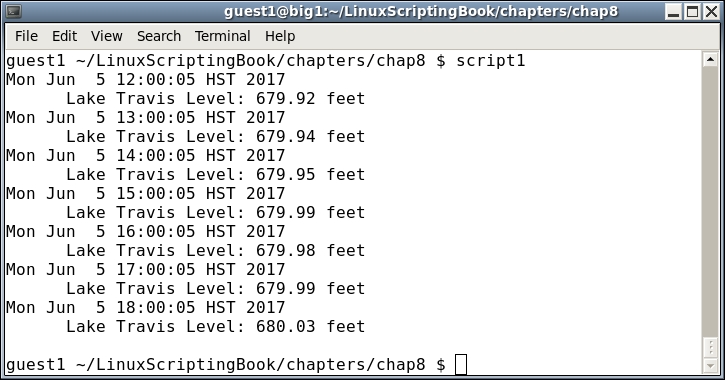
You can see from the script and the output that it runs once every hour. In case you were wondering why anyone would write something like this, I needed to know if the lake level went below 640 feet as I would have had to move my boat out of the marina. This was during a severe drought back in Texas.
There are a few things to keep in mind when writing a script like this:
- When first writing the script perform the
wgetonce manually and then work with the downloaded file. - Do not use
wgetseveral times in a short period of time or else you may get blocked by the site. - Keep in mind that HTML programmers like to change things all the time and so you may have to adjust your script accordingly.
- When you finally get the script just right be sure to activate the
wgetagain.