Table of Contents for
Linux Shell Scripting Bootcamp
 Linux Shell Scripting Bootcamp
Published by
Packt Publishing, 2017
Linux Shell Scripting Bootcamp
Published by
Packt Publishing, 2017
- Cover
- Table of Contents
- Linux Shell Scripting Bootcamp
- Linux Shell Scripting Bootcamp
- Credits
- About the Author
- Acknowledgement
- About the Reviewer
- www.PacktPub.com
- Customer Feedback
- Preface
- What you need for this book
- Who this book is for
- Conventions
- Reader feedback
- Customer support
- 1. Getting Started with Shell Scripting
- Demonstrating the use of scripts
- Summary
- 2. Working with Variables
- Validating parameters using conditional statements
- Comparison operators for strings
- Environment variables
- Summary
- 3. Using Loops and the sleep Command
- Screen manipulation
- Indenting your code
- Using the for statement
- Leaving a loop early
- The sleep command
- Watching a process
- Creating numbered backup files
- Summary
- 4. Creating and Calling Subroutines
- File redirection
- Command piping
- Subroutines
- Using parameters
- Making a current backup of your work
- Summary
- 5. Creating Interactive Scripts
- Summary
- 6. Automating Tasks with Scripts
- Summary
- 7. Working with Files
- Reading files
- Reading and writing files
- Reading and writing files interactively
- File checksums
- File encryption
- Summary
- 8. Working with wget and curl
- wget and recursion
- wget options
- curl
- Summary
- 9. Debugging Scripts
- Automatic backups
- More syntax errors
- Logic errors
- Using set to debug scripts
- Summary
- 10. Scripting Best Practices
- ssh and scp
- Find and use a good text editor
- Environment variables and aliases
- ssh prompt
- Testing an archive
- Progress indicator
- Creating new commands from a template
- Alerting the user
- Summary
- Index
This chapter shows how to use loops to perform iterative operations. It also shows how to create a delay in a script. The reader will learn how to use loops and the sleep command in a script.
Topics covered in this chapter are as follows:
- Standard
for,while, anduntilloops. - Nesting of loops, and how not to get confused.
- Introduce the
sleepcommand and how it is used to cause a delay in a script. - Go over a common pitfall of using
sleep.
One of the most important features of any programming language is the ability to perform a task, or tasks, a number of times and then stop when an ending condition is met. This is accomplished by using a loop.
The next section shows an example of a very simple while loop:
#!/bin/sh
#
# 5/2/2017
#
echo "script1 - Linux Scripting Book"
x=1
while [ $x -le 10 ]
do
 echo x: $x
 let x++
done

echo "End of script1"

exit 0
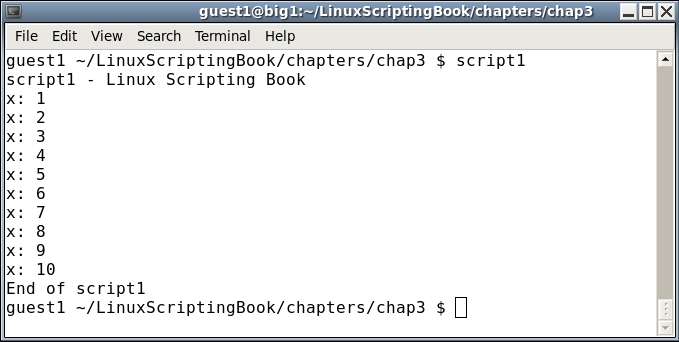
We start by setting variable x to 1. The while statement checks to see if x is less than or equal to 10 and if so, runs the commands between the do and done statements. It will continue to do this until x equals 11, in which case the lines after the done statement are then run.
Run this on your system. It is very important to understand this script so that we can move on to more advanced loops.
Let's look at another script in the next section—see if you can determine what is wrong with it.
#!/bin/sh
#
# 5/2/2017
#
echo "script2 - Linux Scripting Book"

x=1
while [ $x -ge 0 ]
do
 echo x: $x
 let x++
done

echo "End of script2"

exit 0
Feel free to skip the running of this one unless you really want to. Look carefully at the while test. It says while x is greater than or equal to 0, run the commands inside the loop. Is x ever going to not meet this condition? No, it is not, and this is what is known as an infinite loop. Don't worry; you can still end the script by pressing Ctrl + C (hold down the Ctrl key and press C). This will terminate the script.
I wanted to cover infinite loops right away as you will almost certainly do this from time to time, and I wanted you to know how to terminate the script when it happens. I certainly did this a few times when I was first starting out.
Okay let's do something more useful. Suppose you are starting a new project and need to create some directories on your system. You could do it one command at a time, or use a loop in a script.
We'll a look at this in Script 3.
#!/bin/sh
#
# 5/2/2017
#
echo "script3 - Linux Scripting Book"

x=1
while [ $x -le 10 ]
do
 echo x=$x
 mkdir chapter$x
 let x++
done
echo "End of script3"

exit 0
This simple script assumes you are starting at the base directory. When run it will create directories chapter 1 through chapter 10 and then proceed to the end.
When running scripts that make changes to your computer, it is a good idea to make sure the logic is correct before running it for real. For example, before running this I commented out the mkdir line. I then ran the script to make sure it stopped after it displayed that x was equal to 10. I then uncommented the line and ran it for real.