Table of Contents for
Linux Shell Scripting Bootcamp
 Linux Shell Scripting Bootcamp
Published by
Packt Publishing, 2017
Linux Shell Scripting Bootcamp
Published by
Packt Publishing, 2017
- Cover
- Table of Contents
- Linux Shell Scripting Bootcamp
- Linux Shell Scripting Bootcamp
- Credits
- About the Author
- Acknowledgement
- About the Reviewer
- www.PacktPub.com
- Customer Feedback
- Preface
- What you need for this book
- Who this book is for
- Conventions
- Reader feedback
- Customer support
- 1. Getting Started with Shell Scripting
- Demonstrating the use of scripts
- Summary
- 2. Working with Variables
- Validating parameters using conditional statements
- Comparison operators for strings
- Environment variables
- Summary
- 3. Using Loops and the sleep Command
- Screen manipulation
- Indenting your code
- Using the for statement
- Leaving a loop early
- The sleep command
- Watching a process
- Creating numbered backup files
- Summary
- 4. Creating and Calling Subroutines
- File redirection
- Command piping
- Subroutines
- Using parameters
- Making a current backup of your work
- Summary
- 5. Creating Interactive Scripts
- Summary
- 6. Automating Tasks with Scripts
- Summary
- 7. Working with Files
- Reading files
- Reading and writing files
- Reading and writing files interactively
- File checksums
- File encryption
- Summary
- 8. Working with wget and curl
- wget and recursion
- wget options
- curl
- Summary
- 9. Debugging Scripts
- Automatic backups
- More syntax errors
- Logic errors
- Using set to debug scripts
- Summary
- 10. Scripting Best Practices
- ssh and scp
- Find and use a good text editor
- Environment variables and aliases
- ssh prompt
- Testing an archive
- Progress indicator
- Creating new commands from a template
- Alerting the user
- Summary
- Index
And now, for another bonus the next section shows the script I used to backup my current book's chapter every 60 seconds:
#!/bin/sh
#
# Auto backs up the file given if it has changed
# Assumes the cbS command exists
# Checks that ../back exists
# Copies to specific USB directory
# Checks if filename.bak exists on startup, copy if it doesn't

echo "autobackup by Lewis 5/9/2017 A"
if [ $# -ne 3 ] ; then
 echo "Usage: autobackup filename USB-backup-dir delay"
 exit 255
fi

# Create back directory if it does not exist
if [ ! -d back ] ; then
 mkdir back
fi

FN=$1                        # filename to monitor
USBdir=$2                    # USB directory to copy to
DELAY=$3                     # how often to check

if [ ! -f $FN ] ; then       # if no filename abort
 echo "File: $FN does not exist."
 exit 5
fi

if [ ! -f $FN.bak ] ; then
 cp $FN $FN.bak
fi

filechanged=0
while [ 1 ]
do
 cmp $FN $FN.bak
 rc=$?
 if [ $rc -ne 0 ] ; then
  cp $FN back
  cp $FN $USBdir
  cd back
  cbS $FN
  cd ..
  cp $FN $FN.bak
  filechanged=1
 fi

 sleep $DELAY
done
And for the output on my system
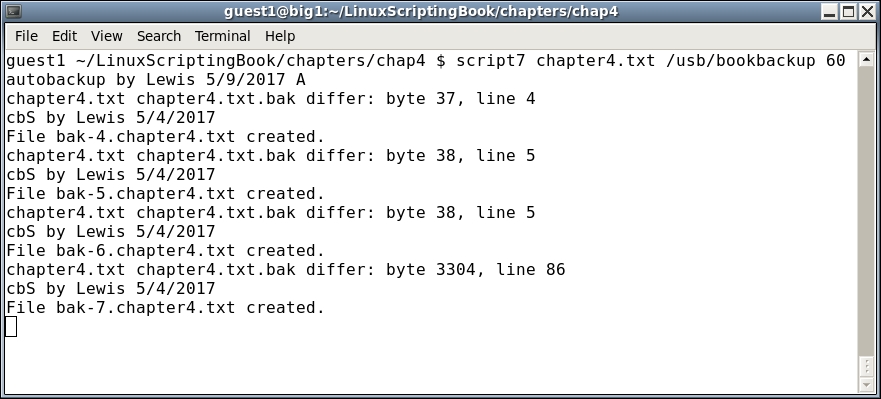
There's not much in this script that we have not already covered. The informal comments at the top are mainly for me, so that I don't forget what I wrote or why.
The parms are checked and the back subdirectory is created if it does not already exist. I never seem to be able to remember to create it, so I let the script do it.
Next, the main variables are set up and then the .bak file is created if it doesn't exist (this helps with the logic).
In the while loop, which you can see runs forever, the cmp Linux command is used to see if the original file has changed from the backup file. If so, the cmp command returns non-zero and the file is copied back to the subdir as a numbered backup using our cbS script. The file is also copied to the backup directory, which in this case is my USB drive. The loop continues until I start a new chapter, in which case I press Ctrl + C to quit.
This is a good example of script automation, which will be covered in more detail in Chapter 6, Automating Tasks with Scripts.