Table of Contents for
Linux Shell Scripting Bootcamp
 Linux Shell Scripting Bootcamp
Published by
Packt Publishing, 2017
Linux Shell Scripting Bootcamp
Published by
Packt Publishing, 2017
- Cover
- Table of Contents
- Linux Shell Scripting Bootcamp
- Linux Shell Scripting Bootcamp
- Credits
- About the Author
- Acknowledgement
- About the Reviewer
- www.PacktPub.com
- Customer Feedback
- Preface
- What you need for this book
- Who this book is for
- Conventions
- Reader feedback
- Customer support
- 1. Getting Started with Shell Scripting
- Demonstrating the use of scripts
- Summary
- 2. Working with Variables
- Validating parameters using conditional statements
- Comparison operators for strings
- Environment variables
- Summary
- 3. Using Loops and the sleep Command
- Screen manipulation
- Indenting your code
- Using the for statement
- Leaving a loop early
- The sleep command
- Watching a process
- Creating numbered backup files
- Summary
- 4. Creating and Calling Subroutines
- File redirection
- Command piping
- Subroutines
- Using parameters
- Making a current backup of your work
- Summary
- 5. Creating Interactive Scripts
- Summary
- 6. Automating Tasks with Scripts
- Summary
- 7. Working with Files
- Reading files
- Reading and writing files
- Reading and writing files interactively
- File checksums
- File encryption
- Summary
- 8. Working with wget and curl
- wget and recursion
- wget options
- curl
- Summary
- 9. Debugging Scripts
- Automatic backups
- More syntax errors
- Logic errors
- Using set to debug scripts
- Summary
- 10. Scripting Best Practices
- ssh and scp
- Find and use a good text editor
- Environment variables and aliases
- ssh prompt
- Testing an archive
- Progress indicator
- Creating new commands from a template
- Alerting the user
- Summary
- Index
I showed the sleep command earlier, let's look at that in much more detail. In general, the sleep command is used to introduce a delay in the script. For example, in the previous script if I had not used sleep the output would have scrolled off too quickly to see what was going on.
The sleep command takes a parameter indicating how long to make the delay. For example, sleep 1 means to introduce a delay of one second. Here are a few examples:
sleep 1       # sleep 1 second (the default is seconds)
sleep 1s      # sleep 1 second
sleep 1m      # sleep 1 minute
sleep 1h      # sleep 1 hour
sleep 1d      # sleep 1 day
The sleep command actually has a bit more capability that what is shown here. For more information, please consult the man page (man sleep).
Here's a script showing in more detail how sleep works:
#!/bin/sh
#
# 5/3/2017
#
echo "script10 - Linux Scripting Book"

echo "Sleeping seconds..."
x=1
while [ $x -le 5 ]
do
 date
 let x++
 sleep 1
done

echo "Sleeping minutes..."
x=1
while [ $x -le 2 ]
do
 date
 let x++
 sleep 1m
done

echo "Sleeping hours..."
x=1
while [ $x -le 2 ]
do
 date
 let x++
 sleep 1h
done

echo "End of script10"
exit 0
And the output:
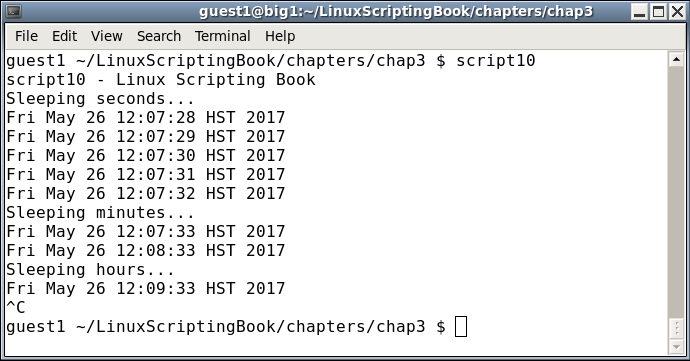
You may have noticed that I pressed Ctrl + C to terminate the script since I didn't want to wait 2 hours for it to finish. Scripts of this nature are used very extensively in a Linux system to monitor processes, watch for files, and so on.
There is a common pitfall when using the sleep command that needs to be mentioned.
We'll see an example of this in the following section:
#!/bin/sh
#
# 5/3/2017
#
echo "script11 - Linux Scripting Book"

while [ true ]
do
 date
 sleep 60                    # 60 seconds
done

echo "End of script11"

exit 0
This is the output on my system. It doesn't take all that long to eventually get out of sync:
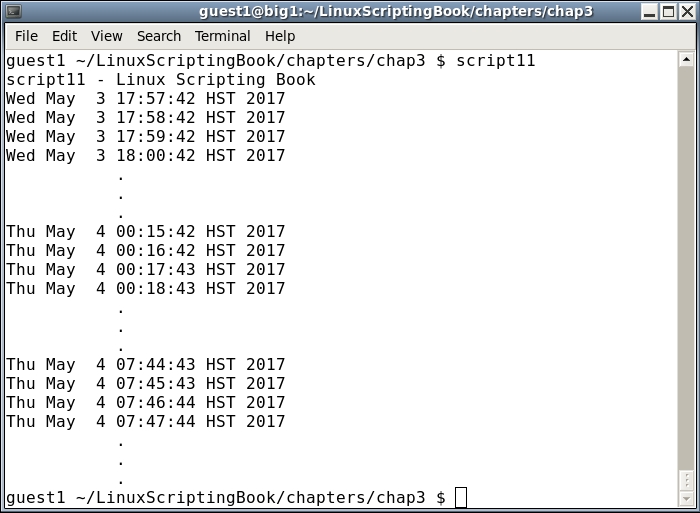
For the vast majority of scripts this is never going to be a problem. Just remember if what you are trying to accomplish is time critical, like trying to run a command at exactly 12:00 am every night, you might want to look at some other approach. Note that crontab will also not do this as there is about a 1 or 2 second delay before it runs the command.