Table of Contents for
System Forensics, Investigation, and Response, 3rd Edition
 System Forensics, Investigation, and Response, 3rd Edition
Published by
Jones & Bartlett Learning, 2017
System Forensics, Investigation, and Response, 3rd Edition
Published by
Jones & Bartlett Learning, 2017
- Cover Page
- Contents
- System Forensics, Investigation, and Response
- Title Page
- Copyright Page
- Content
- Preface
- About the Author
- PART I Introduction to Forensics
- CHAPTER 1 Introduction to Forensics
- What Is Computer Forensics?
- Understanding the Field of Digital Forensics
- Knowledge Needed for Computer Forensics Analysis
- The Daubert Standard
- U.S. Laws Affecting Digital Forensics
- Federal Guidelines
- CHAPTER SUMMARY
- KEY CONCEPTS AND TERMS
- CHAPTER 1 ASSESSMENT
- CHAPTER 2 Overview of Computer Crime
- How Computer Crime Affects Forensics
- Identity Theft
- Hacking
- Cyberstalking and Harassment
- Fraud
- Non-Access Computer Crimes
- Cyberterrorism
- CHAPTER SUMMARY
- KEY CONCEPTS AND TERMS
- CHAPTER 2 ASSESSMENT
- CHAPTER 3 Forensic Methods and Labs
- Forensic Methodologies
- Formal Forensic Approaches
- Documentation of Methodologies and Findings
- Evidence-Handling Tasks
- How to Set Up a Forensic Lab
- Common Forensic Software Programs
- Forensic Certifications
- CHAPTER SUMMARY
- KEY CONCEPTS AND TERMS
- CHAPTER 3 ASSESSMENT
- PART II Technical Overview: SystemForensics Tools, Techniques, and Methods
- CHAPTER 4 Collecting, Seizing, and Protecting Evidence
- Proper Procedure
- Handling Evidence
- Storage Formats
- Forensic Imaging
- RAID Acquisitions
- CHAPTER SUMMARY
- KEY CONCEPTS AND TERMS
- CHAPTER 4 ASSESSMENT
- CHAPTER LAB
- CHAPTER 5 Understanding Techniques for Hiding and Scrambling Information
- Steganography
- Encryption
- CHAPTER SUMMARY
- KEY CONCEPTS AND TERMS
- CHAPTER 5 ASSESSMENT
- CHAPTER 6 Recovering Data
- Undeleting Data
- Recovering Information from Damaged Media
- File Carving
- CHAPTER SUMMARY
- KEY CONCEPTS AND TERMS
- CHAPTER 6 ASSESSMENT
- CHAPTER 7 Email Forensics
- How Email Works
- Email Protocols
- Email Headers
- Tracing Email
- Email Server Forensics
- Email and the Law
- CHAPTER SUMMARY
- KEY CONCEPTS AND TERMS
- CHAPTER 7 ASSESSMENT
- CHAPTER 8 Windows Forensics
- Windows Details
- Volatile Data
- Windows Swap File
- Windows Logs
- Windows Directories
- Index.dat
- Windows Files and Permissions
- The Registry
- Volume Shadow Copy
- Memory Forensics
- CHAPTER SUMMARY
- KEY CONCEPTS AND TERMS
- CHAPTER 8 ASSESSMENT
- CHAPTER 9 Linux Forensics
- Linux and Forensics
- Linux Basics
- Linux File Systems
- Linux Logs
- Linux Directories
- Shell Commands for Forensics
- Kali Linux Forensics
- Forensics Tools for Linux
- CHAPTER SUMMARY
- KEY CONCEPTS AND TERMS
- CHAPTER 9 ASSESSMENT
- CHAPTER 10 Macintosh Forensics
- Mac Basics
- Macintosh Logs
- Directories
- Macintosh Forensic Techniques
- How to Examine a Mac
- Can You Undelete in Mac?
- CHAPTER SUMMARY
- KEY CONCEPTS AND TERMS
- CHAPTER 10 ASSESSMENT
- CHAPTER 11 Mobile Forensics
- Cellular Device Concepts
- What Evidence You Can Get from a Cell Phone
- Seizing Evidence from a Mobile Device
- JTAG
- CHAPTER SUMMARY
- KEY CONCEPTS AND TERMS
- CHAPTER 11 ASSESSMENT
- CHAPTER 12 Performing Network Analysis
- Network Packet Analysis
- Network Traffic Analysis
- Router Forensics
- Firewall Forensics
- CHAPTER SUMMARY
- KEY CONCEPTS AND TERMS
- CHAPTER 12 ASSESSMENT
- PART III Incident Response and Resources
- CHAPTER 13 Incident and Intrusion Response
- Disaster Recovery
- Preserving Evidence
- Adding Forensics to Incident Response
- CHAPTER SUMMARY
- KEY CONCEPTS AND TERMS
- CHAPTER 13 ASSESSMENT
- CHAPTER 14 Trends and Future Directions
- Technical Trends
- Legal and Procedural Trends
- CHAPTER SUMMARY
- KEY CONCEPTS AND TERMS
- CHAPTER 14 ASSESSMENT
- CHAPTER 15 System Forensics Resources
- Tools to Use
- Resources
- Laws
- CHAPTER SUMMARY
- KEY CONCEPTS AND TERMS
- CHAPTER 15 ASSESSMENT
- APPENDIX A Answer Key
- APPENDIX B Standard Acronyms
- Glossary of Key Terms
- References
- Index
Memory Forensics
Another issue for any computer, but especially a Windows system, is memory forensics. The ability to capture the memory and then analyze it has important ramifications for forensic exams. Often sophisticated malware is best detected by examining memory for specific traces of that malware.
The first step is to capture the memory from a live machine. This can be done with several different tools, many of which are free. One common free tool is the command-line tool Dump-it, which is shown in FIGURE 8-11. Dump-it will dump out the current memory in a file ending in the .raw extension. Note that this can take a few minutes. The Dump-it tool is popular, but can sometimes be hard to find on the Internet.
Another popular memory capture utility is RAM Capturer from Belkasoft (http://belkasoft.com/ram-capturer). This tool has a graphical interface, rather than command line. You can see this in FIGURE 8-12.
OSForensics also provides the option to capture live memory. That is shown in FIGURE 8-13.
There are other tools on the Internet that can be used to capture memory, including the AccessData FTK imager. Regardless of how you capture the memory, analyzing it is the important issue. Fortunately, the premier tool for memory analysis is also a free download. This tool is Volatility (http://www.volatilityfoundation.org). It is a command-line tool.
Volatility
In this section, the Windows standalone version of Volatility is being used.
The first Volatility command is simply to get information about Volatility to ensure it is working properly. The command to get information is shown here:
Volatility-2.5 standalone.exe --info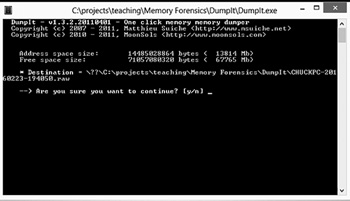
FIGURE 8-11
Dump-it memory capture.
Courtesy of Comae Technologies
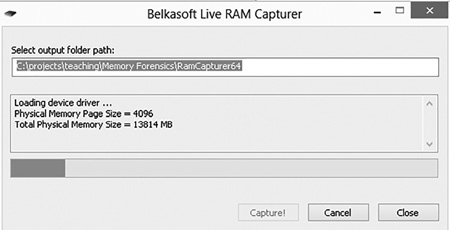
FIGURE 8-12
Belkasoft RAM Capturer.
Courtesy of Belkasoft
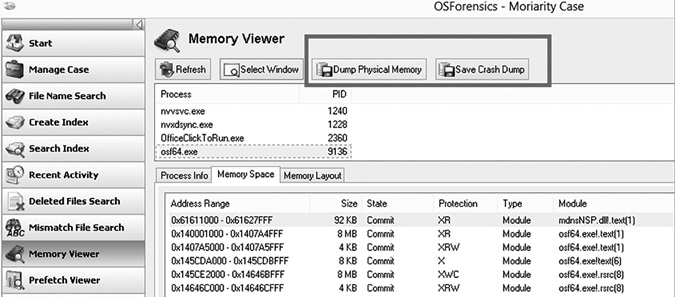
FIGURE 8-13
OSForensics memory capture.
Courtesy of PassMark Software
This command should fill the command window with a great deal of information, including the profiles supported. The profile indicates the operating system of the machine the memory dump was taken from, not the machine you are running Volatility on. The basic format of commands is shown here:
volatility-version.exe commandname -f filepath –
profile=profile name
Here are some examples of how to use the command:
volatility-2.5.standalone.exe pslist -f
C:path\ovolatility\dump.bin --profile=Win8SP0x64
volatility-2.5.standalone.exe psscan -f dump.bin --
profile=Win8SP0x64
The command, also called a plug-in, is a module used with Volatility to scan a memory dump for specific data. The memory dump file will have whatever name it was given when it was extracted from the machine. Common extensions include .mem, .bin, .dump, and .raw.
The following commands assume the same profile of Windows 8 Service Pack 0, 64-bit.
Pslist
This is a basic command that lists the processes that were in the memory dump. For example,
volatility-2.5.standalone.exe pslist –f memtest.dmp –
profile=Win8SP0x64
The output is shown in FIGURE 8-14.
The PID is the process ID for that specific process. The PPID is the parent process ID, the ID of the process that spawned this process. The value Thds indicates how many threads that process has. Hnds is the number of handles, and Sess the number of sessions. The start date/time also is shown.
Pstree
This is very much like plist, except it shows the processes in a hierarchical tree, making it very clear what process started a particular process. For example:
volatility-2.5.standalone.exe pstree –f memtest.dmp –
profile=Win8SP0x64
This is shown in FIGURE 8-15.
Psscan
This is particularly interesting in malware investigations. Psscan can find processes that previously terminated (inactive) and processes that have been hidden or unlinked by a rootkit. For example,
volatility-2.5.standalone.exe psscan –f memtest.dmp –
profile=Win8SP0x64
This is shown in FIGURE 8-16.
Svcscan
This is a very commonly used command. It will list details of all services that were in memory when the memory dump was taken. For example,
volatility-2.5.standalone.exe svcscan –f memtest.dmp –
profile=Win8SP0x64
This can be seen in FIGURE 8-17.
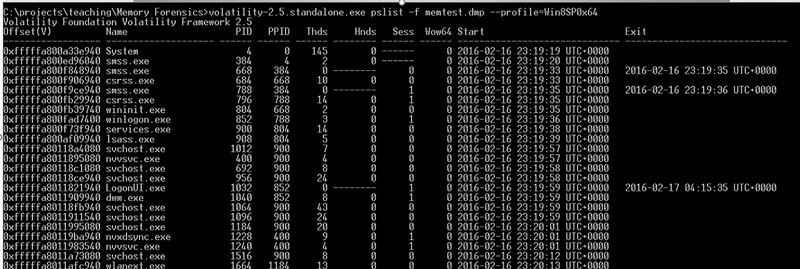
FIGURE 8-14
Volatility: plist.
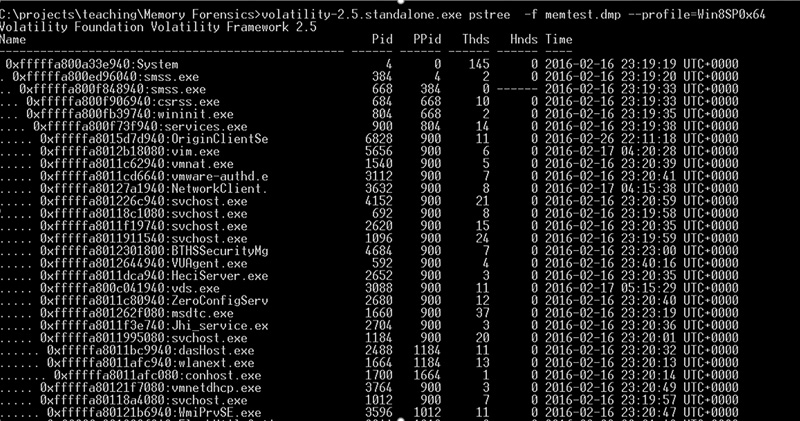
FIGURE 8-15
Volatility: pstree.
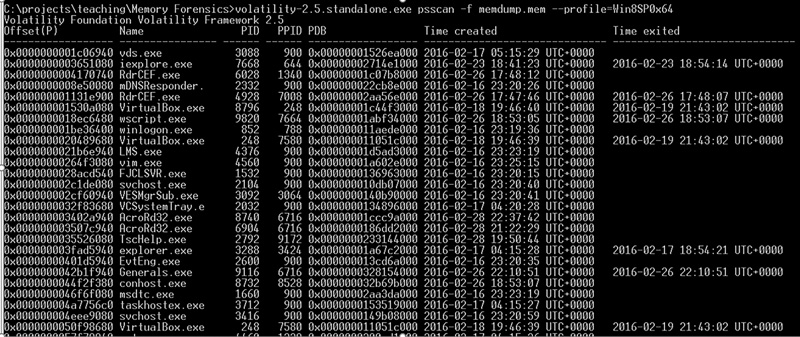
FIGURE 8-16
Volatility: psscan.
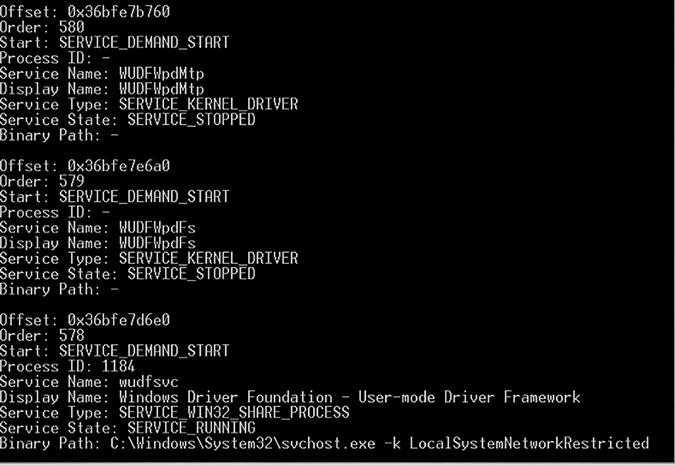
FIGURE 8-17
Volatility: svcscan.
It is beyond the scope of this chapter to provide a complete coverage of all of Volatility’s capabilities. However, the Volatility Foundation provides a cheat sheet at http://downloads.volatilityfoundation.org/releases/2.4/CheatSheet_v2.4.pdf.