Table of Contents for
Mastering phpMyAdmin 3.4 for Effective MySQL Management
 Mastering phpMyAdmin 3.4 for Effective MySQL Management
Published by
Packt Publishing, 2012
Mastering phpMyAdmin 3.4 for Effective MySQL Management
Published by
Packt Publishing, 2012
- Cover
- Mastering phpMyAdmin 3.4 for Effective MySQL Management
- Mastering phpMyAdmin 3.4 for Effective MySQL Management
- Credits
- About the Author
- About the Reviewers
- www.PacktPub.com
- Preface
- What you need for this book
- Who this book is for
- Conventions
- Reader feedback
- Customer support
- 1. Getting Started with phpMyAdmin
- What is phpMyAdmin?
- Installing phpMyAdmin
- Configuring phpMyAdmin
- Installing phpMyAdmin configuration storage
- Upgrading phpMyAdmin
- Summary
- 2. Configuring Authentication and Security
- Securing phpMyAdmin
- Summary
- 3. Over Viewing the Interface
- Customizing general settings
- Character sets and collations
- Navigation panel
- Main panel
- User preferences
- Query window
- Summary
- 4. Creating and Browsing Tables
- Creating our first table
- Inserting data manually
- Browse mode
- Profiling queries
- Creating an additional table
- Summary
- 5. Changing Data and Structure
- Changing table structure
- Summary
- 6. Exporting Structure and Data (Backup)
- Exporting a database
- Exporting a table
- Exporting selectively
- Exporting multiple databases
- Saving the export file on the server
- Memory limits
- Summary
- 7. Importing Structure and Data
- Importing SQL files
- Importing CSV files
- Importing other formats
- Reading files from a web server upload directory
- Displaying an upload progress bar
- Summary
- 8. Searching Data
- Performing a complete database search
- Stopping an errant query
- Summary
- 9. Performing Table and Database Operations
- Changing table attributes
- Emptying or deleting a table
- Renaming, moving, and copying tables
- Performing other table operations
- Multi-table operations
- Database operations
- Summary
- 10. Benefiting from the Relational System
- Defining relations with the relation view
- Defining relations with the Designer
- Benefiting from the defined relations
- Column commenting
- Summary
- 11. Entering SQL Statements
- The Query window
- Multi-statement queries
- Pretty printing (syntax highlighting)
- The SQL Validator
- Summary
- 12. Generating Multi-table Queries
- Exploring column criteria
- Generating automatic joins (internal relations)
- Executing the query
- The visual builder
- Summary
- 13. Synchronizing Data and Supporting Replication
- Supporting MySQL replication
- Summary
- 14. Using Query Bookmarks
- Creating bookmarks
- Recalling bookmarks from the bookmarks list
- Passing a parameter to a bookmark
- Summary
- 15. Documenting the System
- Generating relational schemas
- Summary
- 16. Transforming Data using MIME
- Enabling transformations
- Examples of transformations
- Summary
- 17. Supporting Features Added in MySQL 5
- Supporting routines—stored procedures and functions
- Executing code with triggers
- Using information_schema
- Partitioning
- Exploring the event scheduler
- Summary
- 18. Tracking Changes
- Prerequisites
- Principles
- Initiating tracking for one table
- Testing the tracking mechanism
- Determining tracking status
- Structure snapshot
- Exporting a version
- Creating a new version
- Deleting tracking information
- Summary
- 19. Administrating the MySQL Server
- Database information
- Server information
- Summary
- A. Troubleshooting and Support
- Seeking support
- Contributing to the project
MySQL 5.0 introduced a number of new features that calmed down a number of developers and industry observers who were claiming that MySQL was inferior to competitors' products. Views, stored procedures, triggers, a standard information_schema, and (more recently) a profiling mechanism are now present in the MySQL spectrum. These features are covered in this chapter.
Among the new features of MySQL 5.1, the ones that relate to a web interface (for example, partitioning and events) are supported in phpMyAdmin and are covered in this chapter as well.
MySQL 5.0 introduced support for named and updatable views (more details are available at http://dev.mysql.com/doc/refman/5.5/en/views.html). A view is a derived table (consider it a virtual table) whose definition is stored in the database. A SELECT statement done on one or more tables (or even on views), can be stored as a view and can also be queried.
- Limit the visibility of columns (for example, do not show salary information)
- Limit the visibility of rows (for example, do not show data for specific world regions)
- Hide a changed table structure (so that legacy applications can continue to work)
Instead of defining cumbersome column-specific privileges on many tables, it's easier to prepare a view containing a limited set of columns from these tables. We can then grant permissions on the view as a whole.
To activate support for views on a server after an upgrade from a pre-5.0 version, the administrator has to execute the mysql_upgrade program, as described in the MySQL manual (http://dev.mysql.com/doc/refman/5.0/en/upgrading-from-previous-series.html).
Note
Each user must have the appropriate SHOW_VIEW or CREATE_VIEW privilege to be able to see or manipulate views. These privileges exist at the global (server), database, and table levels.
Creating a view implies that the user has privileges on the tables involved, or at least a privilege such as SELECT or UPDATE on all the columns mentioned in the view.
We can take advantage of phpMyAdmin's Search (at the table level) or Query (at the database level) features to build a rather complex query, execute it, and then easily create a view from the results. We will see how this is done.
We mentioned that a view can be used to limit the visibility of columns (and, in fact, of tables). Let us say that the number of pages in a book is highly classified information. We open the book table, click on Search, and choose a subset of the columns that does not include the page_count column (we might have to open the Options slider).
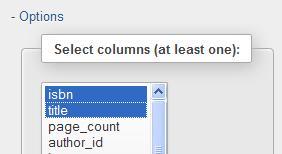
Clicking on Go produces a results page, where we see a CREATE VIEW link in the Query results operations section. We use this link to access the view creation panel, which already has the underlying query in the AS box. We need to choose a name for this view (here, we use book_public_info), and we can optionally set different column names for it (here, we use number, title), as shown in the following screenshot:
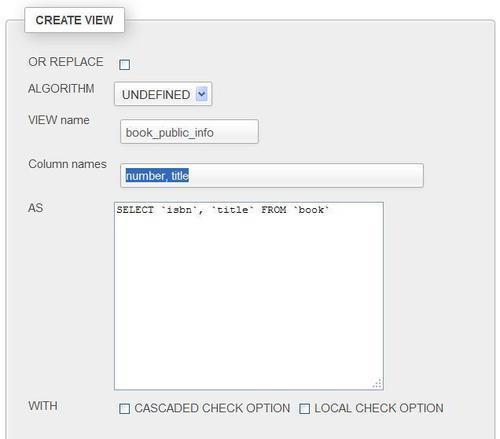
The other options can influence the view's behavior, and have been explained in the MySQL manual (http://dev.mysql.com/doc/refman/5.5/en/create-view.html). The LOCAL CHECK OPTION clause influences the behavior of the updateable views (this is explained in the MySQL manual at the page cited previously).
Clicking on Go generates the view we asked for. At this point, the view has been created. If we refresh our browser's page and then access the marc_book database, we will see the following screenshot:
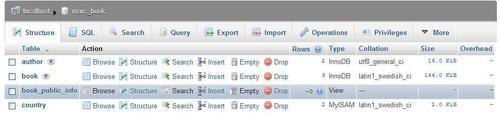
In the main panel, we see the information on the newly-created view. The number of rows for the view currently indicates ~0 (more on this in the Controlling row counting for improved performance section, later in this chapter), and View is indicated in the Type column. There is no collation or size associated with a view.
As a view has similarities with a table, its name is available along with the names of the ordinary tables. On clicking the view name, a panel similar to the one seen for tables is displayed, but with fewer menu tabs than seen in a normal table. Indeed, some operations do not make sense on a view, for example, Import. This is because a view does not actually contain data. However, other actions, such as Browse, are perfectly acceptable.
Let us browse the view shown in the following screenshot:
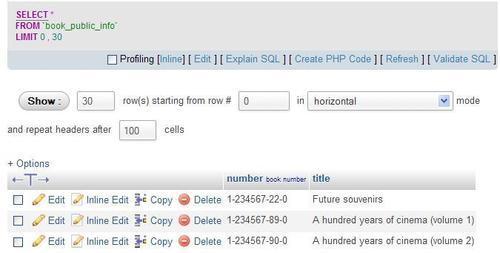
We notice that, in the generated SQL query, we do not see our original CREATE VIEW statement. The reason is that we are selecting from the view using a SELECT statement, hiding the fact that we are pulling data from a view. However, exporting the view's structure would show how MySQL internally stored our view:
CREATE ALGORITHM=UNDEFINED DEFINER=`root`@`%` SQL SECURITY DEFINER VIEW `book_public_info` AS
select `book`.`isbn` AS `number`,`book`.`title` AS `title` from `book`;
The main panel's menu may look similar to that of a table. However, when necessary, phpMyAdmin generates the appropriate syntax for handling views.
phpMyAdmin has a configuration parameter, $cfg['MaxExactCountViews'], that controls the row-counting phase of phpMyAdmin. Sometimes, a view comprises many huge tables, and browsing it would make a large number of virtual rows appear. Therefore, the default value of 0 for this parameter ensures that no row counting happens for views. In this case, we will see rather strange results when browsing a view: Showing rows 0 - -1 (0 total, Query took 0.0006 sec). This is more acceptable than slowing down a server.
Nonetheless, if we prefer to see a more exact row count for views, we can put a larger value in this parameter, which acts as an upper limit for the row counting phase.