Table of Contents for
Mastering phpMyAdmin 3.4 for Effective MySQL Management
 Mastering phpMyAdmin 3.4 for Effective MySQL Management
Published by
Packt Publishing, 2012
Mastering phpMyAdmin 3.4 for Effective MySQL Management
Published by
Packt Publishing, 2012
- Cover
- Mastering phpMyAdmin 3.4 for Effective MySQL Management
- Mastering phpMyAdmin 3.4 for Effective MySQL Management
- Credits
- About the Author
- About the Reviewers
- www.PacktPub.com
- Preface
- What you need for this book
- Who this book is for
- Conventions
- Reader feedback
- Customer support
- 1. Getting Started with phpMyAdmin
- What is phpMyAdmin?
- Installing phpMyAdmin
- Configuring phpMyAdmin
- Installing phpMyAdmin configuration storage
- Upgrading phpMyAdmin
- Summary
- 2. Configuring Authentication and Security
- Securing phpMyAdmin
- Summary
- 3. Over Viewing the Interface
- Customizing general settings
- Character sets and collations
- Navigation panel
- Main panel
- User preferences
- Query window
- Summary
- 4. Creating and Browsing Tables
- Creating our first table
- Inserting data manually
- Browse mode
- Profiling queries
- Creating an additional table
- Summary
- 5. Changing Data and Structure
- Changing table structure
- Summary
- 6. Exporting Structure and Data (Backup)
- Exporting a database
- Exporting a table
- Exporting selectively
- Exporting multiple databases
- Saving the export file on the server
- Memory limits
- Summary
- 7. Importing Structure and Data
- Importing SQL files
- Importing CSV files
- Importing other formats
- Reading files from a web server upload directory
- Displaying an upload progress bar
- Summary
- 8. Searching Data
- Performing a complete database search
- Stopping an errant query
- Summary
- 9. Performing Table and Database Operations
- Changing table attributes
- Emptying or deleting a table
- Renaming, moving, and copying tables
- Performing other table operations
- Multi-table operations
- Database operations
- Summary
- 10. Benefiting from the Relational System
- Defining relations with the relation view
- Defining relations with the Designer
- Benefiting from the defined relations
- Column commenting
- Summary
- 11. Entering SQL Statements
- The Query window
- Multi-statement queries
- Pretty printing (syntax highlighting)
- The SQL Validator
- Summary
- 12. Generating Multi-table Queries
- Exploring column criteria
- Generating automatic joins (internal relations)
- Executing the query
- The visual builder
- Summary
- 13. Synchronizing Data and Supporting Replication
- Supporting MySQL replication
- Summary
- 14. Using Query Bookmarks
- Creating bookmarks
- Recalling bookmarks from the bookmarks list
- Passing a parameter to a bookmark
- Summary
- 15. Documenting the System
- Generating relational schemas
- Summary
- 16. Transforming Data using MIME
- Enabling transformations
- Examples of transformations
- Summary
- 17. Supporting Features Added in MySQL 5
- Supporting routines—stored procedures and functions
- Executing code with triggers
- Using information_schema
- Partitioning
- Exploring the event scheduler
- Summary
- 18. Tracking Changes
- Prerequisites
- Principles
- Initiating tracking for one table
- Testing the tracking mechanism
- Determining tracking status
- Structure snapshot
- Exporting a version
- Creating a new version
- Deleting tracking information
- Summary
- 19. Administrating the MySQL Server
- Database information
- Server information
- Summary
- A. Troubleshooting and Support
- Seeking support
- Contributing to the project
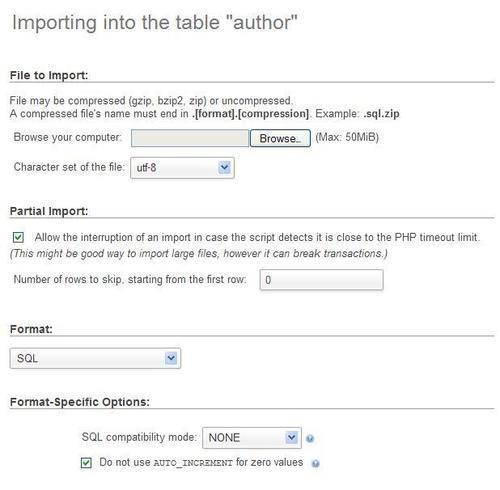
Any file containing MySQL statements can be imported via this mechanism. This format is the more commonly used for backup/restore purposes. The dialog is available in the Server view, Database view, or the Table view, via the Import page, or in the Query window.
Note
There is no relation between the currently selected table (here author) and the actual contents of the SQL file that will be imported. All the contents of the SQL file will be imported, and it is those contents that determine which tables or databases are affected. However, if the imported file does not contain any SQL statements to select a database, all statements in the imported file will be executed on the currently selected database.
Let us try an import exercise. First, we make sure that we have a current SQL export file of the book table (as explained in Chapter 6). This export file must contain the structure and the data. Then we drop the book table—yes, really! We could also simply rename it. (Refer to Chapter 9 for the procedure.)
Now it is time to import the file back to the current database (the file could be imported for testing in a different database or even on another MySQL server). We should be on the Import page, where we can see the File to import dialog. We just have to hit the Browse button and choose our file.
phpMyAdmin is able to detect which compression method (if any) has been applied to the file. Depending on the phpMyAdmin version, and the extensions that are available in the PHP component of the web server, there is variation in the formats that the program can decompress.
However, to import successfully, phpMyAdmin must be informed of the character set of the file to be imported. The default value is utf-8. However, if we know that the import file was created with another character set, we should specify it here.
A SQL compatibility mode selector is available at import time. This mode should be adjusted to match the actual data that we are about to import, according to the type of server where the data was previously exported.
Another option, Do not use AUTO_INCREMENT for zero values, is marked by default. If we have a value of zero in a primary key and we want it to stay zero instead of being auto-incremented, we should use this option.
To start the import, we click on Go. The import procedure continues and we receive a message: Import has been successfully finished, 2 queries executed. We can browse our newly-created tables to confirm the success of the import operation.
An import file may contain the DELIMITER keyword. This enables phpMyAdmin to mimic the mysql command-line interpreter. The DELIMITER separator is used to delineate the part of the file containing a stored procedure, as these procedures can themselves contain semicolons.