Table of Contents for
Mastering phpMyAdmin 3.4 for Effective MySQL Management
 Mastering phpMyAdmin 3.4 for Effective MySQL Management
Published by
Packt Publishing, 2012
Mastering phpMyAdmin 3.4 for Effective MySQL Management
Published by
Packt Publishing, 2012
- Cover
- Mastering phpMyAdmin 3.4 for Effective MySQL Management
- Mastering phpMyAdmin 3.4 for Effective MySQL Management
- Credits
- About the Author
- About the Reviewers
- www.PacktPub.com
- Preface
- What you need for this book
- Who this book is for
- Conventions
- Reader feedback
- Customer support
- 1. Getting Started with phpMyAdmin
- What is phpMyAdmin?
- Installing phpMyAdmin
- Configuring phpMyAdmin
- Installing phpMyAdmin configuration storage
- Upgrading phpMyAdmin
- Summary
- 2. Configuring Authentication and Security
- Securing phpMyAdmin
- Summary
- 3. Over Viewing the Interface
- Customizing general settings
- Character sets and collations
- Navigation panel
- Main panel
- User preferences
- Query window
- Summary
- 4. Creating and Browsing Tables
- Creating our first table
- Inserting data manually
- Browse mode
- Profiling queries
- Creating an additional table
- Summary
- 5. Changing Data and Structure
- Changing table structure
- Summary
- 6. Exporting Structure and Data (Backup)
- Exporting a database
- Exporting a table
- Exporting selectively
- Exporting multiple databases
- Saving the export file on the server
- Memory limits
- Summary
- 7. Importing Structure and Data
- Importing SQL files
- Importing CSV files
- Importing other formats
- Reading files from a web server upload directory
- Displaying an upload progress bar
- Summary
- 8. Searching Data
- Performing a complete database search
- Stopping an errant query
- Summary
- 9. Performing Table and Database Operations
- Changing table attributes
- Emptying or deleting a table
- Renaming, moving, and copying tables
- Performing other table operations
- Multi-table operations
- Database operations
- Summary
- 10. Benefiting from the Relational System
- Defining relations with the relation view
- Defining relations with the Designer
- Benefiting from the defined relations
- Column commenting
- Summary
- 11. Entering SQL Statements
- The Query window
- Multi-statement queries
- Pretty printing (syntax highlighting)
- The SQL Validator
- Summary
- 12. Generating Multi-table Queries
- Exploring column criteria
- Generating automatic joins (internal relations)
- Executing the query
- The visual builder
- Summary
- 13. Synchronizing Data and Supporting Replication
- Supporting MySQL replication
- Summary
- 14. Using Query Bookmarks
- Creating bookmarks
- Recalling bookmarks from the bookmarks list
- Passing a parameter to a bookmark
- Summary
- 15. Documenting the System
- Generating relational schemas
- Summary
- 16. Transforming Data using MIME
- Enabling transformations
- Examples of transformations
- Summary
- 17. Supporting Features Added in MySQL 5
- Supporting routines—stored procedures and functions
- Executing code with triggers
- Using information_schema
- Partitioning
- Exploring the event scheduler
- Summary
- 18. Tracking Changes
- Prerequisites
- Principles
- Initiating tracking for one table
- Testing the tracking mechanism
- Determining tracking status
- Structure snapshot
- Exporting a version
- Creating a new version
- Deleting tracking information
- Summary
- 19. Administrating the MySQL Server
- Database information
- Server information
- Summary
- A. Troubleshooting and Support
- Seeking support
- Contributing to the project
Now that we have a table, let us put some data in it manually. Before we do that, here are some useful references on data manipulation within this book:
- Chapter 5 explains how to change data and structure, including how to use the Function selector
- Chapter 7 explains how to import data from existing files
- Chapter 9 explains how to copy data from other tables
- Chapter 10 explains the relational system (in our case, we will want to link to the
authortable)
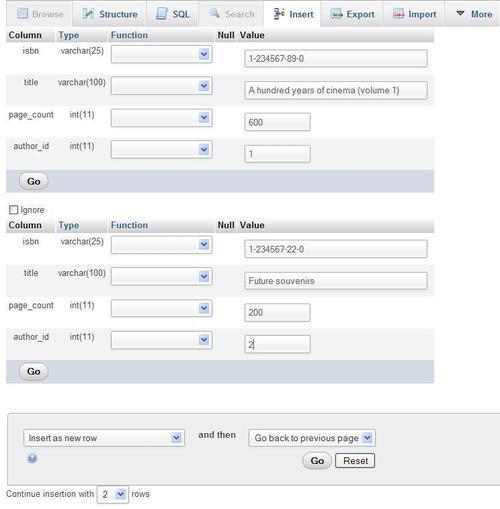
For now, click on the Insert link, which will lead us to the data-entry (or edit) panel. This screen has room to enter information for two rows, that is, two books in our example. This is because the default value of $cfg['InsertRows'] is 2. In the lower part of the screen, the dialog Continue insertion with 2 rows can be used if the default number of rows does not suit our needs. By default, the Ignore checkbox is ticked, which means that the second group of input fields will be ignored. As soon as we enter some information in one field of this group and exit the field, the Ignore box is automatically unchecked if JavaScript is enabled in the browser.
We can enter the following sample information for two books:
- ISBN: 1-234567-89-0, title: A hundred years of cinema (volume 1), 600 pages, author ID: 1
- ISBN: 1-234567-22-0, title: Future souvenirs, 200 pages, author ID: 2
The Value column width obeys the maximum length for the character columns. For this example, we keep the lower drop-down selector to its default value of Insert as new row. We then click on Go to insert the data. There is a Go button after each set of columns that represent a row, and another one on the lower part of the screen. All these have the same effect of saving the entered data but are provided for convenience.
If our intention had been to enter data for more books after these two, we would have selected Insert another new row from the second drop-down before clicking on Go. This would then insert the data we have provided and reload the screen to insert more.
By default, phpMyAdmin displays an input field on a single line for the column types CHAR and VARCHAR. This is controlled by setting $cfg['CharEditing'] to'input'. Sometimes, we may want to insert line breaks (new lines) within the field. This can be done by setting $cfg['CharEditing'] to'textarea'. This is a global setting, and will apply to all the columns of all the tables, for all users of this copy of phpMyAdmin. In this mode, insertion of line breaks may be done manually with the Enter key, or by copying and pasting lines of text from another on-screen source. Applying this setting would generate a different Insert screen, shown as follows:
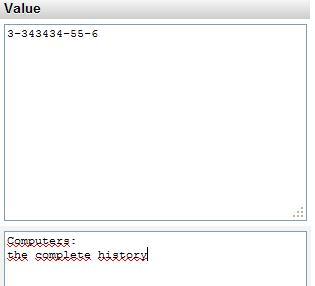
With this entry mode, the maximum length of each column no longer applies visually. It would be enforced by MySQL at insert time.