Table of Contents for
Mastering phpMyAdmin 3.4 for Effective MySQL Management
 Mastering phpMyAdmin 3.4 for Effective MySQL Management
Published by
Packt Publishing, 2012
Mastering phpMyAdmin 3.4 for Effective MySQL Management
Published by
Packt Publishing, 2012
- Cover
- Mastering phpMyAdmin 3.4 for Effective MySQL Management
- Mastering phpMyAdmin 3.4 for Effective MySQL Management
- Credits
- About the Author
- About the Reviewers
- www.PacktPub.com
- Preface
- What you need for this book
- Who this book is for
- Conventions
- Reader feedback
- Customer support
- 1. Getting Started with phpMyAdmin
- What is phpMyAdmin?
- Installing phpMyAdmin
- Configuring phpMyAdmin
- Installing phpMyAdmin configuration storage
- Upgrading phpMyAdmin
- Summary
- 2. Configuring Authentication and Security
- Securing phpMyAdmin
- Summary
- 3. Over Viewing the Interface
- Customizing general settings
- Character sets and collations
- Navigation panel
- Main panel
- User preferences
- Query window
- Summary
- 4. Creating and Browsing Tables
- Creating our first table
- Inserting data manually
- Browse mode
- Profiling queries
- Creating an additional table
- Summary
- 5. Changing Data and Structure
- Changing table structure
- Summary
- 6. Exporting Structure and Data (Backup)
- Exporting a database
- Exporting a table
- Exporting selectively
- Exporting multiple databases
- Saving the export file on the server
- Memory limits
- Summary
- 7. Importing Structure and Data
- Importing SQL files
- Importing CSV files
- Importing other formats
- Reading files from a web server upload directory
- Displaying an upload progress bar
- Summary
- 8. Searching Data
- Performing a complete database search
- Stopping an errant query
- Summary
- 9. Performing Table and Database Operations
- Changing table attributes
- Emptying or deleting a table
- Renaming, moving, and copying tables
- Performing other table operations
- Multi-table operations
- Database operations
- Summary
- 10. Benefiting from the Relational System
- Defining relations with the relation view
- Defining relations with the Designer
- Benefiting from the defined relations
- Column commenting
- Summary
- 11. Entering SQL Statements
- The Query window
- Multi-statement queries
- Pretty printing (syntax highlighting)
- The SQL Validator
- Summary
- 12. Generating Multi-table Queries
- Exploring column criteria
- Generating automatic joins (internal relations)
- Executing the query
- The visual builder
- Summary
- 13. Synchronizing Data and Supporting Replication
- Supporting MySQL replication
- Summary
- 14. Using Query Bookmarks
- Creating bookmarks
- Recalling bookmarks from the bookmarks list
- Passing a parameter to a bookmark
- Summary
- 15. Documenting the System
- Generating relational schemas
- Summary
- 16. Transforming Data using MIME
- Enabling transformations
- Examples of transformations
- Summary
- 17. Supporting Features Added in MySQL 5
- Supporting routines—stored procedures and functions
- Executing code with triggers
- Using information_schema
- Partitioning
- Exploring the event scheduler
- Summary
- 18. Tracking Changes
- Prerequisites
- Principles
- Initiating tracking for one table
- Testing the tracking mechanism
- Determining tracking status
- Structure snapshot
- Exporting a version
- Creating a new version
- Deleting tracking information
- Summary
- 19. Administrating the MySQL Server
- Database information
- Server information
- Summary
- A. Troubleshooting and Support
- Seeking support
- Contributing to the project
One instance of phpMyAdmin can be installed to serve multiple users; however, before version 3.4.0, these users had to be content with the parameter values as chosen by the person in charge for this instance.
It's true that some pages on the interface has allowed tweaking specific parameters and that some of these were remembered in cookies, for example, the chosen language; but this version is the first to offer a global mechanism for adjusting and remembering preferences per user.
Even in the case where the instance has only one user, it's more convenient to be able to fine-tune preferences from the interface rather than manipulating the configuration file.
From the home page, we click on More settings. From any page in Server view, we click on the Settings menu tab. Upon entering the Settings panel, we see the Manage your settings sub-page:
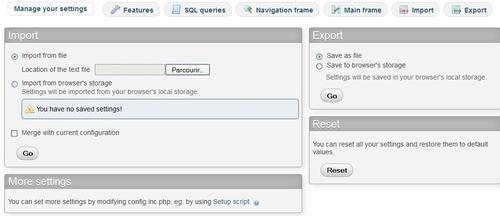
This sub-page is where we act globally on our preferences. Other sub-pages such as Features and Main frame are used to change specific preferences—refer to the Changing settings section.
The Import and Export dialogs will be covered in the Possible locations for saving preferences section. The More settings dialog reminds us that config.inc.php is the place to configure all possibilities, for example, specifying servers and authentication modes is out of scope for user preferences.
The Reset dialog enables us to go back to default values for all user preferences in one easy click.
There are three possible places where user preferences can be saved. Each one has pros and cons; this section covers these modes.
To enable this mode, $cfg['Servers'][$i]['userconfig'] must be configured with the name of the table which holds these preferences, and the table must exist. This saving location is most useful because settings are immediately applied to the running instance upon login; moreover, it follows the user on whichever browser he happens to use.
If this storage is not configured, the settings page greets us with the following message:
Your preferences will be saved for current session only. Storing them permanently requires phpMyAdmin configuration storage.
We always have the possibility of exporting our settings to a file and importing them back. The file follows the JSON format (see http://json.org). This method can be handy in the following situations:
- We plan to use these settings on another phpMyAdmin instance
- We want to keep a history of our settings; therefore, saving them from time to time in several files
Recent browsers, for example Firefox 6 and Internet Explorer 9, offer a local storage mechanism which is persistent between sessions. The first time we enter the Manage your settings sub-page, we see the You have no saved settings! message inside the Import from browser's storage dialog. However, after exporting settings to browser's local storage, the Import section tells us the date and time when settings were last saved using this mechanism.
In addition, when phpMyAdmin settings are found in the browser's storage and the phpMyAdmin configuration storage is not available, each phpMyAdmin page has the following message at the top:
Your browser has phpMyAdmin configuration for this domain. Would you like to import it for current session? Yes / No
A drawback of using this method is that our settings are only available when we are using this browser; moreover, if our browser's settings do not follow us when we change workstations, the settings are tied to this specific workstation (and apply to any other user running phpMyAdmin on it).
Upon entering a sub-page for specific preferences—in this case, the Main frame sub-page, we see a third level of menus related to this subject:
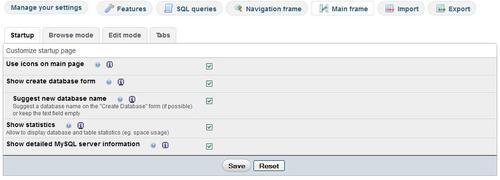
If a preference has been changed from its default value, the checkbox or data field has a different background color and a recycle icon is shown next to it, to quickly reset this preference to its default value. Quick explanations are given for each directive and links point to the documentation and the official wiki. As a general advice, we need to save any change we make on a page before changing to a different sub-page; however, in this example, we can switch from Startup to other third-level menus such as Browse mode and back without losing our changes.
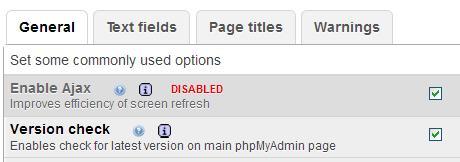
The person in charge of config.inc.php has the last word about which settings are changeable in the user preferences. To disallow some settings, we use the $cfg['UserprefsDisallow'] directive. We place into it an array containing the keys in $cfg that represent the directives to disallow. As an example, we set this directive to:
$cfg['UserprefsDisallow'] = array('AjaxEnable', 'MaxDbList');
This produces a warning as shown in the following screenshot:
Some settings are sensitive and are intended only for the persons developing phpMyAdmin. For example, the possibility of displaying all errors, including PHP notices, can lead to disclose the full path of the phpMyAdmin instance. Therefore, in the Features sub-tab, the Developer menu is shown only if $cfg['UserprefsDeveloperTab'] is set to true.