Table of Contents for
Mastering phpMyAdmin 3.4 for Effective MySQL Management
 Mastering phpMyAdmin 3.4 for Effective MySQL Management
Published by
Packt Publishing, 2012
Mastering phpMyAdmin 3.4 for Effective MySQL Management
Published by
Packt Publishing, 2012
- Cover
- Mastering phpMyAdmin 3.4 for Effective MySQL Management
- Mastering phpMyAdmin 3.4 for Effective MySQL Management
- Credits
- About the Author
- About the Reviewers
- www.PacktPub.com
- Preface
- What you need for this book
- Who this book is for
- Conventions
- Reader feedback
- Customer support
- 1. Getting Started with phpMyAdmin
- What is phpMyAdmin?
- Installing phpMyAdmin
- Configuring phpMyAdmin
- Installing phpMyAdmin configuration storage
- Upgrading phpMyAdmin
- Summary
- 2. Configuring Authentication and Security
- Securing phpMyAdmin
- Summary
- 3. Over Viewing the Interface
- Customizing general settings
- Character sets and collations
- Navigation panel
- Main panel
- User preferences
- Query window
- Summary
- 4. Creating and Browsing Tables
- Creating our first table
- Inserting data manually
- Browse mode
- Profiling queries
- Creating an additional table
- Summary
- 5. Changing Data and Structure
- Changing table structure
- Summary
- 6. Exporting Structure and Data (Backup)
- Exporting a database
- Exporting a table
- Exporting selectively
- Exporting multiple databases
- Saving the export file on the server
- Memory limits
- Summary
- 7. Importing Structure and Data
- Importing SQL files
- Importing CSV files
- Importing other formats
- Reading files from a web server upload directory
- Displaying an upload progress bar
- Summary
- 8. Searching Data
- Performing a complete database search
- Stopping an errant query
- Summary
- 9. Performing Table and Database Operations
- Changing table attributes
- Emptying or deleting a table
- Renaming, moving, and copying tables
- Performing other table operations
- Multi-table operations
- Database operations
- Summary
- 10. Benefiting from the Relational System
- Defining relations with the relation view
- Defining relations with the Designer
- Benefiting from the defined relations
- Column commenting
- Summary
- 11. Entering SQL Statements
- The Query window
- Multi-statement queries
- Pretty printing (syntax highlighting)
- The SQL Validator
- Summary
- 12. Generating Multi-table Queries
- Exploring column criteria
- Generating automatic joins (internal relations)
- Executing the query
- The visual builder
- Summary
- 13. Synchronizing Data and Supporting Replication
- Supporting MySQL replication
- Summary
- 14. Using Query Bookmarks
- Creating bookmarks
- Recalling bookmarks from the bookmarks list
- Passing a parameter to a bookmark
- Summary
- 15. Documenting the System
- Generating relational schemas
- Summary
- 16. Transforming Data using MIME
- Enabling transformations
- Examples of transformations
- Summary
- 17. Supporting Features Added in MySQL 5
- Supporting routines—stored procedures and functions
- Executing code with triggers
- Using information_schema
- Partitioning
- Exploring the event scheduler
- Summary
- 18. Tracking Changes
- Prerequisites
- Principles
- Initiating tracking for one table
- Testing the tracking mechanism
- Determining tracking status
- Structure snapshot
- Exporting a version
- Creating a new version
- Deleting tracking information
- Summary
- 19. Administrating the MySQL Server
- Database information
- Server information
- Summary
- A. Troubleshooting and Support
- Seeking support
- Contributing to the project
Before delving into task-oriented chapters, such as searching and the like, it's appropriate to have a look at the general organization of phpMyAdmin's interface. We will also see configuration parameters and settings that influence the interface as a whole.
The phpMyAdmin interface is composed of various panels and windows, each one having a specific function. We will first provide a quick overview of each panel, and then take a detailed look later in this chapter.
The login panel that appears depends on the authentication type chosen. For the http type, it will take the form of our browser's HTTP authentication pop-up screen. For the cookie type, the phpMyAdmin-specific login panel will be displayed (covered in Chapter 2). For the external authentication (signon), the login panel is handled by the external application itself. By default, a Server choice dialog and a Language selector are present on this panel.
However, if we are using the config authentication type, no login panel is displayed, and the first displayed interface contains the navigation and the main panels.
These panels go together and are displayed during most of our working session with phpMyAdmin. The navigation panel is our guide through the databases and tables. The main panel is the working area where the data is managed and results appear. Its exact layout depends on the choices made from the navigation panel and the sequence of operations performed. For the majority of languages (which are written from left to right) the navigation panel is located on the left side and the main panel is on the right, but for right-to-left languages such as Hebrew, these panels are reversed.
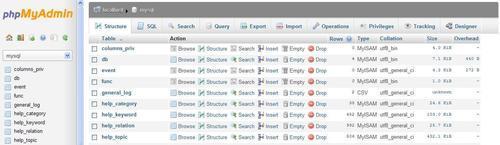
The main panel can take the form of the home page. The home page will then contain various links related to MySQL operations or phpMyAdmin information, a Language selector, and possibly the Theme / Style selector.
In the main panel, we can see the Database view—where we can take various actions about a specific database, or the Table view—where we can access many functions to manage a table. There is also a Server view, useful for both system administrator and non-administrator users. All these views have a top menu, which takes the form of tabs that lead to different pages used to present information regrouped by common functions (table structure, privileges, and so on).
This is a distinct window that is usually opened from the navigation panel—and sometimes from the main panel when editing an SQL query. Its main purpose is to facilitate work on queries and display the results on the main panel.